
 Carmen J. Moore
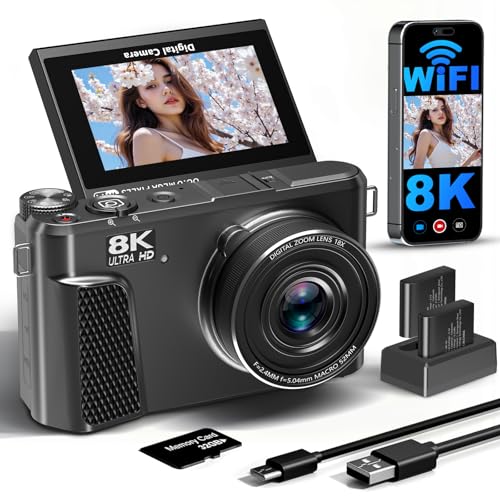
Are you looking for a quick and easy way to transfer photos from your digital camera to your Android tablet? This step-by-step guide will walk you through the process and help you get your photos onto your device in no time.
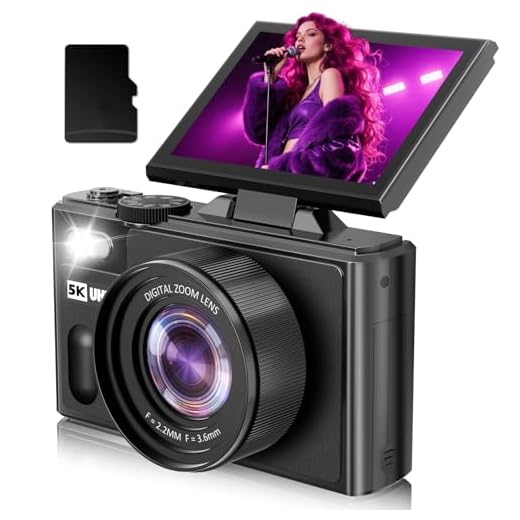


Step 1: First, you’ll need to connect your digital camera to your computer using a USB cable. Once connected, you can access the photos on your camera through your computer’s file explorer.
Note: Make sure your camera is set to “Mass Storage” mode or “PTP” mode to enable file transfer.
Step 2: Next, locate the folder on your camera that contains the photos you want to transfer. Select the photos you want to move to your Android tablet and copy them to a folder on your computer.
Step 3: Now, connect your Android tablet to your computer using a USB cable. Once connected, you can access your tablet’s storage through your computer.
Note: Make sure to unlock your tablet and select “File Transfer” mode when prompted.

Step 4: Finally, locate the folder on your tablet where you want to transfer the photos. Copy the photos from your computer and paste them into the folder on your tablet. Once the transfer is complete, you can disconnect your devices and enjoy your photos on your Android tablet!
Steps to Transfer Photos
Transferring photos from your digital camera to your Android tablet is a simple process that can be done in a few easy steps:
- Connect your digital camera to your computer using a USB cable.
- Copy the photos from your camera to your computer.
- Connect your Android tablet to your computer using a USB cable.
- Transfer the photos from your computer to your Android tablet.
- Alternatively, you can use a microSD card to transfer the photos directly from your camera to your Android tablet.
Connect Camera to Tablet
To transfer photos from your digital camera to your Android tablet, you will need to connect the two devices using a USB cable. Follow these steps to establish the connection:
- Turn off both your camera and tablet.
- Locate the USB port on your camera and the USB port on your tablet.
- Connect one end of the USB cable to the camera and the other end to the tablet.
- Turn on both devices.
- Your tablet should recognize the camera as a storage device.
- Open the file manager on your tablet to access the photos on the camera.
You can now transfer the photos from your camera to your Android tablet by copying them to a folder on your tablet’s internal storage or SD card.
Use File Transfer App
If you prefer a more straightforward method, you can use a file transfer app to move photos from your digital camera to your Android tablet. There are many file transfer apps available on the Google Play Store that can help you easily transfer files between devices.

Here’s how you can use a file transfer app to transfer photos:
- Download and install a file transfer app on both your digital camera and Android tablet.
- Connect both devices to the same Wi-Fi network.
- Open the file transfer app on both devices.
- Select the photos you want to transfer from your digital camera.
- Choose the option to send the photos via Wi-Fi or Bluetooth to your Android tablet.
- Accept the incoming file transfer on your Android tablet to complete the process.
Using a file transfer app is a convenient way to quickly and wirelessly transfer photos from your digital camera to your Android tablet.
Select Photos to Transfer
Once you have connected your digital camera to your Android tablet, you will need to select the photos you want to transfer. Open the file manager app on your tablet and navigate to the folder where your photos are stored on the camera.
Next, select the photos you want to transfer by tapping on them. You can select multiple photos by tapping and holding on one photo and then tapping on the others you want to transfer.
Once you have selected all the photos you want to transfer, look for the option to copy or move the selected photos to your tablet’s storage. This option is usually located in the menu or as an icon at the top or bottom of the screen.
Transfer Photos to Tablet
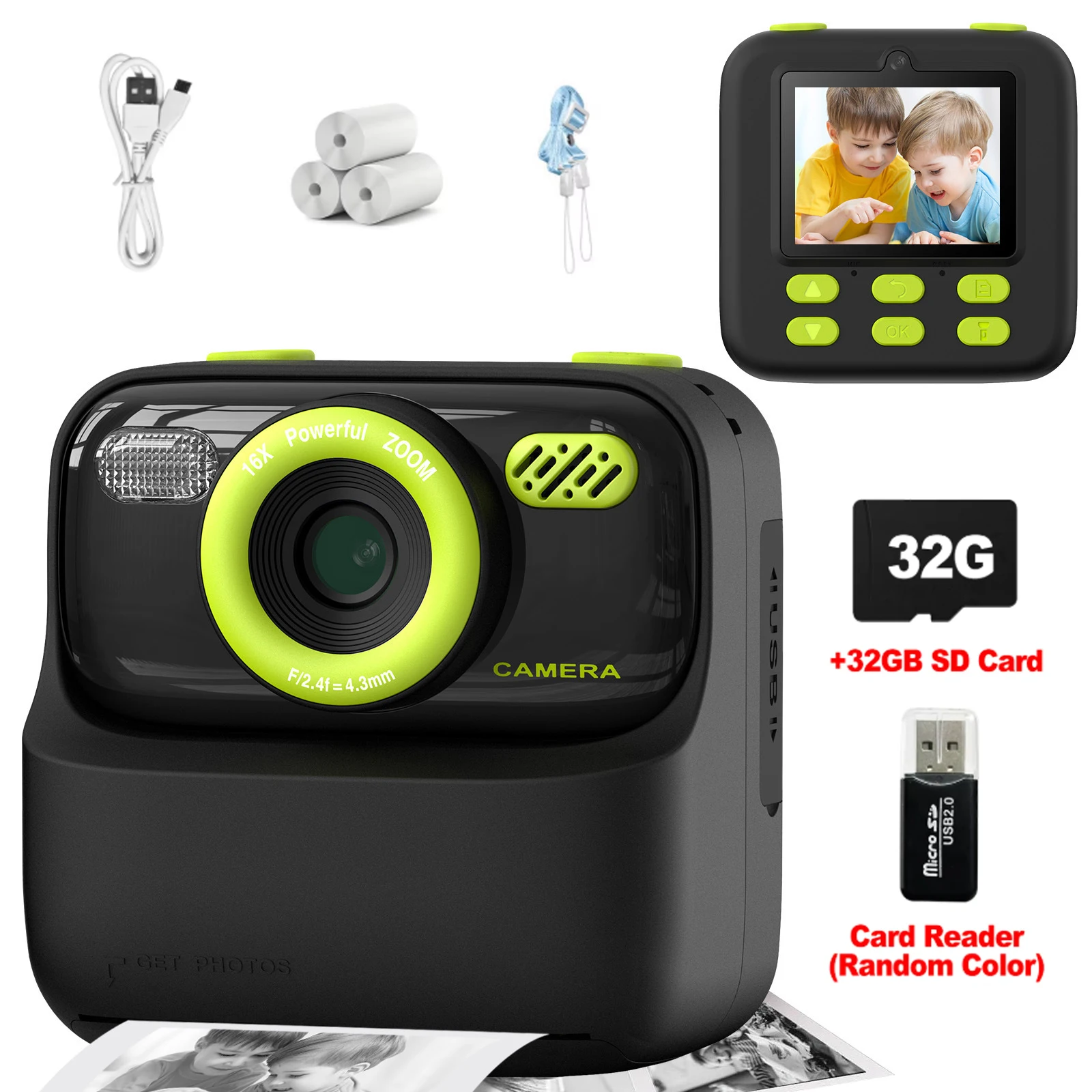
To transfer photos from your digital camera to your Android tablet, you can follow these simple steps:
Step 1: Connect Your Camera to Your Tablet
Use a USB cable to connect your digital camera to your Android tablet. Make sure both devices are turned on and unlocked.
Step 2: Access Your Camera’s Storage
Once connected, your tablet should recognize the camera as a storage device. Open the file manager on your tablet and navigate to the camera’s storage folder.
| Device | Location |
|---|---|
| Camera | DCIM folder |
| Tablet | Internal storage or SD card |
Find the folder containing your photos on the camera and select the images you want to transfer.
Verify Photo Transfer
Once the photos have been transferred from your digital camera to your Android tablet, it is important to verify that the transfer was successful. Follow these steps to ensure that your photos are safely stored on your device:

Check Photo Gallery
Open the Photo Gallery app on your Android tablet and navigate to the folder where the transferred photos should be located. Scroll through the photos to confirm that all the transferred photos are visible and accessible.
Compare File Counts
Go to the file manager on your Android tablet and locate the folder where the transferred photos are stored. Check the file count in the folder to ensure that it matches the number of photos you transferred from your digital camera.
FAQ
What is the easiest way to transfer photos from a digital camera to an Android tablet?
The easiest way to transfer photos from a digital camera to an Android tablet is by using a USB OTG (On-The-Go) cable. Connect the camera to the Android tablet using the USB OTG cable, and the tablet should recognize the camera as a storage device, allowing you to access and transfer the photos.
Can I transfer photos wirelessly from my digital camera to my Android tablet?
Yes, you can transfer photos wirelessly from your digital camera to your Android tablet if both devices support Wi-Fi Direct or you have a wireless SD card in your camera. With Wi-Fi Direct, you can establish a direct connection between the camera and tablet to transfer photos without the need for cables. Alternatively, a wireless SD card can automatically send photos to your tablet over a Wi-Fi network.
What apps can I use to transfer photos from a digital camera to an Android tablet?
There are several apps available on the Google Play Store that can help you transfer photos from a digital camera to an Android tablet. Some popular apps include “Photo Transfer App,” “WiFi File Transfer,” and “AirDroid.” These apps allow you to wirelessly transfer photos between devices or over a Wi-Fi network, making it convenient to move your photos from the camera to the tablet.





I have an older digital camera that doesn't seem to have a 'Mass Storage' mode. Is there any way to transfer photos from it to my Android tablet without this option?
I recently tried transferring photos using a USB OTG cable, and it worked like a charm! I just connected my camera directly to the tablet, and it recognized it right away. Much faster than going through a computer. Just a heads up, though—make sure your camera is compatible with OTG!
Thanks for sharing your experience! Using a USB OTG cable is indeed one of the quickest methods for compatible devices.