
 Carmen J. Moore

Are you looking for a convenient way to transfer your photos from a digital camera to your Android phone? With the advancement of technology, it has become easier than ever to share and access your photos across different devices. Whether you want to quickly upload your photos to social media or simply keep them on your phone for easy viewing, transferring them from your camera to your Android device is a simple process.


In this article, we will explore various methods that you can use to transfer photos from your digital camera to your Android phone. From using a USB cable to wireless transfer options, we will guide you through the steps to ensure a seamless transfer experience. Say goodbye to the hassle of transferring photos manually and embrace the convenience of modern technology!
Step-by-Step Guide to Transfer Photos
Transferring photos from your digital camera to your Android phone can be a simple process if you follow these steps:
- Connect your digital camera to your computer: Use the USB cable that came with your camera to connect it to your computer. Make sure your computer recognizes the camera as a storage device.
- Transfer photos to your computer: Open the folder containing your camera’s photos on your computer. Select the photos you want to transfer and copy them to a folder on your computer.
- Connect your Android phone to your computer: Use a USB cable to connect your Android phone to your computer. Make sure your phone is in file transfer mode.
- Transfer photos to your Android phone: Open the folder on your computer where you saved the photos from your camera. Copy the photos and paste them into a folder on your Android phone.
- Check your Android phone: Disconnect your phone from the computer and open your gallery app to see if the transferred photos are there.
Connect Your Digital Camera
Before you can transfer photos from your digital camera to your Android phone, you need to establish a connection between the two devices. Here’s how you can do it:
- USB Cable: Most digital cameras come with a USB cable that you can use to connect your camera to your Android phone. Simply plug one end of the USB cable into your camera and the other end into your phone’s USB port.
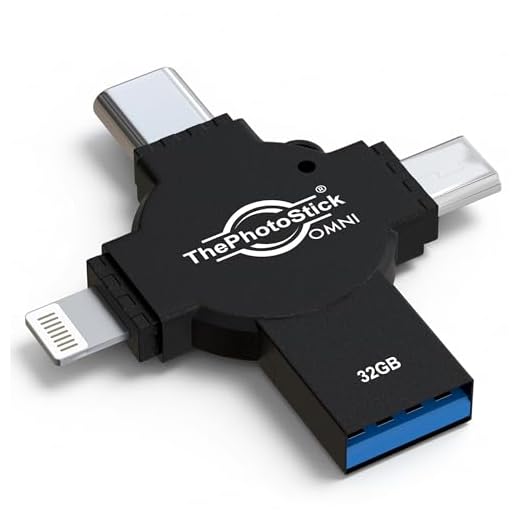
- Adapter: If your camera uses a different type of cable, you may need to use an adapter to connect it to your phone. Make sure the adapter is compatible with both devices.
- Wireless Transfer: Some newer cameras support wireless transfer of photos. Check if your camera has this feature and follow the instructions to connect it to your phone wirelessly.
Once you have established a connection between your digital camera and Android phone, you can proceed to transfer photos from your camera to your phone using the appropriate method.
Access Your Camera’s Storage
Before you can transfer photos from your digital camera to your Android phone, you need to access the storage on your camera. Most digital cameras use a memory card to store photos, so you will need to remove the memory card from your camera.

Step 1: Turn off your camera and locate the memory card slot. Open the slot and remove the memory card carefully.
Step 2: Insert the memory card into a card reader or adapter that is compatible with your Android phone. Connect the card reader or adapter to your phone using a USB cable or adapter.
Select the Photos You Want to Transfer
Before transferring photos from your digital camera to your Android phone, it’s important to select the specific photos you want to transfer. This will help you save time and storage space on your phone. Here are the steps to select the photos:
| 1. | Turn on your digital camera and navigate to the photos you want to transfer. |
| 2. | Use the camera’s built-in display or controls to select the individual photos or create a selection of multiple photos. |
| 3. | Ensure that the selected photos are saved or stored in a location that is accessible for transfer, such as the camera’s memory card. |
Connect Your Android Phone
Before transferring photos from your digital camera to your Android phone, you need to connect the two devices. Here’s how you can do it:
- Use a USB cable: Most digital cameras come with a USB cable that you can use to connect your camera to your Android phone. Simply plug one end of the USB cable into your camera and the other end into your phone’s USB port.
- Enable USB transfer mode: Once the devices are connected, you may need to enable USB transfer mode on your Android phone. This setting can usually be found in the phone’s notification panel or settings menu.
After following these steps, your digital camera should be connected to your Android phone, and you can proceed with transferring photos.

Transfer Photos via USB Cable
If you have a USB cable that is compatible with both your digital camera and Android phone, you can easily transfer photos between the two devices. Here’s how:
Step 1: Connect the USB Cable
First, connect one end of the USB cable to your digital camera and the other end to your Android phone. Make sure both devices are powered on.
Step 2: Access the Camera Storage
On your Android phone, you may need to open the File Manager app to access the storage of your digital camera. Look for the camera folder or DCIM folder where your photos are stored.
Use a Memory Card Reader
If your digital camera uses a memory card to store photos, you can easily transfer them to your Android phone using a memory card reader. Here’s how:
| 1. | Remove the memory card from your camera. |
| 2. | Insert the memory card into a memory card reader. |
| 3. | Connect the memory card reader to your Android phone using an OTG (On-The-Go) adapter. |
| 4. | Open the file manager on your Android phone and navigate to the memory card folder. |
| 5. | Copy the photos from the memory card to your Android phone’s storage. |
| 6. | You can now access and view the transferred photos on your Android phone. |
Transfer Photos Wirelessly
If you want to transfer photos from your digital camera to your Android phone wirelessly, you can do so using various methods. One common way is to use a Wi-Fi-enabled SD card in your camera. These SD cards allow you to connect your camera to your phone via a Wi-Fi network and transfer photos directly.

Steps to Transfer Photos Wirelessly:
- Insert a Wi-Fi-enabled SD card into your camera.
- Connect your camera to a Wi-Fi network.
- Download the corresponding app for the SD card on your Android phone.
- Open the app on your phone and follow the instructions to connect to your camera.
- Select the photos you want to transfer and initiate the transfer process.
By following these steps, you can easily transfer photos wirelessly from your digital camera to your Android phone without the need for any cables or additional hardware.
Check the Photos on Your Android Phone
Once you have transferred the photos from your digital camera to your Android phone, it’s important to check that they have been successfully transferred. Here’s how you can check the photos on your Android phone:
1. Open the Gallery App
Go to your Android phone’s home screen and locate the Gallery app. Tap on the app icon to open it.
2. Navigate to the Photos Folder
Once the Gallery app is open, navigate to the folder where the transferred photos are stored. This folder may be named “Camera Roll” or “Photos” depending on your phone’s settings.
You should now be able to view all the transferred photos from your digital camera on your Android phone. You can swipe through the photos, zoom in or out, and share them with others as needed.

Organize Your Photos on Your Phone
Once you have transferred your photos from your digital camera to your Android phone, it’s important to organize them for easy access and enjoyment. Here are some tips to help you keep your photo collection organized:
- Create Folders: Organize your photos into different folders based on events, dates, or categories. This will make it easier to find specific photos later on.
- Add Tags and Descriptions: Adding tags and descriptions to your photos can help you quickly search for specific images using keywords.
- Use Photo Management Apps: Consider using photo management apps like Google Photos or Adobe Lightroom to help you organize and edit your photos.
- Backup Your Photos: Make sure to regularly backup your photos to prevent loss in case of device damage or loss.
- Delete Unwanted Photos: Periodically go through your photo collection and delete any duplicates or unwanted images to free up storage space.
FAQ
What is the easiest way to transfer photos from a digital camera to an Android phone?
The easiest way to transfer photos from a digital camera to an Android phone is by using a USB cable. Simply connect your digital camera to your Android phone using the USB cable that came with your camera. Your Android phone should recognize the camera as an external storage device, allowing you to access and transfer your photos easily.
Can I transfer photos wirelessly from my digital camera to my Android phone?
Yes, you can transfer photos wirelessly from your digital camera to your Android phone using a Wi-Fi connection. Some cameras have built-in Wi-Fi capabilities that allow you to connect to your Android phone and transfer photos directly. Alternatively, you can use a Wi-Fi SD card in your camera to transfer photos wirelessly to your Android phone.
Is it possible to transfer photos from a digital camera to an Android phone without using a computer?
Yes, it is possible to transfer photos from a digital camera to an Android phone without using a computer. You can use a USB OTG (On-The-Go) adapter to connect your camera directly to your Android phone. This adapter allows you to plug in your camera’s USB cable and transfer photos to your phone without the need for a computer.
What are some apps that can help with transferring photos from a digital camera to an Android phone?
There are several apps available on the Google Play Store that can help you transfer photos from a digital camera to an Android phone. Some popular apps include “PhotoSync,” “Wi-Fi File Transfer,” and “AirDroid.” These apps offer wireless transfer options, making it convenient to transfer photos from your camera to your Android phone.





I recently tried transferring photos using a memory card reader, and it worked perfectly! I just pulled the card out of my Nikon and used an OTG adapter to connect it to my Android. The File Manager made it super easy to find the photos. Just a tip: make sure you safely eject the card before removing it to avoid any corruption.
Thanks for sharing your experience! Using a memory card reader is often the quickest method, especially if you have a lot of photos to transfer. Remember to always eject the card properly to maintain data integrity.
Is there a specific USB cable I should use for connecting my camera to my Android phone? I have a Canon camera and a Samsung phone.