
 Carmen J. Moore

Taking timer pictures with a digital camera can be a fun and creative way to capture moments with yourself or your friends and family without needing someone to hold the camera. Setting up the timer function on your camera allows you to position yourself in the frame and strike a pose before the picture is taken. In this guide, we will walk you through the steps to take timer pictures with a digital camera.

Step 1: Familiarize Yourself with Your Camera’s Settings
Before you start taking timer pictures, it’s important to understand how to access and adjust the timer settings on your digital camera. Check your camera’s manual or menu options to locate the timer function and learn how to set the delay time for the timer.
Step-by-step guide to taking timer pictures
Using the timer function on your digital camera can help you capture perfect moments without the need for someone else to take the picture. Follow these steps to take timer pictures with your digital camera:
-
Set up your camera
Place your camera on a stable surface or tripod to prevent any blurriness in the photo. Make sure the camera is facing the right direction and adjust the angle if necessary.
-
Access the timer function
Find the timer function on your camera. This setting is usually represented by a clock icon or labeled as “timer” in the camera menu.
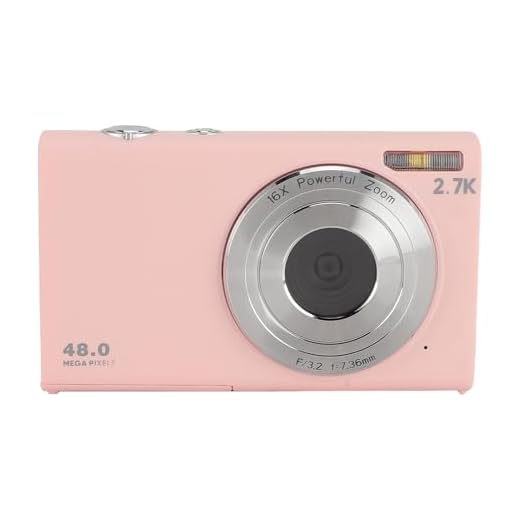
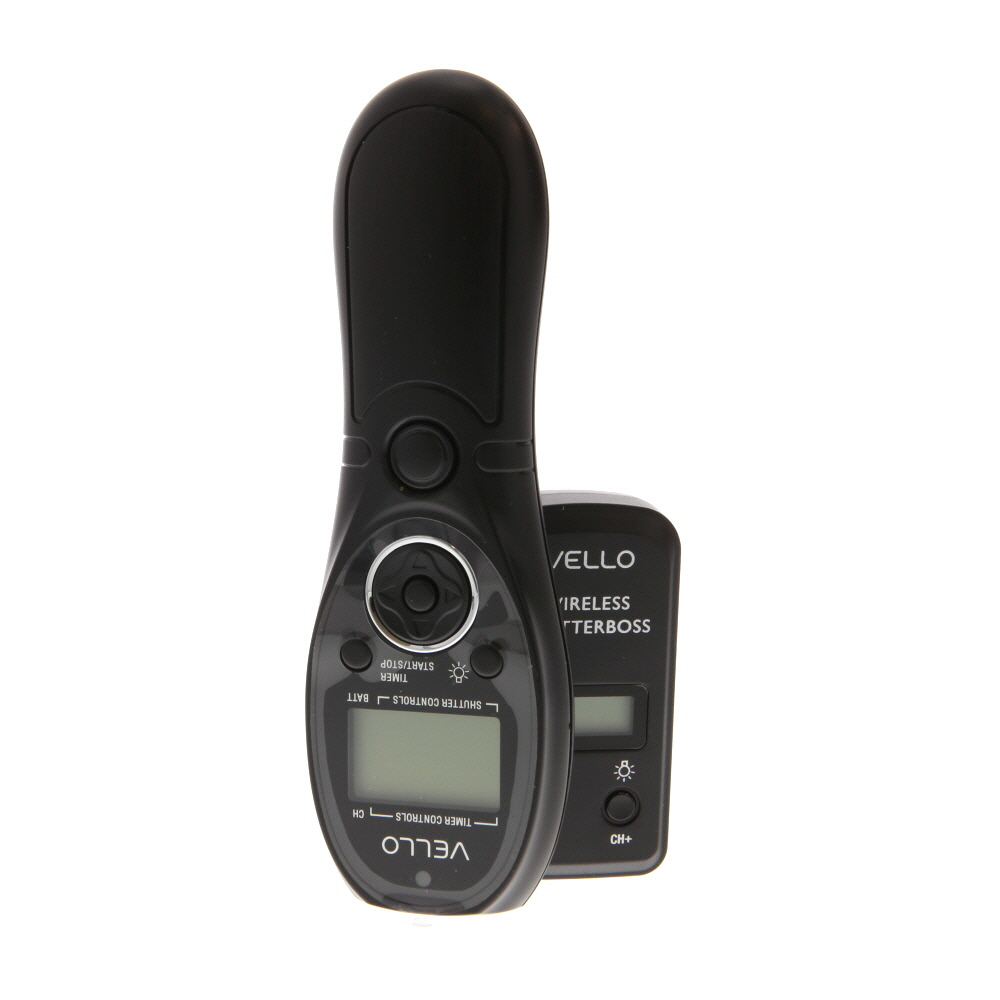
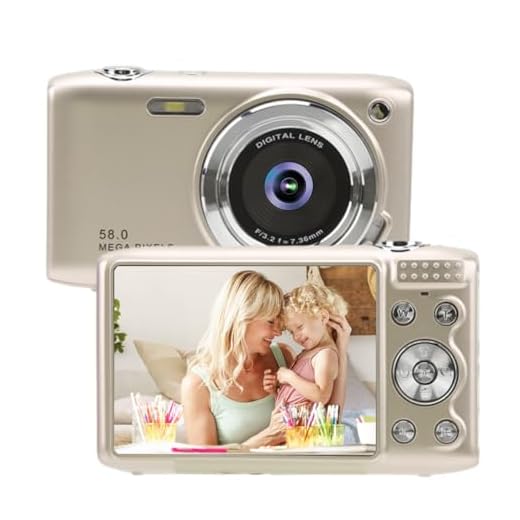
Best Overall 5K Vlogging Camera for BeginnersIncludes 32GB Card and 18X ZoomCapture stunning 80MP photos and 5K videos with the Dorida Vlogging Digital Camera. Its 180° flip screen and 18x zoom make it perfect for selfies and capturing memorable moments effortlessly.
 -
Adjust the timer settings
Set the timer delay according to your preference. Common options include 2, 5, or 10 seconds. Choose the appropriate delay based on the time you need to get into position for the photo.
-
Compose your shot
Frame your shot and make any necessary adjustments to the focus and exposure settings. Ensure that everything is set up the way you want it to be captured in the photo.
-
Activate the timer
Press the shutter button to activate the timer. Some cameras may emit a beeping sound or flash a light to indicate that the timer is counting down.
-
Get into position
Once the timer is activated, quickly get into your desired position for the photo. Be mindful of the countdown and be ready to strike a pose or smile when the shutter clicks.
-
Review your picture
After the timer goes off and the photo is taken, review the image on your camera’s display screen. Make sure the shot turned out the way you wanted and retake it if necessary.
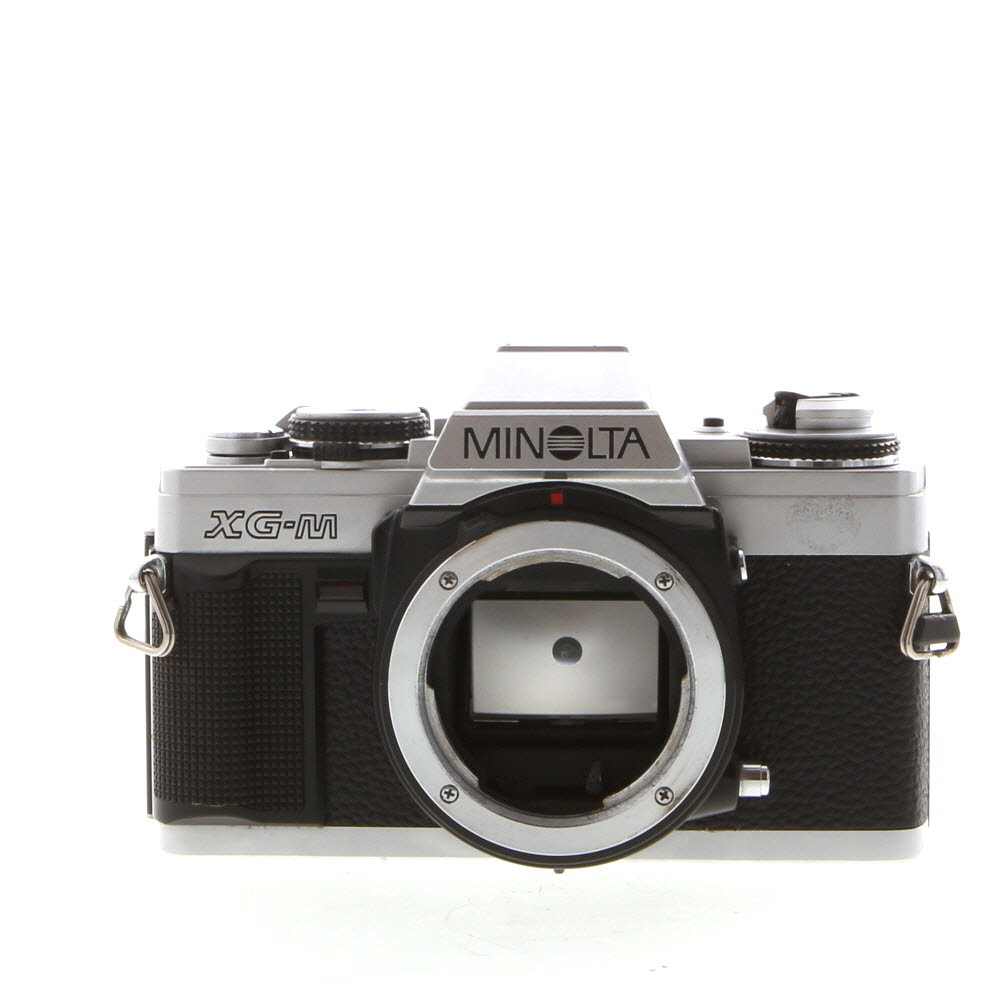
Premium Performance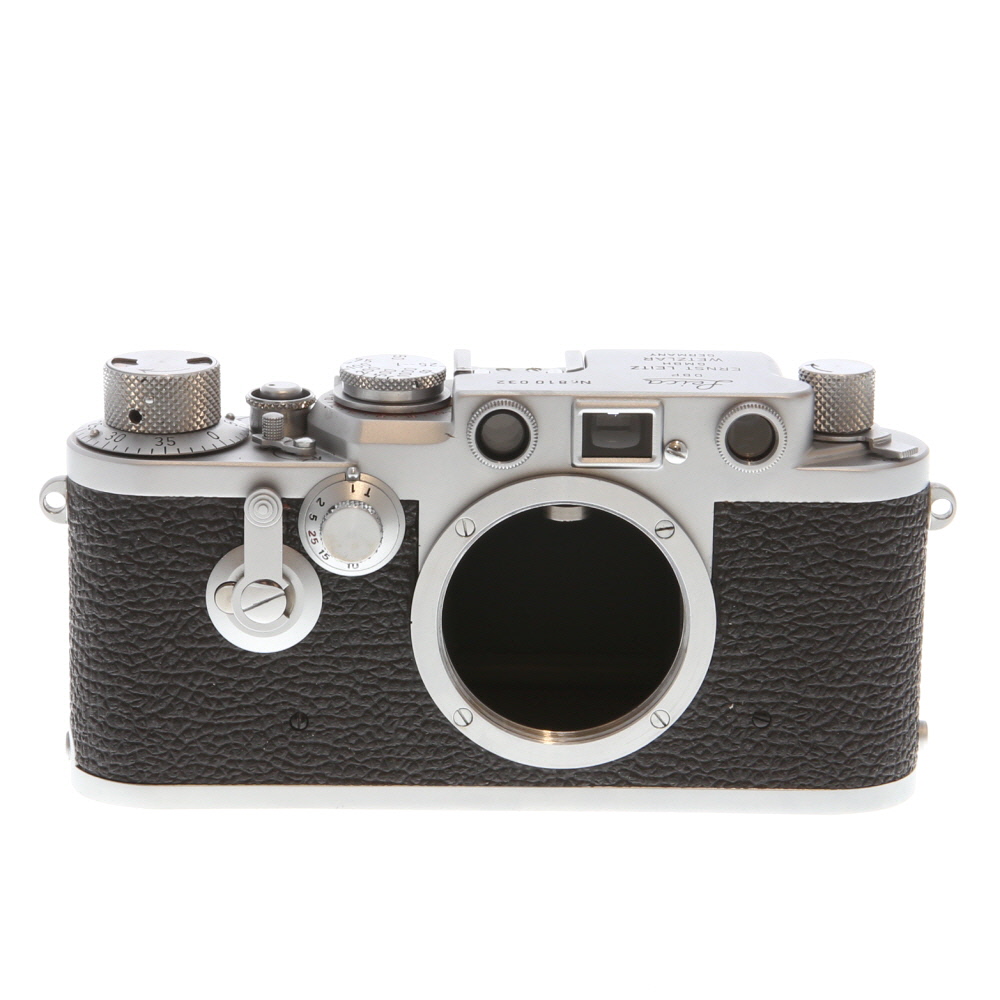 Leica IIIF Red Dial 35mm CameraIconic rangefinder with classic designThe Leica IIIF Red Dial is a classic 35mm rangefinder camera with a built-in self-timer. Its chrome body not only adds to its aesthetic appeal but also enhances durability, making it a great choice for photography enthusiasts.
| Pro tip: | Experiment with different timer settings and shooting locations to capture unique and creative timer pictures with your digital camera. |
Setting up your digital camera
Before taking timer pictures with your digital camera, you need to make sure it is set up correctly. Follow these steps to ensure your camera is ready to capture the perfect shot:
1. Check the timer function
First, locate the timer function on your camera. This is usually represented by a clock icon or a timer symbol. Consult your camera’s manual if you are unsure where to find it.
2. Adjust the timer settings
Once you have found the timer function, adjust the settings according to your preferences. You can typically set the delay time (usually ranging from a few seconds to several minutes) and the number of shots to be taken.
- Set the delay time: Choose how long the camera should wait before capturing the image after pressing the shutter button.
- Set the number of shots: Decide if you want the camera to take a single shot or multiple shots in succession.
By setting up your digital camera correctly, you can ensure that your timer pictures turn out just the way you want them.
Choosing the right location
Adjusting the timer settings
Before taking timer pictures with your digital camera, you need to adjust the timer settings. Here’s how:

- Access the camera’s menu by pressing the menu button.
- Navigate to the timer settings option. This can usually be found in the shooting or capture settings section.
- Select the timer duration. Depending on your camera model, you may have options like 2 seconds, 5 seconds, or 10 seconds.
- Adjust any other relevant settings, such as the number of shots to be taken in succession.
Once you have set the timer settings to your preferences, you are ready to take timer pictures with your digital camera. Make sure to position the camera securely and strike your pose before the timer goes off!
Positioning the camera
When setting up your digital camera for timer pictures, it is crucial to position the camera correctly to capture the desired shot. Here are some tips for positioning the camera:
- Place the camera on a stable surface or tripod to avoid blurriness caused by camera shake.
- Ensure that the camera is level to prevent skewed or tilted images.
- Position the camera at the desired angle and height to frame the shot properly.
- Consider the lighting conditions and adjust the camera position accordingly for the best exposure.
Posing for the perfect shot
When taking timer pictures with a digital camera, posing plays a crucial role in getting the perfect shot. Here are some tips to help you pose effectively:
1. Find the right angle
Experiment with different angles to find the most flattering one for your pose. Tilt your head slightly, stand at an angle, or try a different perspective to enhance your features.
2. Relax and be natural
Avoid stiff poses and forced smiles. Relax your shoulders, stand comfortably, and let your natural smile shine through. The more relaxed you are, the better your picture will turn out.

Pro tip: Use a timer delay that gives you enough time to get into position and relax before the picture is taken.
Reviewing and retaking photos
After taking timer pictures with your digital camera, it’s important to review them to ensure they meet your expectations. Check the composition, focus, lighting, and overall quality of each photo. If you’re not satisfied with the results, don’t hesitate to retake the photos.
When reviewing your timer pictures, pay attention to details such as facial expressions, poses, and background distractions. Make sure the subjects are well-positioned and that the camera settings are appropriate for the desired outcome.
If you notice any issues with the timer pictures, consider adjusting the camera settings, changing the composition, or trying a different location. Don’t be afraid to experiment and take multiple shots to capture the perfect moment.
Remember that practice makes perfect, so don’t get discouraged if your timer pictures don’t turn out as expected. Keep experimenting, reviewing, and retaking photos until you achieve the desired results.
Sharing your timer pictures online
Once you have taken timer pictures with your digital camera, you may want to share them online with friends and family. Here are some tips for sharing your timer pictures:
1. Upload to social media: Share your timer pictures on social media platforms like Facebook, Instagram, or Twitter to reach a wider audience.
2. Create an online album: Use photo-sharing websites like Flickr or Google Photos to create albums of your timer pictures and easily share them with others.
3. Send via email: Email your timer pictures to friends and family members who may not be on social media to share your special moments with them.
4. Print and frame: For a more personal touch, print your timer pictures and frame them as gifts for loved ones.

Sharing your timer pictures online allows you to showcase your photography skills and preserve memories for years to come.
FAQ
What equipment do I need to take timer pictures with a digital camera?
To take timer pictures with a digital camera, you will need a digital camera with a timer function, a stable surface or tripod to place the camera on, and a remote control (if available) to trigger the camera without touching it.
How do I set the timer on my digital camera to take pictures?
To set the timer on your digital camera, usually, you need to access the camera’s menu, navigate to the timer settings, choose the delay time (usually 2, 5, or 10 seconds), and then press the shutter button to start the timer countdown before the picture is taken.
What are some tips for taking timer pictures with a digital camera?
Some tips for taking timer pictures with a digital camera include using a tripod or stable surface to avoid camera shake, setting the timer for a few seconds to give yourself time to pose, adjusting the camera settings for the desired exposure, and experimenting with different compositions and angles.
Can I use the timer function on my digital camera for group photos?
Yes, you can definitely use the timer function on your digital camera for group photos. Simply set the timer, position the camera, and make sure everyone is ready before the timer countdown begins. This way, you can be part of the group photo without needing someone else to take the picture.




Pro tip: using a tripod really helps stabilize the camera for sharper photos when using the timer!
I’ve been using the timer function for family photos and it’s been a game changer! I set it to 10 seconds so everyone has time to get ready. The photos turn out much better than when someone tries to take them for us. Just make sure to practice your pose first!
I find the 2-second timer too short! It doesn’t give me enough time to get into position. I prefer the 10-second option.
Can you clarify if the timer function allows for multiple shots? I’d like to get a few options in case someone blinks.
I’m new to using a digital camera. Can someone explain how to find the timer function? Is it the same for all camera brands?