
 Carmen J. Moore

Sending pictures from a digital camera to an email address is a convenient way to share your photos with friends and family. Whether you have a DSLR, point-and-shoot camera, or even a smartphone, the process is relatively straightforward.
In this guide, we will walk you through the steps to transfer your photos from your camera to your computer and then attach them to an email for easy sharing.
By following these simple instructions, you’ll be able to send your favorite pictures in no time!




Step-by-Step Guide: Sending Pictures from Digital Camera to Email
Do you want to share your captured moments with friends and family? Follow these simple steps to send pictures from your digital camera to email:
Step 1: Connect Your Camera
Use the USB cable that came with your digital camera to connect it to your computer. Make sure your camera is turned on and set to the appropriate mode for transferring files.
Step 2: Transfer Pictures
Once connected, your computer should recognize the camera as a removable storage device. Open the folder that contains your pictures and select the ones you want to send via email. Copy these files to a location on your computer for easy access.
Note: If your camera requires specific software for transferring files, make sure it is installed on your computer.
Step 3: Compose Email
Open your email client and start composing a new email. Enter the recipient’s email address, subject, and message as needed.

Pro Tip: Consider resizing your pictures before attaching them to the email to reduce file size and make sending faster.
Finally, attach the pictures you copied earlier by clicking the “Attach” or “Insert” button in your email client. Select the files you want to send, and once attached, hit send!
Now your loved ones can enjoy your pictures with just a click of their inbox. Happy sharing!
Prepare Your Digital Camera
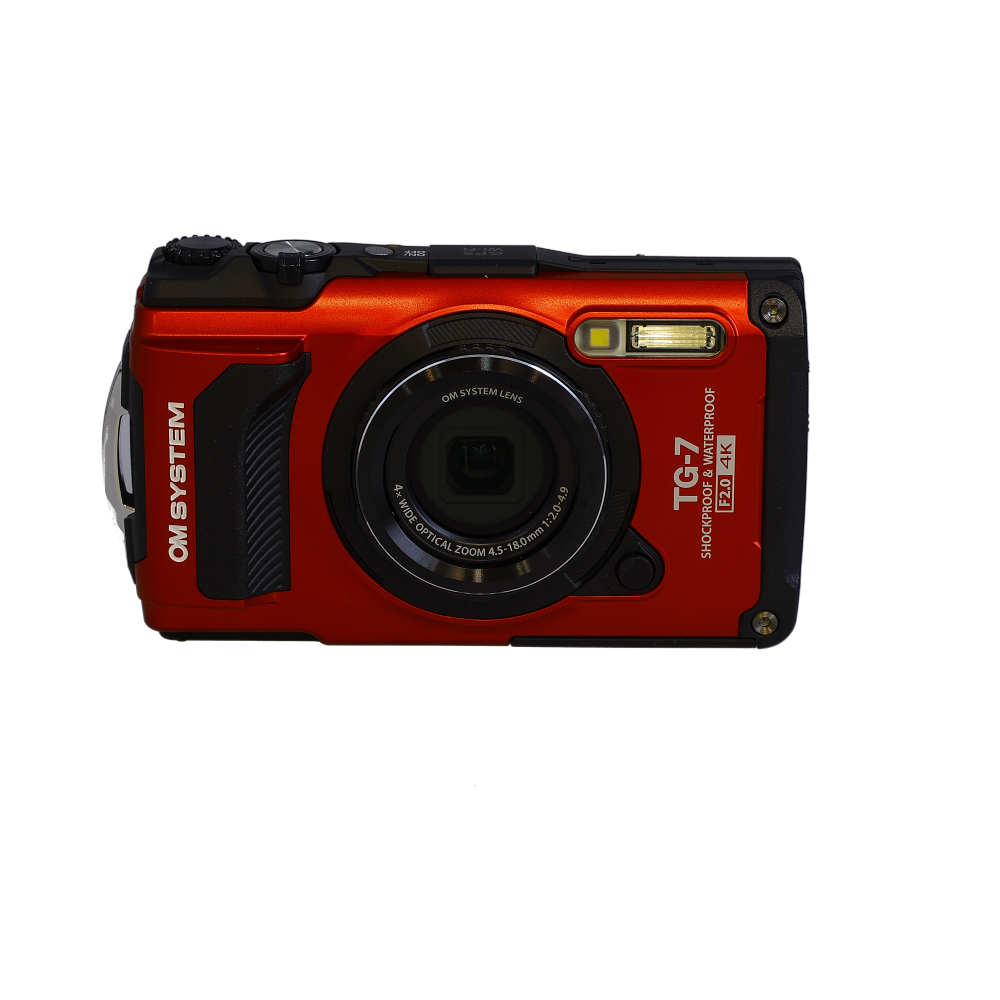
Before you can send pictures from your digital camera to email, you need to make sure your camera is ready for the process. Here are some steps to prepare your camera:
1. Check the Battery Level
Ensure that your camera has enough battery power to transfer the pictures to your computer and then to email. Charge your camera if needed to avoid interruptions during the process.
2. Insert a Memory Card
Make sure your camera has a memory card inserted with enough storage space to save the pictures you want to send. If the memory card is full, transfer the existing pictures to your computer or delete some of them to free up space.
| 3. Connect the Camera to Your Computer | Use the USB cable that came with your camera to connect it to your computer. Follow the instructions on the camera’s screen to establish a connection between the two devices. |
Connect Your Camera to Computer
To transfer photos from your digital camera to your email, you first need to connect your camera to your computer using a USB cable. Make sure your camera is turned off before connecting it to the computer. Once connected, turn on your camera. Your computer should detect the camera as a new device and prompt you to open it to view the files. If not, you may need to install the necessary drivers for your camera.
Transfer Photos to Computer
Transferring photos from your digital camera to your computer is a simple process that allows you to easily manage and share your pictures. Here are the steps to transfer photos to your computer:
- Connect your digital camera to your computer using a USB cable.
- Turn on your digital camera and set it to the appropriate mode for transferring photos.
- Open the file explorer on your computer and locate the connected camera device.
- Copy the photos from your camera to a folder on your computer by dragging and dropping them or using the copy-paste function.
- Once the photos are transferred, you can organize them into folders, edit them, and share them with friends and family.
By following these steps, you can easily transfer photos from your digital camera to your computer and enjoy your memories on a larger screen.
Compress Images for Email
Sending large image files via email can be slow and cumbersome. To make the process smoother and faster, it’s important to compress your images before attaching them to your email. Compressing images reduces their file size without significantly compromising their quality.

Here are some tips for compressing images:
1. Use image editing software: Programs like Adobe Photoshop or online tools like TinyPNG can help you easily compress your images while maintaining good quality.
2. Resize images: Reduce the dimensions of your images to make them smaller in file size. Remember that smaller images may also reduce the quality, so find a balance between size and quality.
3. Choose the right file format: JPEG is a good format for photographs, while PNG is better for images with transparency. Choose the appropriate format to optimize file size.
4. Use compression tools: Tools like WinZip or 7-Zip can help you compress multiple image files into a single archive for easier emailing.

By compressing your images before sending them via email, you can save time and ensure that your recipients receive your photos quickly and efficiently.
Open Your Email Client
Before you can send pictures from your digital camera to email, you need to open your email client. This could be a web-based email service like Gmail, Yahoo Mail, or Outlook, or a desktop email program like Microsoft Outlook or Thunderbird.
Once you have your email client open, you can start composing a new email to begin the process of attaching and sending your pictures.
Attach and Send Pictures
Once you have transferred your pictures from your digital camera to your computer, you can easily attach them to an email and send them to friends and family. Follow these simple steps:
- Open your email client and start composing a new email.
- Click on the attachment icon (usually a paperclip symbol).
- Select the pictures you want to attach from your computer’s files.
- Once the pictures are attached, you can add a message to your email if desired.
- Double-check that the pictures are attached correctly before sending the email.
Now you’re ready to share your favorite photos with others via email!
FAQ
Is it possible to send pictures directly from a digital camera to an email address without a computer?
It is generally not possible to send pictures directly from a digital camera to an email address without a computer. Most digital cameras do not have the capability to send emails on their own. You would need to transfer the pictures from the camera to a computer first, and then send them via email using the computer.
What are some ways to send pictures from a digital camera to email wirelessly?
To send pictures from a digital camera to email wirelessly, you can use a Wi-Fi-enabled camera or a camera with Bluetooth connectivity. With a Wi-Fi-enabled camera, you can connect to your home Wi-Fi network and transfer the pictures directly to your computer or mobile device, from where you can then send them via email. Cameras with Bluetooth can also transfer pictures wirelessly to a computer or mobile device for emailing.
Can I send pictures from a digital camera to email using a mobile device?
Yes, you can send pictures from a digital camera to email using a mobile device. You would first need to transfer the pictures from the camera to your mobile device, either through a direct connection or using a memory card. Once the pictures are on your mobile device, you can compose an email, attach the pictures to it, and send it to the desired email address.
Are there any online services that can help me send pictures from a digital camera to email?
Yes, there are online services that can help you send pictures from a digital camera to email. Some cloud storage services, like Google Drive or Dropbox, allow you to upload pictures from your camera to their servers and then share the files via email. Additionally, some camera manufacturers offer apps or online platforms that facilitate the transfer of pictures from the camera to email or social media.



Does the method differ for point-and-shoot cameras compared to DSLRs?
The method is generally the same for both types of cameras. Just ensure that you follow the manufacturer's instructions for your specific model.
I tried this method with my DSLR, and it worked perfectly! Just make sure to check the battery first. I lost a few pictures because the battery died mid-transfer once.
Thanks for sharing your experience! It's always a good idea to ensure your camera is fully charged before starting the transfer.
Remember to keep your images in JPEG format for emails. It helps with size reduction!
What if my camera doesn't have a USB port? Can I still send pictures to email?
I disagree with the idea that images need resizing. I prefer sending high-quality images, and my recipients can handle the larger files without issues. It's just about how you manage your email storage.
While sending high-quality images is important, resizing can help ensure faster delivery and avoid issues with email size limits. It's a balance based on individual needs.
I've used both Google Drive and email to share pictures. Google Drive is definitely better for larger albums, but for just a few photos, email is quicker and easier.