
 Carmen J. Moore

Sony Cyber-shot digital cameras are known for their high-quality images and user-friendly features. If you’ve captured some amazing shots with your Cyber-shot camera and want to bring them to life in print, you’re in the right place. Printing pictures from your Sony camera is a straightforward process that can be done at home or through a professional printing service.
First, you’ll need to transfer the photos from your Sony Cyber-shot camera to your computer. Connect your camera to the computer using a USB cable or remove the memory card and insert it into a card reader. Once the photos are on your computer, you can choose the best ones to print.
Next, you can print the pictures using your home printer or take them to a local printing shop for professional results. Make sure to adjust the print settings to match the size and quality of your photos for the best results. With these simple steps, you can enjoy your Sony Cyber-shot pictures in print and share them with friends and family.

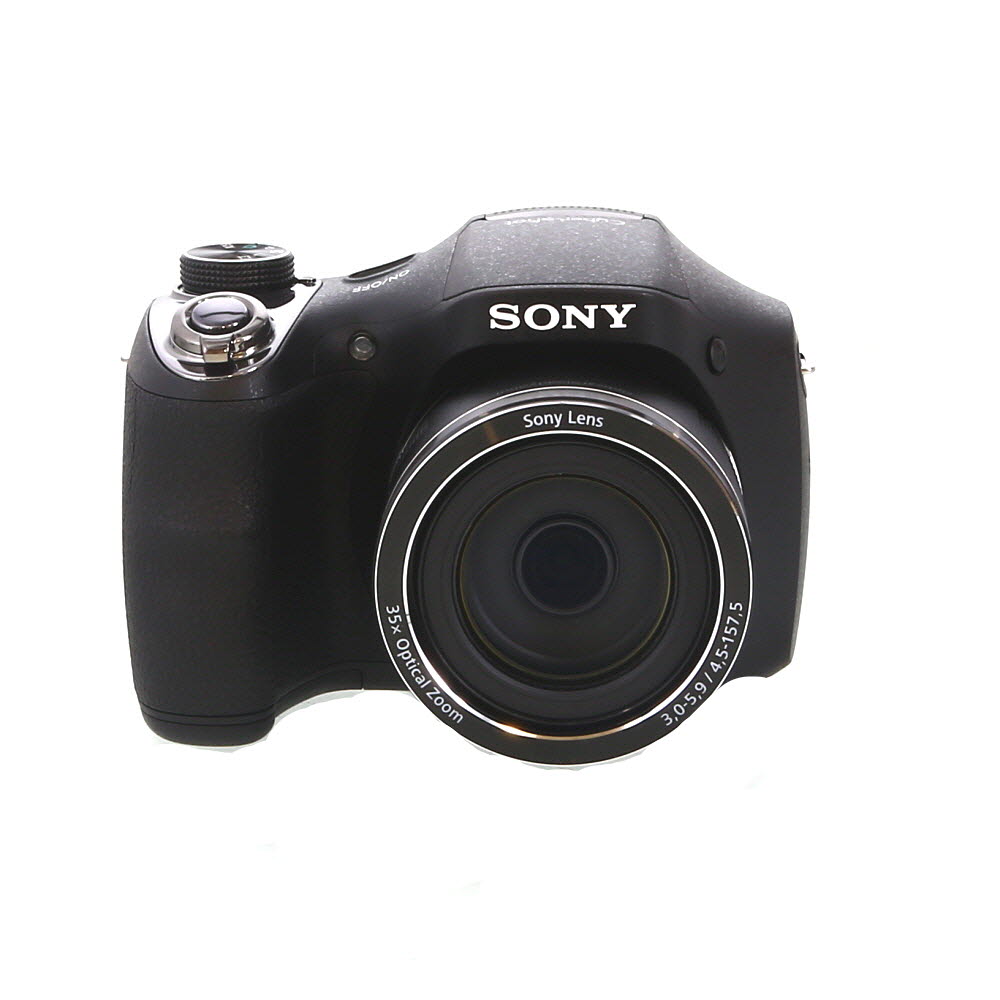


Step-by-Step Guide on Printing Pictures from Sony Cyber Shot Digital Camera
Printing pictures from your Sony Cyber Shot digital camera is a simple process that allows you to enjoy your captured memories in physical form. Follow these steps to print your photos:
Step 1: Transfer Photos to a Computer
Connect your Sony Cyber Shot camera to a computer using a USB cable or memory card reader. Transfer the photos you want to print to a folder on your computer for easy access.
Step 2: Choose the Photos to Print
Open the folder where you saved the photos and select the images you want to print. You can also use photo editing software to crop or enhance the pictures before printing.
Tip: Make sure the selected photos are in a high resolution to ensure good print quality.
Step 3: Print the Photos
Once you have chosen the photos, open the photo printing software on your computer. Select the photos you want to print, choose the print settings (size, orientation, paper type), and click the print button.

Remember: Ensure your printer is connected and has enough ink and paper before printing.
By following these simple steps, you can easily print pictures from your Sony Cyber Shot digital camera and create physical copies of your favorite memories.
Connect Your Camera to a Computer
Before you can print pictures from your Sony Cyber-shot digital camera, you need to connect it to your computer. Here’s how to do it:
1. Use the USB cable: Start by locating the USB cable that came with your camera. Plug one end of the cable into the camera’s USB port and the other end into a USB port on your computer.
2. Turn on your camera: Power on your Sony Cyber-shot camera and set it to the appropriate mode for transferring images to your computer (usually called “PC” or “USB” mode).

3. Access your photos: Once your camera is connected, you can access your photos on your computer. Open the file explorer or photo management software to view and transfer your pictures.
4. Transfer your photos: Select the pictures you want to print and copy them to your computer’s hard drive. You can then open your preferred photo printing software and select the images for printing.
By following these steps, you can easily connect your Sony Cyber-shot camera to your computer and print your favorite pictures with ease.
Transfer the Pictures to Your Computer
Once you have taken pictures with your Sony Cyber-shot digital camera, you will need to transfer them to your computer to print them out. Follow these steps to transfer the pictures:
- Connect the Camera: Use the USB cable that came with your camera to connect it to your computer. Make sure the camera is turned on.
- Access the Pictures: Your computer should recognize the camera as a storage device. Open the folder that contains the pictures on your camera.
- Select the Pictures: Choose the pictures you want to print by clicking on them or dragging them to a folder on your computer.
- Transfer the Pictures: Copy the selected pictures from the camera folder to a folder on your computer by dragging and dropping them or using the copy-paste function.
- Disconnect the Camera: Safely disconnect the camera from your computer once the pictures have been transferred to avoid any data loss.
Now that your pictures are on your computer, you can proceed to print them using your preferred method.

Select the Pictures You Want to Print
Once you have connected your Sony Cyber-shot digital camera to your computer, you can easily select the pictures you want to print.
1. Open the folder containing the pictures on your computer.
2. Browse through the images and select the ones you want to print by clicking on them.
3. You can select multiple pictures by holding down the Ctrl key (Command key on Mac) while clicking on each image.
4. Once you have selected all the pictures you want to print, you can right-click on one of the selected images and choose the “Print” option.

5. Follow the on-screen instructions to set up the printing options and send the selected pictures to your printer.
Choose a Printing Method
When it comes to printing pictures from your Sony Cyber-shot digital camera, you have several options to choose from. Here are a few common methods:
1. Print at Home
If you have a printer at home, you can easily print your pictures directly from your camera. Simply connect your camera to your computer using a USB cable, transfer the images to your computer, and then print them using your printer. Make sure your printer is set to the correct paper size and quality settings for the best results.
2. Use a Photo Printing Service
Another option is to use a photo printing service. Many stores and online services offer photo printing options where you can upload your images and have them printed on high-quality paper. This can be a convenient option if you want professional-looking prints without the hassle of printing them yourself.
Adjust the Print Settings
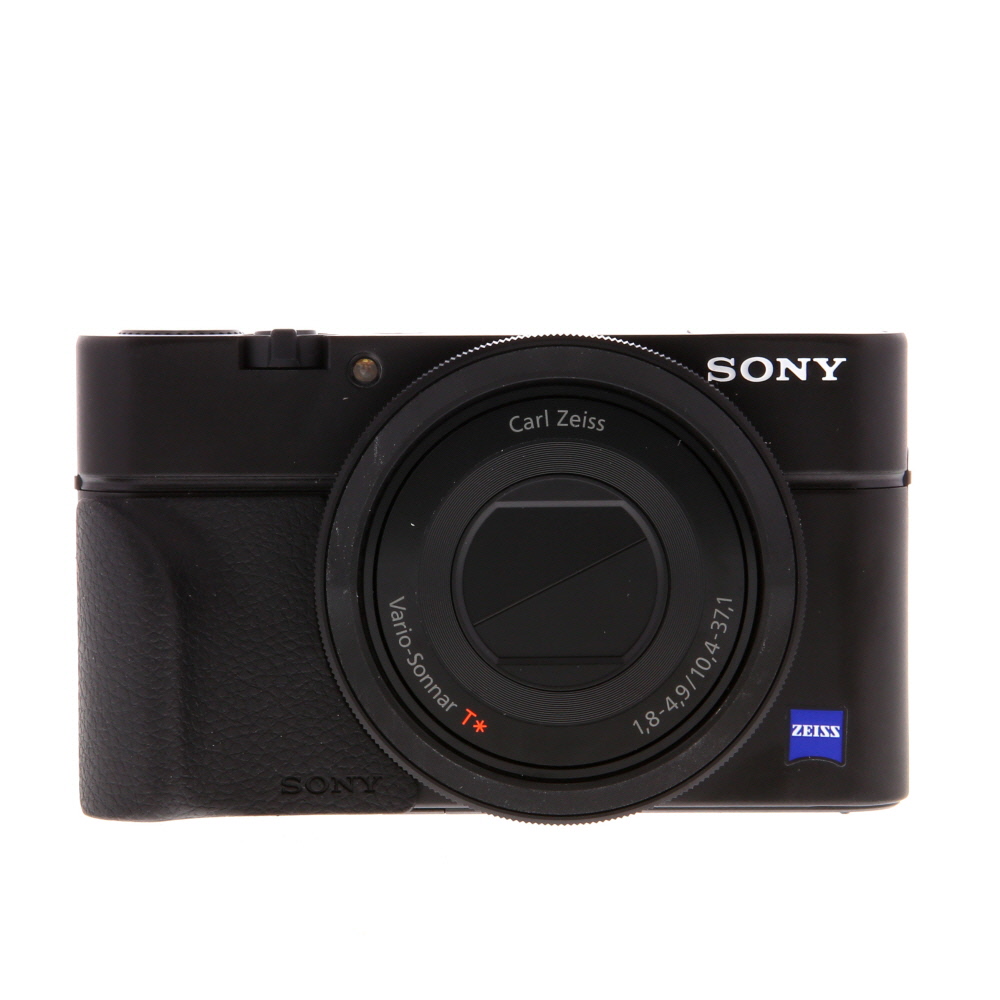
Before printing your pictures from your Sony Cyber-shot digital camera, it’s important to adjust the print settings to ensure the best quality output. Here are some steps to help you adjust the settings:
1. Select the Picture
Choose the picture you want to print from your camera’s memory or connected storage device.
2. Access Print Settings
Once you’ve selected the picture, navigate to the print settings menu on your camera. This menu can usually be found in the playback or settings section.
| Setting | Description |
| Print Size | Choose the size of the print you want, such as 4×6 inches or 5×7 inches. |
| Print Quality | Select the quality of the print, such as standard or high. |
| Borderless Printing | Enable or disable borderless printing depending on your preference. |
Print Your Pictures
Once you have transferred your pictures from your Sony Cyber-shot digital camera to your computer, you can easily print them out to share with friends and family. Follow these simple steps to print your pictures:
- Open the folder where you saved your pictures on your computer.
- Select the pictures you want to print by clicking on them.
- Right-click on the selected pictures and choose the “Print” option from the menu.
- Adjust the print settings such as paper size, orientation, and quality.
- Click on the “Print” button to start printing your pictures.
Make sure you have enough ink and paper in your printer before you start printing. You can also choose to print multiple pictures on a single page or create a collage of your favorite photos.
FAQ
How can I print pictures from my Sony Cyber-shot digital camera?
To print pictures from your Sony Cyber-shot digital camera, you can either transfer the photos to your computer and then print them using a printer connected to your computer, or you can directly connect your camera to a printer that supports PictBridge technology and print the photos from there.

What are the steps to print pictures from a Sony Cyber-shot camera?
To print pictures from a Sony Cyber-shot camera, you first need to transfer the photos to your computer via a USB cable. Then, open the photos on your computer and use a printer to print them. Alternatively, you can connect your camera directly to a PictBridge-compatible printer and print the photos without using a computer.
Can I print pictures from my Sony Cyber-shot camera without a computer?
Yes, you can print pictures from your Sony Cyber-shot camera without a computer by connecting your camera directly to a PictBridge-compatible printer. This allows you to print photos directly from the camera without the need for a computer as an intermediary.


Thanks for the guide! I was wondering if there's a specific type of printer that works best for printing photos from my Sony Cyber-shot? Any recommendations?
I’ve had good results with inkjet printers, especially those that have dedicated photo settings. Brands like Epson and Canon are popular for their photo quality.
I recently printed some photos from my Cyber-shot, and I followed your steps. I used a photo editing software to enhance the images before printing. The results were fantastic! I recommend adjusting brightness and contrast to make the prints pop. Just a tip for anyone looking to get the best quality out of their prints.