
 Carmen J. Moore

Old photographs hold a special place in our hearts, capturing moments and memories from the past. However, as time goes by, these photos can fade, deteriorate, or get lost. One way to preserve these precious memories is by copying them with a digital camera.
Copying old photos with a digital camera is a simple and effective way to safeguard your cherished images for generations to come. With the advancements in digital technology, it has become easier than ever to create high-quality digital copies of old photos.
Whether you want to share these photos with family members, create digital archives, or simply ensure their longevity, copying old photos with a digital camera is a valuable skill to have. In this article, we will explore the step-by-step process of how to copy old photos with a digital camera and provide tips for achieving the best results.
Steps to Copy Old Photos with Digital Camera
To copy old photos with a digital camera, follow these simple steps:

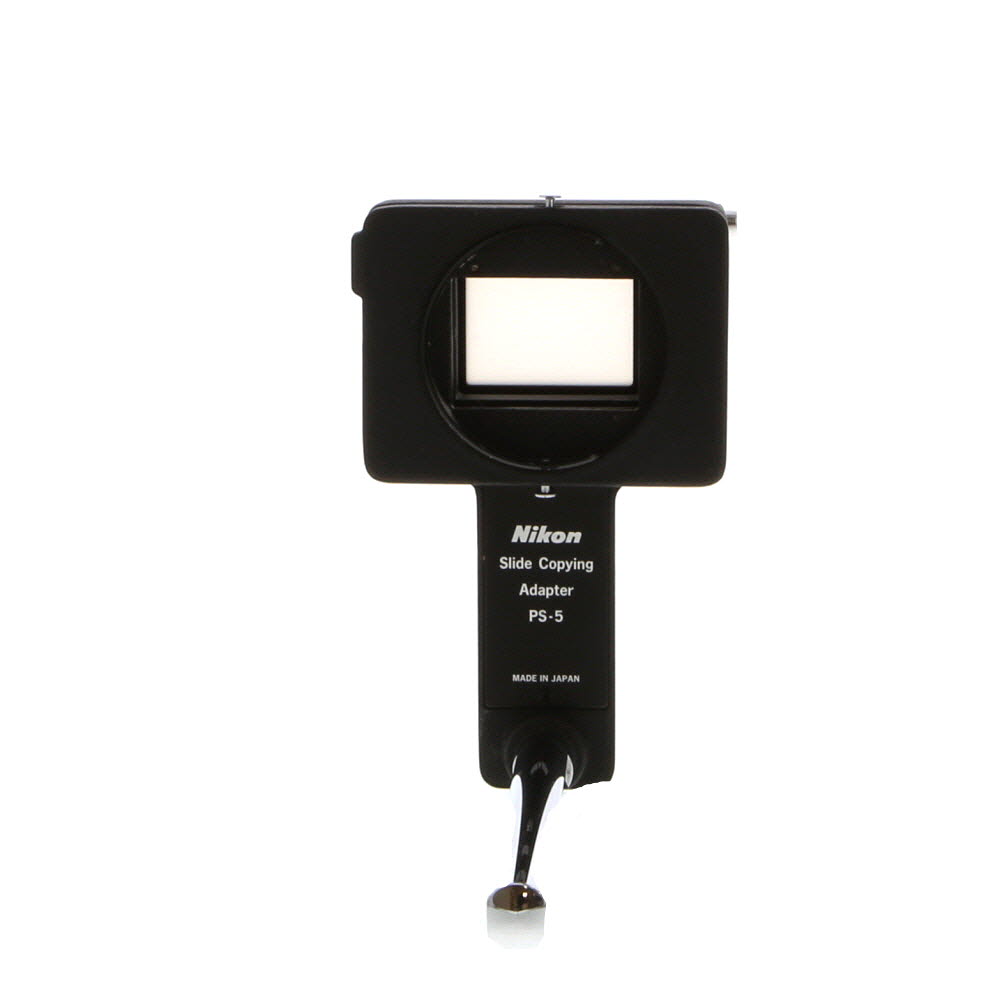


- Clean the photos: Before copying the old photos, make sure they are clean and free of dust or debris. Use a soft cloth to gently wipe the photos if needed.
- Set up a well-lit area: Find a well-lit area with natural light or good artificial lighting to ensure clear and sharp photos.
- Place the photos: Lay the old photos flat on a clean surface, making sure they are not wrinkled or bent.
- Position the camera: Position your digital camera directly above the old photo, ensuring it is level and parallel to the photo surface.
- Adjust camera settings: Set your camera to the highest resolution possible for the best image quality. Adjust the white balance and exposure settings as needed.
- Capture the photo: Using the camera’s viewfinder or screen, carefully frame the old photo within the camera’s view and press the shutter button to capture the image.
- Review and edit: Review the captured photos on your camera’s screen to ensure they are clear and focused. Edit any necessary adjustments using photo editing software on your computer.
- Save and backup: Save the copied photos on your computer or external storage device and create backups to prevent loss of precious memories.
By following these steps, you can easily copy old photos with a digital camera and preserve them for future generations.
Choose the Right Equipment
When copying old photos with a digital camera, it’s crucial to choose the right equipment to ensure high-quality results. Here are a few key considerations:
Camera: Use a digital camera with a high resolution (at least 12 megapixels) to capture fine details and colors accurately.
Lens: Opt for a lens with a focal length that suits your needs, such as a macro lens for close-up shots or a standard lens for general use.
Tripod: To prevent camera shake and ensure sharp images, consider using a tripod for stability during the photo copying process.

Lighting: Choose appropriate lighting conditions to avoid glare or shadows on the old photos. Natural light or soft, diffused artificial light works best.
Memory Card: Make sure you have a large memory card to store the high-resolution images without running out of space.
Prepare Your Photos
Before you start copying your old photos with a digital camera, it’s important to prepare them properly. Here are some steps you can follow:
| 1. | Gather all the photos you want to copy and organize them in one place. |
| 2. | Clean the photos gently with a soft, dry cloth to remove any dust or dirt. |
| 3. | If the photos are stuck together, carefully separate them to avoid any damage. |
| 4. | Make sure the photos are flat and not curled or bent to ensure a clear image. |
| 5. | If you’re using a scanner, adjust the settings to the appropriate resolution for your photos. |
Select a Suitable Location
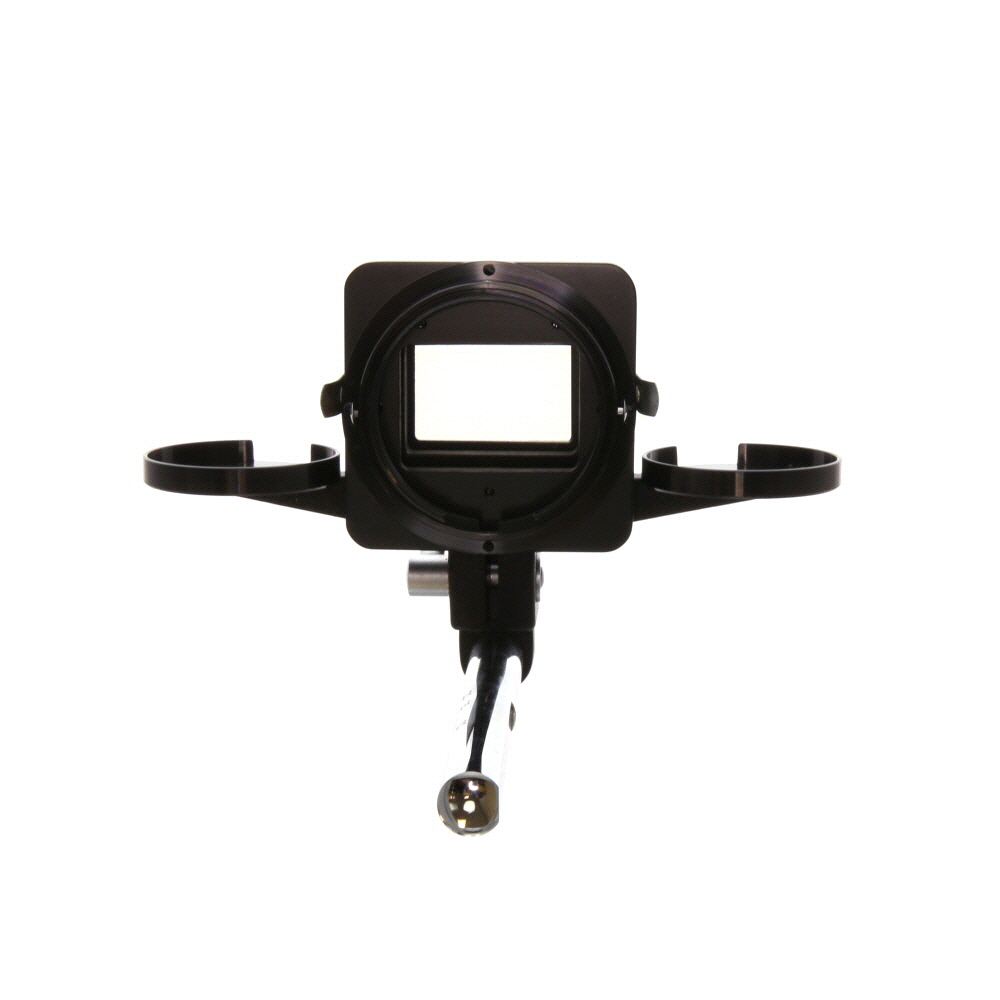
When copying old photos with a digital camera, selecting a suitable location is crucial to ensure optimal lighting and minimal distractions. Choose a well-lit area with natural light to avoid harsh shadows and reflections on the photos. Ideally, set up a table near a window or use a lightbox to create a soft, diffused light for the best results.
Make sure the background is plain and unobtrusive to keep the focus on the photos. Avoid busy patterns or cluttered backgrounds that could detract from the image. A neutral-colored backdrop or a clean surface like a white sheet or a piece of poster board can work well to showcase the photos effectively.
Set Up Your Camera
Before you start copying your old photos, make sure your digital camera is set up properly. Here are a few steps to follow:
1. Choose the Right Settings
Set your camera to the highest resolution possible to ensure the best quality image. Adjust the white balance and exposure settings according to the lighting conditions.
2. Use a Tripod
To avoid blurry images, use a tripod to stabilize your camera. This is especially important when copying old photos, as you want to capture all the details clearly.
Adjust Camera Settings
Before you start copying your old photos using a digital camera, it’s important to adjust the camera settings to ensure the best results. Here are some key settings you should consider:
Resolution
Set your camera to the highest resolution possible to capture all the details of the old photos. This will ensure that the digital copies are of high quality and can be printed or displayed without losing clarity.

White Balance
Adjust the white balance settings on your camera to match the lighting conditions of the room where you are copying the old photos. This will help prevent any color casts or distortions in the digital copies.
| Setting | Recommendation |
| ISO | Set a low ISO to reduce noise in the digital copies. |
| Exposure | Use a moderate exposure to avoid over or underexposing the photos. |
| File Format | Choose a high-quality file format like RAW or JPEG to preserve the details of the old photos. |
Take Test Shots
Before you start copying your old photos, it’s a good idea to take some test shots to make sure your camera settings are correct. Choose a well-lit area with good natural light and place a simple object, like a piece of paper, in the center of the frame.
Focus and Exposure
Adjust your camera’s focus and exposure settings to ensure the test shot is clear and properly exposed. Use the camera’s autofocus feature or manual focus to get a sharp image. Check the exposure settings to make sure the image is not too dark or too bright.
Check Image Quality
Review the test shot on your camera’s display screen to check the image quality. Look for any blurriness, distortion, or other issues that may affect the final photo. Make any necessary adjustments to your camera settings before you start copying your old photos.
Capture the Photos
Once your camera is set up and ready, position the old photo on a flat, well-lit surface. Make sure there are no glares or shadows on the photo. Hold the camera steady and focus on the image. Press the shutter button gently to take a clear and sharp photo. Repeat this process for each old photo you want to copy.

Review and Edit Your Photos
After you have copied your old photos using your digital camera, it’s time to review and edit them to ensure they are looking their best. Start by organizing your photos on your computer or device. Delete any blurry or unnecessary shots to save space and make it easier to find the photos you want.
Next, consider editing your photos to enhance their quality. You can use photo editing software to adjust the brightness, contrast, and color of your images. You can also crop your photos to remove any unwanted elements or improve the composition.
Don’t be afraid to experiment with different editing techniques to achieve the desired look for your photos. Remember to save your edited photos in a separate folder to keep your original copies safe.
FAQ
What equipment do I need to copy old photos with a digital camera?
To copy old photos with a digital camera, you will need a digital camera with a high-resolution sensor, a tripod to keep the camera steady, good lighting to ensure clear images, and a flat surface to place the photos on. Additionally, you may need a photo editing software to enhance the images after copying.
How can I ensure that the copied photos are high quality?
To ensure high-quality copies of old photos with a digital camera, make sure you use a camera with a high-resolution sensor, set up good lighting to avoid glare or shadows, use a tripod to keep the camera steady, and focus the camera properly on the photo. After copying, you can use photo editing software to enhance the images further.
Is it better to use a digital camera or a scanner to copy old photos?
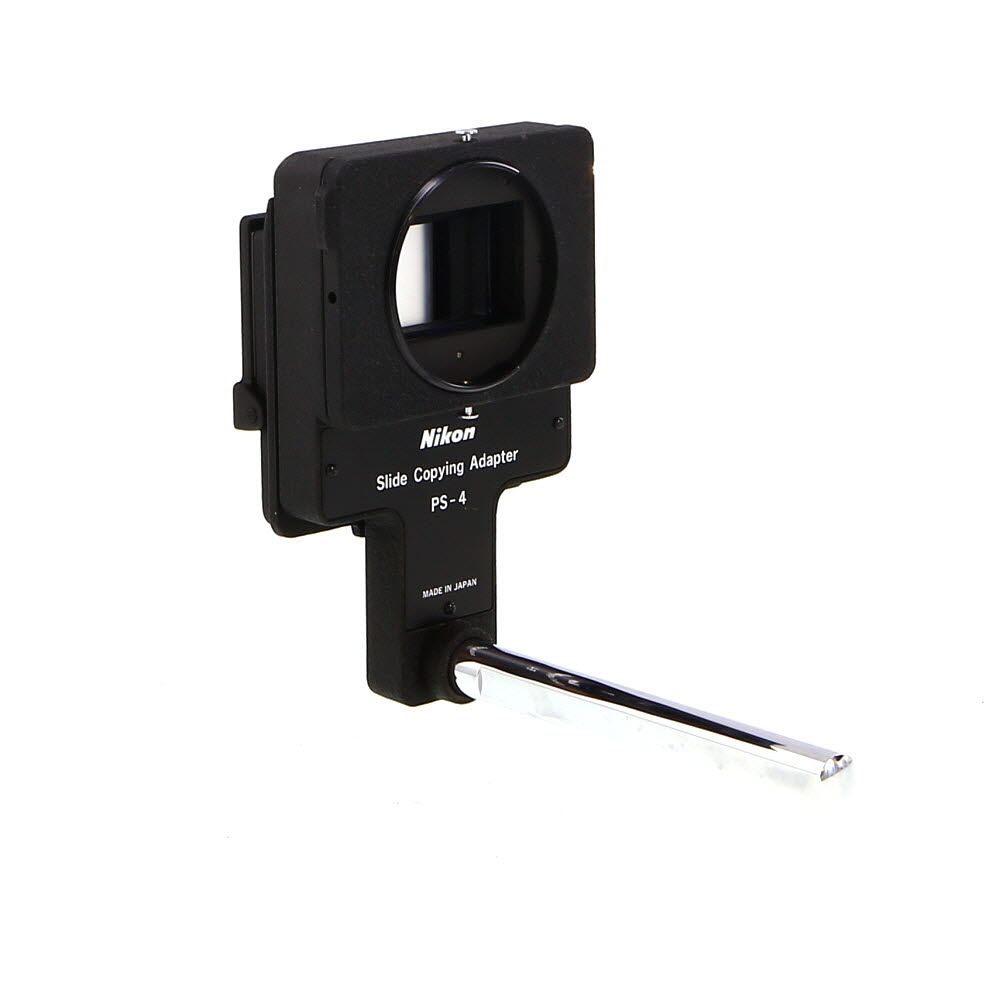
Both digital cameras and scanners can be used to copy old photos, but digital cameras offer more flexibility in terms of angles, lighting, and set-up. Scanners, on the other hand, may provide higher resolution for detailed images. Ultimately, the choice between a digital camera and a scanner depends on your specific requirements and preferences.


I copied some old family photos last year using my DSLR and a tripod. The results were fantastic! I found that using natural light really helped avoid any glare. I also made sure to clean each photo before snapping the shot. Just a quick wipe with a soft cloth did wonders. I wasn’t sure about the settings at first, but adjusting the white balance made a huge difference in how true to color the images turned out. Definitely worth the effort!
Thanks for sharing your experience! Using natural light and cleaning the photos are great tips for achieving the best results.
Is it really necessary to adjust the ISO settings? I usually just leave it on auto. Will that impact the final quality of the photos?
Adjusting the ISO can help reduce noise in your images, especially in low-light conditions. While auto settings can work, manually setting a low ISO will generally yield better quality for photo copying.
I think using a lightbox would be better than relying on natural light; it can control shadows better. Just my opinion!
What editing software do you recommend for enhancing these copied photos? I’m not very tech-savvy and need something straightforward. Anyone have suggestions?
For straightforward photo editing, programs like Adobe Lightroom or even free options like GIMP can be user-friendly while still offering powerful tools for enhancing your images.
I never thought about using a tripod for this. It makes sense to avoid blurry images!
What kind of digital camera do you recommend for this? I have an older camera but I’m not sure if it will capture good quality images of old photos. Would a smartphone with a decent camera work as well?