
 Carmen J. Moore

Connecting your digital camera to your iPad can be a convenient way to transfer photos and videos without the need for a computer. Whether you want to share your latest snapshots on social media or simply back up your files, there are several methods you can use to establish a connection between your camera and iPad.




In this article, we will explore various ways to connect a digital camera to an iPad, including using a USB adapter, Wi-Fi, and cloud services. By following these steps, you can easily transfer your photos and videos from your camera to your iPad for editing, sharing, or safekeeping.
How to Connect a Digital Camera to an iPad
If you want to transfer photos from your digital camera to your iPad, you can easily do so by following these simple steps:
Using a USB Connection
1. Connect the USB cable that came with your digital camera to the camera itself.
2. Connect the other end of the USB cable to a USB adapter compatible with your iPad.
3. Plug the USB adapter into your iPad’s lightning port.

4. Turn on your digital camera.
5. Your iPad should recognize the camera and prompt you to import photos. Follow the on-screen instructions to transfer the photos to your iPad.
Using a Card Reader
1. Remove the memory card from your digital camera.
2. Insert the memory card into a card reader.
3. Connect the card reader to your iPad using a lightning to USB adapter.
4. Open the Photos app on your iPad.
5. Select the option to import photos and choose the photos you want to transfer from the memory card.
6. Follow the on-screen instructions to import the photos to your iPad.
Check Camera Compatibility
Before attempting to connect your digital camera to your iPad, make sure that your camera is compatible with iOS devices. Check the manufacturer’s website or the camera’s user manual for information on compatibility with Apple products. Some cameras may require specific apps or software to connect to an iPad, so be sure to download any necessary applications before attempting to connect the devices.
Use a USB Adapter
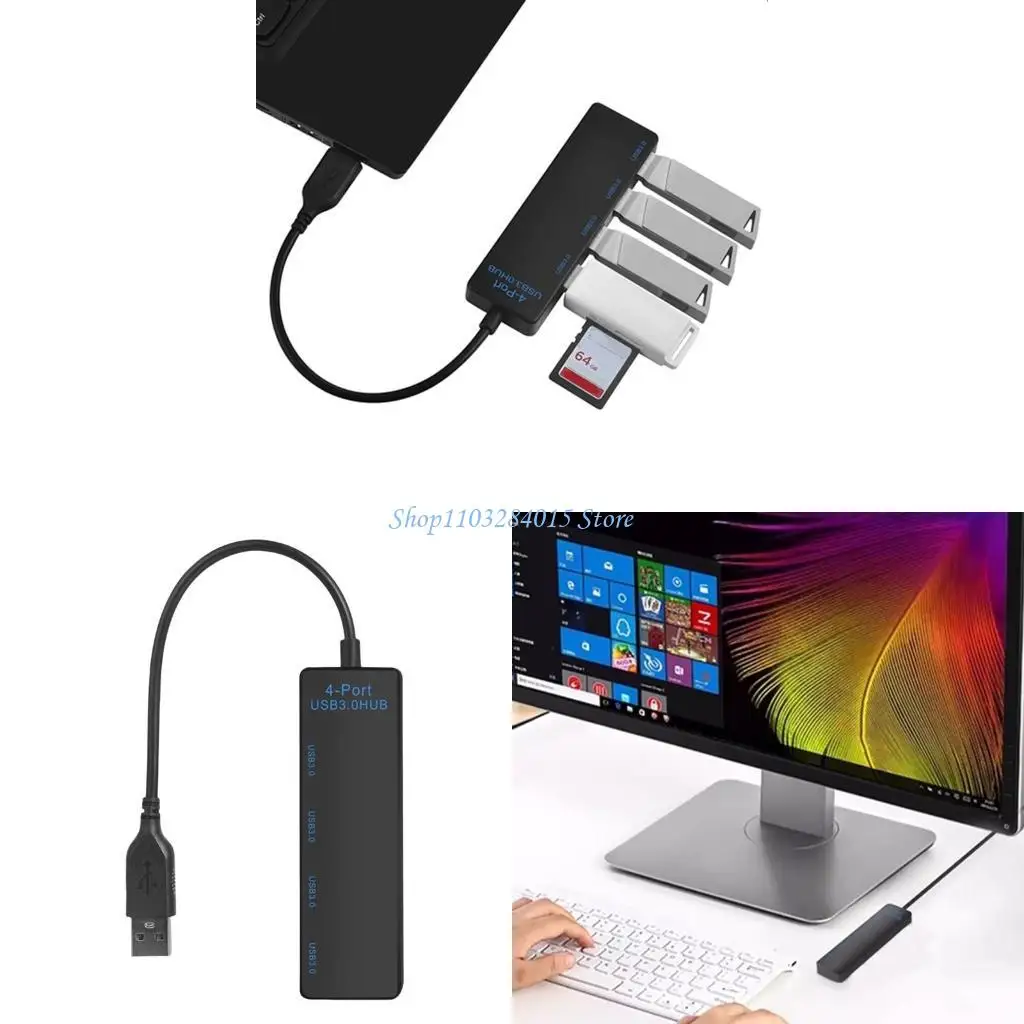
If your digital camera has a USB port, you can connect it to your iPad using a USB adapter. Here’s how:

| 1. Purchase a USB adapter that is compatible with your iPad model. |
| 2. Connect the USB end of the adapter to your iPad. |
| 3. Use a USB cable to connect your digital camera to the adapter. |
| 4. Turn on your digital camera and your iPad should recognize it as a connected device. |
| 5. You can now import photos and videos from your digital camera to your iPad using the Photos app or any other compatible app. |
Connect via Wi-Fi
To connect your digital camera to your iPad via Wi-Fi, you’ll need a camera that supports this feature. Follow these steps:
- Turn on your digital camera and ensure that Wi-Fi is enabled.
- On your iPad, go to the Settings app and select Wi-Fi.
- Find and select your camera’s Wi-Fi network from the list of available networks.
- Enter the password for the camera’s Wi-Fi network if prompted.
- Once connected, open the camera’s app on your iPad or any compatible app to transfer photos wirelessly.
Install Camera App on iPad
To connect a digital camera to your iPad, you will need to install a camera app on your device. Here are the steps to do so:
Step 1: Open the App Store
Unlock your iPad and go to the App Store.
Step 2: Search for Camera App
In the search bar, type in “camera app” and press enter. Look for a camera app that suits your needs and preferences.
Transfer Photos and Videos
To transfer photos and videos from your digital camera to your iPad, you can use the following methods:
Using a USB Cable
Connect your digital camera to your iPad using a USB cable. Make sure your camera is turned on and set to the appropriate mode for transferring photos. On your iPad, open the Photos app and select the “Import” option to transfer the photos and videos from your camera to your iPad.
Using a Card Reader
If your digital camera uses a memory card, you can remove the memory card from the camera and insert it into a card reader. Connect the card reader to your iPad using the appropriate adapter. Open the Photos app on your iPad and select the “Import” option to transfer the photos and videos from the memory card to your iPad.
Backup Camera Data
Backing up the data from your digital camera to your iPad is essential to ensure that your precious photos and videos are safe and secure. Here are some steps to help you backup your camera data:
- Connect your digital camera to your iPad using the appropriate cable or adapter.
- Open the Photos app on your iPad.
- Select the option to import photos and videos from your camera.
- Follow the on-screen instructions to transfer the data to your iPad.
- Once the transfer is complete, make sure to create a backup of the data on your iPad using iCloud or other backup services.
By following these steps, you can easily backup the data from your digital camera to your iPad and have peace of mind knowing that your memories are safe.
Import Images to iPad
Once you have connected your digital camera to your iPad, you can easily import images to your device. Follow these steps:
- Open the Photos app on your iPad.
- Tap on the “Import” tab at the bottom of the screen.
- Select the images you want to import by tapping on them.
- Tap on the “Import” button in the top right corner.
- You can choose to import selected photos or import all photos by tapping on the respective options.
- Your images will now be imported to your iPad and will be available in the Photos app.
Edit Photos on iPad
Editing photos on your iPad is a breeze with the built-in Photos app. Here are some simple steps to help you enhance your photos:
1. Open the Photos App
Launch the Photos app on your iPad to access your photo library.
2. Select a Photo to Edit
Choose the photo you want to edit by tapping on it. You can then tap the “Edit” button in the top right corner.
Pro tip: Use the cropping tool to adjust the composition of your photo or the filters to add a creative touch.
Once you are satisfied with your edits, tap “Done” to save your changes. You can then share your masterpiece with friends and family!

Share Images from iPad
Sharing images from your iPad is quick and easy. You can easily share your photos with friends, family, or on social media platforms. Here’s how you can do it:
1. Using AirDrop
1. Open the Photos app on your iPad and select the image you want to share.
2. Tap the share button (the square with an arrow pointing up) located at the bottom left corner of the screen.
3. Select the AirDrop option and choose the device you want to share the image with.
4. The recipient will receive a notification and can accept the image transfer.

2. Using Email or Messaging Apps
1. Open the Photos app on your iPad and select the image you want to share.
2. Tap the share button and select the email or messaging app you want to use to share the image.
3. Enter the recipient’s email address or phone number and send the image.
Sharing images from your iPad is a great way to keep your friends and family updated on your latest adventures and memories!
Disconnect Camera Safely
Before disconnecting your digital camera from your iPad, make sure to follow these steps to safely remove the device:
- Close any open camera apps: Before unplugging your camera, make sure to close any open camera apps on your iPad to prevent any data loss or corruption.
- Eject the camera: In the camera app or in the settings of your iPad, look for an option to safely eject or disconnect the camera. This will ensure that all data is saved properly before you unplug the device.
- Unplug the camera: Once you have safely ejected the camera, you can safely unplug it from your iPad. Make sure to gently remove the cable to avoid any damage to the ports.
FAQ
What is the best way to connect a digital camera to an iPad?
The best way to connect a digital camera to an iPad is to use a USB adapter. This will allow you to connect your camera directly to your iPad using a USB cable. Once connected, you can import photos and videos from your camera to your iPad using the Photos app.
Can I connect a digital camera to an iPad wirelessly?
Yes, you can connect a digital camera to an iPad wirelessly using a Wi-Fi enabled camera or a wireless SD card. Simply set up the wireless connection on your camera and iPad, then use the appropriate app or software to transfer photos wirelessly.
Is it possible to edit photos directly on the iPad after connecting a digital camera?
Yes, after connecting your digital camera to your iPad and importing the photos, you can edit them using various photo editing apps available on the App Store. You can crop, adjust colors, apply filters, and more to enhance your photos directly on your iPad.
What should I do if my digital camera is not recognized by the iPad?
If your digital camera is not recognized by the iPad, make sure you are using a compatible USB adapter and cable. Check if your camera requires any specific settings to connect to an external device. You can also try restarting both your camera and iPad, or using a different USB port on the adapter.
Are there any limitations when connecting a digital camera to an iPad?
One limitation when connecting a digital camera to an iPad is that you may not be able to transfer RAW files directly. In this case, you may need to use a computer to transfer RAW files from your camera to your iPad. Additionally, some older digital cameras may not be compatible with the iPad for direct connection.



I think using Wi-Fi to connect is much better than USB. It’s wireless and much more convenient, especially when you don’t want cables cluttering up your workspace.
That might be true, but I’ve had connection issues with Wi-Fi. Sometimes it takes longer to transfer, too. I prefer the reliability of a wired connection.
What is the difference between using a USB connection and a card reader for transferring photos? Are there benefits to one method over the other?
I recently connected my Canon DSLR to my iPad using a USB adapter, and it worked perfectly. I was able to import all my photos without any issues. Just make sure your camera is set to the correct mode for transferring. I also had to download the Canon app, which made things easier for managing my photos.
Thanks for sharing your experience! It's good to hear that the USB adapter worked well for you. The app can definitely enhance compatibility and ease of use.