
 Carmen J. Moore
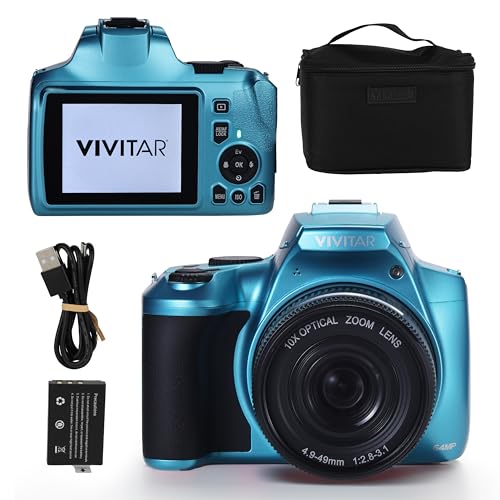
Are you looking to enhance your mobile photography experience? Connecting a micro digital camera to your mobile phone can open up a world of possibilities and allow you to capture high-quality images on the go. Whether you’re a professional photographer or just a hobbyist, this simple process can take your mobile photography to the next level.
In this article, we’ll walk you through the steps of connecting a micro digital camera to your mobile phone, exploring the benefits and potential challenges along the way. With the right tools and a bit of know-how, you’ll be well on your way to capturing stunning images with your mobile device.
Step-by-Step Guide: Connect Micro Digital Camera to Mobile Phone
To connect a micro digital camera to your mobile phone, follow these simple steps:


Step 1: Check Compatibility
Ensure that your micro digital camera is compatible with your mobile phone. Check the camera’s specifications and your phone’s connectivity options.
Step 2: Connect the Camera
| 1. | Turn on your micro digital camera. |
| 2. | Locate the USB port on your camera. |
| 3. | Use a compatible USB cable to connect the camera to your mobile phone. |
Once connected, your phone should recognize the camera as a storage device.
Follow any on-screen prompts to access the camera’s files and transfer photos or videos to your phone.
By following these steps, you can easily connect your micro digital camera to your mobile phone and enjoy sharing your captured memories on the go!
Check Camera Compatibility
Before attempting to connect your micro digital camera to your mobile phone, it is important to ensure that the camera is compatible with your device. Here are some steps you can take to check compatibility:

- Check the camera’s specifications to see if it supports connectivity with mobile phones.
- Look for any compatibility information provided by the camera manufacturer.
- Check if your mobile phone has the necessary ports or features to connect to the camera.
If your camera and mobile phone are not compatible, you may need to use an adapter or additional equipment to establish a connection.
Install Camera App on Phone
Before connecting your micro digital camera to your mobile phone, you need to install a compatible camera app on your phone. Most micro digital cameras come with their own dedicated app that allows you to connect the camera to your phone and control its settings and functions.
You can usually find the camera app in the app store of your phone’s operating system. Simply search for the name of the camera model or the manufacturer in the app store, and download the app to your phone. Make sure to grant the app any necessary permissions it requires, such as access to your camera and photos.
Connect Camera to Phone via USB
To connect your micro digital camera to your mobile phone via USB, follow these steps:
- Make sure your camera and phone have a USB port.
- Use the appropriate USB cable for your camera and phone.
- Connect one end of the USB cable to the camera and the other end to the phone.
- Turn on both devices.
- Your phone should recognize the camera as a storage device.
- You can now transfer photos and videos from your camera to your phone.
“`html
Enable Camera Wi-Fi
To connect your micro digital camera to your mobile phone, you need to enable the camera’s Wi-Fi feature. Follow these steps to do so:
| 1. | Turn on your micro digital camera and navigate to the settings menu. |
| 2. | Find the Wi-Fi settings option and select it. |
| 3. | Turn on the Wi-Fi feature on your camera. |
| 4. | Once Wi-Fi is enabled, your camera will start broadcasting a Wi-Fi signal. |
| 5. | Now you can proceed to connect your mobile phone to the camera’s Wi-Fi network. |
| 6. | Follow the instructions on your mobile phone to complete the connection process. |
Pair Camera with Phone via Bluetooth
To connect your micro digital camera to your mobile phone via Bluetooth, follow these steps:
Step 1: Turn on Bluetooth on both your camera and phone.
Step 2: On your camera, navigate to the Bluetooth settings and select “Pairing Mode” or a similar option.
Step 3: On your phone, search for Bluetooth devices and select your camera from the list of available devices.

Step 4: Follow any on-screen prompts on both devices to complete the pairing process.
Step 5: Once paired, you can now transfer photos and videos from your camera to your phone wirelessly via Bluetooth.
Transfer Photos from Camera to Phone
To transfer photos from your micro digital camera to your mobile phone, you can use a few different methods:
1. Using a USB Cable:
Connect your camera to your computer using a USB cable. Copy the photos from the camera to your computer. Then, connect your phone to the computer and transfer the photos to your phone.
2. Using a Memory Card:
If your camera uses a memory card, remove the card from the camera and insert it into your phone if it supports the same type of memory card. You can then access the photos on your phone and save them to your device.

FAQ
How can I connect a micro digital camera to my mobile phone?
To connect a micro digital camera to your mobile phone, you can use a USB cable or a memory card reader. Simply connect the camera to your phone using the appropriate cable or insert the memory card into the card reader, then access the photos on your phone.
Is it possible to transfer photos from a micro digital camera to a mobile phone wirelessly?
Yes, it is possible to transfer photos from a micro digital camera to a mobile phone wirelessly using technologies like Bluetooth or Wi-Fi. Make sure both devices have the necessary features enabled and follow the instructions in the camera’s manual to establish a wireless connection.
What are some apps that can help me connect my micro digital camera to my mobile phone?
There are several apps available that can help you connect your micro digital camera to your mobile phone, such as Camera Connect, SnapBridge, or Sony Imaging Edge Mobile. These apps allow you to transfer photos wirelessly, control your camera remotely, and even adjust settings directly from your phone.



I recently connected my micro digital camera to my smartphone using Wi-Fi. The process was pretty straightforward: I enabled Wi-Fi on the camera, connected my phone to its network, and used the camera's app to transfer photos. The quality was great, and it saved a lot of time compared to using cables.
Thanks for sharing your experience! Using Wi-Fi can be a convenient option, especially for transferring larger files quickly.
I'm interested in connecting my micro digital camera to my phone, but I'm unsure if my camera supports USB connection. Is there a way to check this easily?
You can usually find compatibility info in the camera manual or on the manufacturer's website. Look for details on USB support.