
 Carmen J. Moore
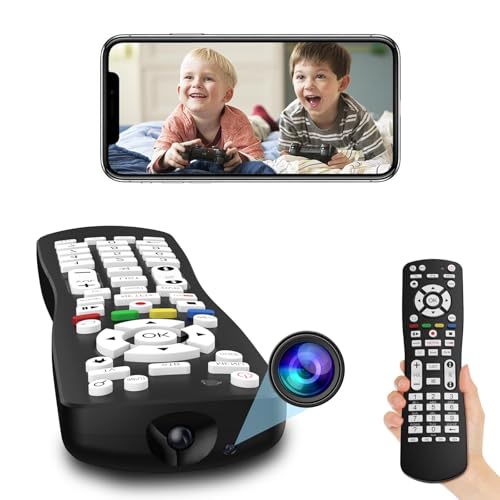
Security cameras have become an essential part of our everyday lives, helping us monitor our homes, offices, and other spaces. With the advancement of technology, it is now easier than ever to keep an eye on your surroundings using your smartphone. In this article, we will explore how you can use your phone to watch security camera footage remotely.
One of the most convenient ways to access your security camera feed on your phone is by downloading the corresponding app provided by the camera manufacturer. These apps are designed to make it easy for users to view live footage, playback recordings, and even adjust camera settings from anywhere with an internet connection.
Additionally, many modern security cameras offer cloud storage options, allowing you to access your recorded footage directly from the cloud using your phone. This eliminates the need for physical storage devices and provides a convenient way to view and manage your camera recordings on-the-go.


Step-by-step guide to using your phone as a security camera viewer
1. Download the security camera app on your phone from the App Store or Google Play Store.
2. Install the app and create an account using your email address.
3. Follow the app’s instructions to add your security camera to the app by scanning the QR code on the camera or entering the camera’s ID manually.
4. Once the camera is added, you can view the live feed on your phone by opening the app and selecting the camera you want to view.
5. You can also adjust settings such as motion detection, alerts, and video recording through the app to customize your security camera experience.
6. Make sure your phone is connected to Wi-Fi or mobile data to access the camera feed remotely.
7. You can now use your phone as a security camera viewer to monitor your home or office from anywhere at any time.
Choose the right security camera app for your phone
When it comes to using your phone to watch security cameras, choosing the right app is crucial. Here are some factors to consider when selecting a security camera app:
1. Compatibility: Make sure the app is compatible with your phone’s operating system (iOS, Android, etc.) and the security camera system you are using.
2. Features: Look for apps that offer features like live streaming, motion detection, two-way audio, and cloud storage options.
3. User Interface: A user-friendly interface can make it easier to navigate the app and access your security camera feeds quickly.
4. Reviews: Check out reviews from other users to see if the app is reliable, secure, and offers good performance.
By choosing the right security camera app for your phone, you can easily monitor your cameras from anywhere and enhance your home or office security.
Install the app on your phone and security camera
Before you can use your phone to watch your security camera, you need to install the necessary app on both your phone and the camera.
1. Start by downloading the security camera app from the App Store or Google Play Store on your phone.
2. Follow the on-screen instructions to install the app on your phone. Make sure to grant any necessary permissions for the app to access your camera feed.
3. Once the app is installed on your phone, you will need to set up your security camera. Follow the manufacturer’s instructions to connect the camera to your Wi-Fi network and activate it.
4. After the camera is set up, open the security camera app on your phone and follow the steps to pair the camera with the app. This usually involves scanning a QR code or entering a unique code provided by the camera.
5. Once the camera is successfully paired with the app, you will be able to view the live feed from your security camera on your phone anytime, anywhere.
By following these steps, you can easily set up your phone to watch your security camera and keep an eye on your property remotely.
Connect your phone to the same Wi-Fi network as your security camera
Before you can view the feed from your security camera on your phone, you need to ensure that both devices are connected to the same Wi-Fi network. This is essential for establishing a stable connection between the camera and your phone.
To do this, go to the Wi-Fi settings on your phone and select the network that your security camera is connected to. Make sure the Wi-Fi signal is strong and stable to prevent any interruptions in the video feed.
Open the app on your phone and add your security camera
Once you have downloaded and installed the security camera app on your phone, open it up to get started. Look for the option to add a new camera or device within the app.
Follow the on-screen instructions to connect your security camera to the app. This typically involves scanning a QR code or entering the camera’s unique identification number.
Adjust the camera settings for optimal viewing on your phone
When using your phone to watch security camera footage, it’s important to adjust the camera settings to ensure optimal viewing. Here are some tips to help you get the best viewing experience:
- Adjust the resolution: Make sure the camera resolution is set to a level that provides clear and detailed images on your phone screen.
- Set the frame rate: Adjust the frame rate to a level that provides smooth video playback on your phone without any lag or jitter.
- Optimize the brightness and contrast: Adjust the brightness and contrast settings to enhance visibility and make it easier to see details in the footage.
- Enable motion detection alerts: If your security camera supports motion detection, enable this feature to receive alerts on your phone when motion is detected.
By adjusting these camera settings, you can ensure that you have a better viewing experience when monitoring your security camera footage on your phone.
Access the live feed from your security camera on your phone
Once you have set up your security camera system and downloaded the corresponding app on your phone, accessing the live feed is simple. Follow these steps:
- Open the security camera app on your phone.
- Log in using your account credentials.
- Select the camera you want to view from the list of connected cameras.
- Tap on the camera feed to access the live view.
- You can now see the real-time footage from your security camera on your phone.
Make sure you have a stable internet connection to ensure smooth streaming of the live feed. You can also adjust settings, view recorded footage, and receive alerts through the app on your phone.
Enable notifications and alerts for security events on your phone
Once you have set up your security camera system and installed the corresponding app on your phone, it’s important to enable notifications and alerts for security events. This feature will ensure that you are instantly informed of any suspicious activity or events captured by your cameras.
Here’s how you can enable notifications:
- Open the security camera app on your phone.
- Go to the settings or preferences section within the app.
- Look for the notifications or alerts option and toggle it on.
- You may have the option to customize the types of events that trigger notifications, such as motion detection or sound alerts.
By enabling notifications and alerts, you can stay proactive in monitoring your security system and respond quickly to any potential security threats.



I was wondering how the user experience of different security camera apps compares. I've used both Arlo and Ring, and I found the Arlo app more user-friendly, but Ring offers better integration with smart home devices. Any thoughts on this?
Make sure to check if your camera app has cloud storage options for easy access to recordings!
Can you clarify if the app works with all brands of security cameras, or is it brand-specific?
I followed the steps to set up my phone with my security camera, but I had a tough time getting the camera connected to Wi-Fi. Finally, I had to reset the camera and try again before it worked. Just wanted to share that in case someone else runs into the same issue!
What if my security camera isn't showing up in the app after I scan the QR code?