
 Carmen J. Moore

Having a functional front camera on your iPhone is essential for taking selfies, making video calls, and using Face ID. If you suspect that your front camera is not working properly, there are a few ways to confirm whether it’s broken or just experiencing a temporary glitch.
1. Check for physical damage: Inspect the front camera lens for any cracks or scratches. Physical damage to the lens can affect the camera’s performance and image quality.
2. Test the camera app: Open the camera app on your iPhone and switch to the front-facing camera. If the screen appears black or blurry, it could indicate a problem with the front camera.
3. Restart your iPhone: Sometimes, a simple restart can fix minor software issues that may be causing the front camera to malfunction. Turn off your iPhone and then turn it back on to see if the camera starts working again.

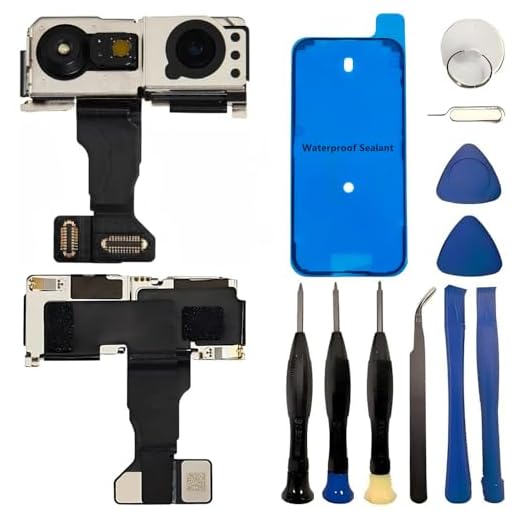

By following these steps, you can determine if your front camera is broken on your iPhone and take the necessary steps to get it repaired or replaced.
Signs of a malfunctioning front camera on your iPhone
If you suspect that your front camera on your iPhone is broken, there are several signs to look out for:
1. Black or blurry screen:
If you notice that the screen is black or blurry when you switch to the front camera, it could indicate a hardware issue.
2. Distorted or discolored images:
Images taken with the front camera may appear distorted or discolored, suggesting a problem with the camera lens or sensor.
If you experience any of these issues, it’s recommended to contact Apple Support or visit an authorized service provider to diagnose and repair the front camera on your iPhone.
Blurry or distorted images
If you notice that the images captured by your front camera are blurry or distorted, it could be a sign of a broken camera. Blurriness or distortion in the images can result from damage to the camera lens or sensor, causing the camera to produce unclear or warped images. To confirm if your front camera is indeed broken, try taking pictures in different lighting conditions and angles to see if the issue persists.
Black Screen When Using the Front Camera
If you are experiencing a black screen when using the front camera on your iPhone, it could indicate a hardware or software issue. Here are some steps you can take to troubleshoot the problem:
| 1. Restart Your iPhone: | Try restarting your iPhone to see if the issue resolves itself. Sometimes a simple reboot can fix minor software glitches. |
| 2. Check for Updates: | Make sure your iPhone is running the latest version of iOS. Updates often include bug fixes that can address camera issues. |
| 3. Clean the Camera Lens: | Check if the front camera lens is dirty or smudged. Use a soft, lint-free cloth to clean the lens gently. |
| 4. Reset Camera Settings: | Go to Settings > General > Reset > Reset All Settings. This will reset all camera settings to default. |
| 5. Test with Different Apps: | Try using the front camera with different apps to see if the issue is specific to one app or a broader problem. |
| 6. Contact Apple Support: | If the problem persists, it may be a hardware issue. Contact Apple Support or visit an authorized service provider for further assistance. |
Camera App Crashes Frequently
If you find that your front camera is not working properly on your iPhone and the camera app crashes frequently, there could be several reasons for this issue.
Possible Causes:
- Software Glitches: Sometimes, software glitches or bugs can cause the camera app to crash. Make sure your iPhone’s operating system is up to date.
- Overheating: If your iPhone is overheating, it can lead to issues with the camera app. Try to cool down your device before using the camera app.
If the camera app continues to crash frequently and you suspect a hardware issue, it may be time to contact Apple Support or visit an authorized service center for further assistance.
Inability to switch to the front camera
If you are unable to switch to the front camera on your iPhone, it could be a sign that your front camera is broken. Typically, when you try to switch cameras, the screen should show a smooth transition from the rear camera to the front camera. If you notice that the switch is not happening or the front camera screen remains black, it indicates a potential issue with the front camera.
To troubleshoot this issue:
- Restart your iPhone to see if it resolves the problem.
- Check for any physical damage to the front camera lens or surrounding components.
- Ensure that the front camera is not obstructed by dirt, fingerprints, or any other debris.
- Update your iPhone’s software to the latest version, as software glitches can sometimes affect camera functionality.
- If none of the above steps work, consider seeking professional help to diagnose and repair the front camera.
Remember to handle your iPhone with care to prevent any further damage to the camera components.
Green or purple tint on photos
If you notice a green or purple tint on your photos taken with the front camera of your iPhone, it could be a sign that your front camera is broken. This tint can occur due to a hardware issue with the camera sensor or lens, resulting in inaccurate color reproduction.
To troubleshoot this issue, you can try cleaning the front camera lens with a soft, lint-free cloth to remove any dirt or smudges that may be causing the tint. If cleaning doesn’t resolve the problem, you may need to visit an Apple authorized service provider to diagnose and repair the front camera.
| Symptoms | Green or purple tint on photos taken with the front camera |
| Possible Causes | Hardware issue with the camera sensor or lens |
| Recommended Action | Clean the front camera lens; visit an Apple authorized service provider if cleaning doesn’t help |
Delayed or frozen camera interface
If you notice that your front camera is taking a long time to load or the camera interface is frozen, it could be a sign that your front camera is broken. Try restarting your iPhone to see if it resolves the issue. If the problem persists, you may need to have your front camera checked by a professional technician.
Visible cracks or damage to the camera lens
If you notice any visible cracks or damage to the camera lens of your iPhone’s front camera, it is a clear indication that the camera is broken. Cracks or scratches on the lens can affect the quality of the images and videos captured by the camera, leading to blurry or distorted results. In such cases, it is recommended to have the camera repaired or replaced by a professional technician to restore its functionality.
Front camera not responding to touch gestures
If your front camera is not responding to touch gestures, there may be a technical issue with the camera itself or with the software on your iPhone. Here are some troubleshooting steps you can try:
1. Restart your iPhone: Sometimes a simple restart can fix minor software glitches that may be causing the front camera to not respond to touch gestures.
2. Update your iPhone’s software: Make sure your iPhone is running the latest version of iOS. Software updates often include bug fixes that can resolve issues with the front camera.
3. Check for physical damage: Inspect the front camera for any visible damage, such as cracks or scratches. Physical damage may be preventing the camera from functioning properly.
4. Reset camera settings: Go to Settings > General > Reset and select “Reset All Settings.” This will reset all camera settings to their default values, which may help resolve any software-related issues.
5. Contact Apple Support: If none of the above steps work, it’s possible that there is a hardware issue with the front camera. Contact Apple Support or visit an Apple Store for further assistance.
Error messages related to the front camera
If your front camera on your iPhone is broken, you may encounter error messages or indications that suggest a malfunction. Here are some common error messages you may see:
“Front Camera Not Available”
This message indicates that your front camera is not functioning properly and may require troubleshooting or repair.
“Camera Failed”
This message suggests that there is an issue with the front camera hardware or software. You may need to seek assistance to resolve this problem.



What should I do if the front camera is just showing a black screen?
I had a problem with my front camera showing a black screen. I restarted my phone, and it worked again! Sometimes a simple restart can fix these glitches.
Are there specific apps known to cause the front camera to crash?
I don’t think cleaning the camera lens is always helpful. I had a dirty lens once, and it didn’t fix my blurry images. It turned out to be a hardware issue.
That’s interesting! I always thought cleaning could solve a lot of issues. Maybe it depends on the type of problem.