
 Carmen J. Moore

GoPro cameras are popular for their high-quality video and photo capabilities, but did you know that you can enhance your GoPro experience by connecting it to an app? By connecting your GoPro camera to an app on your smartphone or tablet, you can take your photography and videography to the next level.
In this article, we will guide you through the steps to connect your GoPro camera with the GoPro app, so you can easily control your camera settings, preview your shots, and share your content on the go.
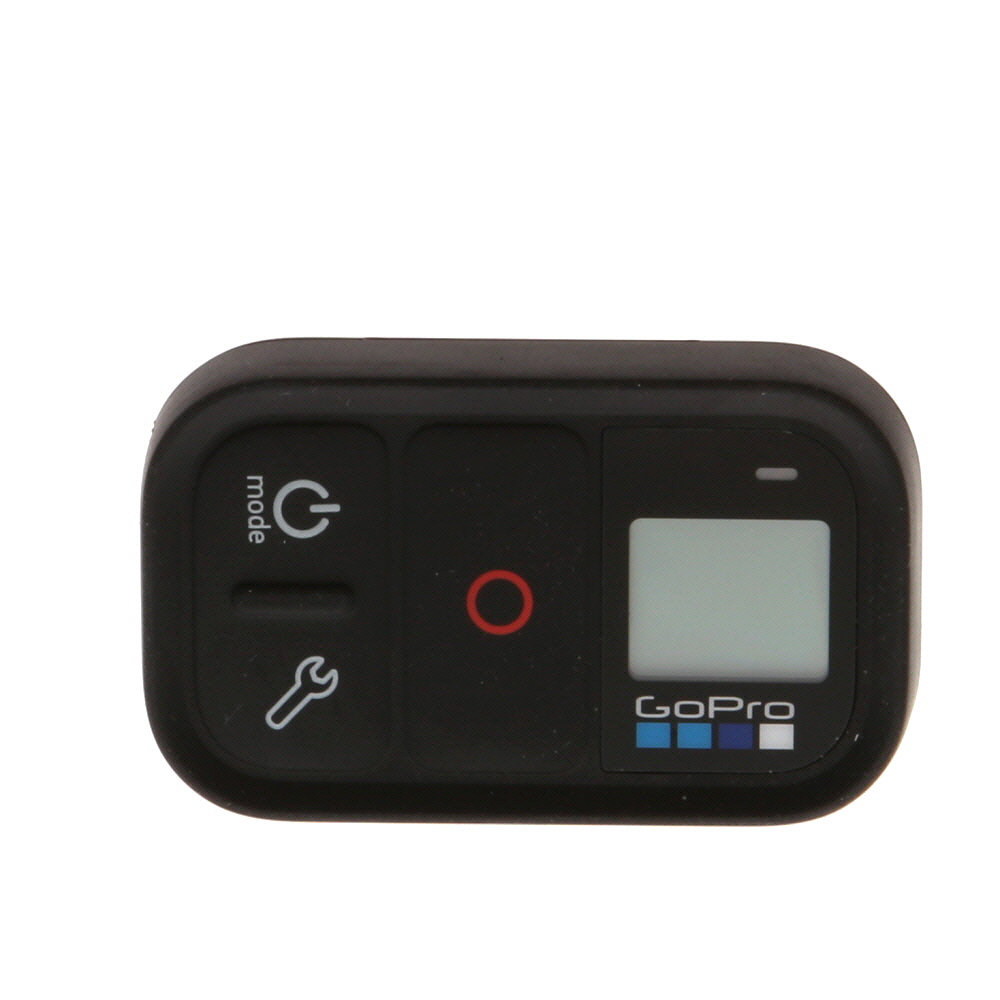

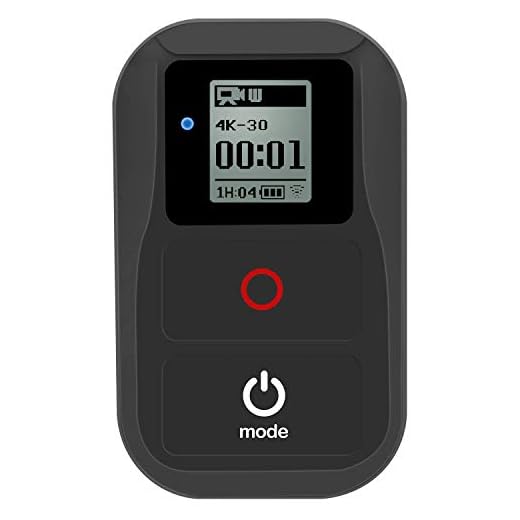
Whether you’re a beginner or a pro, connecting your GoPro camera with the app will open up a world of possibilities for capturing stunning footage and photos. Let’s dive into the process of connecting your GoPro camera with the app and unlock the full potential of your GoPro device.
Step-by-Step Guide to Connect GoPro Camera with App
Connecting your GoPro camera with the app allows you to control your camera remotely and access its settings. Here’s how to do it:
- Download and install the GoPro app on your smartphone or tablet from the App Store or Google Play Store.
- Turn on your GoPro camera and enable Wi-Fi in the camera settings.
- Open the GoPro app on your device and follow the on-screen instructions to pair your camera with the app via Wi-Fi.
- Once the connection is established, you can control your camera, preview shots, and transfer files wirelessly through the app.
- Make sure to keep your camera and device within the recommended range for a stable connection.
Download the GoPro App
To connect your GoPro camera with your smartphone or tablet, you will need to download the GoPro App from the App Store or Google Play Store. The app is available for both iOS and Android devices, and it allows you to control your GoPro camera remotely, view and share your photos and videos, and access additional features and settings.
Once you have downloaded the GoPro App to your device, follow the on-screen instructions to set it up and connect it to your GoPro camera. Make sure your camera is turned on and in pairing mode, then open the app on your device and follow the prompts to establish a connection between the camera and the app.
| App Store: | Download from App Store |
| Google Play Store: | Download from Google Play Store |
Turn on Your GoPro Camera
Before you can connect your GoPro camera to the app, you need to make sure your camera is turned on. Here’s how to do it:
1. Press the Power/Mode Button
Locate the power/mode button on your GoPro camera. Press and hold this button for a few seconds until the camera powers on. You should see the LED lights on the front of the camera turn on.
2. Check the Status Screen
Once the camera is powered on, check the status screen to ensure everything is working properly. You should see the camera mode displayed on the screen along with the battery level and other settings.
Enable Wi-Fi on Your Camera
To connect your GoPro camera with the app, you first need to enable Wi-Fi on your camera. Here’s how you can do it:
- Turn on your GoPro camera by pressing the Power/Mode button.
- Press the Wi-Fi button on the side of the camera to turn on the Wi-Fi function. The Wi-Fi symbol should appear on the front screen of the camera.
- Access the Wi-Fi settings on your camera by navigating through the menu using the front or side buttons.
- Enable Wi-Fi by selecting the option on the screen and confirming your selection.
Once Wi-Fi is enabled on your camera, you can proceed to connect it to the GoPro app on your smartphone or tablet.
Connect Your Smartphone to the GoPro Wi-Fi Network
To connect your smartphone to your GoPro camera, you first need to ensure that your camera’s Wi-Fi is turned on. Go to the settings on your GoPro camera and enable the Wi-Fi option.
Next, on your smartphone, go to the Wi-Fi settings and look for the GoPro network. The network name will typically start with “GoPro” followed by a series of numbers.
Select the GoPro network and enter the password if prompted. The default password is usually “goprohero”.
Once connected, open the GoPro app on your smartphone. The app should automatically detect your camera and establish a connection.
You are now ready to control your GoPro camera through your smartphone using the GoPro app. You can preview shots, adjust settings, and capture photos or videos remotely.
Open the GoPro App on Your Smartphone
To connect your GoPro camera with the app, start by opening the GoPro App on your smartphone. Make sure that your smartphone is connected to the internet and that the app is fully updated to the latest version. You can download the GoPro App from the App Store (for iOS devices) or the Google Play Store (for Android devices).
Follow the On-Screen Instructions in the App
Once you have launched the GoPro app on your mobile device and your GoPro camera is turned on and in pairing mode, follow the on-screen instructions provided by the app to connect your camera to the app. The app will guide you through the pairing process step by step, ensuring a seamless connection between your camera and the app.
Make sure to carefully read and follow each instruction displayed on your device’s screen to successfully establish the connection. The app may prompt you to enter a pairing code or confirm the connection request on both your camera and mobile device to complete the pairing process.
Once the camera is successfully paired with the app, you will be able to control your GoPro camera remotely, access and download captured media, adjust camera settings, and more, all through the convenience of the app interface.
Pair Your Camera with the App
To connect your GoPro camera with the app, follow these steps:
Step 1: Turn on Your Camera
Make sure your GoPro camera is turned on and in pairing mode. You can usually do this by pressing the Wi-Fi button on the side of the camera.
Step 2: Open the GoPro App
Download and open the GoPro app on your smartphone or tablet. Make sure your device’s Wi-Fi is turned on.
Step 3: Pair Your Camera
In the app, select the option to add a new camera. Follow the on-screen instructions to connect to your GoPro camera’s Wi-Fi network. You may need to enter the camera’s password, which is usually found in the camera’s settings.
Once the app has successfully paired with your GoPro camera, you should be able to control the camera, view live footage, and access settings through the app.
Start Controlling Your GoPro Camera Remotely
To connect your GoPro camera with the app and start controlling it remotely, follow these simple steps:
- Make sure your GoPro camera is turned on and in Wi-Fi mode.
- Open the GoPro app on your smartphone or tablet.
- Go to the settings in the app and select “Connect Your Camera.”
- Choose your GoPro camera from the list of available devices.
- Enter the Wi-Fi password displayed on your camera’s screen.
- Once connected, you can now control your GoPro camera remotely using the app.
Now you can easily capture amazing shots and videos from a distance with your GoPro camera!



I recently connected my GoPro to the app, and I have to say it made my filming experience so much better. Being able to preview shots before taking them is a game changer. Just make sure you’re in a good Wi-Fi range; I had some issues when I was too far away.
I’m having trouble connecting my GoPro to the app. Is there a specific step where things usually go wrong?