
 Carmen J. Moore

With the advancement of technology, it is now possible to remotely control your DSLR camera using your Android phone. This feature allows you to take photos, adjust settings, and even transfer images wirelessly without having to touch your camera.
By using dedicated apps or built-in Wi-Fi capabilities, you can connect your Android phone to your DSLR camera and access its functions from a distance. This can be incredibly useful for capturing shots in difficult-to-reach locations, setting up self-portraits, or simply adding more creativity to your photography.
Whether you’re a professional photographer looking for more flexibility or an amateur enthusiast wanting to experiment with new ways of shooting, the ability to access your DSLR camera from your Android phone opens up a world of possibilities. Let’s explore the various methods and benefits of this innovative feature.

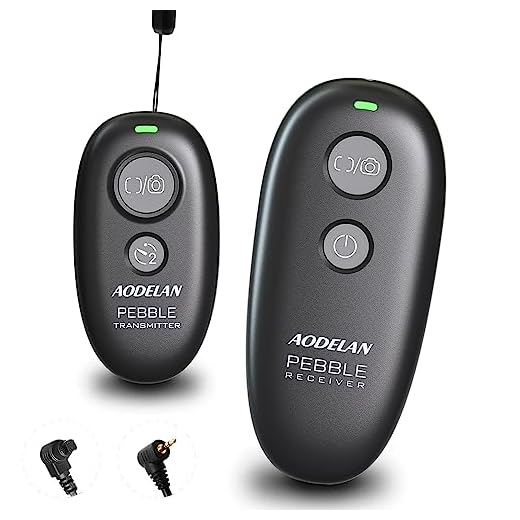

How to Connect
To access your DSLR camera from your Android phone, follow these steps:
Step 1: Enable Wi-Fi on your DSLR
Make sure your DSLR camera has Wi-Fi capabilities and enable the Wi-Fi feature in the camera settings.
Step 2: Install the Camera’s App
Download and install the official app for your DSLR camera on your Android phone from the Google Play Store or the manufacturer’s website.
Follow the app’s instructions to connect your camera to your phone via Wi-Fi. Once connected, you can remotely control your camera, view photos, and even transfer images to your phone.
Step-by-Step Guide
Step 1: Make sure your DSLR camera is Wi-Fi enabled or has a Wi-Fi adapter that allows for remote access.
Step 2: Download and install a compatible camera control app on your Android phone from the Google Play Store.
Step 3: Turn on the Wi-Fi feature on your DSLR camera and connect it to the same Wi-Fi network as your Android phone.
Step 4: Open the camera control app on your Android phone and follow the instructions to establish a connection with your DSLR camera.
Step 5: Once the connection is established, you can remotely control your DSLR camera from your Android phone, adjust settings, capture photos, and even transfer images wirelessly.
Step 6: Enjoy the convenience and flexibility of accessing and controlling your DSLR camera from your Android phone anytime and anywhere!
Compatibility
Before attempting to access your DSLR camera from your Android phone, it is important to check the compatibility between the two devices. Not all DSLR cameras are equipped with the necessary features to connect to a smartphone, and not all Android phones support the required protocols for remote access.
Make sure to consult the user manual of your DSLR camera to see if it has Wi-Fi or Bluetooth connectivity options. Additionally, check if your Android phone is compatible with the specific app or software required to establish a connection with your camera.
Check Your Devices
Before attempting to access your DSLR camera from your Android phone, make sure that both devices are compatible with each other. Check if your DSLR camera supports Wi-Fi or Bluetooth connectivity. If it does, ensure that the camera’s firmware is up to date to enable connectivity with your Android phone.
Additionally, check if your Android phone meets the necessary requirements to connect to the DSLR camera. Ensure that your phone’s operating system is compatible with the camera’s connectivity options and that you have the necessary apps installed to facilitate the connection.
Once you have verified compatibility between your DSLR camera and Android phone, you can proceed with setting up the connection and accessing your camera remotely.
Remote Control Options
There are several remote control options available for accessing your DSLR camera from your Android phone. Here are some popular options:
1. Manufacturer Apps
Many camera manufacturers offer dedicated apps that allow you to remotely control your camera settings, adjust focus, and capture images from your Android device. Check if your camera brand has a compatible app available for download.
2. Third-Party Apps
There are also third-party apps like Camera Connect & Control, DSLR Controller, and qDslrDashboard that provide remote control functionality for various DSLR cameras. These apps may offer additional features and customization options.
Explore different apps to find the one that best suits your needs and camera model.
Wireless Control Methods
There are several wireless control methods that you can use to access your DSLR camera from your Android phone. Here are some of the most common ones:
1. Wi-Fi Connection
Many modern DSLR cameras come equipped with built-in Wi-Fi capabilities, allowing you to connect your camera to your Android phone wirelessly. You can use the manufacturer’s official app to control your camera settings, adjust focus, and even take photos remotely.
2. Bluetooth Connection
Some DSLR cameras also support Bluetooth connectivity, which enables you to pair your camera with your Android phone for remote control. While Bluetooth may not offer as fast of a connection as Wi-Fi, it can still be a reliable option for basic camera control.
By utilizing these wireless control methods, you can easily access your DSLR camera from your Android phone and take your photography to the next level.
Features and Functions
Accessing your DSLR camera from your Android phone offers a range of features and functions that enhance your photography experience:
- Remote shooting: Control your camera settings, focus, and capture images remotely from your phone.
- Live view: View a live feed from your camera on your phone’s screen to ensure you capture the perfect shot.
- Transfer photos: Easily transfer photos from your camera to your phone for instant sharing on social media or editing on-the-go.
Additional Functions:
- Timelapse: Create stunning timelapse videos by setting up your camera to capture images at specific intervals.
- Wireless printing: Print photos directly from your phone using a wireless connection to your DSLR camera.
What You Can Do
With the right app and setup, you can access your DSLR camera from your Android phone to:
- Remote control your camera settings, such as aperture, shutter speed, ISO, and focus.
- View live preview of what your camera lens sees on your phone’s screen.
- Trigger the camera shutter remotely to take photos without touching the camera.
- Transfer photos wirelessly from your camera to your phone for quick sharing and editing.
Benefits of Connectivity
Connecting your DSLR camera to your Android phone opens up a world of possibilities. With this connectivity, you can:
– Easily transfer photos and videos from your camera to your phone for instant sharing on social media or editing on the go.
– Use your phone as a remote control for your camera, allowing you to take photos from a distance or set up time-lapse shots with ease.
– Access advanced camera settings and controls directly from your phone, giving you more flexibility and creative control over your photography.
– Geotag your photos using your phone’s GPS, so you can easily track where each shot was taken.
– Backup your photos to the cloud or to your phone’s storage, ensuring that your precious memories are safe and secure.
Overall, the connectivity between your DSLR camera and Android phone enhances your photography experience and streamlines your workflow, making it easier than ever to capture and share stunning images.
Advantages for Users
Accessing your DSLR camera from your Android phone offers a range of advantages for users, including:
| Convenience | Users can control their camera remotely, making it easier to capture shots from various angles without physically being next to the camera. |
| Live View | Users can see a live feed from their camera on their phone’s screen, allowing for better composition and adjustments in real time. |
Enhanced Features
Many DSLR camera apps offer additional features such as manual settings adjustments, focus control, and the ability to transfer photos directly to your phone for immediate sharing.
Security Considerations
When accessing your DSLR camera from your Android phone, it is important to consider security implications. Make sure to use a secure connection, such as a password-protected Wi-Fi network, to prevent unauthorized access to your camera. Additionally, keep your camera firmware up to date to patch any potential security vulnerabilities. Avoid connecting to public Wi-Fi networks when accessing your camera remotely to avoid potential security risks.
Furthermore, consider enabling two-factor authentication for additional security measures. This will require a second form of verification, such as a code sent to your phone, before accessing your camera remotely. Always be cautious when granting permissions to third-party apps that allow access to your camera, and regularly review app permissions to ensure your camera’s security.
FAQ
Can I connect my DSLR camera to my Android phone?
Yes, you can connect your DSLR camera to your Android phone using a variety of methods such as Wi-Fi, Bluetooth, or a USB cable, depending on the camera model and capabilities.
Is it possible to control my DSLR camera remotely from my Android phone?
Yes, many modern DSLR cameras come with apps that allow you to control settings, adjust focus, and even trigger the shutter remotely from your Android phone.
What are the benefits of accessing my DSLR camera from my Android phone?
Accessing your DSLR camera from your Android phone allows you to take photos and videos remotely, adjust settings without touching the camera, and instantly transfer images to your phone for editing and sharing.
Do I need a special app to connect my DSLR camera to my Android phone?
Some DSLR cameras have their own dedicated apps for connecting to Android phones, while others may require third-party apps like Camera Connect or SnapBridge for wireless connectivity.
Can I transfer photos directly from my DSLR camera to my Android phone?
Yes, you can transfer photos directly from your DSLR camera to your Android phone using a Wi-Fi connection or by connecting the camera via USB and using a file transfer app.



Can I access any DSLR camera from my Android phone, or are there specific models that work best for this feature?
I don't think using a phone to control a DSLR is very practical. It seems easier just to adjust settings directly on the camera.
Just a reminder to check if your DSLR has Wi-Fi capabilities before trying to connect.
When you say I can view live feed from the camera on my phone, does that mean I can see exactly what my camera sees?
Yes, many apps allow you to view a live feed so you can compose your shot directly from your phone. Just ensure your camera supports this feature.
I've tried connecting my Canon DSLR with my Android phone using the Canon Camera Connect app. It worked smoothly for remote shooting and transferring images. Just a heads up, check for firmware updates on your camera for compatibility!
Did you have any issues with the connection dropping? I've heard that can be a problem with some models.
I’ve seen some third-party apps like qDslrDashboard. How does their performance compare to the manufacturer's apps? Are there any significant differences?