 Carmen J. Moore

Digital cameras have become an integral part of our lives, allowing us to capture precious moments and memories with ease. However, have you ever wondered how these devices actually work? One crucial aspect of digital cameras is their input and output capabilities, which play a vital role in the overall functionality of the device.
Input refers to the process of capturing an image using the camera’s lens and sensor, converting the light into digital data that can be stored and processed. This data is then processed by the camera’s internal components to produce the final image that we see on the screen or print out.
Output, on the other hand, involves transferring the final image or video file from the camera to an external device, such as a computer, printer, or display screen. This allows us to view, edit, and share our photos and videos with others, enhancing the overall experience of using a digital camera.
Understanding Digital Camera Inputs and Outputs
A digital camera is a complex device that requires various inputs and outputs to function properly. Understanding these inputs and outputs can help you make the most of your camera and ensure it works seamlessly with other devices.

Digital Camera Inputs
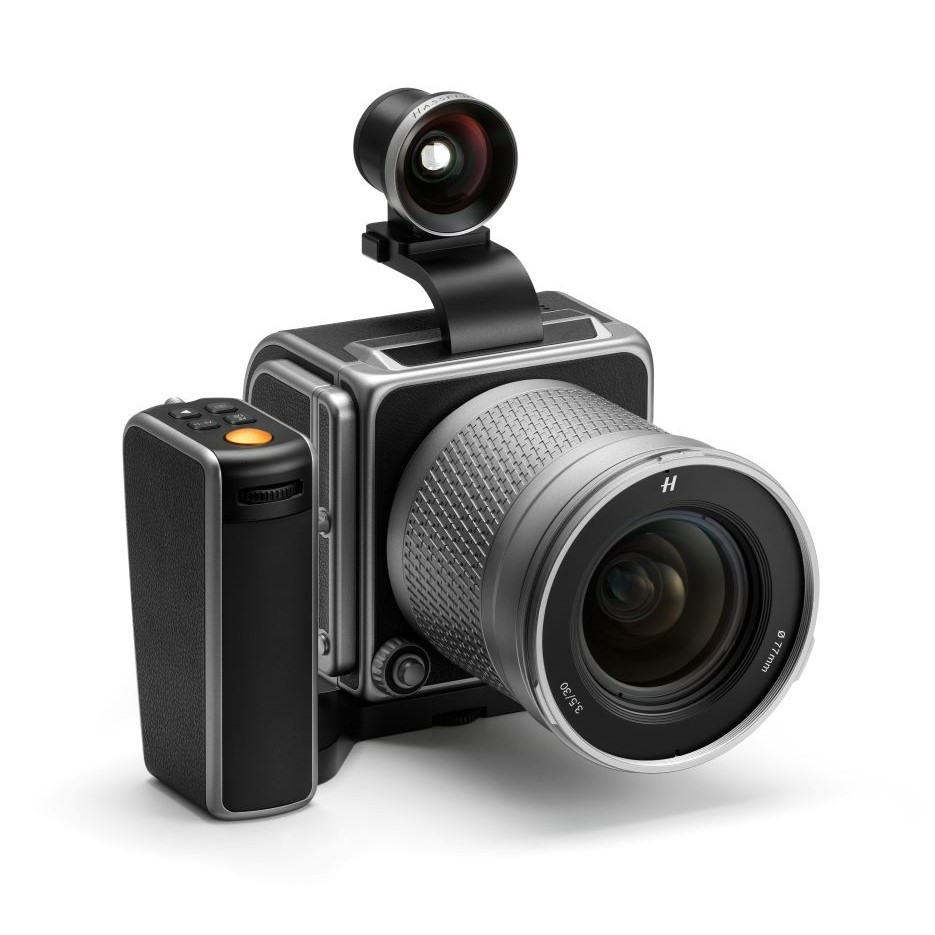
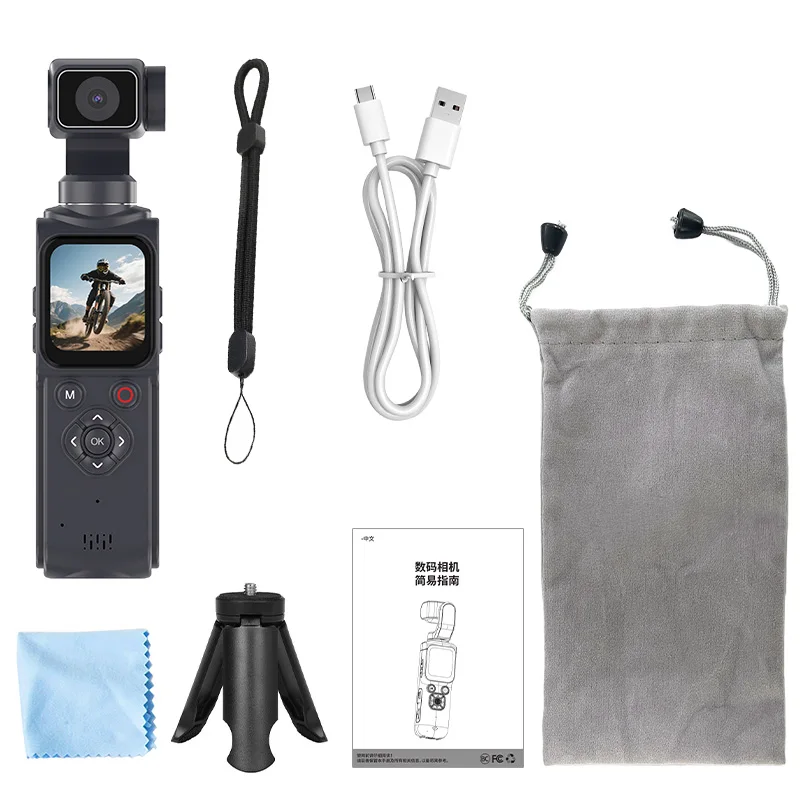
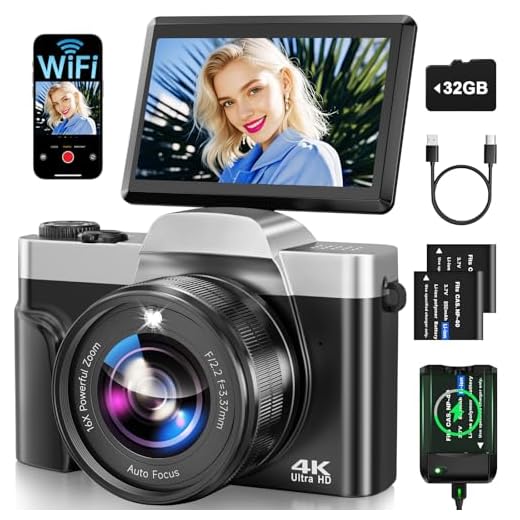
Inputs on a digital camera refer to the ports or connections that allow you to transfer data or power into the camera. Some common inputs found on digital cameras include:
| USB Port | Used for connecting the camera to a computer for transferring photos and videos. |
| Memory Card Slot | Allows you to insert a memory card for storing photos and videos. |
| Power Input | Where you connect the power adapter or rechargeable battery to power the camera. |
Digital Camera Outputs
Outputs on a digital camera refer to the ports or connections that allow you to transfer data or display content from the camera. Some common outputs found on digital cameras include:
| HDMI Port | Used for connecting the camera to a TV or monitor to display photos and videos in high definition. |
| AV Out Port | Allows you to connect the camera to a TV or other display device using AV cables. |
| Headphone Jack | Enables you to connect headphones to the camera for audio playback. |
Types of Input Ports on a Digital Camera
When it comes to digital cameras, there are several types of input ports that allow you to connect various devices to your camera. These input ports serve different purposes and offer different functionalities. Here are some common types of input ports you may find on a digital camera:
1. USB Port
The USB port on a digital camera allows you to connect your camera to a computer or other devices for data transfer. This port is commonly used for transferring photos and videos from your camera to a computer for editing or storage.
2. HDMI Port
The HDMI port on a digital camera enables you to connect your camera directly to a TV or monitor for viewing your photos and videos on a larger screen. This port is useful for sharing your captured moments with friends and family in a more immersive way.

Common Input Devices for Digital Cameras
When it comes to digital cameras, input devices are essential for capturing high-quality images. These devices enable users to interact with the camera and control various settings to enhance the overall photography experience. Here are some common input devices found in digital cameras:
1. Buttons and Dials
Most digital cameras come equipped with buttons and dials that allow users to adjust settings such as shutter speed, aperture, ISO, and exposure compensation. These physical controls provide a tactile interface for photographers to quickly make changes without navigating through menus.
2. Touchscreen Displays
Many modern digital cameras feature touchscreen displays that enable users to navigate menus, select focus points, and review images with a simple touch. Touchscreens offer intuitive control over camera functions and settings, making it easier for photographers to operate their devices efficiently.
| Input Device | Description |
|---|---|
| Control Buttons | Used for adjusting camera settings and navigating menus. |
| Touchscreen Display | Allows for easy navigation, selection, and review of images. |
| Control Dials | Offer quick access to key settings like aperture and shutter speed. |
Importance of Output Ports in Digital Cameras
Output ports in digital cameras play a crucial role in transferring images and videos from the camera to external devices such as computers, printers, and displays. These ports allow users to easily share and store their captured moments without the need for physical media.
Common output ports found in digital cameras include USB, HDMI, and SD card slots. USB ports enable users to connect their cameras to computers for easy file transfer and editing. HDMI ports allow for high-quality video output to TVs and monitors. SD card slots provide a convenient way to transfer images and videos directly to external storage devices.
Having versatile and reliable output ports is essential for modern digital cameras to ensure seamless connectivity and efficient data transfer. Users can quickly access and share their content, making output ports a vital component of the camera’s overall functionality.
Connecting a Digital Camera to a Computer
Connecting a digital camera to a computer allows you to transfer photos and videos from the camera to your computer for editing, storage, and sharing. There are several ways to connect a digital camera to a computer:
1. USB Cable: The most common method is to use a USB cable to connect the camera to a computer. Simply plug one end of the USB cable into the camera and the other end into a USB port on your computer. Once connected, you can transfer files between the camera and computer.
2. Memory Card Reader: Another option is to remove the memory card from the camera and insert it into a memory card reader connected to your computer. This allows you to access the files on the memory card directly without having to connect the camera itself.
3. Wi-Fi or Bluetooth: Some digital cameras come with built-in Wi-Fi or Bluetooth connectivity, allowing you to wirelessly transfer photos and videos to your computer or smartphone. This method is convenient for transferring files without the need for cables.
Whichever method you choose, connecting your digital camera to a computer is a simple process that enables you to easily manage and organize your digital media.
Transferring Photos from Camera to External Devices
Once you have captured stunning photos with your digital camera, you may want to transfer them to external devices for viewing, editing, or sharing. Here are some common methods to transfer photos from your camera:
1. Using a USB Cable:
Most digital cameras come with a USB cable that allows you to connect your camera directly to a computer, laptop, or other external device. Simply plug one end of the cable into your camera and the other end into a USB port on the external device. Once connected, you can easily transfer photos from your camera to the external device.
2. Using a Memory Card Reader:
If your camera uses a memory card to store photos, you can remove the memory card from your camera and insert it into a memory card reader connected to your computer or laptop. The memory card reader acts as an external device and allows you to transfer photos from the memory card to your computer or other devices.
Printing Photos Directly from a Digital Camera
One of the convenient features of digital cameras is the ability to print photos directly from the camera without the need for a computer. This can be handy when you want to quickly get physical copies of your images.

Steps to print photos directly from a digital camera:
- Ensure your digital camera supports direct printing and has the necessary ports or wireless connectivity options.
- Connect your camera to a compatible printer using a USB cable or wireless connection.
- Select the photo you want to print from the camera’s display screen.
- Choose the print settings such as size, quality, and number of copies.
- Initiate the printing process from the camera’s menu or button controls.
By following these steps, you can easily print photos directly from your digital camera without the need for a computer or additional software.
Sharing Photos on Social Media Platforms
With the rise of social media platforms, sharing photos taken with your digital camera has become easier than ever. Whether you want to showcase your photography skills, document your daily life, or simply share special moments with friends and family, social media offers a convenient way to do so.
Benefits of Sharing Photos on Social Media:
- Instant Sharing: With just a few clicks, you can upload your photos and share them with your followers instantly.
- Reach a Wider Audience: Social media platforms allow you to reach a global audience and connect with like-minded individuals who appreciate your photography.
- Feedback and Engagement: Receive feedback, likes, and comments on your photos, fostering a sense of community and engagement around your work.
When sharing photos on social media, it’s important to consider the platform’s image quality requirements, privacy settings, and audience preferences. By understanding how to leverage social media effectively, you can maximize the impact of your photography and connect with a diverse audience online.
Backing Up Photos from a Digital Camera
When it comes to preserving your precious memories captured with a digital camera, backing up your photos is essential. Here are some common methods for backing up your digital camera photos:
| Method | Description |
| 1. Memory Card | Transfer your photos from the camera’s memory card to a computer or external storage device. |
| 2. Cloud Storage | Upload your photos to a cloud storage service like Google Drive, Dropbox, or iCloud for safekeeping. |
| 3. External Hard Drive | Copy your photo library to an external hard drive as a backup solution. |
| 4. Photo Backup Services | Consider using specialized photo backup services that automatically sync and store your photos securely. |
By regularly backing up your digital camera photos using one or more of these methods, you can ensure that your memories are protected and easily accessible for years to come.
FAQ
What is a digital camera input?
A digital camera input refers to the various ways in which data can be transferred into a digital camera. This usually includes methods such as inserting a memory card, connecting the camera to a computer via USB cable, or transferring images wirelessly via Bluetooth or Wi-Fi.
How do I transfer photos from my digital camera to a computer?
To transfer photos from your digital camera to a computer, you can connect the camera to the computer using a USB cable and then access the camera’s storage like a removable drive. Alternatively, you can remove the memory card from the camera and insert it into a card reader on the computer to transfer the photos.
What is a digital camera output?
A digital camera output refers to the ways in which data can be transferred or displayed from a digital camera. Outputs can include connecting the camera to a printer to print photos directly, connecting to a TV or monitor to display images, or transferring photos wirelessly to another device.
Can I print photos directly from a digital camera?
Yes, you can print photos directly from a digital camera by connecting the camera to a printer via a USB cable or using a wireless connection if the printer supports it. Some newer digital cameras also have the option to print photos wirelessly to a compatible printer.


How does using a memory card reader compare to connecting the camera directly via USB? Is one faster than the other?
I don’t think using Bluetooth for transferring files is very reliable. I’ve tried it a couple of times, and it always takes longer than just using a USB cable. Does anyone else find Bluetooth to be slow?
I agree, Bluetooth can be a hassle sometimes. But I find it useful for quick transfers when I don’t want to deal with wires. Maybe it depends on the camera model?
Indeed, some camera models have better Bluetooth performance than others. While cables may provide faster transfers, wireless options can offer convenient flexibility.
I recently connected my camera to my TV using the HDMI port, and it was such a great experience! Being able to see my photos on a big screen made sharing with family so much more enjoyable. I noticed the quality was really high too. I don’t think I would go back to just viewing them on my camera's small display.
That's awesome! I love connecting mine too, but I usually just use the USB for transferring files to my computer. Do you think HDMI is worth it for everyday use?
I’m curious about the different output ports available on digital cameras. Are HDMI and USB the only options, or are there others that are commonly used?