
 Carmen J. Moore
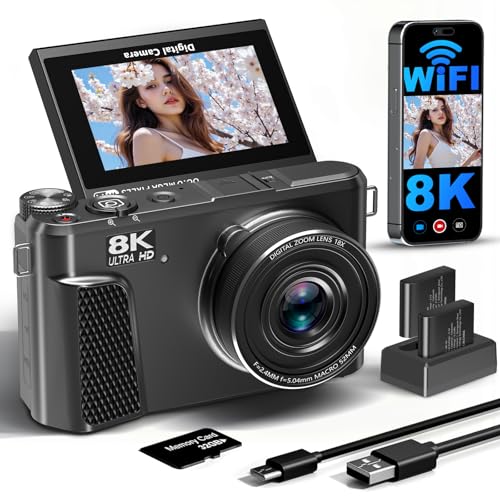
Have you ever wanted to transfer photos from your digital camera directly to your iPad? With the advancements in technology, it is now easier than ever to do so. Whether you want to share your photos on social media or simply view them on a larger screen, transferring photos from your camera to your iPad is a convenient way to access and store your memories.




In this article, we will explore the various methods you can use to upload photos from your digital camera to your iPad. Whether you prefer a wired connection or a wireless transfer, we will cover the steps you need to follow to successfully transfer your photos.
By the end of this article, you will be equipped with the knowledge to effortlessly transfer photos from your digital camera to your iPad, allowing you to enjoy and share your images with ease.
Steps to Upload Photos from Digital Camera to iPad
If you want to transfer photos from your digital camera to your iPad, you can follow these steps:
- Connect your Camera: Use a USB cable to connect your digital camera to your computer.
- Import to Computer: Import the photos from your camera to your computer using the software provided by the camera manufacturer or a file transfer program.
- Transfer to iPad: Connect your iPad to the computer using a USB cable and open iTunes. Select your iPad and go to the Photos tab. Check the “Sync Photos” option and choose the folder where your camera photos are saved. Click “Apply” to sync the photos to your iPad.
Once the syncing is complete, you can disconnect your iPad and access the transferred photos in the Photos app on your device.
Step 1: Connect your Digital Camera to iPad
To upload photos from your digital camera to your iPad, you’ll need to connect the two devices using the appropriate cables or adapters. Here’s how you can do it:

| 1. | Check the type of connection your digital camera uses (USB, micro USB, Lightning, etc.). |
| 2. | Purchase the necessary adapter or cable that will allow you to connect your digital camera to your iPad. |
| 3. | Plug one end of the cable/adapter into your digital camera and the other end into the appropriate port on your iPad. |
| 4. | Turn on your digital camera and iPad. |
Step 2: Import Photos using Camera Connection Kit
To import photos from your digital camera to your iPad, you will need a Camera Connection Kit. Follow these steps:
- Connect the USB cable from the Camera Connection Kit to your iPad.
- Connect your digital camera to the Camera Connection Kit using the appropriate cable.
- Turn on your digital camera and iPad.
- Open the Photos app on your iPad.
- Click on the “Import” tab at the bottom of the screen.
- Select the photos you want to import by tapping on them.
- Click “Import Selected” to transfer the photos to your iPad.
- Once the import is complete, you can view your photos in the Photos app on your iPad.
Step 3: Use iCloud Photo Library for Seamless Upload
If you want a seamless way to upload photos from your digital camera to your iPad, consider using iCloud Photo Library. This feature allows you to store and access your photos across all your Apple devices, including your iPad.
To use iCloud Photo Library, follow these steps:
1. Turn on iCloud Photo Library on your iPad:
Go to Settings > [Your Name] > iCloud > Photos, then toggle on iCloud Photo Library.
2. Connect your digital camera to a computer:
Upload the photos from your camera to your computer using the appropriate software or by manually transferring the files.
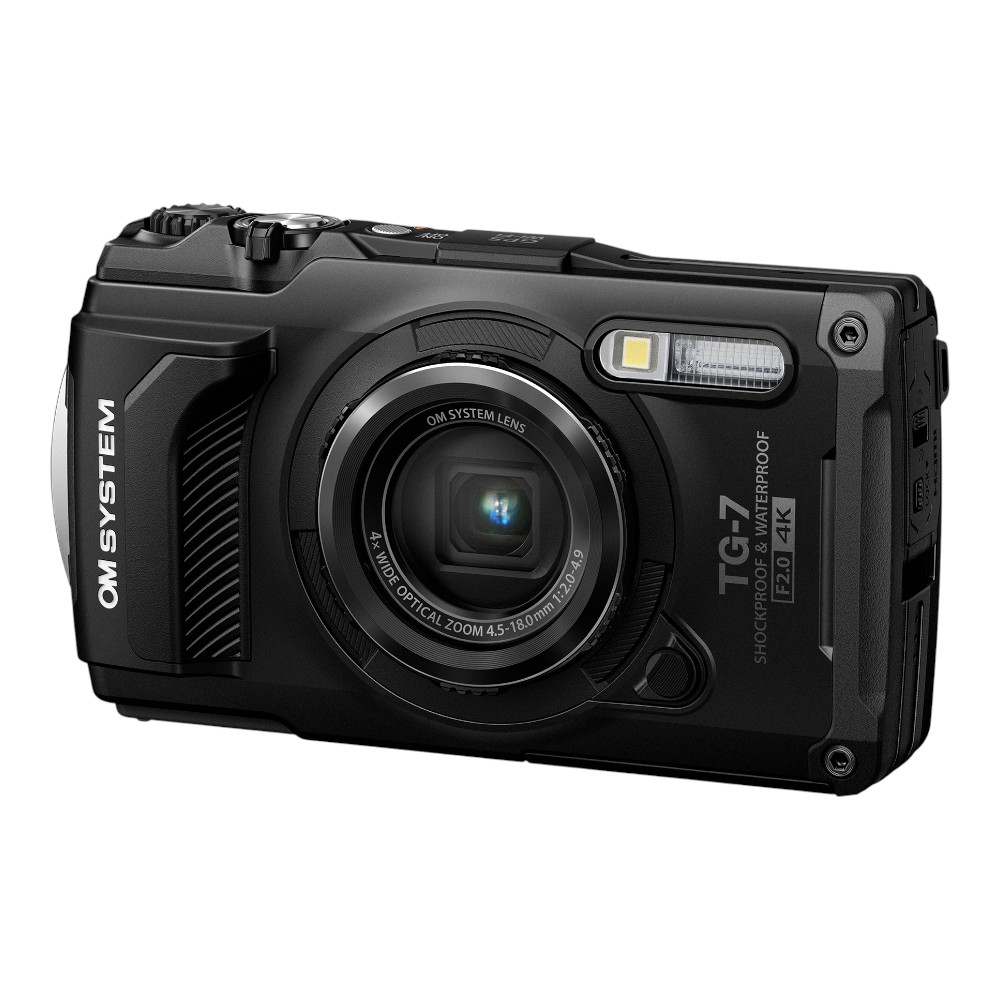
By enabling iCloud Photo Library on your iPad and uploading photos from your digital camera to your computer, your photos will automatically sync to your iPad, making them easily accessible whenever you need them.
Step 4: Transfer Photos via iTunes
To transfer photos from your digital camera to your iPad using iTunes, follow these steps:
- Connect Your iPad to Your Computer: Use a USB cable to connect your iPad to your computer.
- Open iTunes: Launch iTunes on your computer. If you don’t have iTunes installed, download and install it from the Apple website.
- Select Your iPad: Click on the iPad icon in the top left corner of iTunes to select your device.
- Import Photos: Go to the “Photos” tab in iTunes and check the “Sync Photos” box. Choose the folder where your photos are stored on your computer. You can also select specific albums or folders to sync.
- Sync Your iPad: Click on the “Apply” button in the bottom right corner of iTunes to sync the selected photos to your iPad.
Once the sync is complete, you should be able to view the photos from your digital camera on your iPad’s Photos app.
Step 5: Email Photos to Yourself for Quick Access
If you want quick access to your photos on your iPad, you can email them to yourself. Follow these steps:
1. Open your email application on your iPad.
Access your email account on your iPad by opening the email application you use.
2. Compose a new email and attach the photos.
Create a new email and attach the photos you want to transfer from your digital camera. You can usually find the option to attach files by tapping on the attachment icon in the email composition window.
3. Send the email to yourself.
Once you have attached the photos, send the email to yourself. Make sure to check your inbox on your iPad to access the photos quickly.
Step 6: Utilize Third-Party Apps for Photo Transfer
If you prefer a more streamlined and efficient way to transfer photos from your digital camera to your iPad, you can utilize third-party apps designed specifically for this purpose. These apps often offer additional features and customization options to enhance your photo transfer experience.
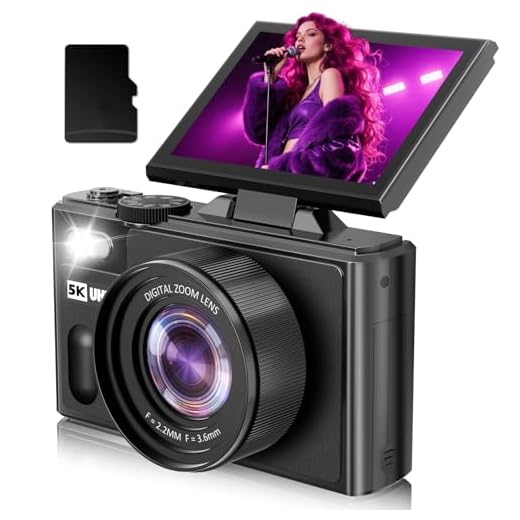
Some popular third-party apps for transferring photos from a digital camera to an iPad include CameraSync, PhotoSync, and SnapBridge. These apps allow you to easily transfer photos wirelessly or via a cable connection, manage your photo library, and organize your photos in albums.
| App Name | Features |
| CameraSync | Wireless photo transfer, automatic syncing, album organization |
| PhotoSync | Wireless and cable photo transfer, photo management, album creation |
| SnapBridge | Wireless transfer, remote shooting, automatic backup |
By using these third-party apps, you can simplify the process of transferring photos from your digital camera to your iPad and enjoy a more seamless photo management experience.
FAQ
Can I upload photos from my digital camera directly to my iPad?
Yes, you can upload photos from your digital camera to your iPad using an SD card reader or a USB cable. Simply connect your digital camera to your iPad using the appropriate adapter and transfer the photos to your device.
What is the best way to transfer photos from a digital camera to an iPad?
The best way to transfer photos from a digital camera to an iPad is to use an SD card reader that is compatible with your iPad model. This allows you to quickly and easily transfer photos from your camera’s memory card to your iPad without the need for a computer.
Is it possible to transfer RAW photos from a digital camera to an iPad?
Yes, you can transfer RAW photos from your digital camera to your iPad. However, you may need to use a third-party app that supports RAW file formats in order to view and edit the RAW photos on your iPad.
Can I edit photos on my iPad after transferring them from a digital camera?
Yes, you can edit photos on your iPad after transferring them from a digital camera. The iPad offers a range of photo editing apps that allow you to enhance and customize your photos directly on the device.
Are there any wireless options to upload photos from a digital camera to an iPad?
Yes, there are wireless options available to upload photos from a digital camera to an iPad. You can use a Wi-Fi enabled SD card in your camera or utilize wireless transfer apps to send photos from your camera to your iPad over a Wi-Fi network.



Can I use any USB cable to connect my camera to the iPad, or does it have to be a specific type?
When you say 'seamless upload' with iCloud, does that mean I have to keep my iPad and computer on all the time?
No, you only need to upload the photos to your computer first. Once they are in iCloud, they'll sync automatically to your iPad as long as it's connected to Wi-Fi.
I don’t think emailing photos to yourself is a good option. It's just too slow and not efficient.
Has anyone tried both CameraSync and PhotoSync? I'm curious which app works better for transferring photos.