
 Carmen J. Moore

If you have an old digital camera lying around, chances are there are some precious memories stored on it that you want to preserve. However, getting those photos off an old digital camera can be a bit tricky, especially if you don’t have the necessary cables or software. But fear not, we’re here to help!
In this guide, we’ll walk you through the steps to easily transfer photos from your old digital camera to your computer or other devices. Whether you’re dealing with a camera that uses a memory card or a built-in storage, we’ve got you covered with simple and effective methods to retrieve your photos.
By following the instructions in this article, you’ll be able to access and save those precious memories captured on your old digital camera. Don’t let those photos stay hidden in your camera – let’s get them off and into your digital archive!
Extracting Photos from Vintage Digital Cameras
If you have an old digital camera lying around with precious photos stored on it, you may be wondering how to retrieve those images. Here are some steps you can take to extract photos from vintage digital cameras:



Step 1: Check the Camera’s Connection Options
First, check the type of connection options your vintage digital camera has. It may have a USB port, memory card slot, or other connectivity features that can help you transfer the photos to a computer or storage device.
Step 2: Transfer Photos to a Computer
If your camera has a USB port, connect it to a computer using a compatible cable. You may need to install drivers or software for the camera to be recognized by the computer. Once connected, you can access the camera’s storage and transfer the photos to your computer’s hard drive.
| Tip: | If your camera uses a memory card, you can remove the card and use a card reader to transfer the photos to your computer. |
|---|
By following these steps, you can safely extract photos from your vintage digital camera and preserve those memories for years to come.
Connecting the Camera to a Computer
To transfer photos from your old digital camera to a computer, you will need to connect the camera to the computer using a USB cable. Follow these steps to establish the connection:
Step 1: Locate the USB Port
Locate the USB port on your digital camera. It is typically located on the side or the bottom of the camera. The USB port may be hidden behind a small cover that you can open to reveal the port.

Step 2: Connect the USB Cable
Take the USB cable that came with your camera and plug one end into the USB port on the camera. Then, plug the other end of the cable into a USB port on your computer. Make sure both ends are securely connected.
Once the camera is connected to the computer, you may need to turn on the camera and set it to “transfer” mode to allow the computer to access the photos stored on the camera.
Using Specialized Software for Data Transfer
If you are having trouble transferring photos from your old digital camera using the traditional methods, you may want to consider using specialized software designed for data transfer. These programs are specifically designed to help you extract photos and other files from older devices and transfer them to your computer or a newer device.
Specialized software often offers more advanced features and customization options compared to standard transfer methods. Additionally, these programs may support a wider range of file formats and devices, making it easier to extract data from your old camera. Some popular options include PhotoRescue, Recuva, and Stellar Photo Recovery.
Before using specialized software, make sure to read the instructions carefully and follow the steps provided by the program. This will help ensure a smooth and successful transfer of your photos without risking any data loss.
Transferring Photos via Memory Card Reader
If your old digital camera uses a memory card to store photos, you can easily transfer them to your computer using a memory card reader. Follow these steps:
- Remove the memory card from your camera.
- Insert the memory card into the memory card reader slot on your computer or use an external memory card reader.
- Once the memory card is inserted, your computer should recognize it as a removable storage device.
- Open the file explorer on your computer and locate the memory card under the list of connected devices.
- Copy the photos from the memory card to a folder on your computer by dragging and dropping them or using the copy-paste method.
- After the transfer is complete, safely eject the memory card from the card reader and remove it from the slot.
By following these steps, you can easily transfer photos from your old digital camera to your computer using a memory card reader.
Utilizing USB Cable for Direct Transfer
If your old digital camera has a USB port, you can easily transfer photos directly to your computer using a USB cable. Here’s how:
- Locate the USB port on your digital camera.
- Connect one end of the USB cable to the camera’s USB port.
- Connect the other end of the USB cable to a USB port on your computer.
- Turn on your digital camera and set it to the “transfer” or “PC” mode.
- Your computer should recognize the camera as a removable storage device.
- Open the folder containing your photos on the camera and copy them to a folder on your computer.
Once the transfer is complete, you can safely disconnect the USB cable and access your photos on your computer.
Backing Up Photos to Cloud Storage
One of the most convenient ways to ensure your photos are safe and accessible is to back them up to cloud storage. There are many cloud storage services available, such as Google Drive, Dropbox, and iCloud, that allow you to upload and store your photos securely online.

By backing up your photos to cloud storage, you can access them from any device with an internet connection. This means you can easily transfer your photos to a new computer or smartphone without worrying about losing them. Additionally, cloud storage services often have features that automatically backup your photos, so you don’t have to remember to do it manually.
To back up your photos to cloud storage, simply create an account with a cloud storage service, upload your photos to your account, and let the service handle the rest. Make sure to choose a reputable and secure cloud storage service to ensure the safety of your precious memories.
Organizing and Sorting Retrieved Images
Once you have successfully transferred the photos from your old digital camera to your computer, it’s time to organize and sort them. Start by creating folders on your computer to categorize the images based on date, event, or any other criteria that make sense to you. This will make it easier to locate specific photos in the future.
You can also use photo management software to help you organize and sort your images. These programs often have features that allow you to add tags, keywords, and ratings to your photos, making it even easier to search for them later on.
Consider creating backup copies of your organized photos to ensure that you don’t lose them in case of a computer crash or other mishap. You can use external hard drives, cloud storage services, or even burn them onto CDs or DVDs for safekeeping.
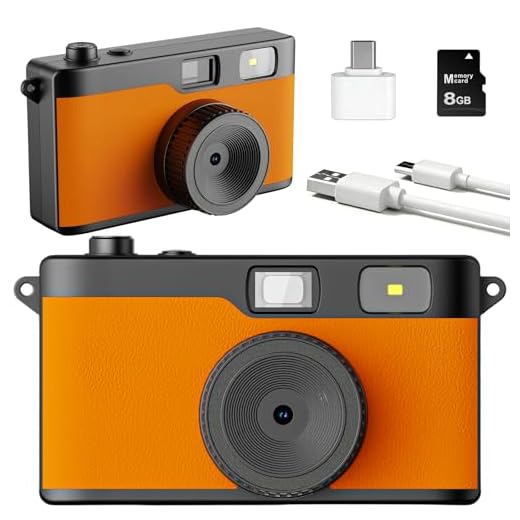
Preserving Memories from Old Digital Cameras
Old digital cameras may hold a treasure trove of memories captured in photos. To ensure these memories are preserved for years to come, it’s essential to transfer the photos from the old camera to a more modern storage solution.
Step 1: Check the Camera’s Connectivity Options
Before attempting to transfer photos, check the connectivity options of the old digital camera. Common options include USB, memory card, or direct connection to a computer. Determine the best method for transferring photos based on the available connectivity.
Step 2: Transfer Photos to a Computer
If the camera has a USB connection or uses a memory card, transfer the photos to a computer. Connect the camera or memory card to the computer and copy the photo files to a designated folder on your computer’s hard drive. This ensures easy access to the photos and allows for backup and storage on external drives or cloud services.
FAQ
How can I transfer photos from an old digital camera to my computer?
You can transfer photos from an old digital camera to your computer by connecting the camera to your computer using a USB cable. Once connected, you can access the photos on your camera and copy them to your computer’s hard drive.
What should I do if my old digital camera doesn’t have a USB port?
If your old digital camera doesn’t have a USB port, you can remove the memory card from the camera and use a card reader to transfer the photos to your computer. Most computers have built-in card readers or you can purchase an external card reader for this purpose.



I disagree with the recommendation of cloud storage. I prefer keeping my photos on external hard drives instead of the cloud due to security concerns. Anyone else feel the same?
I totally agree! I trust physical storage more than cloud services.
The article mentions specialized software for transferring photos. Are there any particular features I should look for in this software to ensure it works well with very old cameras?
Look for software that supports a wide range of file formats and offers recovery options. Features like batch processing and simple user interfaces can also be helpful.
I tried connecting my old camera directly to my computer, but it didn't recognize it. Ended up using a card reader, which worked perfectly!
Make sure to back up your transferred photos in multiple places to avoid losing them!