
 Carmen J. Moore

Are you looking to step up your Twitch streaming game and enhance the visual quality of your broadcasts? One way to achieve professional-looking video content is by using a mirrorless camera. Mirrorless cameras offer superior image quality, interchangeable lenses, and advanced features that can take your stream to the next level.
Why choose a mirrorless camera for Twitch streaming? Mirrorless cameras are known for their compact size, lightweight design, and excellent image quality. They offer the flexibility of interchangeable lenses, allowing you to adapt to different streaming setups and achieve the desired visual effect. With features like autofocus tracking, face detection, and image stabilization, mirrorless cameras can help you capture crisp and smooth footage for your Twitch audience.
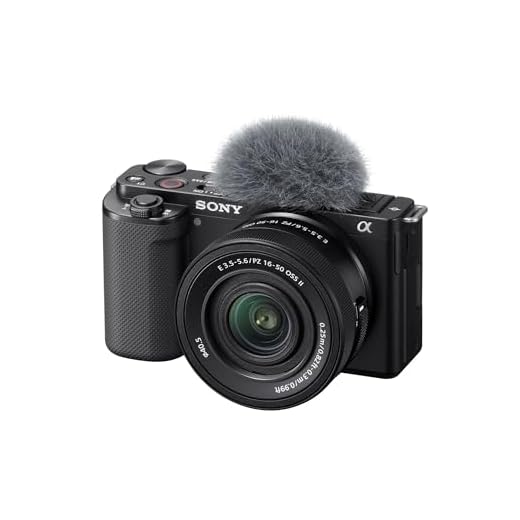


In this guide, we will explore how to set up and use a mirrorless camera for Twitch streaming, including camera selection, settings adjustment, and tips for optimizing your stream quality. Let’s dive in and elevate your streaming experience!
Choosing the Right Mirrorless Camera
When selecting a mirrorless camera for streaming on Twitch, there are several key factors to consider to ensure you get the best performance and quality for your broadcasts. Here are some important considerations:
| Resolution: | Look for a camera that offers at least 1080p resolution for high-quality video output. |
| Low Light Performance: | Choose a camera with good low light performance to maintain image quality in various lighting conditions. |
| Autofocus: | Opt for a camera with fast and accurate autofocus capabilities to keep you in focus during your streams. |
| Interchangeable Lenses: | Consider cameras with interchangeable lenses to have flexibility in capturing different shots and angles. |
| Audio Input: | Check if the camera has an audio input for connecting external microphones to improve sound quality. |
| Connectivity: | Ensure the camera has the necessary connectivity options like HDMI or USB for streaming to your computer. |
Consider Your Budget and Needs
When choosing a mirrorless camera for streaming on Twitch, it’s important to consider your budget and specific needs. Mirrorless cameras come in a wide range of prices, so determine how much you’re willing to spend before making a decision. Consider whether you need features like 4K video recording, a flip-out screen for vlogging, or built-in image stabilization.
Think about the type of content you’ll be creating on Twitch and choose a camera that best suits your style. If you plan on streaming gaming sessions, you may prioritize low-light performance and fast autofocus. On the other hand, if you’ll be doing beauty tutorials or cooking streams, you might want a camera with excellent color reproduction and sharpness.
Ultimately, the best mirrorless camera for Twitch is one that fits your budget and meets your specific streaming needs. Do your research, read reviews, and test out different cameras if possible before making a purchase.
Research Different Brands and Models
Before you make a decision on which mirrorless camera to use for streaming on Twitch, it’s essential to research different brands and models available in the market. Each brand offers a variety of features and specifications that may suit your streaming needs.
Start by looking at popular brands like Sony, Canon, Nikon, Panasonic, and Fujifilm. Compare the specifications of their mirrorless cameras, such as sensor size, resolution, autofocus capabilities, and video recording features.
Consider the Following Factors:
- Low-light performance
- Video quality
- Compatibility with external microphones
- Price range
Reading reviews from other Twitch streamers or professional photographers can also help you understand the pros and cons of each camera model. Make a list of the key features you need for your streaming setup and prioritize them when selecting a mirrorless camera.
Setting Up Your Mirrorless Camera
Once you have your mirrorless camera ready to use for streaming on Twitch, it’s important to set it up properly to ensure the best quality for your viewers. Here are some steps to follow:
1. Adjust your camera settings: Make sure to set your camera to the correct resolution, frame rate, and exposure settings for streaming. You may also want to adjust white balance and focus settings to ensure clear and sharp images.
2. Connect your camera to your computer: Use a USB cable or a capture card to connect your mirrorless camera to your computer. Make sure your camera is recognized by your streaming software.
3. Position your camera: Place your camera in a stable position where it can capture your face or gaming setup effectively. Consider using a tripod or a camera mount for better stability.
4. Test your setup: Before going live on Twitch, test your camera setup to make sure everything is working properly. Check the audio and video quality, and make any necessary adjustments.
5. Start streaming: Once everything is set up and tested, you’re ready to start streaming on Twitch with your mirrorless camera. Engage with your audience and enjoy sharing your content!
Mounting the Camera on a Tripod
When using a mirrorless camera for streaming on Twitch, it is important to mount the camera securely on a tripod to ensure a stable and consistent angle for your viewers. Follow these steps to mount your camera on a tripod:
- Attach the quick release plate to the bottom of your camera. Make sure it is securely tightened to prevent any accidents.
- Mount the tripod head onto the tripod legs and make sure it is stable.
- Slide the quick release plate onto the tripod head and lock it in place.
- Adjust the angle and height of the tripod to frame your shot correctly.
- Ensure the camera is securely mounted and tighten any knobs or screws to prevent it from moving during your stream.
By following these steps, you can easily mount your mirrorless camera on a tripod for a professional streaming setup on Twitch.
Adjusting Camera Settings for Twitch Streaming
When using a mirrorless camera for Twitch streaming, it’s important to adjust the settings to ensure the best image quality and performance. Here are some key settings to consider:
- Resolution: Set the resolution of the camera to match the streaming platform’s requirements. Typically, 1080p is a good choice for high-quality streaming.
- Frame Rate: Adjust the frame rate of the camera to match the frame rate of your streaming software. A frame rate of 30fps is common for streaming.
- Exposure: Make sure the exposure is set correctly to avoid overexposed or underexposed images. Use the camera’s exposure compensation feature if needed.
- White Balance: Set the white balance based on the lighting conditions in your streaming setup to ensure accurate color reproduction.
- Focusing: Use the camera’s autofocus feature to keep the subject in focus during the stream. You can also manually adjust the focus if needed.
- Audio: Consider using an external microphone for better audio quality. Make sure to sync the audio with the video for a seamless streaming experience.
Lighting and Background for Your Streams
When streaming on Twitch with a mirrorless camera, proper lighting and a suitable background can greatly enhance the quality of your streams. Here are some tips to help you improve your setup:
|
Lighting:
|
|
Background:
|
Using Soft Lighting for a Flattering Look
Soft lighting is essential for creating a flattering look on camera when using a mirrorless camera for streaming on Twitch. Harsh lighting can create unflattering shadows and highlight imperfections, while soft lighting helps to create a more even and flattering light on your face.
Here are some tips for using soft lighting:
- Use a softbox or umbrella to diffuse the light and create a soft, even glow.
- Position the light source slightly above your eye level to avoid harsh shadows under your eyes.
- Experiment with the distance of the light source to find the most flattering lighting for your face.
- Avoid direct light on your face by bouncing the light off a wall or ceiling for a softer effect.
By using soft lighting techniques, you can achieve a more flattering and professional look on your Twitch streams with a mirrorless camera.


I recently switched to a mirrorless setup for my streams, and the difference in quality is incredible! I used to use a webcam, but now with my Panasonic GX85, everything looks so much more professional. I did run into issues with finding the right lighting though; it took me a few tries to get it right. Definitely recommend investing in softbox lights if you're looking for a more polished look!
That's awesome to hear! I’ve been hesitant to switch because of the lighting setup but maybe it's worth it. Did you have to tweak a lot of settings to get it to look good?
What specific mirrorless camera models do you recommend for beginners on Twitch? I've seen a lot of options but I'm not sure where to start.