
 Carmen J. Moore

Have you ever encountered the frustrating message “Unknown Part” on your iPhone camera? This error can be perplexing and leave you wondering what exactly is causing it. In this article, we will explore the possible reasons behind this issue and provide some troubleshooting tips to help you resolve it.

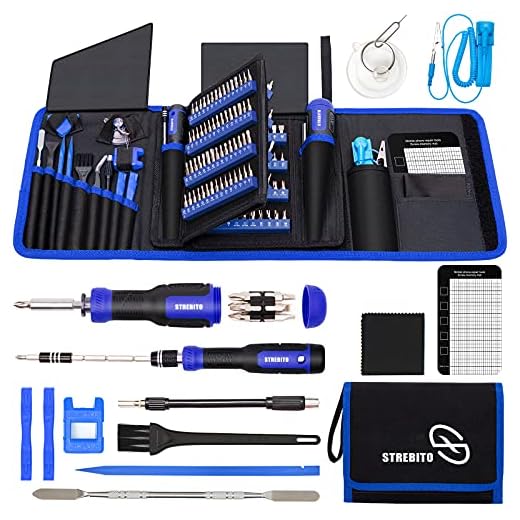
When your iPhone camera displays the message “Unknown Part,” it typically indicates a problem with the hardware or software of the device. This error can prevent you from using your camera and capturing photos or videos, which can be especially troublesome if you rely on your iPhone for photography or video recording.
There are several potential causes for the “Unknown Part” error on your iPhone camera, ranging from software glitches to hardware malfunctions. By understanding these possible reasons, you can better diagnose the issue and take steps to address it effectively.
Understanding the Error Message
When your iPhone camera displays the message “Unknown Part,” it typically means that the camera module or related component is not recognized or is malfunctioning. This can be caused by various factors such as a hardware failure, software glitch, or compatibility issue.
If you encounter this error, you can try troubleshooting steps like restarting your device, updating the software, or resetting the camera settings. If the issue persists, it may require professional assistance or replacement of the faulty part.
Possible Causes of the Issue
1. Software Glitch: An unknown part error on your iPhone camera could be due to a software glitch or bug in the operating system. Updating your device to the latest iOS version may help resolve this issue.
2. Hardware Malfunction: The error message could indicate a hardware malfunction with the camera module or related components. Physical damage or internal issues may be causing the camera to be unrecognized.
3. Connection Problem: A loose or faulty connection between the camera module and the iPhone’s logic board could result in the unknown part error. Checking and securing the connections may help resolve the issue.
4. Water Damage: Exposure to moisture or water damage can also lead to camera-related issues, including the unknown part error. If your iPhone has been exposed to water, it may have damaged the camera components.
5. Third-party Accessories: Using incompatible or third-party accessories, such as camera lenses or cases, could cause conflicts with the iPhone’s camera system and trigger the unknown part error.
How to Troubleshoot the Problem
If your iPhone camera is displaying an “unknown part” error, here are a few troubleshooting steps you can try:
- Restart your iPhone: Sometimes a simple restart can resolve minor software glitches.
- Update your iOS: Make sure your iPhone’s operating system is up to date as updates often include bug fixes.
- Check for camera app updates: Ensure that your camera app is updated to the latest version.
- Clean the camera lens: Dirt or fingerprints on the camera lens can cause issues. Use a soft, lint-free cloth to clean it.
- Reset camera settings: Go to Settings > General > Reset > Reset All Settings. This will reset all camera settings to default.
- Contact Apple Support: If the issue persists, it may be a hardware problem. Contact Apple Support or visit an Apple Store for further assistance.
Checking for Software Updates
If your iPhone camera is displaying an “unknown part” error, it could be due to a software issue. One way to troubleshoot this problem is by checking for software updates on your device.
To check for software updates on your iPhone, follow these steps:
- Go to the “Settings” app on your iPhone.
- Scroll down and tap on “General.”
- Tap on “Software Update.”
- If there is an available update, tap on “Download and Install.”
Updating your iPhone to the latest software version can often resolve compatibility issues and errors like “unknown part” in the camera app. Make sure to regularly check for software updates to keep your device running smoothly.
Resetting the Camera Settings
If your iPhone camera is displaying an error message like “Unknown Part,” you may need to reset the camera settings to resolve the issue.
Here’s how you can reset the camera settings on your iPhone:
- Go to the “Settings” app on your iPhone.
- Scroll down and find the “General” section.
- Tap on “Reset” at the bottom of the General settings.
- Select “Reset All Settings.”
- Enter your passcode if prompted.
- Confirm the reset of all settings.
After resetting the camera settings, check if the “Unknown Part” error message has been resolved. If the issue persists, you may need to contact Apple Support for further assistance.
Inspecting the Hardware Components
When your iPhone camera displays the message “unknown part,” it may indicate a hardware issue. To troubleshoot this problem, you can start by inspecting the various hardware components of your iPhone, including:
- Camera Lens: Check the camera lens for any dirt, smudges, or scratches that may be obstructing the view.
- Camera Module: Ensure that the camera module is securely attached to the device and not loose or damaged.
- Connections: Examine the connections between the camera module and the motherboard to ensure they are properly connected.
- Hardware Damage: Look for any signs of physical damage to the camera or other related components.
By carefully inspecting these hardware components, you may be able to identify the root cause of the “unknown part” error on your iPhone camera.
Seeking Professional Help
If your iPhone camera continues to display the “unknown part” error message despite troubleshooting attempts, it may be time to seek professional help. Contact Apple Support or visit an authorized service provider to have your device inspected and repaired by trained technicians. They will be able to diagnose and fix any hardware issues that may be causing the problem with your camera.
Preventing Future Camera Errors
Here are some tips to prevent future camera errors on your iPhone:
- Keep your iPhone software up to date by regularly installing the latest updates from Apple.
- Avoid exposing your iPhone to extreme temperatures, moisture, or physical damage that could affect the camera components.
- Use a high-quality protective case to shield your iPhone from potential damage and impacts.
- Avoid installing unofficial or unauthorized apps that may interfere with the camera functionality.
- Regularly clean the camera lens with a soft, lint-free cloth to prevent dirt or smudges from affecting the image quality.
Customer Support and Warranty Information
If your iPhone camera is displaying the message “unknown part,” it may indicate a hardware issue that requires attention. In such cases, it is important to reach out to Apple’s customer support for assistance.
Apple offers a limited warranty on its products, including the iPhone. If your device is still covered under warranty, you may be eligible for a repair or replacement at no additional cost. To check the status of your warranty and explore your options, contact Apple’s customer support team.
Contacting Apple Support:
- Visit Apple’s official website and navigate to the support section for iPhone.
- Use the Apple Support app on your iPhone to chat with a representative or schedule a call back.
- Visit an Apple Store or authorized service provider for in-person support.
Remember to have your device’s serial number and purchase information on hand when contacting customer support. This will help expedite the process and ensure that you receive the necessary assistance for your iPhone camera issue.
Final Thoughts on iPhone Camera Errors
Dealing with iPhone camera errors can be frustrating, but understanding the common issues and troubleshooting steps can help you resolve them quickly. If your iPhone camera displays an “unknown part” message, it could indicate a hardware issue that may require professional repair. In such cases, contacting Apple Support or visiting an authorized service provider is recommended.
Remember to keep your iPhone’s software up to date, as software glitches can sometimes cause camera errors. Additionally, taking care of your device, avoiding extreme temperatures, and protecting it from physical damage can help prevent camera issues in the future.


Make sure to always clean the camera lens regularly! It can prevent some errors due to dirt or smudges.
I disagree with the idea that third-party accessories are always to blame. I’ve used several without any issues, and I think the problem is more likely a software glitch or hardware failure.
That’s a fair point! I’ve had third-party lenses that worked perfectly fine. However, sometimes they can interfere with the camera settings.
I encountered the 'unknown part' message after I dropped my iPhone. I thought it was a software issue at first, but after checking the hardware components, I realized the camera module was slightly loose. After securing it, the error went away. It might be worth taking a look at the connections if you have any hardware experience.
I've been seeing the 'unknown part' message on my iPhone camera for a few days now. I’ve tried restarting my phone and checking for updates, but it’s still there. What should I do next?
When you say 'water damage' can cause this error, how can I tell if my iPhone has suffered from that? Are there specific signs to look for?