
 Carmen J. Moore
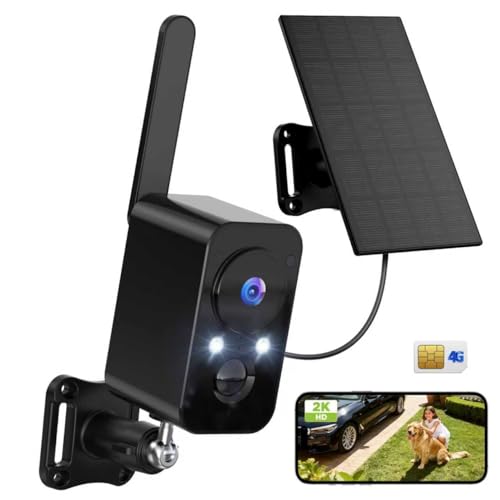
Security cameras have become an essential component of modern home security systems. They provide peace of mind by allowing homeowners to monitor their property remotely and keep an eye on any suspicious activity. However, one of the most common issues that users face with security cameras is the inability to connect to wifi.

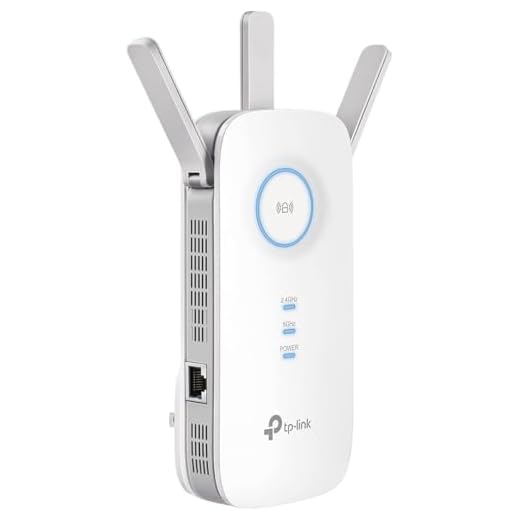

There are several reasons why a security camera may have trouble connecting to wifi. It could be due to a weak wifi signal, incorrect network settings, or even interference from other devices. In this article, we will explore some of the common causes of wifi connection issues with security cameras and provide tips on how to troubleshoot and resolve them.
Common Reasons for Security Camera WiFi Connection Issues
There are several common reasons why a security camera may have trouble connecting to WiFi:
1. Weak WiFi Signal: If the camera is too far from the router or there are obstacles blocking the signal, the connection may be weak or intermittent.
2. Incorrect WiFi Password: Double-check that the camera is using the correct WiFi password to connect to the network.
3. Network Interference: Other devices or appliances in the area may be causing interference with the WiFi signal, affecting the camera’s connection.
4. Firmware Issues: Outdated firmware on the camera or router can sometimes cause connectivity problems. Make sure both are up-to-date.
5. IP Address Conflict: If multiple devices on the network have the same IP address, it can lead to connectivity issues. Check for any conflicts and assign unique IP addresses.
6. Router Settings: Some router settings, such as firewall configurations or MAC address filtering, may prevent the camera from connecting. Adjust these settings if needed.
By addressing these common issues, you can improve the stability and reliability of your security camera’s WiFi connection.
WiFi Network Availability
When your security camera WiFi cannot connect, one of the common reasons could be the availability of the WiFi network. Make sure that your WiFi network is up and running properly. Check if other devices are able to connect to the network without any issues.
If you are experiencing connectivity problems with your security camera, try restarting your WiFi router to ensure that the network is functioning correctly. Additionally, check the signal strength of your WiFi network in the area where the camera is installed. Weak signal strength can lead to connectivity issues.
It is also important to ensure that there are no network outages or disruptions in your area that could be affecting the availability of your WiFi network. Contact your Internet Service Provider (ISP) to inquire about any ongoing network maintenance or issues that may be impacting your connection.
Incorrect WiFi Password
If your security camera WiFi cannot connect, one common reason could be an incorrect WiFi password entered during the setup process. Make sure you double-check the password you entered and ensure it matches the actual password for your WiFi network.
If you are unsure about the password, you may need to reset your security camera and go through the setup process again, entering the correct WiFi password this time.
Interference from Other Devices
Security cameras that rely on a WiFi connection can experience interference from other devices operating on the same frequency band. Common household appliances such as microwaves, cordless phones, and even Bluetooth devices can cause disruptions in the WiFi signal, leading to connectivity issues for your security camera.
To minimize interference, try to keep your security camera away from these devices or relocate them to a different area. Additionally, consider changing the channel on your WiFi router to reduce interference from neighboring networks. You may also invest in a dual-band router that operates on both 2.4GHz and 5GHz frequencies, allowing you to switch to a less crowded frequency for your security camera.
Signal Strength and Range
One common reason why your security camera wifi may not be able to connect is due to signal strength and range issues. The strength of the wifi signal in the area where the camera is installed plays a crucial role in establishing a stable connection. If the signal is weak or intermittent, the camera may struggle to maintain a reliable connection to the network.
Checking Signal Strength
To troubleshoot this issue, you can check the signal strength of your wifi network at the location of the camera. Most wifi routers have built-in tools that allow you to view the signal strength in different areas of your home or property. If the signal is weak, you may need to consider relocating the camera closer to the router or installing a wifi extender to improve coverage.
Understanding Range Limitations
It’s also important to consider the range limitations of your wifi network. Some security cameras may have a limited range of wifi connectivity, especially if they are located far from the router or in areas with obstacles that can interfere with the signal. Make sure that the camera is within the recommended range specified by the manufacturer to ensure a stable connection.
| Issue | Potential Solution |
|---|---|
| Weak Wifi Signal | Relocate camera closer to router or use wifi extender |
| Range Limitations | Ensure camera is within recommended range specified by manufacturer |
Router Settings Configuration
If your security camera WiFi cannot connect, it might be due to incorrect router settings. Here are some steps to configure your router settings:
1. Check Network Encryption
Make sure that your router’s network encryption settings match the security camera’s requirements. If the camera requires WPA2 encryption, ensure that your router is set to WPA2.
2. Port Forwarding
Check if port forwarding is enabled for the security camera. Configure the router to forward the necessary ports to the camera’s IP address to allow remote access.
Note: It is essential to keep your router’s firmware updated to ensure compatibility with your security camera’s requirements.
Software Compatibility
One common reason why security camera wifi may not connect is due to software compatibility issues. It is essential to ensure that the security camera’s software is compatible with the device you are using to connect to the wifi network. If the software is outdated or not supported by your device, it may prevent the camera from establishing a connection.
It is recommended to check for software updates for both the security camera and the device you are using to connect to the wifi network. Updating the software on both devices can help resolve compatibility issues and allow the camera to connect to the wifi network successfully.
Security Camera Firmware Update
Updating the firmware of your security camera can help resolve connectivity issues, improve performance, and enhance security features. Here are some steps to update the firmware:
1. Check for Updates
Make sure to regularly check the manufacturer’s website or the camera’s mobile app for firmware updates. New updates may address known issues and improve the overall functionality of the camera.
2. Download the Firmware
Once you have identified the latest firmware version for your camera, download the firmware file to your computer or mobile device. Follow the manufacturer’s instructions for downloading the correct firmware.
3. Update the Firmware
Connect your security camera to a stable Wi-Fi network and access the camera’s settings through the mobile app or web interface. Look for the firmware update option and follow the on-screen instructions to install the new firmware. Make sure not to interrupt the update process to avoid damaging the camera.
By keeping your security camera’s firmware up to date, you can ensure a more reliable and secure surveillance system.
Technical Support Assistance
If you are experiencing issues with connecting your security camera to WiFi, it is important to seek technical support assistance to troubleshoot and resolve the problem. Here are some steps you can take:
1. Contact Customer Support
Reach out to the manufacturer’s customer support team for guidance and assistance. They may be able to provide specific troubleshooting steps or firmware updates to address the connectivity issue.
2. Check Network Settings
Ensure that your WiFi network settings are configured correctly and that the security camera is within range of the WiFi signal. Verify that the network password is entered correctly and that the camera is compatible with your network encryption type.
- Check the WiFi signal strength in the area where the camera is installed.
- Restart your router and the security camera to refresh the connection.



I’m having trouble connecting my new security camera to WiFi. I’ve checked the password and even restarted my router, but it still won’t connect. Any other suggestions?
I’ve been having trouble connecting my security camera to WiFi. Could a weak signal really be the main issue, even if my other devices are working fine?
I don’t think moving the camera closer is always practical. Sometimes it’s better to invest in a WiFi extender instead.
Can anyone explain what an IP address conflict looks like? I'm not quite sure how to check for that on my network.
Are there specific router settings I should look at to ensure my camera can connect? I’m really not tech-savvy.
I’m not sure I agree with the advice about relocating the camera. Sometimes, the issue might just be a firmware problem that needs updating. I had to update mine to get it to connect again.
You’re right; firmware issues can also cause connectivity problems. Always check for updates if you're having trouble.
I disagree that interference from other devices is a major issue. My camera is right next to the router and still had connection problems. It was more about the range for me, even though they say it should work. It really depends on the setup.
I’m having trouble connecting my new security camera to WiFi. The signal seems fine for other devices, but it keeps failing. Any tips?
Make sure to check the camera's distance from the router. If it's too far or blocked by walls, it might struggle to connect. You could also try restarting your router or checking the camera's password.
The article mentions router settings like port forwarding. Can you explain how to set that up for a security camera?
To set up port forwarding, log into your router's settings. You'll typically find an option for 'Port Forwarding' or 'Applications.' Enter the camera's IP address and the ports that need to be forwarded. Make sure to save your changes.
I’ve used both single-band and dual-band routers with my security cameras. The dual-band router definitely performed better in terms of reducing interference. If anyone is having connection issues, I’d recommend switching to dual-band.
I had a similar issue last month where my camera wouldn’t connect at all. It turned out to be an outdated firmware on the camera. After updating it, everything worked perfectly! If you haven't tried that yet, it might be worth checking.
I had a similar issue, and it turned out my router needed a firmware update. Once I updated it, my camera connected right away.
I had a similar issue last month. My camera wouldn’t connect until I moved it closer to the router. Now it works perfectly!