 Carmen J. Moore

Security cameras have become an essential part of modern home and business security systems. They provide a sense of safety and peace of mind by allowing you to monitor your property remotely. However, accessing your security camera footage online can sometimes be a bit tricky. In this article, we will guide you through the process of watching your security cameras online, so you can keep an eye on your property no matter where you are.
First and foremost, you’ll need to ensure that your security cameras are connected to the internet. Most modern security cameras come with built-in Wi-Fi capabilities, allowing them to connect to your home network. Make sure your cameras are properly configured and connected to the internet before attempting to access them online. You may need to consult the user manual or contact the manufacturer for assistance with this step.

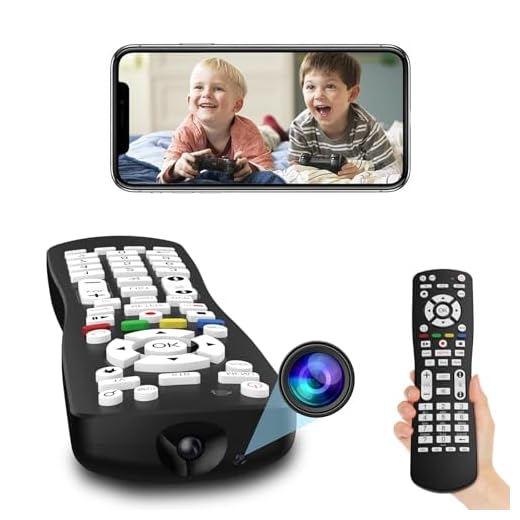
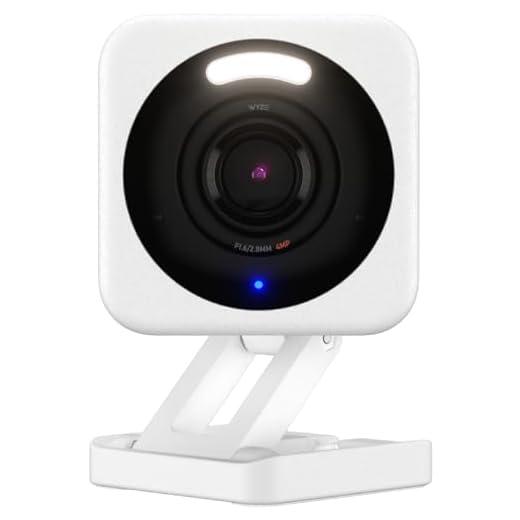
Once your cameras are connected to the internet, you can access them online through a web browser or a dedicated mobile app. Most security camera systems come with a companion app that allows you to view your camera feeds on your smartphone or tablet. Simply download the app, log in with your credentials, and you’ll be able to see live footage from your security cameras in real-time. Alternatively, you can access your camera feeds through a web browser by entering the camera’s IP address or domain name.
Setting up your security cameras
Setting up your security cameras is a crucial step in ensuring the safety of your home or business. Follow these steps to properly set up your security cameras:
- Choose the right location for your cameras. Place them in areas that provide maximum coverage of the area you want to monitor.
- Mount the cameras securely on walls or ceilings to ensure they have a clear view of the surroundings.
- Connect the cameras to a power source and make sure they are properly connected to your recording device or network.
- Adjust the camera settings, such as resolution and field of view, to meet your specific needs.
- Test the cameras to ensure they are functioning properly and that the footage is clear and reliable.
- Set up remote access to view the camera feed online, so you can monitor your property from anywhere.
Choosing the right camera system
When it comes to choosing a security camera system for online monitoring, there are several factors to consider to ensure you select the right one for your needs.
1. Type of camera:
Decide whether you need a wired or wireless camera system. Wired systems provide a more stable connection, while wireless systems offer flexibility in installation.
2. Resolution:
Consider the resolution of the cameras you plan to install. Higher resolution cameras will provide clearer images, making it easier to identify people and objects.
- 720p – Standard definition
- 1080p – High definition
- 4K – Ultra-high definition
By taking these factors into account, you can choose the right camera system that meets your security needs and allows you to monitor your cameras online with ease.
Connecting your cameras to the internet
Before you can watch your security cameras online, you need to connect them to the internet. Here’s how you can do it:
1. Set up your cameras: Make sure your security cameras are properly installed and set up in the desired locations.
2. Connect to a network: Ensure that your cameras are connected to a Wi-Fi network or Ethernet cable for internet access.
3. Configure your cameras: Use the camera’s software or app to configure network settings and enable remote access.
4. Set up port forwarding: If accessing the cameras outside your local network, set up port forwarding on your router to allow remote access.
5. Test the connection: Verify that you can access the cameras remotely by using a web browser or the camera’s app.
Once you have successfully connected your cameras to the internet, you can securely monitor them from anywhere with an internet connection.
Configuring remote access
Once you have set up your security cameras and connected them to your network, you can configure remote access to view the camera feeds from anywhere with an internet connection. Follow these steps to set up remote access:
- Access your camera’s settings by logging into the camera’s web interface using its IP address.
- Locate the remote access or network settings in the camera’s configuration menu.
- Enable remote access and set up a username and password for secure login.
- Make sure to configure port forwarding on your router to allow external access to the camera.
- Once the settings are saved, you can access your cameras remotely by entering the camera’s IP address in a web browser.
By following these steps, you can easily configure remote access to watch your security cameras online from anywhere in the world.
Installing the necessary software
Before you can watch your security cameras online, you will need to install the appropriate software on your computer or mobile device. Here are the steps to get started:
1. Download the software: Visit the manufacturer’s website of your security camera system and locate the software download section. Download the software that is compatible with your operating system.
2. Install the software: Once the software is downloaded, run the installer and follow the on-screen instructions to install it on your device.
3. Configure the software: After installation, open the software and configure it to connect to your security cameras. You will need to enter the IP address of your cameras and set up the necessary settings for remote viewing.
4. Test the connection: Once the software is configured, test the connection to ensure that you can view your security cameras online. If everything is set up correctly, you should be able to access your cameras from anywhere with an internet connection.
Creating a secure login
When setting up access to your security cameras online, creating a secure login is crucial to protect your system from unauthorized access. Follow these steps to ensure a strong and secure login:
- Choose a unique username that is not easily guessable.
- Create a strong password with a combination of letters, numbers, and special characters.
- Enable two-factor authentication if your camera system supports it for an added layer of security.
- Avoid using default login credentials provided by the manufacturer and change them immediately.
By implementing these security measures, you can enhance the protection of your security cameras and prevent unauthorized access to your system.
Accessing your cameras from anywhere
If you want to check your security cameras from anywhere, you can do so by accessing the camera’s online portal or using a mobile app. Follow these steps to access your cameras remotely:
- Set up remote access: Ensure that your security camera system is connected to the internet and that remote viewing is enabled.
- Download the app: Install the mobile app provided by your camera manufacturer on your smartphone or tablet.
- Login: Enter your login credentials (username and password) to access your camera system remotely.
- View live feed: Once logged in, you can view the live feed from your cameras, playback recorded footage, and adjust settings.
By following these steps, you can easily monitor your security cameras from anywhere with an internet connection.
Troubleshooting common issues
If you are having trouble accessing your security cameras online, here are some common issues and solutions:
1. Check your internet connection: Make sure you have a stable internet connection. If your internet is slow or intermittent, it may affect the live streaming of your cameras.
2. Clear your browser cache: Sometimes, your browser cache can cause issues with accessing the camera feed. Clearing your cache can help resolve this issue.
3. Verify camera settings: Double-check the settings of your security cameras to ensure they are configured correctly for remote viewing. Ensure that the necessary ports are open and forwarding properly.
4. Update firmware: Make sure your cameras are running the latest firmware. Outdated firmware can cause compatibility issues and hinder remote access.
5. Contact customer support: If you have tried the above steps and still cannot access your cameras online, reach out to the manufacturer’s customer support for further assistance.
Ensuring the security of your camera feed
When setting up your security cameras for online viewing, it is crucial to prioritize the security of your camera feed to prevent unauthorized access and potential breaches. Here are some tips to ensure the security of your camera feed:
- Use strong passwords: Make sure to set unique and strong passwords for your cameras and associated accounts. Avoid using default passwords, and consider enabling two-factor authentication for an added layer of security.
- Regularly update firmware: Keep your camera firmware up to date to patch any vulnerabilities and ensure that your system is protected against potential security threats.
- Secure your network: Use encryption protocols like WPA2 for your Wi-Fi network and consider setting up a separate network for your cameras to isolate them from other devices.
- Limit access: Restrict access to your camera feed to authorized users only. Avoid sharing login credentials and regularly review who has access to your cameras.
- Monitor for suspicious activity: Keep an eye out for any unauthorized access or unusual behavior on your camera feed. Set up alerts for motion detection or unexpected logins.
By following these security measures, you can better protect the privacy and security of your camera feed when accessing it online.



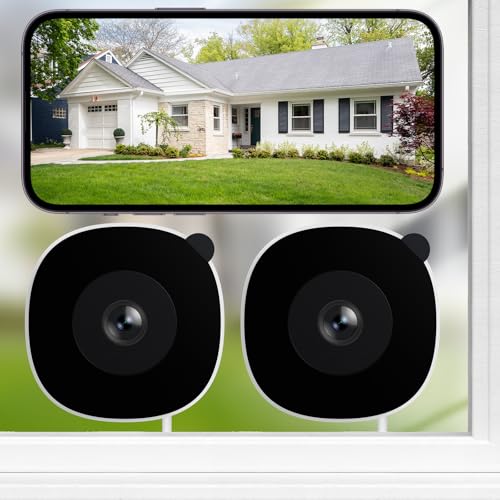
I've been using my security cameras for a while now, and I have to say, the peace of mind it gives me is priceless. I set up my cameras last summer and accessing them online is pretty straightforward after the initial setup. Just make sure you follow the steps and test everything to avoid issues later on.
What type of internet connection is best for security cameras? Do I need high speed for smooth streaming?
A stable, high-speed internet connection is recommended for smooth streaming, especially if you're viewing multiple cameras at once. A minimum speed of 5 Mbps for each camera is a good benchmark.
I'm trying to set up remote access for my new security cameras, but I'm confused about port forwarding. Can someone explain how that works?
Port forwarding is basically allowing external access to your camera by routing the traffic through your router to the right device. You usually have to log into your router's settings and set it up there.