
 Carmen J. Moore

Security cameras are an essential tool for keeping your home or business safe and secure. With the advancement of technology, it is now possible to monitor your security cameras from anywhere, including on your iPad. Whether you want to keep an eye on your property while you’re away or check in on your kids playing in the backyard, watching security cameras on your iPad provides convenience and peace of mind.
There are several ways to watch security cameras on your iPad, depending on the type of security system you have installed. Many modern security camera systems come with their own mobile apps that are compatible with iPads, allowing you to easily view live footage and access recorded footage directly on your device. These apps often offer features such as motion detection alerts, two-way audio communication, and remote control of camera angles.

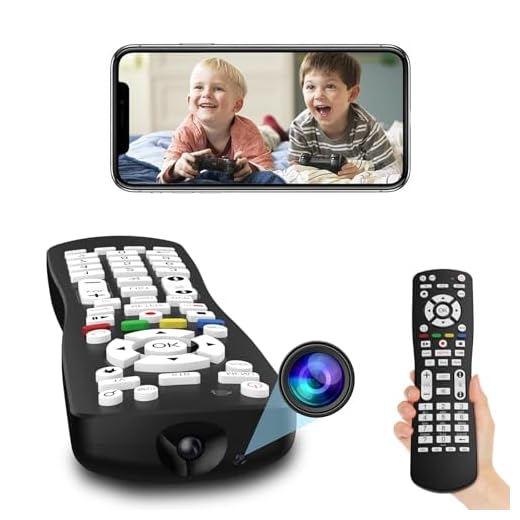

If your security camera system does not have a dedicated app for the iPad, you can still access the camera feed through a web browser. Simply log in to the camera system’s web interface using your iPad’s browser, and you’ll be able to view live footage and playback recorded videos. This method may require some additional setup, but it allows you to access your security cameras on your iPad without needing to install any additional software.
Step-by-step guide to access security cameras on iPad
Watching security cameras on your iPad is a convenient way to monitor your property from anywhere. Here’s a step-by-step guide to help you access your security cameras on your iPad:
- Download the app provided by your security camera manufacturer from the App Store.
- Install the app on your iPad and open it.
- Follow the on-screen instructions to set up the app and connect it to your security cameras.
- Once connected, you should be able to view live feeds from your security cameras on your iPad.
- You can also adjust settings, view recorded footage, and receive alerts through the app.
- Make sure your iPad is connected to a stable internet connection for smooth viewing.
By following these steps, you can easily access and monitor your security cameras on your iPad anytime and anywhere.
Install the camera viewing app on your iPad
To view your security cameras on your iPad, you will need to install a camera viewing app. Here are the steps to install the app:
- Open the App Store on your iPad.
- Search for the camera viewing app you want to use (e.g., “Security Camera Viewer”).
- Tap on the app to open its download page.
- Click on the “Get” or “Download” button to install the app.
- Once the app is downloaded and installed, open it on your iPad.
- Follow the app’s instructions to connect it to your security camera system.
- You should now be able to view your security cameras on your iPad through the app.
Connect your security cameras to the app
Once you have downloaded the security camera app on your iPad, the next step is to connect your security cameras to the app. Follow these steps:
| 1. | Open the app on your iPad and navigate to the settings or setup section. |
| 2. | Locate the option to add a new camera or device. |
| 3. | Enter the required information such as the camera’s IP address, port, username, and password. |
| 4. | Follow the on-screen instructions to complete the connection process. |
| 5. | Once the cameras are successfully connected, you should be able to view the live feed and recordings on your iPad. |
Log in to your camera system account
Before you can view your security cameras on your iPad, you need to log in to your camera system account. This typically involves launching the app associated with your cameras and entering your username and password.
Make sure you have the correct login credentials handy to access your camera system account. If you have forgotten your username or password, you may need to reset them through the camera system’s website or contact customer support for assistance.
Select the camera you want to view on your iPad
Once you have accessed the security camera system on your iPad, you will need to select the specific camera you want to view. This can typically be done by tapping on the camera icon or selecting the camera from a list of available cameras. Make sure to choose the correct camera that corresponds to the area you wish to monitor.
Adjust camera settings for optimal viewing
When viewing security cameras on your iPad, it’s important to adjust the camera settings to ensure optimal viewing experience. Here are some tips to help you adjust the settings:
| Resolution: | Adjust the resolution of the camera to a higher setting for better image quality, but keep in mind that higher resolution may require more bandwidth. |
| Brightness and Contrast: | Make sure the brightness and contrast settings are adjusted properly to enhance visibility in different lighting conditions. |
| Frame Rate: | Set the frame rate to a suitable level to ensure smooth video playback without any lag or stuttering. |
| Field of View: | Adjust the field of view to focus on specific areas of interest and eliminate any unnecessary background noise. |
| Zoom and Pan: | Use zoom and pan functions to get a closer look at specific details or to follow moving objects within the camera’s range. |
By adjusting these camera settings, you can optimize your viewing experience and make the most out of your security cameras on your iPad.
Enjoy remote access to your security cameras from your iPad
With the convenience of modern technology, you can easily monitor your security cameras from your iPad no matter where you are. Whether you’re at work, on vacation, or simply relaxing at home, remote access to your cameras gives you peace of mind and added security.
By utilizing the right apps and software, you can view live feeds, playback recordings, and even control your camera settings directly from your iPad. This allows you to stay connected to your home or business and keep an eye on things even when you’re not physically present.
Benefits of remote access:
- Convenience: Access your cameras from anywhere with an internet connection.
- Security: Monitor your property in real-time and receive alerts for any suspicious activity.
- Peace of mind: Stay informed and in control of your security system at all times.
Take advantage of the technology at your fingertips and enjoy the flexibility and convenience of accessing your security cameras from your iPad.



I’ve been comparing different security camera systems. Are there any brands you recommend that have really good apps for iPads?
I recently set up my security cameras to work with my iPad, and it was pretty straightforward! I found the app for my camera brand in the App Store and followed the instructions. The live feed is smooth, and I love being able to check on my pets while I'm at work. Just remember to keep your iPad connected to Wi-Fi for the best performance.
That sounds great! Did you have to adjust any settings for better performance?
It's great to hear about your experience! Yes, adjusting settings like resolution and brightness can enhance performance, especially if you have limited bandwidth.
Good article! I’m curious, do all security camera apps support iPads? I have an older camera system, and I’m not sure if it has an app for iPad.