
 Carmen J. Moore

If you’re having issues with your ADT security camera, a common troubleshooting step is to reset the device. This can help resolve connection problems, software glitches, or other issues that may be affecting the camera’s performance.
Resetting your ADT security camera is a straightforward process, but it’s important to follow the correct steps to ensure it’s done correctly. In this guide, we’ll walk you through the steps to reset your ADT security camera and get it back up and running smoothly.
Whether you have a wired or wireless ADT security camera, the reset process is generally the same. By following these steps, you can troubleshoot common issues and restore your camera to its factory settings.
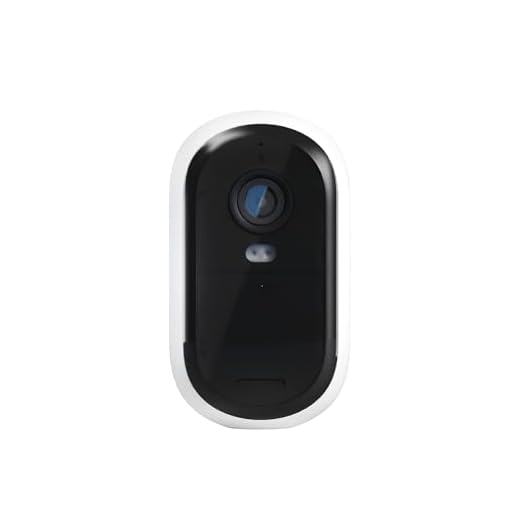


How to reset my ADT security camera
If you need to reset your ADT security camera, follow these steps:
| 1. | Locate the reset button on the camera. It is usually a small button that may require a paperclip or a similar tool to press. |
| 2. | Press and hold the reset button for about 10-15 seconds until you see the camera’s lights flashing or hear a beep. |
| 3. | Release the reset button and wait for the camera to reboot. This process may take a few minutes. |
| 4. | Once the camera has rebooted, you will need to set it up again using the ADT app or the camera’s configuration software. |
If you encounter any issues during the reset process, refer to the camera’s user manual or contact ADT customer support for assistance.
Step-by-step guide
1. Locate the reset button: Look for a small reset button on your ADT security camera. It is usually located on the back or bottom of the camera.
2. Press and hold the reset button: Use a paperclip or a small tool to press and hold the reset button for about 10-15 seconds until you see the camera’s lights flashing.
3. Wait for the camera to reset: After releasing the reset button, wait for the camera to reboot and reset to its factory settings. This may take a few minutes.
4. Reconfigure your camera: Once the camera has reset, you will need to reconfigure it with your network settings and ADT account information. Follow the setup instructions provided by ADT to complete the process.
Check power source
First, make sure that your ADT security camera is properly connected to a power source. Check if the power cable is securely plugged into both the camera and the power outlet. If the camera is battery-operated, ensure that the batteries are charged and installed correctly. Verify that the power source is functioning properly by testing it with another device. If the camera still does not turn on, try using a different power source to rule out any issues with the current one.
Reset camera settings
If you need to reset the settings on your ADT security camera, follow these steps:
1. Locate the reset button: Look for a small reset button on the camera. It is usually a small hole that requires a paperclip or pin to press.
2. Press and hold the reset button: Use a paperclip or pin to press and hold the reset button for about 10-15 seconds.
3. Wait for the camera to reset: After holding the reset button, wait for the camera to reset and restart. This may take a few minutes.
4. Reconfigure the camera: Once the camera has reset, you will need to reconfigure it with your desired settings, such as connecting it to your Wi-Fi network and setting up any motion detection or recording preferences.
By following these steps, you can successfully reset the settings on your ADT security camera.
Update firmware
Updating the firmware of your ADT security camera is important to ensure that it is running smoothly and has the latest security features. Here are the steps to update the firmware:
- Check for updates: Go to the manufacturer’s website or the ADT portal to see if there are any available firmware updates for your camera model.
- Download the firmware: If there is an update available, download the firmware file to your computer.
- Transfer the firmware: Connect your camera to your computer using a USB cable or SD card and transfer the firmware file to the camera’s storage.
- Update the firmware: Follow the instructions provided by the manufacturer to update the firmware on your camera. This may involve restarting the camera or following a specific sequence of button presses.
- Verify the update: Once the update is complete, check the camera settings to ensure that the firmware has been successfully updated.
Contact customer support
If you are having trouble resetting your ADT security camera, the best course of action is to contact customer support for assistance. You can reach ADT customer support by phone, email, or live chat. Make sure to have your account information and camera details ready when you reach out to them.
ADT customer support representatives are trained to help you troubleshoot any issues you may be experiencing with your security camera and can guide you through the reset process step by step. Don’t hesitate to reach out to them for help!
Check network connection
If your ADT security camera is not working properly, the first thing you should check is the network connection. Make sure that the camera is properly connected to your Wi-Fi network and that the signal is strong enough for the camera to function correctly.
You can also try restarting your router and modem to see if that resolves the issue. Additionally, check for any firewall settings or network restrictions that may be blocking the camera from connecting to the network.
Factory reset the camera
If you need to reset your ADT security camera to its factory settings, follow these steps:
Step 1: Locate the reset button on your camera. It is usually a small hole that requires a paperclip or similar tool to press.
Step 2: Use the paperclip to press and hold the reset button for about 10 seconds.
Step 3: Release the reset button and wait for the camera to reboot.
Step 4: Once the camera has rebooted, it will be restored to its factory settings and you can set it up again as needed.
Test the camera
After resetting your ADT security camera, it’s important to test it to ensure that it’s functioning properly. Follow these steps to test the camera:
- Check the power source: Make sure the camera is receiving power and that the power source is functioning correctly.
- Adjust the camera angle: Ensure the camera is positioned correctly to capture the desired area.
- Test the connection: Use the camera’s app or software to check the live feed and verify that the camera is transmitting images and videos.
- Trigger a motion detection: Walk in front of the camera to test if the motion detection feature is working properly.
- Review recordings: Check the camera’s recordings to see if they are being saved and accessed correctly.
By following these steps, you can ensure that your ADT security camera is reset and functioning as intended.
Reinstall the camera
If resetting the camera did not solve the issue, you may need to reinstall the camera to fix any potential software or hardware problems. Follow these steps to reinstall your ADT security camera:
| 1. | Uninstall the camera from the ADT app. |
| 2. | Physically disconnect the camera from its power source. |
| 3. | Reset the camera to its default settings. |
| 4. | Reconnect the camera to the power source. |
| 5. | Follow the manufacturer’s instructions to reinstall the camera on the ADT app. |
| 6. | Test the camera to ensure it is working properly. |
Professional Assistance
If you are having trouble resetting your ADT security camera on your own, it may be best to seek professional assistance. Contact ADT customer support or schedule a service call with a certified technician to ensure that the reset is done correctly and that your security system is functioning properly. Professional help can save you time and frustration, and they can offer guidance on troubleshooting any issues that may arise during the reset process.



I followed the steps to reset my ADT camera, but it still won't connect to Wi-Fi. I ended up calling customer support, and they were really helpful in sorting it out!
I had the same issue once. The support team helped me reset the Wi-Fi settings, and it worked after that.
It's great to hear that customer support helped you out! If anyone else has similar issues, don't hesitate to contact them for assistance.
What if my camera doesn’t have a visible reset button? Is there another way to reset it?
If your camera doesn't have a visible reset button, check the user manual for alternative reset methods. Some models may allow resets through the app or by unplugging the camera for a certain duration.