
 Carmen J. Moore

Security cameras are an essential part of modern home security systems, providing you with peace of mind and the ability to monitor your property. However, accessing your security camera feeds remotely can be a game-changer, allowing you to keep an eye on your home even when you’re away. In this article, we’ll explore some easy and effective ways to make your security cameras accessible remotely.
1. Choose the Right Security Camera System: Before you can access your security cameras remotely, you need to ensure that your system is capable of remote viewing. Look for cameras that offer remote access features, such as cloud storage or mobile apps.
2. Set Up Port Forwarding: Port forwarding is a method of directing internet traffic to a specific device on your network. By setting up port forwarding on your router, you can access your security camera feeds from anywhere with an internet connection.
3. Use a Virtual Private Network (VPN): A VPN encrypts your internet connection, providing an extra layer of security when accessing your security cameras remotely. By using a VPN, you can protect your privacy and ensure that your camera feeds are secure.

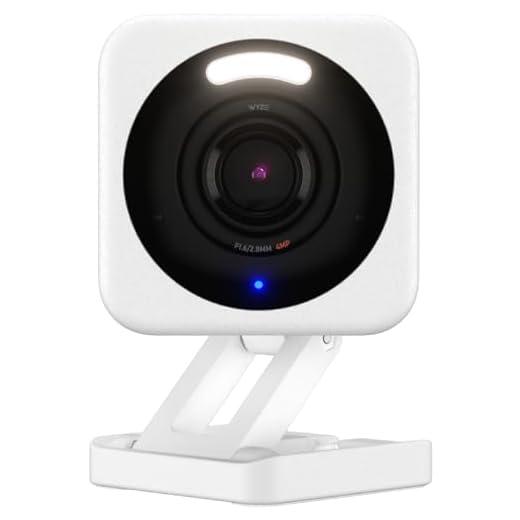

Step-by-step guide to accessing your security cameras remotely
Accessing your security cameras remotely allows you to monitor your property from anywhere. Follow these steps to set up remote access:
- Choose a compatible security camera system: Ensure your security cameras support remote access through a mobile app or web portal.
- Set up your security cameras: Install and configure your security cameras according to the manufacturer’s instructions.
- Connect your security cameras to the internet: Ensure your cameras are connected to your Wi-Fi network or have an Ethernet connection for internet access.
- Install the mobile app or access the web portal: Download the mobile app provided by the camera manufacturer or access the web portal on your computer.
- Create an account: Register an account with the camera system and log in with your credentials.
- Add your security cameras: Follow the instructions to add your cameras to the app or web portal by scanning a QR code or entering the camera’s ID.
- Access your cameras remotely: Once set up, you can now view your security cameras remotely from your mobile device or computer.
Choose the right security camera system
When selecting a security camera system for remote access, it is important to consider a few key factors to ensure the system meets your specific needs. Here are some tips to help you choose the right security camera system:
| Resolution: | Opt for high-definition cameras to capture clear images and videos. |
| Connection: | Choose cameras that support Wi-Fi or Ethernet connectivity for remote access. |
| Storage: | Look for cameras with built-in storage or cloud storage options for easy access to recordings. |
| Field of View: | Select cameras with a wide field of view to monitor a larger area effectively. |
| Remote Access: | Ensure the camera system is compatible with mobile apps or web interfaces for remote viewing. |
| Power Source: | Consider cameras that can be powered by batteries or have backup power options in case of outages. |
Set up your security cameras
Setting up your security cameras for remote access involves a few key steps to ensure a smooth and secure connection. Here’s how you can do it:
1. Choose the right security camera system
Before you can access your security cameras remotely, you need to have a security camera system in place. Choose a system that offers remote access capabilities and fits your specific needs.
2. Connect your security cameras to the internet
Ensure that your security cameras are connected to the internet through a stable and secure network. This usually involves connecting the cameras to your Wi-Fi network or using an Ethernet cable.
| 3. Install the camera software/app | Download and install the corresponding camera software or mobile app on your smartphone or computer. This software will allow you to access your security cameras remotely. |
| 4. Set up remote access | Follow the instructions provided by the camera system to set up remote access. This typically involves creating an account, setting up a secure login, and configuring the necessary settings. |
Connect your security cameras to the internet
To access your security cameras remotely, you need to connect them to the internet. Here are the steps to help you achieve this:
1. Check your camera’s compatibility
Make sure your security cameras are compatible with internet connectivity. Most modern cameras come with built-in Wi-Fi or Ethernet ports for easy internet connection.
2. Set up your network
Ensure that your home or office network is set up and running smoothly. Connect your security cameras to the network using either Wi-Fi or Ethernet cables.
Tip: For better security and stability, it is recommended to use Ethernet cables for connecting your cameras to the internet.
Install the necessary software
Before you can access your security cameras remotely, you need to install the appropriate software on your computer or mobile device. Here are the steps to follow:
- Download the software provided by your security camera manufacturer from their official website.
- Install the software on your computer or mobile device by following the on-screen instructions.
- Launch the software and follow the setup wizard to connect your security cameras to the software.
- Configure the software to enable remote access by setting up a username and password for secure login.
Once the software is installed and configured, you will be able to access your security cameras remotely from anywhere with an internet connection.
Create a Secure Login
One of the most important aspects of accessing your security cameras remotely is to create a secure login system. This will ensure that only authorized users can view the camera feeds and settings.
Steps to Create a Secure Login:
| 1. | Create unique usernames and strong passwords for each user who needs access to the security cameras. |
| 2. | Implement two-factor authentication for an added layer of security. This can involve sending a code to the user’s phone or email for verification. |
| 3. | Regularly update passwords and review access permissions to ensure only necessary users have access to the cameras. |
Configure remote access settings
Configuring remote access settings for your security cameras is essential to be able to view live footage and recordings from anywhere in the world. Follow these steps to set up remote access:
- Access the camera’s settings through the web interface or mobile app.
- Locate the remote access or network settings section.
- Enable remote access by selecting the appropriate option (e.g., enable remote viewing).
- Create a strong password to secure the remote access to your cameras.
- Set up port forwarding on your router to allow external access to the cameras.
- Configure dynamic DNS (DDNS) if your IP address changes frequently.
- Test the remote access by accessing the cameras from a different network or location.
By following these steps, you can ensure that your security cameras are accessible remotely, providing you with peace of mind and the ability to monitor your property at all times.
Test the remote access connection
Once you have set up remote access for your security cameras, it is important to test the connection to ensure everything is working properly. To do this, log in to the remote access platform or app on your mobile device or computer. Check if you can view the live feed from your cameras, adjust settings, and receive alerts. Make sure the connection is stable and that there are no delays or interruptions in the video feed. You can also test the remote access from a different Wi-Fi network or using your cellular data to simulate accessing the cameras from outside your home or office. If everything is working as expected, you can rest assured that your security cameras are accessible remotely.
Ensure security and privacy
When setting up remote access to your security cameras, it is crucial to prioritize security and privacy. Here are some key steps to ensure that your cameras are protected:
- Enable encryption: Make sure that your camera system uses encryption protocols to secure the data transmission between the cameras and your remote access device.
- Set strong passwords: Use unique and complex passwords for your cameras and the remote access platform to prevent unauthorized access.
- Regularly update firmware: Keep your camera’s firmware up to date to patch any security vulnerabilities and ensure optimal protection.
- Use a secure network: Connect your cameras to a secure and private network to minimize the risk of unauthorized access by hackers.
- Enable two-factor authentication: Implement two-factor authentication for an added layer of security when accessing your cameras remotely.
By following these security measures, you can ensure that your security cameras are accessible remotely without compromising the safety and privacy of your data.
Troubleshoot any issues
If you encounter any issues while trying to access your security cameras remotely, here are a few troubleshooting tips:
- Check your internet connection: Make sure you have a stable and strong internet connection to access the cameras remotely.
- Verify camera settings: Ensure that the settings on your security cameras are configured correctly for remote access.
- Restart your cameras: Sometimes a simple restart of the cameras can resolve connectivity issues.
- Update firmware: Check if there are any firmware updates available for your cameras and install them to improve performance.
- Contact customer support: If the issue persists, reach out to the manufacturer’s customer support for further assistance.



I'm considering getting a security camera system that supports remote access. Any recommendations on the best brands or models for this feature?
I've had good luck with Arlo cameras. They have nice mobile app support and easy setup for remote access.
Could you explain more about dynamic DNS? I'm not sure how it works or why it's necessary for remote access to cameras.
Dynamic DNS helps keep track of your changing IP address, which can happen with many home internet services. It allows you to access your cameras using a consistent domain name instead of remembering an IP address. This is especially useful if your ISP changes your IP frequently.
I recently set up remote access for my security cameras, and I followed the steps in the article. The port forwarding part was a bit confusing at first, but once I figured it out, it worked like a charm! I can now check my cameras from anywhere, which is a huge relief when I'm traveling.
Glad to hear that the setup went well! Port forwarding can be tricky, but it's important for accessing your cameras remotely. If you have any further questions or need help with anything else, feel free to ask!
I don't think using a VPN is necessary for home security cameras. It seems a bit overkill for most setups.
I see your point, but I think a VPN adds an extra layer of protection, especially if you're accessing your cameras from public Wi-Fi.