
 Carmen J. Moore
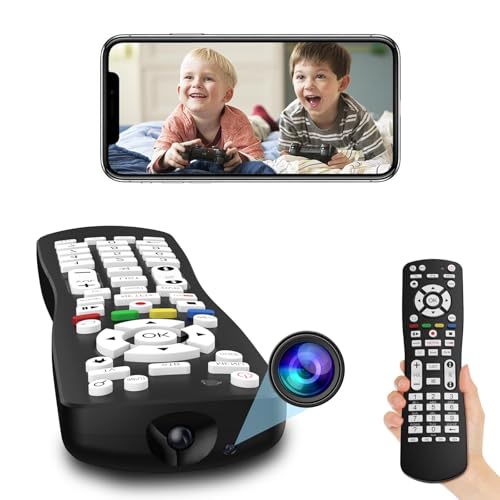
Security cameras are essential tools for monitoring and protecting your property. Whether you are away from home or just want to keep an eye on things while you’re at work, being able to access your security cameras remotely can provide peace of mind and enhance your overall security system.
Logging into your security cameras remotely allows you to view live feeds, playback recorded footage, and adjust settings from anywhere with an internet connection. This convenient feature enables you to monitor your property in real-time and respond quickly to any potential security threats.
However, remote access to security cameras requires proper setup and configuration to ensure secure and reliable connection. In this article, we will guide you through the process of logging into your security cameras remotely, providing you with the knowledge and tools necessary to enhance the security of your property.
Step-by-Step Guide to Accessing Security Cameras Remotely
Accessing your security cameras remotely can provide you with peace of mind knowing that you can monitor your property from anywhere. Follow these steps to access your security cameras remotely:
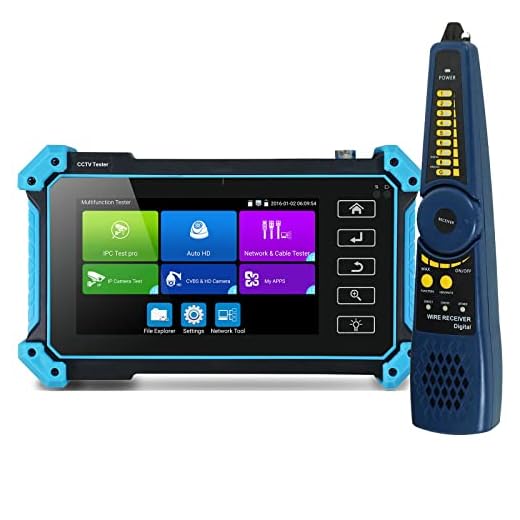

Step 1: Set up Remote Access
First, ensure that your security camera system is set up for remote access. This may involve configuring your system’s settings to enable remote viewing.
Step 2: Obtain the IP Address
Find the IP address of your security camera system. This is essential for accessing your cameras remotely. You can usually find this information in the system’s settings or through the manufacturer’s instructions.
Note: Make sure to keep your IP address secure to prevent unauthorized access to your cameras.
By following these steps, you can easily access your security cameras remotely and keep an eye on your property no matter where you are.
Step 1: Ensure Internet Connectivity
Before attempting to log into your security cameras remotely, make sure that your camera system is connected to the internet. Without a stable internet connection, you will not be able to access the cameras remotely. Check the network settings on your cameras and ensure that they are properly connected to the internet.
If your cameras are connected via Wi-Fi, ensure that the Wi-Fi signal is strong and stable. You may also want to consider using a wired Ethernet connection for more reliable connectivity.
| Checklist: | ✔ Ensure cameras are connected to the internet |
| ✔ Verify Wi-Fi signal strength | |
| ✔ Consider using a wired Ethernet connection |
Step 2: Find Your Camera’s IP Address
Before you can log into your security camera remotely, you need to know its IP address. Here’s how you can find it:
- Check the Camera’s Manual: The IP address may be listed in the camera’s manual or on a sticker on the device itself.
- Use a Network Scanner: You can use a network scanner tool to scan your network for connected devices and identify your camera’s IP address.
Once you have your camera’s IP address, you can proceed to the next steps to access and log into it remotely.
Step 3: Set Up Port Forwarding
To access your security cameras remotely, you need to set up port forwarding on your router. Follow these steps to configure port forwarding:
- Access your router’s settings by typing the IP address into a web browser.
- Locate the port forwarding section in the router settings.
- Add a new port forwarding rule for the specific port used by your security camera system.
- Enter the internal IP address of the security camera system and the port number.
- Save the changes and restart your router if necessary.
Step 4: Install Remote Viewing Software
After setting up your IP camera system and configuring the network settings, the next step is to install remote viewing software on your computer or mobile device. This software allows you to access your security cameras from anywhere with an internet connection.
Here are the steps to install remote viewing software:
- Download the remote viewing software from the manufacturer’s website or app store.
- Install the software on your computer or mobile device following the installation instructions.
- Launch the software and enter the IP address, username, and password of your security camera system to start viewing live footage.
- Customize the settings and features of the software to suit your preferences, such as motion detection alerts or video playback.
By installing remote viewing software, you can easily monitor your security cameras remotely and keep an eye on your property or premises at all times.
Step 5: Configure Camera Settings
Once you have successfully logged into your security camera remotely, you can now proceed to configure the camera settings to suit your needs. Here are some key settings you may want to adjust:
1. Image Quality
You can adjust the image quality settings to ensure you get clear and sharp images from your camera. This can include adjusting the resolution, frame rate, and compression settings.
2. Motion Detection
Enable or adjust the motion detection feature to receive alerts or recordings when motion is detected in the camera’s field of view. You can set up specific zones for motion detection and adjust sensitivity levels.
| Setting | Description |
|---|---|
| Image Quality | Adjust resolution, frame rate, and compression settings. |
| Motion Detection | Enable alerts and recordings based on detected motion. |
Step 6: Create a User Account
After logging into the security camera system, it’s important to create a user account to ensure secure access in the future. Follow these steps to create a user account:
| 1. | Go to the settings or user management section of the camera system interface. |
| 2. | Select the option to create a new user account. |
| 3. | Enter a username and password for the new account. Make sure to use a strong password to enhance security. |
| 4. | Assign the appropriate permissions to the user account, such as viewing live feeds, accessing recordings, or managing settings. |
| 5. | Save the changes and log out of the system to test the new user account credentials. |
Step 7: Access Cameras via Web Browser
Once you have set up remote access to your security cameras, you can easily view the live feed and recordings through a web browser. Follow these simple steps to access your cameras:
Instructions:
- Open your preferred web browser on a computer or mobile device.
- Enter the IP address or domain name of your security camera system in the address bar.
- Log in using your username and password that you set up during the initial configuration.
- You will now have access to the live feed of your security cameras as well as any recorded footage.
By accessing your security cameras via a web browser, you can monitor your property remotely and ensure its safety and security from anywhere in the world.
Step 8: Secure Your Remote Access
After setting up remote access to your security cameras, it is crucial to ensure that your connection is secure to prevent unauthorized access. Here are some tips to secure your remote access:
1. Use Strong Passwords
- Choose complex passwords that include a combination of letters, numbers, and special characters.
- Avoid using default passwords or easily guessable passwords.
- Regularly update your passwords and avoid sharing them with others.
2. Enable Two-Factor Authentication
- Implement two-factor authentication for an extra layer of security.
- Require a one-time code in addition to your password for access.
- Choose an authentication method that works best for you, such as SMS verification or authenticator apps.
By following these security measures, you can help protect your remote access to security cameras from potential threats and unauthorized users.



I recently set up remote access for my security cameras and it wasn't as hard as I thought. The port forwarding took a bit of time, but once I figured out the steps, it worked perfectly. Now I can check in from my phone whenever I want, which gives me great peace of mind.
I’m curious about how to find the IP address of my security camera. Is it usually in the manual or is there a specific setting I need to check?
It's usually in the manual, but you can also try using a network scanner if you're not sure where to find it.
In Step 3, what exactly do you mean by 'specific port used by your security camera system'? How do I find that out?
I don’t think using Wi-Fi is a good idea for security cameras. Wired connections seem way more reliable to me.
I agree, wired connections can be more stable, especially in areas with weak Wi-Fi signals. But some cameras actually work fine with a good Wi-Fi setup.
Always remember to update your passwords regularly! It's an easy step to enhance security.