
 Carmen J. Moore
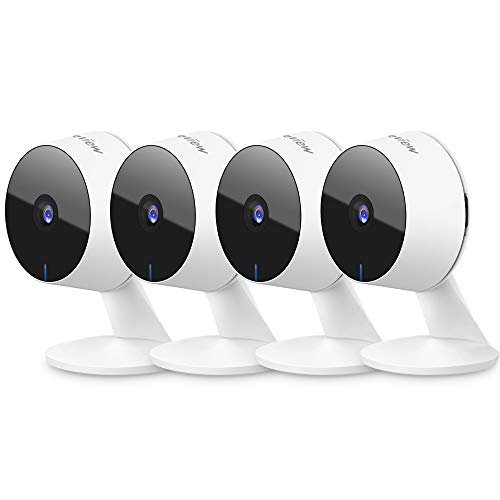
Security cameras play a crucial role in keeping our homes and businesses safe. However, accessing the live feed from a security camera while away from the premises can be a challenge. Fortunately, with the advancements in technology, it is now possible to create a stream from a security camera and access it over the internet.
In this article, we will explore the steps involved in setting up a live stream from a security camera and accessing it remotely. Whether you want to keep an eye on your home while traveling or monitor your business premises from a remote location, creating a stream from your security camera can provide you with peace of mind and real-time surveillance.
From choosing the right camera and software to configuring the settings for remote access, we will guide you through the process of setting up a secure and reliable live stream from your security camera. With the right tools and knowledge, you can ensure that your property is protected and monitored at all times.
Step-by-step guide on creating stream from security camera over internet
Streaming footage from a security camera over the internet can provide remote access to surveillance feeds, allowing you to monitor your property from anywhere. Follow these steps to set up a live stream from your security camera:


1. Choose the right camera
Ensure your security camera is capable of streaming over the internet. Look for cameras with built-in Wi-Fi or Ethernet connectivity and compatibility with streaming protocols like RTSP or RTMP.
2. Configure your network
Set up port forwarding on your router to allow external access to your camera. Assign a static IP address to the camera and configure network settings to enable remote streaming.
3. Set up a streaming server
Install streaming server software on a computer or a dedicated device to receive the camera feed and broadcast it over the internet. Popular options include VLC Media Player, OBS Studio, or dedicated surveillance software.
4. Configure streaming settings
Enter the camera’s RTSP or RTMP URL in the streaming server software and adjust settings like resolution, frame rate, and bitrate for optimal streaming quality. Test the stream to ensure it’s working correctly.
Choose a high-quality security camera
When setting up a live stream from a security camera over the internet, it is crucial to select a high-quality camera that meets your specific needs. Look for features such as high resolution, night vision capabilities, motion detection, and remote access. Consider factors like weatherproofing and durability if the camera will be placed outdoors.
Ensure that the camera is compatible with the streaming platform you plan to use and offers the necessary connectivity options, such as Wi-Fi or Ethernet. Research different brands and models to find the best fit for your requirements and budget.
Set up the camera’s network connection
Before you can stream your security camera over the internet, you need to ensure that the camera is properly connected to your network. Here’s how you can set up the camera’s network connection:
1. Connect the camera to your router
Start by connecting the security camera to your router using an Ethernet cable. Make sure the cable is securely plugged into both the camera and the router.
2. Configure the camera’s network settings
Access the camera’s settings interface through a web browser and configure the network settings. You may need to set a static IP address for the camera to ensure a stable connection.
Tip: Consult the camera’s user manual for specific instructions on how to configure the network settings.
Configure port forwarding on your router
Port forwarding is a crucial step in setting up your security camera to stream over the internet. By configuring port forwarding on your router, you allow external access to the camera’s feed.
Step 1: Access your router settings
To configure port forwarding, you need to access your router’s settings. This is typically done by entering your router’s IP address in a web browser and logging in with your credentials.
Step 2: Set up port forwarding
Once in the router settings, locate the port forwarding section. Add a new port forwarding rule for the security camera, specifying the camera’s IP address and the port number for streaming (commonly port 80 for HTTP).
Select a reliable streaming platform
When choosing a streaming platform for your security camera feed, it is crucial to select a reliable and secure service provider. Look for platforms that offer strong encryption protocols to ensure the privacy and security of your footage. Additionally, consider the platform’s uptime guarantee and scalability to accommodate growing viewership.
Popular streaming platforms like YouTube Live, Facebook Live, and Twitch are widely used for streaming security camera feeds due to their reliability and user-friendly interfaces. Alternatively, you can explore specialized streaming services tailored for surveillance cameras, such as Angelcam or CamStreamer.
Adjust camera settings for optimal stream quality
When setting up a security camera stream over the internet, it’s important to adjust the camera settings for optimal quality. Here are some key settings to consider:
Resolution: Make sure to set the resolution of the camera to a level that balances image quality with bandwidth usage. Higher resolutions provide better image quality but require more bandwidth.
Frame rate: Adjust the frame rate of the camera to ensure smooth video playback. A frame rate of 30 frames per second is usually sufficient for most applications.
Compression: Use efficient video compression codecs like H.264 to reduce the size of the video stream without compromising quality.
Exposure: Adjust the exposure settings of the camera to ensure that the video is neither too bright nor too dark.
White balance: Set the white balance of the camera to minimize color distortion in the video stream.
By adjusting these settings, you can optimize the quality of your security camera stream over the internet.
Test the stream on different devices
After setting up your security camera stream over the internet, it’s important to test its functionality on different devices to ensure that it’s accessible and working properly.
Try accessing the stream on various devices such as smartphones, tablets, laptops, and desktop computers to check for compatibility and responsiveness. Make sure to test it on different web browsers as well to ensure cross-browser support.
Check the stream quality and stability on each device to ensure that the footage is clear and uninterrupted. Adjust the settings if needed to optimize the stream for different devices.
Maintain security and privacy of your camera stream
Ensuring the security and privacy of your camera stream is essential when streaming it over the internet. Follow these best practices:
- Change default passwords: Always change the default password of your security camera to a strong, unique one to prevent unauthorized access.
- Enable encryption: Use encryption protocols like HTTPS to secure the transmission of your camera stream over the internet.
- Update firmware: Regularly update the firmware of your security camera to patch any security vulnerabilities.
- Set up user permissions: Limit access to your camera stream by setting up user permissions and granting access only to trusted individuals.
- Monitor access logs: Keep track of who accesses your camera stream and monitor access logs for any suspicious activity.
- Secure network: Ensure your network is secure by using firewalls, VPNs, and other security measures to prevent unauthorized access to your camera stream.




I'm really interested in setting up a live stream from my security camera, but I'm not sure which camera to choose. Are there specific brands that are better for streaming?
Can anyone clarify what port number I should use for streaming? Is it always port 80?