
 Carmen J. Moore
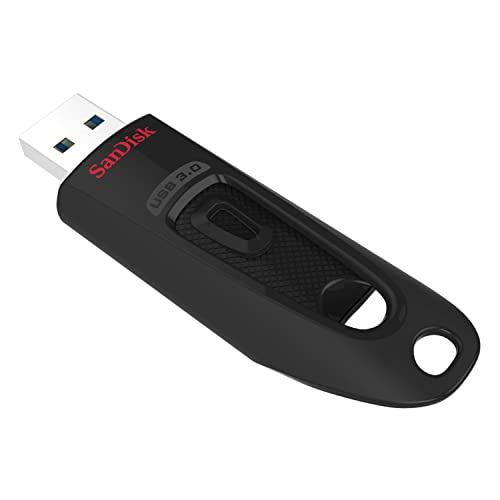
Zosi security cameras are a popular choice for home and business surveillance, providing high-quality video footage to keep your property safe. If you need to save and transfer this footage for storage or analysis, one convenient method is to copy it to a flash drive. This guide will walk you through the steps to easily copy Zosi security camera footage over to a flash drive.
Before you begin, make sure you have a compatible flash drive with enough storage capacity to hold the footage you want to copy. Additionally, ensure that your Zosi security camera system is connected and powered on for the copying process.


To start, insert the flash drive into a USB port on your computer or directly into the Zosi security camera system if it supports USB connections. Next, access the Zosi security camera system’s interface or software platform where you can view and manage the footage.
How to Transfer Zosi Security Camera Footage
If you want to transfer footage from your Zosi security camera to a flash drive, follow these steps:
- Access the DVR: Log in to your Zosi DVR system using the correct credentials.
- Select the Footage: Navigate to the footage you want to transfer and select the specific recordings.
- Export to USB: Connect your flash drive to the USB port on the DVR and export the selected footage to the flash drive.
- Safely Eject: Once the transfer is complete, safely eject the flash drive from the DVR.
- Verify: Check the flash drive on a computer to ensure that the footage has been successfully copied.
By following these steps, you can easily transfer Zosi security camera footage to a flash drive for safekeeping or sharing.
Step-by-Step Guide for Copying Video to Flash Drive
Copying video from a Zosi security camera to a flash drive is a simple process that allows you to easily save and back up your footage. Follow these step-by-step instructions to transfer your video files:
- Insert the flash drive into the USB port on your Zosi security camera.
- Access the camera’s settings menu and navigate to the video playback option.
- Select the video files you want to copy to the flash drive.
- Choose the option to export or save the selected video files.
- Follow the on-screen prompts to confirm the export process.
- Wait for the transfer to complete, then safely remove the flash drive from the camera.
- You can now access the copied video files on the flash drive using a computer or other device.
By following these steps, you can easily copy video from your Zosi security camera to a flash drive for safekeeping and easy access.
Required Tools and Equipment for the Process
Before you begin the process of copying your Zosi security camera footage over to a flash drive, make sure you have the following tools and equipment on hand:
- Zosi security camera system with the desired footage
- Flash drive with sufficient storage capacity
- Computer or laptop with USB ports for connecting the flash drive
- USB cable for transferring the footage from the camera system to the computer
- Power source for both the camera system and the computer
- Internet connection (optional, for accessing online guides or support)
Setting Up Your Zosi Camera for Data Transfer
Before you can copy your Zosi security camera footage to a flash drive, you need to set up your camera for data transfer. Follow these steps:
Step 1: Connect Your Camera to Your Computer
Using the provided USB cable, connect your Zosi camera to your computer. Make sure the camera is powered on and in data transfer mode.
Step 2: Access the Camera’s Storage
Once your camera is connected, access its storage on your computer. You should be able to see the camera’s files and folders.
“`html
Connecting Your Flash Drive to the Camera
Before you can copy the footage from your Zosi security camera to a flash drive, you need to connect the flash drive to the camera.
Follow these steps to connect your flash drive:
Step 1: Turn off the Camera
Make sure the Zosi security camera is turned off before connecting the flash drive. This will prevent any potential data loss or damage to the camera.
Copying Footage from Zosi Camera to Flash Drive
One of the common ways to transfer footage from a Zosi security camera to a flash drive is by using the DVR/NVR system. Follow these steps to copy the footage:
Step 1: Connect the Flash Drive
Insert the flash drive into one of the USB ports on the DVR/NVR system.
Step 2: Access the Footage
Access the footage you want to copy on the DVR/NVR system. Navigate to the playback menu and select the specific date and time range.
| Step 3: Copy the Footage | Once you have located the footage, select the option to copy it to the flash drive. Follow the on-screen instructions to complete the copying process. |
By following these steps, you can easily copy footage from your Zosi security camera to a flash drive for backup or further analysis.
Verifying the Data Transfer Process
After copying the footage from your Zosi security camera to the flash drive, it is essential to verify the data transfer process to ensure that all the files have been successfully copied.
You can do this by checking the file sizes and timestamps of the copied files on both the camera and the flash drive to make sure they match. Additionally, you can try playing back a few random video files from the flash drive to confirm that they are playing without any issues.
If you encounter any discrepancies or errors during the verification process, you may need to recopy the files or troubleshoot any potential issues with the transfer.
Tips for Maintaining Video Quality and Storage
1. Regularly Clean the Camera Lens: Dust and dirt can accumulate on the camera lens, affecting the quality of the video footage. Clean the lens periodically to ensure clear and crisp images.
2. Optimize Camera Settings: Adjust the camera settings such as resolution, frame rate, and compression to balance video quality and storage space. Higher resolution and frame rates result in better quality but require more storage.
3. Use Motion Detection: Enable motion detection on your security camera to only record when motion is detected. This can help save storage space by capturing relevant footage only.
4. Invest in High-Quality Storage: Use a high-capacity, reliable storage device such as a flash drive or external hard drive to store your video footage. Ensure the storage device is compatible with your camera system.
5. Regularly Backup Footage: Create a backup of your video footage on a separate storage device or cloud storage to prevent loss in case of device failure or theft.
6. Monitor Storage Space: Keep track of the available storage space on your storage device. Delete old footage or upgrade to a larger storage device if you are running out of space.
7. Keep Cameras Updated: Regularly update your security cameras’ firmware to ensure optimal performance and compatibility with storage devices. Check for firmware updates from the manufacturer periodically.


I tried following these steps and it worked perfectly! Just make sure to format the flash drive first.
I think using a USB cable to connect the camera to the computer is unnecessary. Just using the DVR seems easier.
You can use either method based on your preference. Using a USB cable is an alternative, especially if you want to access files directly from the camera.
Can you clarify if I need to do anything special after connecting the flash drive to the DVR? Does it automatically recognize it?
What type of flash drive works best with Zosi cameras?
Remember to safely eject the flash drive to prevent data corruption.
Is there a way to verify that the footage has been copied correctly? I've had issues in the past where files were corrupted.