
 Carmen J. Moore

Wireless security cameras have become increasingly popular for home and business surveillance. They offer the convenience of easy installation and flexibility in camera placement, but one key element to consider is how to properly connect power to these cameras.


Whether you’re setting up a new wireless security camera system or troubleshooting an existing one, understanding how to connect power correctly is crucial for ensuring reliable and uninterrupted surveillance.
Step-by-step guide to connecting power to wireless security camera
Wireless security cameras are a convenient way to monitor your property, but they need power to function. Here is a step-by-step guide to help you connect power to your wireless security camera:
| Step 1: | Locate the power adapter that came with your wireless security camera. |
| Step 2: | Connect one end of the power adapter to the camera’s power input port. |
| Step 3: | Plug the other end of the power adapter into a power outlet. |
| Step 4: | Make sure the power source is stable and not prone to frequent outages. |
| Step 5: | Check the camera’s power indicator to ensure it is receiving power. |
| Step 6: | If the camera has a battery backup, make sure it is fully charged and connected. |
| Step 7: | Test the camera to ensure it is functioning properly. |
Locate power source
When setting up a wireless security camera, the first step is to locate a suitable power source for the camera. Most wireless security cameras come with a power adapter that needs to be plugged into an electrical outlet. It is important to find a power source that is close enough to the camera so that the power cable can reach without any issues.
Some wireless security cameras also come with the option of using a rechargeable battery instead of a power adapter. If your camera supports this feature, make sure to charge the battery fully before installing the camera.
It is crucial to ensure that the power source is stable and reliable to avoid any interruptions in the camera’s operation. Additionally, consider using a surge protector to protect the camera from power surges and fluctuations that could potentially damage the device.
Check voltage requirements
Before connecting power to your wireless security camera, it is crucial to check the voltage requirements of the camera. Most security cameras operate on either 12V or 24V DC power supply. Make sure to read the manufacturer’s instructions or specifications to determine the correct voltage needed for your specific camera model.
Using the wrong voltage can damage the camera or cause it to malfunction. If you are unsure about the voltage requirements, consult the camera’s manual or contact the manufacturer for guidance.
Choose appropriate power adapter
When connecting power to your wireless security camera, it’s crucial to choose the right power adapter to ensure proper functionality. Make sure to check the voltage and current requirements of your camera and select an adapter that meets these specifications. Using an incorrect power adapter can damage your camera or lead to unreliable performance. It’s recommended to use the power adapter provided by the camera manufacturer or a compatible third-party adapter that meets the necessary requirements.
Connect power cable to camera
1. Locate the power input port on the wireless security camera.
2. Take the power cable that came with the camera and connect one end to the power input port.
3. Plug the other end of the power cable into a power outlet or an extension cord.
4. Make sure the power source is stable and secure to avoid any disruptions in the camera’s operation.
5. Once the power cable is connected, you can proceed with setting up and configuring your wireless security camera.
Secure power connection
When connecting power to your wireless security camera, it is important to ensure a secure and stable connection to avoid any interruptions in the power supply. Follow these steps to securely connect power to your camera:
Step 1: Use the correct power adapter
Make sure you are using the power adapter that came with your camera or a compatible one with the correct voltage and current rating. Using the wrong adapter can damage your camera or cause it to malfunction.
Step 2: Use a surge protector
For added protection, plug your camera’s power adapter into a surge protector to protect it from power surges and fluctuations. This will help prolong the life of your camera and ensure a stable power supply.
Test power supply
Before connecting power to your wireless security camera, it is important to test the power supply to ensure it is working properly. Follow these steps:
- Plug the power adapter into a power outlet.
- Check the LED indicator on the power adapter to ensure it is lit up, indicating that power is being supplied.
- If the LED indicator is not lit up, try plugging the power adapter into a different outlet to rule out any issues with the power source.
- If the LED indicator still does not light up, the power adapter may be faulty and you should contact the manufacturer for a replacement.
Testing the power supply before connecting it to your wireless security camera can help prevent any potential issues with power supply and ensure that your camera receives the necessary power to function properly.
Ensure proper grounding
Proper grounding is essential for the safety and functionality of your wireless security camera system. Make sure to connect the grounding wire from the power adapter to a designated grounding point. This will help protect your system from power surges and other electrical issues.
When installing the camera, verify that the grounding wire is securely connected and that the grounding point is suitable for electrical grounding. Avoid connecting the grounding wire to water pipes or gas lines, as this can create a safety hazard.
Regularly check the grounding connection to ensure it remains secure and intact. A properly grounded system will help prevent damage to your camera and ensure reliable operation over time.
Consider backup power options
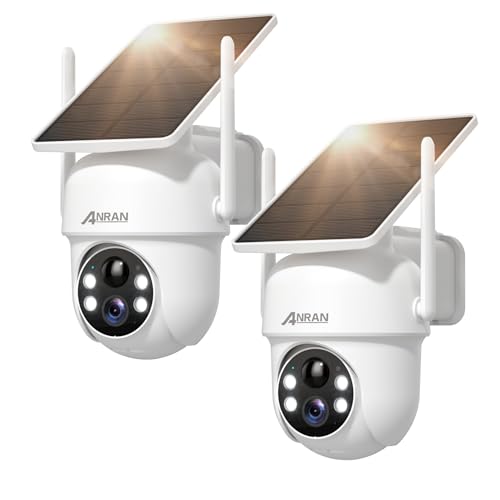
When connecting power to a wireless security camera, it is important to consider backup power options to ensure continuous operation even during power outages or emergencies. One common backup power option is using a battery backup system, which can provide power to the camera when the main power source is unavailable. Another option is to connect the camera to a UPS (Uninterruptible Power Supply) unit, which can provide temporary power during outages and fluctuations in power supply. Additionally, solar-powered security cameras are available, which can operate independently of the main power grid by harnessing solar energy. By considering these backup power options, you can ensure that your wireless security camera remains operational and provides continuous surveillance even in challenging situations.
Monitor power consumption
It is important to monitor the power consumption of your wireless security camera to ensure that it is functioning properly and efficiently. By keeping track of the power usage, you can identify any issues with the camera or its power source and take appropriate action.
One way to monitor power consumption is to use a power meter or monitor that can measure the amount of electricity being used by the camera. You can connect the power meter to the camera’s power source and monitor the readings to see how much power the camera is consuming.
Another method is to check the camera’s power consumption through its software interface, if available. Some wireless security cameras have built-in features that allow you to monitor power usage and set alerts for abnormal power consumption.
Regularly monitoring the power consumption of your wireless security camera can help you optimize its performance, identify any issues early on, and ensure that it is operating efficiently.
| Benefits of monitoring power consumption: | Identify potential issues | Optimize camera performance | Ensure efficient operation |
|---|
Troubleshoot power issues
If you are experiencing power issues with your wireless security camera, follow these troubleshooting steps to identify and resolve the problem:
1. Check power source
Make sure the power source is working and providing the necessary voltage to power the camera. Test the outlet with another device to ensure it is functioning properly.
2. Inspect power cable
Inspect the power cable for any damage or wear that may be causing a poor connection. Replace the cable if necessary to ensure a secure power connection.
| 3. Reset camera | Perform a reset on the camera to see if that resolves the power issue. Refer to the camera’s manual for instructions on how to reset it. |
| 4. Check power adapter | Ensure the power adapter is compatible with the camera and providing the correct voltage. If the adapter is faulty, replace it with a new one. |



Thanks for the detailed steps! I’m curious, what should I do if my camera's power indicator doesn't light up after I plug it in? Any troubleshooting tips?
If the power indicator doesn't light up, try plugging the adapter into a different outlet to rule out any outlet issues. If it still doesn’t light up, the power adapter may be faulty and you should contact the manufacturer for a replacement.
I recently set up a wireless security camera and followed the steps in this guide. I had some trouble with the voltage requirements since my camera needed 24V, but I mistakenly used a 12V adapter at first. It didn’t power on at all! Once I switched to the correct adapter, everything worked perfectly. Just a heads up to others—double-check the specs before plugging anything in.