
 Carmen J. Moore
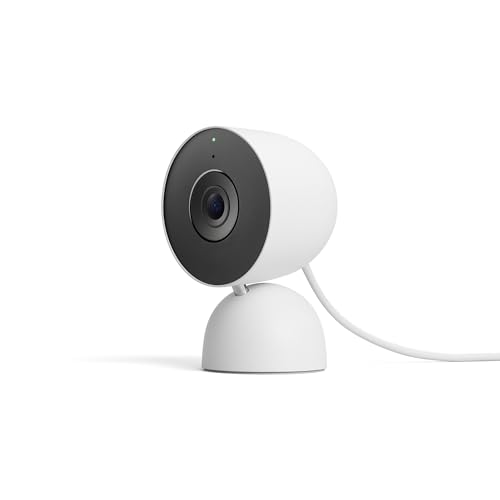
Integrating security cameras into your Google Home setup can provide you with added peace of mind and convenience. By connecting your security cameras to Google Home, you can easily monitor your home from anywhere using voice commands or through the Google Home app.
Setting up security cameras with Google Home requires a few simple steps to ensure seamless integration and functionality. Whether you have existing security cameras or are looking to purchase new ones, this guide will walk you through the process of adding security cameras to your Google Home ecosystem.


With the ability to view live feeds, receive motion alerts, and control your cameras hands-free, adding security cameras to Google Home can enhance your home security system and make monitoring your property easier than ever.
Step-by-step guide
Adding security cameras to Google Home is a straightforward process. Just follow these simple steps:
- Check compatibility: Make sure your security cameras are compatible with Google Home. Look for cameras that are compatible with Google Assistant.
- Set up your security cameras: Install and set up your security cameras according to the manufacturer’s instructions. Make sure they are connected to your Wi-Fi network.
- Connect cameras to Google Home: Open the Google Home app on your smartphone or tablet. Go to the “Add” section and select “Set up device.” Choose “Works with Google” and find your security camera brand.
- Authorize access: Follow the on-screen instructions to link your security camera account to Google Home. You may need to log in to your camera account and grant access to Google Home.
- Assign cameras to rooms: Once your security cameras are connected, assign them to specific rooms in the Google Home app. This will help you easily control and view the cameras using voice commands.
- Control your cameras: You can now use voice commands with Google Home to control your security cameras. For example, you can say “Hey Google, show me the living room camera” to view the live feed on your smart display or TV.
By following these steps, you can easily add security cameras to Google Home and enhance your home security system.
Compatibility with Google Home
When adding security cameras to Google Home, it’s important to ensure compatibility with the device. Not all security cameras are compatible with Google Home, so you’ll need to check the specifications of your camera to see if it can be integrated with Google Home.
Google Home works best with security cameras that support Google Assistant and have a dedicated app that allows for integration with the Google Home ecosystem. Cameras that are compatible with Google Home will typically have features such as live streaming, motion detection, and two-way audio that can be accessed through the Google Home app.
Before purchasing a security camera, make sure to check if it is compatible with Google Home by looking for the Google Assistant logo on the product packaging or checking the manufacturer’s website for compatibility information.
Choosing the right security camera
When adding security cameras to your Google Home setup, it’s important to choose the right camera for your specific needs. Here are some factors to consider:
- Indoor vs. outdoor: Determine whether you need cameras for indoor monitoring, outdoor surveillance, or both.
- Resolution: Look for cameras with high resolution for clear images and video footage.
- Field of view: Consider the field of view offered by the camera to ensure proper coverage of the area you want to monitor.
- Connectivity: Check if the camera is compatible with Google Home and can be easily integrated into your smart home system.
- Storage: Decide if you want local storage on the camera, cloud storage, or both for storing recorded footage.
- Power source: Choose between wired cameras that need a power source or wireless cameras with rechargeable batteries.
Connecting Security Cameras to Google Home
Adding security cameras to your Google Home setup can provide you with added peace of mind and convenience. By integrating your security cameras with Google Home, you can easily monitor your home from anywhere using voice commands or the Google Home app.
Step 1: Choose Compatible Security Cameras
Before you can connect security cameras to Google Home, make sure your cameras are compatible with the Google Assistant. Many popular security camera brands offer integration with Google Home, so check the manufacturer’s website or product specifications to confirm compatibility.
Step 2: Set Up Your Security Cameras
Follow the manufacturer’s instructions to set up your security cameras and connect them to your home network. Make sure they are working properly and accessible through the manufacturer’s app before proceeding to the next step.
Once your security cameras are set up and connected to your home network, you can proceed to link them to your Google Home device.
Setting up security camera features
Once you have successfully added your security cameras to Google Home, you can take advantage of a range of features to enhance your home security. Here are some steps to set up security camera features:
1. Linking your security cameras to Google Home
Make sure your security cameras are compatible with Google Home and linked to your Google account. Follow the manufacturer’s instructions to link your cameras to the Google Home app.
2. Naming your cameras
Assign unique names to each of your security cameras in the Google Home app. This will make it easier to identify and control each camera using voice commands.
| Feature | Description |
|---|---|
| Live streaming | View real-time footage from your security cameras on your Google Home app or smart display. |
| Remote access | Check in on your home from anywhere using the Google Home app or a compatible device. |
| Smart alerts | Receive notifications on your phone when motion or sound is detected by your security cameras. |
| Voice commands | Control your security cameras with voice commands through Google Assistant on your smart speaker or display. |
Managing Security Cameras through Google Home App
If you want to manage your security cameras through the Google Home app, follow these steps:
Step 1: Connect Your Security Camera to Google Home
Make sure your security camera is compatible with Google Home. Open the Google Home app, go to “Add,” select “Set up device,” then “Works with Google.” Find your security camera and link it to your Google account.
Step 2: Access Your Security Camera Feeds
Once your security camera is connected, you can access its live feeds through the Google Home app. Simply open the app, select your camera, and view the live footage from anywhere.
Using voice commands with security cameras
One of the convenient features of integrating security cameras with Google Home is the ability to control them using voice commands. This allows you to easily monitor your home and property hands-free. Here are some common voice commands you can use with your security cameras:
- “Hey Google, show me the front door camera”
- “Hey Google, turn on the backyard camera”
- “Hey Google, is the garage camera recording?”
- “Hey Google, show me the live feed from the living room camera”
By simply using your voice, you can access the live feeds from your security cameras and stay connected to what’s happening at home. Make sure to set up your security cameras with Google Home for seamless integration and enhanced convenience.
Tips for enhancing security camera integration
1. Opt for security cameras that are compatible with Google Home for seamless integration.
2. Ensure your security cameras are connected to the same Wi-Fi network as your Google Home device.
3. Name your security cameras appropriately in the Google Home app for easy voice command access.
4. Set up routines in Google Home to automate security camera actions based on specific triggers or events.
5. Explore advanced features like facial recognition or motion detection for improved security monitoring.
6. Regularly update the firmware of your security cameras to ensure optimal performance and security.



I recently integrated my Ring cameras with Google Home, and the process was pretty smooth. I followed all the steps mentioned in the article, and I can now view the feeds directly on my Google Hub. The only tricky part was ensuring they were on the same Wi-Fi network as Google Home. Definitely worth it!
Thanks for sharing your experience! It's great to hear that you found the process straightforward. Ensuring that both devices are on the same Wi-Fi network is key for smooth integration.
It's important to check for local storage options in the cameras you choose if you want to save footage without relying solely on cloud services. Just a thought!
I'm curious about what specific brands of security cameras are best for Google Home. Are there recommended models that work seamlessly with it?
Could someone clarify what 'works with Google' means? Is it just about compatibility, or are there features that are lost if a camera isn't fully compatible?
I disagree with the notion that all security cameras work equally well with Google Home. I've had a lot of trouble with my older models—some just don’t connect properly at all.