
 Carmen J. Moore

Security cameras are an essential tool for monitoring and protecting your home or business. However, accessing the footage remotely can be a challenge for many users. In this article, we will discuss the steps you need to take to access your security camera through the internet.


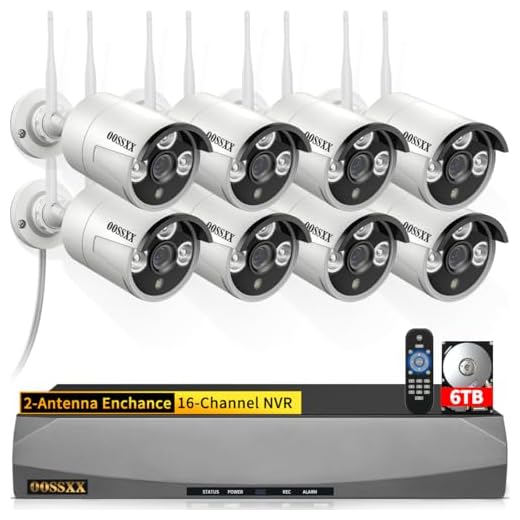
First and foremost, you need to ensure that your security camera system is connected to the internet. This typically involves setting up a network connection and configuring the camera to communicate with your router. Once the camera is connected, you can access it remotely using a computer or mobile device.
Next, you will need to set up port forwarding on your router to allow external access to the camera. This involves configuring your router to forward requests from the internet to the camera’s IP address. Be sure to follow the manufacturer’s instructions carefully to ensure proper configuration.
Step-by-step guide to access security camera through internet
Accessing your security camera through the internet allows you to monitor your property remotely. Follow these steps to set it up:
Step 1: Set up your security camera system
Ensure that your security camera system is properly installed and connected to a network. Make sure the cameras are positioned to cover the desired areas.
Step 2: Configure your router
Access your router’s settings and set up port forwarding for the security camera system. Assign a static IP address to the security camera to ensure stable connectivity.
Step 3: Access the camera through a web browser
Open a web browser and enter the IP address of your security camera system. Log in with the username and password provided by the manufacturer to access the live feed.
Tip: Enable encryption and change default login credentials for added security.
Check camera’s IP address
First, you need to find out the IP address of your security camera. This can usually be done by checking the documentation that came with the camera or by logging into your router to see a list of connected devices. Once you have the IP address, you can enter it into a web browser to access the camera’s interface.
Set up port forwarding on your router
Port forwarding is a crucial step in accessing your security camera through the internet. To set up port forwarding on your router, follow these steps:
| 1. | Access your router’s settings by typing the router’s IP address into a web browser. |
| 2. | Locate the port forwarding section in your router’s settings. This is usually under the “Advanced” or “Security” tab. |
| 3. | Add a new port forwarding rule by specifying the port range and the IP address of your security camera. |
| 4. | Save your changes and restart your router to apply the port forwarding settings. |
| 5. | You can now access your security camera remotely by entering your public IP address followed by the port number you specified in the port forwarding rule. |
Enable remote access on camera settings
To access your security camera remotely through the internet, you need to enable remote access on your camera settings. Follow these steps:
Step 1: Access camera settings
Log in to your camera’s web interface using the IP address provided by the manufacturer. Navigate to the settings menu to locate the remote access options.
Step 2: Enable remote access
Find the remote access settings in the camera menu and turn it on. You may need to create a username and password for remote access to secure your connection.
Use dynamic DNS service for easy access
Setting up a dynamic DNS (DDNS) service can make it easy to access your security camera through the internet. DDNS allows you to assign a fixed domain name to your camera’s dynamic IP address. This means you can access your camera using a simple, easy-to-remember web address, even if your IP address changes regularly.
To set up DDNS, you’ll need to create an account with a DDNS provider and configure your camera to update the DDNS server with its current IP address. Once set up, you can access your camera by entering the DDNS hostname in a web browser, no matter where you are.
Access camera through web browser
To access your security camera through the internet, you can use a web browser on your computer or mobile device. Follow these steps:
- Open your web browser (such as Chrome, Firefox, or Safari).
- Enter the IP address of your camera in the browser’s address bar.
- Enter the username and password for your camera when prompted.
- You should now be able to view the live feed from your camera and access its settings.
Troubleshooting:
- Make sure you have the correct IP address for your camera.
- Ensure that your camera is connected to the internet and powered on.
- If you encounter any issues, check the camera’s user manual or contact technical support for assistance.
Install mobile app for on-the-go monitoring
If you want to access your security camera through the internet while you are on-the-go, installing the mobile app is the way to go. Most security camera manufacturers offer mobile apps that allow you to view live footage, receive alerts, and control your cameras remotely from your smartphone or tablet.
Follow these steps to install the mobile app for your security camera:
- Go to the App Store or Google Play Store on your mobile device.
- Search for the mobile app provided by your security camera manufacturer (e.g., “BrandName Camera App”).
- Download and install the app on your device.
- Open the app and follow the on-screen instructions to connect it to your security camera system.
Secure your camera with strong password
One of the most important steps in securing your security camera is setting up a strong password. Avoid using default passwords or common passwords like “123456” or “password”. Instead, create a unique and complex password that includes a mix of letters, numbers, and special characters.
Make sure to change your password regularly and avoid using the same password for multiple devices or accounts. This will help prevent unauthorized access to your security camera feed.
Consider using a password manager to securely store and manage your passwords. This will make it easier to create and remember strong passwords for all your devices.
Regularly update camera firmware for security
One important step to ensure the security of your security camera system is to regularly update the firmware of your cameras. Manufacturers often release firmware updates to fix security vulnerabilities and improve the overall performance of the cameras. By keeping your camera firmware up to date, you can protect your system from potential cyber attacks and unauthorized access.
How to update camera firmware:
| 1. | Check for updates on the manufacturer’s website or through the camera’s mobile app. |
| 2. | Download the latest firmware version for your camera model. |
| 3. | Follow the manufacturer’s instructions to install the firmware update on your camera. |
| 4. | After updating the firmware, test your camera to ensure it is functioning properly. |
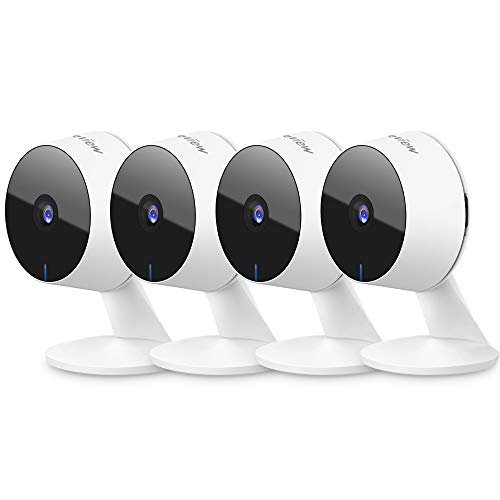



I'm trying to set up port forwarding, but I'm not sure what port numbers I should use. Can anyone explain how to find the right ones for my security camera?
Good question! Usually, the manual of your camera will specify which ports to forward. If you can't find it, common ones are 80 for HTTP and 554 for RTSP.
I recently set up my security camera for remote access, and it was a bit tricky. I had to search around for how to access my router settings since mine was different from what the article showed. After a lot of trial and error, I finally found the port forwarding section. Once I set that up, I could see the camera's feed on my phone using the mobile app. It’s really handy, but I made sure to secure my camera with a strong password after reading about potential vulnerabilities.