
 Carmen J. Moore
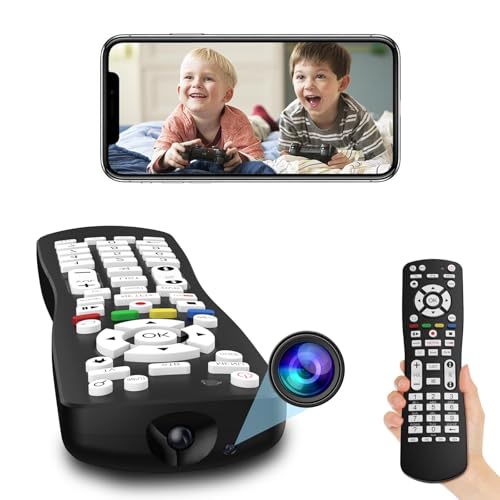
Security cameras are an essential tool for monitoring your home or business, providing peace of mind and protection against intruders. With advancements in technology, it is now easier than ever to access your security cameras online, allowing you to view live footage and recordings from anywhere in the world.
Whether you are using a traditional CCTV system or a modern IP camera setup, accessing your security cameras online requires a few simple steps. By setting up remote viewing capabilities, you can monitor your property in real-time, check in on your loved ones, or keep an eye on your business operations, all from the convenience of your smartphone, tablet, or computer.
In this article, we will explore the various methods and tools available for accessing your security cameras online, including mobile apps, web browsers, and cloud-based services. By following our step-by-step guide, you’ll be able to stay connected to your surveillance system at all times, ensuring the safety and security of your property.


How to Access Your Security Cameras Online
Accessing your security cameras online allows you to monitor your property remotely and ensure its safety. Follow these steps to access your security cameras online:
- Make sure your security cameras are connected to a stable internet connection.
- Find out the IP address or domain name of your security camera system.
- Open a web browser on your computer or mobile device.
- Enter the IP address or domain name in the address bar of the browser.
- Enter the username and password for your security camera system when prompted.
- You should now be able to view your security camera feeds online.
By following these steps, you can easily access your security cameras online and keep an eye on your property from anywhere with an internet connection.
Step-by-Step Guide for Remote Viewing
Follow these steps to view your security cameras remotely:
| 1. | Ensure your security camera system is connected to the internet. |
| 2. | Find the IP address of your security camera system. |
| 3. | Open a web browser on your computer or mobile device. |
| 4. | Enter the IP address of your security camera system in the browser’s address bar. |
| 5. | Log in to your security camera system using the username and password. |
| 6. | Navigate to the live view or playback section to view your security cameras remotely. |
Choosing the Right Surveillance System
When selecting a surveillance system for your home or business, there are several important factors to consider. Here are some key points to keep in mind:
1. Camera Resolution: Higher resolution cameras provide clearer images, making it easier to identify details such as faces or license plates. Consider cameras with at least 1080p resolution for optimal clarity.
2. Number of Cameras: Determine how many cameras you need to cover the desired area effectively. A larger property may require more cameras for comprehensive surveillance.
3. Remote Viewing: Look for a system that offers remote viewing capabilities, allowing you to monitor your cameras from anywhere using a smartphone or computer.
4. Storage Options: Choose a system with sufficient storage capacity to store footage for an extended period. Consider options like cloud storage or dedicated DVR/NVR systems.
5. Night Vision: For 24/7 surveillance, opt for cameras with infrared night vision capabilities. This ensures clear footage even in low-light conditions.
6. Motion Detection: Consider systems with motion detection features to alert you of any suspicious activity and minimize false alarms.
By evaluating these factors and selecting a surveillance system that meets your specific needs, you can enhance the security of your property and enjoy peace of mind knowing that your premises are protected.
Setting Up Remote Access to Your Cameras
To view your security cameras online, you need to set up remote access to your cameras. Follow these steps to enable remote viewing:
Step 1: Configure Your Router
Log in to your router’s settings and enable port forwarding for your security camera system. Assign a static IP address to your camera system to ensure it remains accessible from outside your local network.
Step 2: Set Up Dynamic DNS
To access your cameras using a domain name instead of an IP address, set up dynamic DNS (DDNS) on your router. This will allow you to access your cameras remotely using a custom domain name.
Connecting Your Cameras to the Internet
Follow these steps to connect your security cameras to the internet:
- Ensure your cameras are properly installed and powered on.
- Access the camera’s settings through the manufacturer’s app or web interface.
- Locate the network settings and choose the Wi-Fi network you want to connect to.
- Enter the network password when prompted.
- Wait for the camera to establish a connection to the internet.
- Once connected, you can access your cameras remotely using the provided login credentials.
By following these steps, you can easily view your security cameras online from anywhere with an internet connection.
Configuring Port Forwarding on Your Router
If you want to access your security cameras online, you will need to configure port forwarding on your router. Port forwarding allows external devices to connect to your cameras by forwarding specific ports to the cameras’ IP addresses.
Here are the steps to configure port forwarding on your router:
- Access your router’s settings by typing the router’s IP address into your web browser.
- Log in to your router using the admin credentials.
- Locate the port forwarding section in your router’s settings. This is usually found under the “Advanced” or “Firewall” tab.
- Create a new port forwarding rule by specifying the external port (e.g., 80) and the internal IP address of your security camera.
- Save the changes and restart your router to apply the port forwarding settings.
Once port forwarding is configured, you should be able to access your security cameras online by entering your public IP address followed by the port number in a web browser.
Installing the Camera Viewing Software
Once you have set up your security cameras, you will need to install the camera viewing software on your computer or mobile device to access the live feed. Follow these steps to install the software:
- Download the camera viewing software from the manufacturer’s website or the app store.
- Run the installation file and follow the on-screen instructions to install the software on your device.
- Launch the camera viewing software and enter the necessary details, such as the IP address of your security camera and login credentials.
- Once the software is configured, you will be able to view the live feed from your security cameras remotely over the internet.
Make sure to keep the camera viewing software updated to ensure compatibility with your security cameras and to access the latest features and enhancements.
Logging in to Your Camera System
Once you have set up your security cameras and connected them to your network, you can access them online by logging in to your camera system. Follow these steps to view your security cameras remotely:
- Open a web browser on your computer or mobile device.
- Enter the IP address or domain name of your camera system in the address bar.
- Enter your username and password to log in to the camera system.
- Once logged in, you should be able to see a live feed from your security cameras and access settings and recordings.
Make sure to keep your login credentials secure and change the default password to ensure the security of your camera system.
Checking Camera Feeds on Your Smartphone
With the advancement in technology, you can now easily access your security camera feeds on your smartphone. Here are the steps to check your camera feeds on the go:
Step 1: Download the App
First, download the corresponding app for your security camera system from the App Store or Google Play Store. Make sure to choose the official app provided by the manufacturer for seamless integration.
Step 2: Log In
Once the app is downloaded, launch it and log in using your account credentials. This will allow you to access your camera feeds remotely.
Tip: Enable notifications to receive alerts for any suspicious activities detected by your security cameras.
Now you can easily check your security camera feeds on your smartphone anytime, anywhere.
Best Practices for Securing Your Camera System
1. Change default passwords: Always change the default username and password on your camera system to a strong, unique password to prevent unauthorized access.
2. Keep firmware updated: Regularly check for firmware updates for your cameras and install them promptly to patch any security vulnerabilities.
3. Disable remote access: If you do not need remote access to your camera system, disable this feature to reduce the risk of unauthorized access from outside networks.



I recently set up my security cameras following similar steps mentioned in the article. I had some trouble with port forwarding, but once I figured it out, accessing the cameras from my phone was a breeze. It gives me peace of mind knowing I can check in on my property anytime.
I disagree with the suggestion to always use cloud storage. Some people, including me, prefer local storage for privacy reasons.
That's a valid point! Local storage can enhance privacy and security. It's important to choose a storage option that fits your needs and comfort level.
Good article! I'm curious if there are specific brands of security cameras that you recommend for easy online access? I want something user-friendly.
Thanks for your question!Some popular brands known for user-friendly online access include Arlo, Diana, and Nest. These systems typically come with intuitive apps for remote viewing.