
 Carmen J. Moore
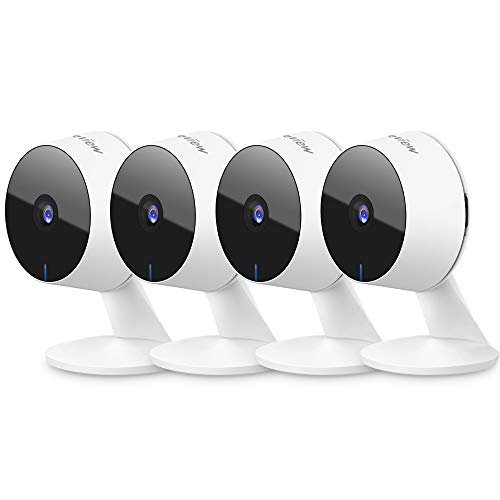
Having a security camera in your home is a great way to keep an eye on things when you’re not there. But wouldn’t it be even better if you could access your camera’s feed through your Google Home device? Well, the good news is that you can! By connecting your security camera to Google Home, you can easily monitor your home’s security using just your voice.
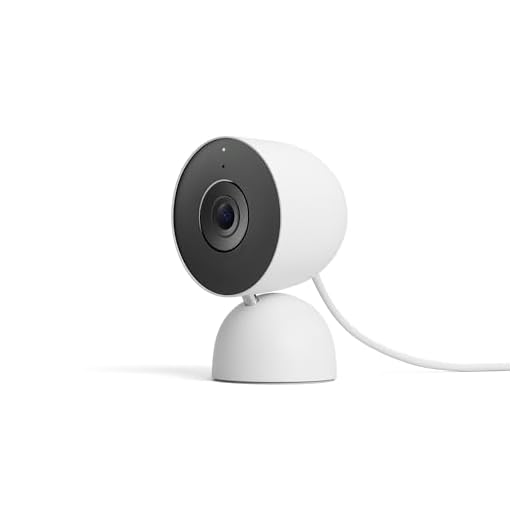


So, how do you go about connecting your security camera to Google Home? The process can vary depending on the make and model of your camera, but generally, you’ll need to use a compatible app or service that allows for integration with Google Home. Once you’ve set up the connection, you’ll be able to stream live footage from your camera directly to your Google Home device or view it on your smartphone or tablet.
With your security camera connected to Google Home, you can use voice commands to check in on your home, view live footage, or even receive alerts when motion is detected. It’s a convenient way to stay on top of your home’s security without having to constantly check your camera’s feed manually. So, if you want to take your home security to the next level, consider connecting your security camera to Google Home today!
Step-by-step guide on connecting security camera to Google Home
Connecting your security camera to Google Home can enhance your home security system and provide you with convenient access to live footage. Follow these steps to easily connect your security camera to Google Home:
- Ensure your security camera is compatible with Google Home. Check the manufacturer’s instructions or website for compatibility information.
- Open the Google Home app on your smartphone or tablet.
- Tap on the “+” icon to add a new device.
- Select “Set up device” and choose “Have something already set up?”
- Search for your security camera brand in the list of compatible devices.
- Follow the on-screen instructions to link your security camera account to Google Home.
- Once connected, you can use voice commands to view live footage from your security camera on your Google Home device or through the Google Home app.
By following these steps, you can easily integrate your security camera into your smart home setup and enjoy the convenience of monitoring your home with Google Home.
Check camera compatibility with Google Home
Before connecting your security camera to Google Home, it is important to ensure that your camera is compatible with the Google Home ecosystem. Here are the steps to check the compatibility:
- Visit the official Google Home website to view the list of compatible security cameras.
- Check the specifications of your security camera to see if it supports integration with Google Home.
- Look for any firmware updates or compatibility settings for your camera that enable connectivity with Google Home.
By confirming the compatibility of your security camera with Google Home, you can proceed with the setup process and enjoy the convenience of controlling your camera with voice commands through Google Home.
Download and set up the camera’s app
Before you can connect your security camera to Google Home, you need to make sure that you have the camera’s app installed on your smartphone or tablet. Follow these steps to download and set up the camera’s app:
- Go to the App Store (for iOS devices) or Google Play Store (for Android devices) on your smartphone or tablet.
- Search for the app by entering the camera’s brand or model name in the search bar.
- Click on the app and tap the “Download” or “Install” button to download it to your device.
- Once the app is downloaded, open it and follow the on-screen instructions to set it up. This usually involves creating an account, connecting the camera to your Wi-Fi network, and configuring the camera’s settings.
After you have successfully set up the camera’s app, you can proceed to connect it to Google Home following the manufacturer’s instructions.
Connect the camera to your Wi-Fi network
Before you can connect your security camera to Google Home, you first need to make sure the camera is connected to your Wi-Fi network. Follow these steps to ensure a smooth connection:
Step 1: Check camera settings
Access the settings on your security camera and navigate to the Wi-Fi or network settings. Make sure the camera is set up to connect to a Wi-Fi network.
Step 2: Connect to Wi-Fi
Use the camera’s interface or app to search for available Wi-Fi networks. Select your home network from the list and enter the password to connect the camera to your Wi-Fi.
Link camera to Google Home app
To connect your security camera to the Google Home app, follow these steps:
- Open the Google Home app on your smartphone or tablet.
- Tap on the “+” icon in the top left corner to add a new device.
- Select “Set up device” and then choose “Have something already set up?”
- Look for your camera in the list of compatible devices and select it.
- Follow the on-screen instructions to link your camera to the Google Home app.
- You may need to enter your camera’s login credentials to complete the setup process.
- Once connected, you can use voice commands with your Google Home device to view the camera feed or control its settings.
Set up voice commands for camera control
Once you have successfully connected your security camera to Google Home, you can set up voice commands for camera control. Here’s how:
| Step 1: | Open the Google Home app on your smartphone or tablet. |
| Step 2: | Tap on the “Account” icon in the bottom right corner of the screen. |
| Step 3: | Scroll down and select “Settings.” |
| Step 4: | Under “Works with Google,” select “Add a new device.” |
| Step 5: | Search for your security camera brand and follow the on-screen instructions to link it to Google Home. |
| Step 6: | Once linked, you can use voice commands like “Hey Google, show me the front door camera” or “Hey Google, turn on the backyard camera.” |
Enjoy monitoring your security camera with Google Home
If you want to enhance the security of your home, connecting your security camera to Google Home can offer you peace of mind and convenience. With this integration, you can easily monitor your camera feeds using voice commands or the Google Home app.
Step 1: Make sure your security camera is compatible with Google Home. Check the manufacturer’s instructions or website for compatibility information.
Step 2: Set up your security camera according to the manufacturer’s guidelines and connect it to your Wi-Fi network.
Step 3: Open the Google Home app on your smartphone and navigate to the “Add” section.
Step 4: Select “Set up device” and choose “Have something already set up?”
Step 5: Look for your security camera in the list of compatible devices and follow the on-screen instructions to link it to your Google Home account.
Step 6: Once the setup is complete, you can use voice commands like “Hey Google, show me the living room camera” to view your camera feeds on a compatible screen or device connected to Google Home.
By following these steps, you can enjoy the convenience of monitoring your security camera with Google Home, giving you added security and control over your home environment.



Make sure to update your camera’s firmware before starting the setup process! It helps avoid any connection issues.
I’m considering two cameras, the Arlo and the Ring. Does anyone know if one integrates better with Google Home than the other?
I just set up my camera with Google Home and it's super easy! I love being able to check in with just my voice.