
 Carmen J. Moore

Are you looking to elevate your video conferencing or streaming game? Using a Sony mirrorless camera as a webcam can drastically improve the quality of your video feed, making you stand out with crisp, clear images. In this guide, we will walk you through the steps to set up your Sony mirrorless camera as a webcam, unlocking its full potential for online communication and content creation.


With the rise of remote work and virtual events, having a professional-looking webcam has become essential. Sony mirrorless cameras are known for their superior image quality and advanced features, making them an excellent choice for upgrading your video setup. By following these simple steps, you can harness the power of your Sony mirrorless camera to deliver stunning visuals in your video calls, live streams, and online presentations.
How to Use Sony Mirrorless Camera as Webcam
With the rise of virtual meetings and online content creation, using a high-quality camera as a webcam has become increasingly popular. Sony mirrorless cameras are known for their excellent image quality and advanced features, making them a great choice for upgrading your video conferencing setup. Here’s how you can use your Sony mirrorless camera as a webcam:
1. Check Compatibility
Before you start, make sure that your Sony mirrorless camera is compatible with being used as a webcam. Some newer models have built-in webcam functionality, while older models may require additional software or hardware to connect to your computer.
2. Download and Install Imaging Edge Webcam Software
Sony offers a free software called Imaging Edge Webcam that allows you to use your Sony mirrorless camera as a webcam. Download and install the software on your computer, following the instructions provided on the Sony website.
Once the software is installed, connect your Sony mirrorless camera to your computer using a USB cable. Open the Imaging Edge Webcam software and select your camera as the input source. You should now be able to use your Sony mirrorless camera as a webcam in your preferred video conferencing or streaming application.
By following these steps, you can take your virtual meetings and content creation to the next level with the superior image quality of your Sony mirrorless camera.
Step-by-Step Guide
To use your Sony mirrorless camera as a webcam, follow these steps:
Step 1: Install Imaging Edge Webcam Software
Download and install the Imaging Edge Webcam software from the Sony website. This software allows you to use your camera as a high-quality webcam.
Step 2: Connect Your Camera to Your Computer
Connect your Sony mirrorless camera to your computer using a USB cable. Make sure the camera is in the correct mode for webcam use.
Once connected, turn on your camera and open the Imaging Edge Webcam software on your computer.
Step 3: Set Up Your Camera Settings
In the Imaging Edge Webcam software, select your Sony camera from the list of available devices. Adjust the camera settings such as resolution, frame rate, and exposure as needed.
Position your camera where you want it to capture your video feed, ensuring good lighting and framing.
Your Sony mirrorless camera is now set up as a webcam and ready to use for video calls, streaming, or recording.
Required Equipment
To use your Sony mirrorless camera as a webcam, you will need the following equipment:
- Sony Mirrorless Camera: Make sure your camera model is compatible with webcam software.
- USB Cable: To connect your camera to your computer.
- Camera Mount or Tripod: To position your camera properly for video calls.
- Webcam Software: Download and install the necessary software for your camera model.
Download Necessary Software
In order to use your Sony mirrorless camera as a webcam, you will need to download and install the necessary software on your computer. Follow these steps to get started:
Step 1: Install Imaging Edge Webcam Software
Visit the official Sony Imaging Edge Webcam website and download the Imaging Edge Webcam software for your specific camera model. Install the software on your computer by following the on-screen instructions.
Step 2: Update Camera Firmware
Make sure your Sony mirrorless camera’s firmware is up to date. Visit the official Sony support website and download any available firmware updates for your camera model. Follow the instructions to update the firmware.
Connect Camera to Computer
To use your Sony mirrorless camera as a webcam, you first need to connect it to your computer using a USB cable. Make sure your camera is turned off before connecting it to the computer.
Once the camera is connected, turn it on and set it to the appropriate mode for webcam use. This mode may vary depending on the model of your camera, so refer to the user manual for instructions.
Setup Camera Settings
Before using your Sony mirrorless camera as a webcam, you need to adjust some settings to ensure the best video quality and performance. Here are the steps:
- Connect the camera: Use a USB cable to connect your camera to your computer.
- Turn on the camera: Power on your camera and switch it to the appropriate mode for webcam use.
- Access camera settings: Navigate to the camera settings menu either on the camera’s LCD screen or through the camera’s software on your computer.
- Adjust video settings: Set the video resolution, frame rate, and other video settings to optimize your webcam experience.
- Check audio settings: Make sure the audio input is set correctly for the microphone you are using for sound capture.
- Test the setup: Before using the camera in a call or livestream, test the setup to ensure everything is working correctly.
By following these steps and adjusting the camera settings, you can make the most out of your Sony mirrorless camera as a webcam.
Adjust Lighting and Framing
Proper lighting and framing are key to achieving a professional-looking webcam setup with your Sony mirrorless camera. Here are some tips to help you get the best results:
1. Lighting:
Make sure you have adequate lighting in your space. Natural light is ideal, so try to position yourself near a window or use soft, diffused lighting sources to avoid harsh shadows. You can also invest in a ring light or LED panel to enhance your lighting setup.
2. Framing:
Position your Sony mirrorless camera at eye level for a flattering angle. Make sure your face is centered in the frame and that there is enough headroom above you. You can use the rule of thirds to create a balanced composition, with your eyes positioned along the top third of the frame.
Test Camera Connection
Before using your Sony mirrorless camera as a webcam, it’s important to test the camera connection to ensure everything is working properly. Follow these steps:
- Connect the Camera: Plug your camera into your computer using the appropriate USB cable.
- Turn on the Camera: Power on your camera and set it to the correct mode for webcam use.
- Check Camera Settings: Make sure the camera settings are configured for webcam functionality.
- Open Webcam Software: Launch the webcam software on your computer and select your Sony mirrorless camera as the input source.
- Test the Connection: Start a video call or open a video recording app to test the camera connection. Ensure that the camera feed is displaying correctly.
Once you have successfully tested the camera connection, you are ready to use your Sony mirrorless camera as a high-quality webcam for your video calls and livestreams.
Troubleshooting Tips
If you are experiencing issues with using your Sony mirrorless camera as a webcam, here are some troubleshooting tips to help you resolve them:
- Ensure that you have the latest firmware updates installed on your camera.
- Check the USB cable connection between your camera and computer. Try using a different cable to rule out any connectivity issues.
- Make sure that your camera is set to the correct mode for webcam usage. Refer to the camera’s user manual for instructions on how to switch to webcam mode.
- Check your computer’s settings to ensure that the camera is selected as the default webcam device.
- Restart your computer and camera to see if that resolves any temporary glitches.
- If you are still experiencing issues, try using a different software application for webcam usage to see if the problem lies with the software you are using.
Additional Resources
For more information on using your Sony mirrorless camera as a webcam, check out the following resources:
- Sony Imaging Edge Webcam software
- Video tutorial on setting up Sony mirrorless camera as a webcam
- Sony support article on using your camera as a webcam
Final Thoughts
Using your Sony mirrorless camera as a webcam can greatly enhance the quality of your video calls, live streams, and online meetings. With the right equipment and setup, you can achieve professional-looking results that will impress your audience.
Key Points to Remember:
- Make sure your camera is compatible with the necessary software and hardware for using it as a webcam.
- Invest in a reliable capture card or USB adapter to connect your camera to your computer.
- Adjust the camera settings to optimize the video quality for your specific needs.
- Consider using a good quality lens and external microphone for better audio and video performance.
By following these steps and tips, you can unlock the full potential of your Sony mirrorless camera and take your online content to the next level.


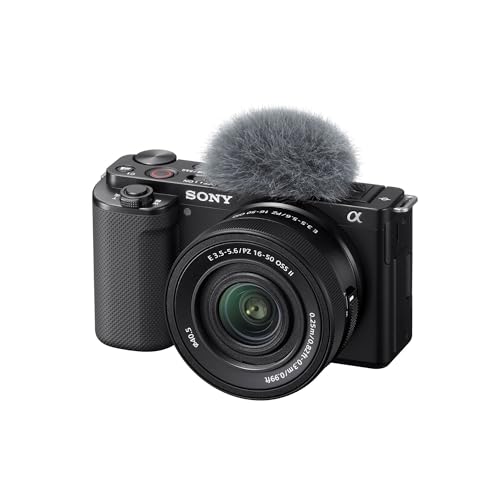


I recently switched to using my Sony mirrorless camera for streaming, and the difference is night and day! The image quality is significantly better than my old webcam. Just make sure you have good lighting, as it really enhances the video feed. I use a ring light and it makes everything look so much clearer. I highly recommend this setup for anyone looking to improve their streaming or video calls!
That sounds great! Did you have any issues setting it up, or was it pretty straightforward?
Setting it up is generally straightforward, but make sure to follow the steps carefully, especially adjusting the camera settings for optimal performance.
I just got a Sony a6400, can I use it as a webcam right away or do I need extra software?
You will need to download and install the Imaging Edge Webcam software from Sony’s website to use your a6400 as a webcam. Once you have that set up, you can connect it via USB.