
 Carmen J. Moore

If you’re experiencing issues with your iPhone camera not working, it can be frustrating and inconvenient. A malfunctioning camera can prevent you from capturing important moments or using features like FaceTime or scanning QR codes. However, there are several troubleshooting steps you can take to try and resolve the issue before seeking professional help.

Check the Camera App: Start by closing the camera app and reopening it to see if that resolves the problem. Sometimes, a simple software glitch can cause the camera to malfunction. If the issue persists, try restarting your iPhone to see if that helps.
Reset Settings: If restarting your iPhone doesn’t fix the camera issue, you can try resetting the settings. This won’t erase your data, but it will reset all settings to their default values. To do this, go to Settings > General > Reset > Reset All Settings. This can sometimes resolve software-related problems that are affecting the camera.
Troubleshooting iPhone Camera Issues
If your iPhone camera is not working properly, it can be frustrating. Here are some common issues and troubleshooting steps to help you fix the problem:
1. Restart Your iPhone
Often, a simple restart can fix minor software glitches that may be affecting your camera. Press and hold the power button until the “slide to power off” option appears, then slide to turn off your iPhone. Wait a few seconds, then press and hold the power button again to turn it back on.
2. Check Camera Settings
Make sure that your camera settings are not causing the issue. Go to Settings > Camera and check if all the necessary permissions are enabled. You can also try resetting the camera settings by going to Settings > General > Reset > Reset All Settings.
| Issue | Solution |
|---|---|
| Camera app not opening | Force close the app by double-clicking the Home button and swiping up on the Camera app. Then reopen the app. |
| Blurry or out-of-focus photos | Make sure the lens is clean and free of any obstructions. Tap on the screen to focus on a specific area before taking a photo. |
| No flash in low-light conditions | Check if the flash is set to auto or on in the camera settings. If it’s still not working, try restarting your iPhone. |
If these troubleshooting steps do not resolve the issue, it may be a hardware problem. In that case, you may need to contact Apple Support or visit an authorized service center for further assistance.
Check for Software Updates
One common reason for camera issues on an iPhone is outdated software. Ensure that your iPhone is running the latest version of iOS by following these steps:
- Go to Settings on your iPhone.
- Scroll down and select General.
- Tap on Software Update.
- If an update is available, follow the on-screen instructions to download and install it.
Updating your iPhone’s software can often resolve camera problems caused by software glitches or compatibility issues. After updating, check if the camera is working properly.
Restart Your iPhone
If your iPhone camera is not working, the first troubleshooting step you should try is to restart your device. A simple restart can often fix minor software glitches that may be causing the camera to malfunction.
How to Restart Your iPhone:
| 1. | Press and hold the power button (or the side button on newer models) until the “Slide to power off” slider appears on the screen. |
| 2. | Slide the slider to power off your iPhone. |
| 3. | Wait for a few seconds, then press and hold the power button again until the Apple logo appears on the screen. |
After your iPhone restarts, check if the camera is now working properly. If the issue persists, you can try other troubleshooting steps to fix the problem.
Clear Camera App Cache
If your iPhone camera is still not working properly after restarting the device, you may need to clear the cache of the Camera app. Cached data can sometimes cause issues with the app’s functionality. Follow these steps to clear the Camera app cache:
Step 1: Open Settings
Go to the Settings app on your iPhone and scroll down until you find the Camera app.
Step 2: Clear Cache
Tap on the Camera app and look for the option to clear the cache. This will remove any temporary data that may be causing the camera to malfunction.
After clearing the cache, restart your iPhone and check if the camera is now working properly.
Reset Camera Settings
If your iPhone camera is still not working after trying the previous troubleshooting steps, you can try resetting the camera settings. This will restore the camera settings to their default values, potentially fixing any software glitches that may be causing the issue.
To reset the camera settings on your iPhone, go to Settings > General > Reset > Reset All Settings. Keep in mind that this will reset all settings on your device, not just the camera settings, so you may need to set up other preferences again after doing this.
Check for Hardware Damage
If your iPhone camera is still not working after trying the software fixes, it’s time to check for hardware damage. Here are some steps you can take:
- Inspect the camera lens for any cracks or scratches that may be obstructing the lens.
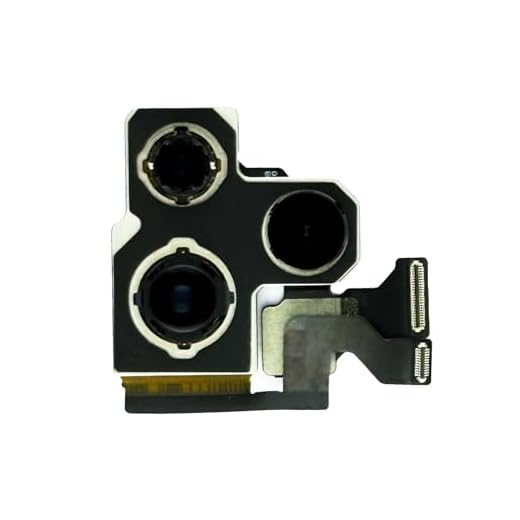
- Check the camera module for any visible damage or loose connections.
- Make sure there are no obstructions blocking the camera lens or the flash.
- If you suspect water damage, look for signs of moisture in the camera module or around the lens.
- If you are comfortable doing so, try gently tapping the back of the iPhone to see if there is a loose connection causing the camera issue.
If you notice any hardware damage or suspect water damage, it’s best to take your iPhone to a professional repair service to get it fixed.
Contact Apple Support
If you have tried all the troubleshooting steps and your iPhone camera is still not working, it may be time to contact Apple Support for further assistance. You can reach out to Apple Support through their website, by phone, or by visiting an Apple Store in person. Make sure to have your iPhone serial number handy and be prepared to describe the issue in detail. Apple Support representatives are trained to help you diagnose the problem and provide solutions, which may include scheduling a repair or replacement for your device.


If I suspect hardware damage, what should I look for? I’ve noticed some weird noises from my camera module.
I had a problem with my camera not focusing properly. After cleaning the lens with a microfiber cloth and tapping the screen to focus, it started working fine again. Sometimes it's just a simple fix!
I don't think restarting the iPhone is a good fix. It's often just a temporary solution and doesn’t address underlying software issues.
I’ve tried restarting my iPhone multiple times, but the camera still won’t open. Is there anything else I could try before contacting support?