
 Carmen J. Moore

Setting up your Foscam camera to work with your iPhone 6s can provide you with peace of mind and added security for your home or business. With the advancement of technology, connecting your Foscam camera to your iPhone 6s has become easier than ever before.
Whether you want to keep an eye on your property while you’re away or just want to check in on your pets, connecting your Foscam camera to your iPhone 6s allows you to access live video feeds from anywhere at any time.


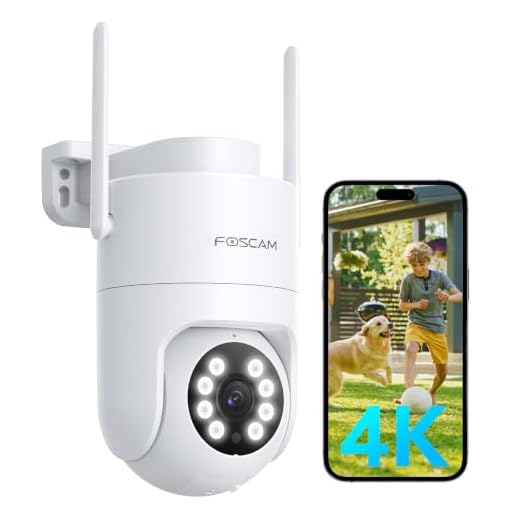
In this guide, we will walk you through the step-by-step process of connecting your Foscam camera to your iPhone 6s so you can start monitoring your space with ease. Follow these instructions carefully to ensure a smooth setup and seamless connection between your camera and your iPhone 6s.
Step-by-step Guide: Connecting Foscam Camera to iPhone 6s
Connecting your Foscam camera to your iPhone 6s is a simple process that allows you to monitor your home or office remotely. Follow these steps to set up the connection:
Step 1: Download the Foscam App
Start by downloading the Foscam app from the App Store on your iPhone 6s. This app will allow you to access your camera feed and control its settings from your phone.
Step 2: Connect the Camera to Wi-Fi
Make sure your Foscam camera is connected to your Wi-Fi network. Follow the camera’s manual to set up the Wi-Fi connection properly.
| Step | Instructions |
| 1 | Open the Foscam app on your iPhone 6s. |
| 2 | Tap on the “+” icon to add a new camera. |
| 3 | Follow the on-screen instructions to scan the QR code on your camera or manually enter the camera’s details. |
| 4 | Once the camera is added, you can now view the live feed, adjust settings, and receive alerts on your iPhone 6s. |
By following these steps, you can easily connect your Foscam camera to your iPhone 6s and enjoy remote monitoring capabilities.
Check Camera Compatibility with iPhone 6s
Before attempting to connect your Foscam camera to your iPhone 6s, it is important to ensure that the camera is compatible with your device. Check the camera specifications to verify that it supports iOS and is compatible with the iPhone 6s.
You can typically find this information on the Foscam website or in the camera’s user manual. If the camera is compatible with iOS devices, including the iPhone 6s, you should be able to connect it to your phone following the manufacturer’s instructions.
| Check camera specifications | Verify iOS compatibility |
| Refer to Foscam website | Consult camera user manual |
Download Foscam App from App Store
To connect your Foscam camera to your iPhone 6s, you will need to download the Foscam App from the App Store. Follow these steps to get the app:
- Open the App Store on your iPhone 6s.
- Search for “Foscam” in the search bar.
- Locate the Foscam App in the search results.
- Tap the “Get” or “Download” button next to the Foscam App.
- Wait for the app to download and install on your iPhone 6s.
- Once the Foscam App is installed, open it and follow the on-screen instructions to set up your camera and connect it to your iPhone 6s.
Install and Launch the Foscam App
To connect your Foscam camera to your iPhone 6s, you will need to install the Foscam app on your phone. Follow these steps to get started:
- Open the App Store on your iPhone 6s.
- Search for “Foscam” in the search bar.
- Locate the Foscam app and tap on “Get” to download and install it on your phone.
- Once the installation is complete, launch the Foscam app by tapping on its icon on your home screen.
Now that you have the Foscam app installed and launched on your iPhone 6s, you can proceed with setting up your Foscam camera and connecting it to your phone.
Create a Foscam Account
Before you can connect your Foscam camera to your iPhone 6s, you will need to create a Foscam account. Follow the steps below to create your account:
Step 1: Visit the Foscam Website
Go to the Foscam website and locate the “Sign Up” or “Create Account” option. Click on it to begin the account creation process.
Step 2: Fill in Your Details
Fill in the required information such as your email address, username, and password. Make sure to create a strong password to secure your account.
| Username: | [Your chosen username] |
| Email Address: | [Your email address] |
| Password: | [Your chosen password] |
Add Camera to Foscam App
Once you have successfully set up your Foscam camera, you can easily add it to the Foscam app on your iPhone 6s. Follow these simple steps:
- Open the Foscam app on your iPhone 6s.
- Tap on the “+” sign or the “Add Camera” option.
- Select the option to add a new camera.
- Enter the camera’s IP address, username, and password.
- Click “Save” or “Done” to add the camera to the app.
- You should now see your Foscam camera listed in the app dashboard.
Now you can easily access and control your Foscam camera through the Foscam app on your iPhone 6s.
Connect Camera to Wi-Fi Network
Follow these steps to connect your Foscam camera to your Wi-Fi network:
- Plug in the camera and wait for it to power up.
- Download the Foscam app on your iPhone 6s from the App Store.
- Open the app and follow the on-screen instructions to add your camera.
- Scan the QR code on the camera or manually enter the camera’s information.
- Choose your Wi-Fi network and enter the password to connect the camera to the network.
- Wait for the camera to connect to the Wi-Fi network successfully.
- You can now access your camera remotely using the Foscam app on your iPhone 6s.
Configure Camera Settings
Once you have successfully connected your Foscam camera to your iPhone 6s, it is important to configure the camera settings to ensure optimal performance. Here are some steps to help you set up the camera:
1. Access the camera settings: Open the Foscam app on your iPhone and log in to your camera’s feed. Navigate to the settings menu to access the camera settings.
2. Adjust image quality: You can adjust the image quality settings to optimize the video feed based on your preferences. You can set parameters such as resolution, brightness, and contrast.
3. Enable motion detection: To enhance security, you can enable motion detection on your camera. This feature will alert you when motion is detected in the camera’s field of view.
4. Set up notifications: Configure the app to send you notifications when motion is detected or when there are other events triggered by the camera.
5. Customize recording settings: You can set up recording schedules and storage options to ensure that video footage is captured and stored according to your preferences.
By configuring the camera settings properly, you can make the most of your Foscam camera and enhance its functionality on your iPhone 6s.
Access Camera Feed on iPhone 6s
To access the camera feed on your iPhone 6s, follow these steps:
Step 1: Make sure your Foscam camera is set up and connected to your home network.
Step 2: Download the Foscam app from the App Store on your iPhone 6s.
Step 3: Open the Foscam app and log in with your account credentials.
Step 4: Tap on the camera icon to view the live feed from your Foscam camera.
Step 5: You can now monitor your camera feed, adjust settings, and even control the camera remotely from your iPhone 6s.
Enable Remote Viewing
After setting up your Foscam camera and connecting it to your iPhone 6s, you can enable remote viewing to monitor your camera feed from anywhere. Follow these steps:
- Open the Foscam app on your iPhone 6s.
- Sign in to your Foscam account.
- Select the camera you want to enable remote viewing for.
- Go to the camera settings.
- Find the remote viewing option and toggle it on.
- Follow the prompts to set up remote viewing, which may include creating a unique password for remote access.
- Once remote viewing is enabled, you can access your camera feed from anywhere using the Foscam app on your iPhone 6s.
Troubleshoot Connection Issues
If you are facing connection issues while trying to connect your Foscam camera to your iPhone 6s, here are some troubleshooting steps you can try:
- Check Network Connection: Make sure your iPhone 6s is connected to a stable Wi-Fi network. Also, ensure that the Foscam camera is connected to the same network.
- Restart Devices: Try restarting both your iPhone 6s and the Foscam camera to see if that resolves the connection problem.
- Update Firmware: Check if there are any firmware updates available for your Foscam camera and install them to ensure compatibility with your iPhone 6s.
- Reset Camera Settings: Reset the camera settings to default and reconfigure the connection settings on both the camera and your iPhone 6s.
- Check Camera Placement: Ensure that the Foscam camera is placed within range of the Wi-Fi signal and is not obstructed by any obstacles.
If the connection issues persist after trying these steps, you may need to contact Foscam customer support for further assistance.


I followed the steps to connect my Foscam camera to my iPhone 6s, but I'm stuck at the QR code scanning part. Can anyone help with this?
If you're having trouble with the QR code, you can also manually enter the camera's details in the app. Look for the option to add a camera manually.
I had the same issue! Make sure your camera is powered on and facing the right angle for the QR code to be scanned clearly.
I recently set up my Foscam camera with my iPhone 6s, and it was surprisingly easy! The app walked me through every step, and I was able to view the live feed within minutes. The only hiccup was connecting the camera to my Wi-Fi; I had to reset it a couple of times before it worked. Overall, very satisfied with the setup process!
I’m considering getting a Foscam camera, but how does it compare to other brands like Ring or Arlo? I've heard mixed reviews about Foscam's app. Any thoughts?
I've used Foscam and Ring. The Foscam app can be a bit clunky, but the camera quality is solid. Ring has a more user-friendly app and integrates well with other smart home devices.
Foscam cameras tend to offer good value for their price, especially in terms of video quality. However, Ring and Arlo often have better app interfaces and customer support.
Does the Foscam camera work with any Wi-Fi connection, or does it have to be a specific type?
The Foscam camera should connect to any standard Wi-Fi network, but make sure your router is set to the right frequency (2.4GHz is generally preferred for these cameras).