
 Carmen J. Moore
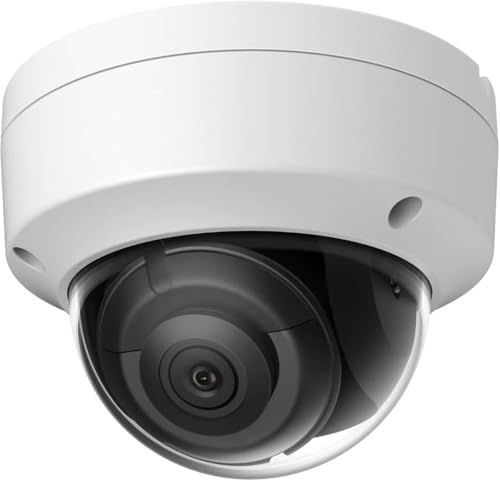
Hikvision cameras are widely used for security surveillance purposes due to their high-quality video recording capabilities. If you have a Hikvision camera and want to view its live feed on your iPhone, you’re in the right place. In this guide, we’ll walk you through the steps to access your Hikvision camera on your iPhone with ease.
Before you begin, make sure you have the Hik-Connect app installed on your iPhone. This app allows you to easily connect and manage your Hikvision cameras remotely. Once you have the app installed, follow these steps to view your Hikvision camera on your iPhone:
Step-by-Step Guide to Accessing Hikvision Camera on iPhone
Follow these simple steps to view your Hikvision camera on your iPhone:
- Download and install the Hik-Connect app from the App Store on your iPhone.
- Open the Hik-Connect app and create an account or log in if you already have one.
- Tap on the “+” icon to add a device and select “Scan QR Code.”
- Scan the QR code on your Hikvision camera or manually enter the camera’s serial number.
- Follow the on-screen instructions to connect your camera to the app.
- Once connected, you can now view your Hikvision camera’s live feed on your iPhone from anywhere.
- You can also adjust camera settings, view recorded footage, and receive alerts on your iPhone through the app.
Downloading the Hik-Connect App
To view your Hikvision camera on your iPhone, you need to download the Hik-Connect app from the App Store. Follow these steps to download the app:


- Open the App Store on your iPhone.
- Search for “Hik-Connect” in the search bar.
- Locate the app developed by Hikvision Digital Technology Co., Ltd.
- Tap the “Get” button next to the app.
- Enter your Apple ID password or use Touch ID/Face ID to download the app.
Once the app is downloaded and installed on your iPhone, you can proceed to set up and configure your Hikvision camera for remote viewing.
Creating a Hik-Connect Account
To view your Hikvision camera on your iPhone, you need to create a Hik-Connect account. Follow these steps to set up your account:
- Download the Hik-Connect app: Go to the App Store on your iPhone and search for the Hik-Connect app. Download and install it on your device.
- Open the app: Launch the Hik-Connect app on your iPhone.
- Create an account: If you don’t have a Hik-Connect account, click on the “Register” button to create a new account. Fill in the required information such as your email address, password, and verification code.
- Verify your email: After submitting your registration details, check your email inbox for a verification email from Hik-Connect. Click on the verification link to confirm your account.
- Log in: Once your account is verified, log in to the Hik-Connect app using your newly created credentials.
Now that you have successfully created a Hik-Connect account, you can proceed to add your Hikvision camera to the app and start viewing it on your iPhone.
Adding the Camera to Your Account
After installing the Hikvision camera and setting up the network connection, you need to add the camera to your Hikvision account to access it on your iPhone.
- Open the Hik-Connect app on your iPhone.
- Log in to your Hik-Connect account or create a new one if you don’t have an account.
- Click on the “Add Device” option in the app.
- Follow the on-screen instructions to add the camera to your Hikvision account by scanning the QR code or entering the device’s serial number.
- Once the camera is successfully added to your account, you can now view it on your iPhone using the Hik-Connect app.
Configuring Camera Settings
After installing the Hikvision camera on your iPhone, it is important to configure the camera settings to ensure optimal performance. Here are some key settings you may want to adjust:
1. Image Quality
Adjust the image quality settings to your preference. You can choose between high-definition or standard-definition video quality depending on your needs.
2. Motion Detection
Enable motion detection to receive alerts on your iPhone when the camera detects any movement. You can adjust the sensitivity level and set up specific zones for detection.
Viewing Camera Feeds on Your iPhone
If you want to view your Hikvision camera feeds on your iPhone, you can do so by following these simple steps:
- Download the Hik-Connect app: Start by downloading the Hik-Connect app from the App Store on your iPhone.
- Install and set up the app: After downloading the app, install it on your iPhone and follow the on-screen instructions to set it up.
- Add your camera: Once the app is set up, you can add your Hikvision camera by entering the device’s information and login credentials.
- View live feeds: After adding your camera, you can now view live feeds from your Hikvision camera on your iPhone anytime, anywhere.
With the Hik-Connect app, you can easily monitor your camera feeds on your iPhone with just a few simple steps.
Using Remote Playback Feature
To view recorded footage from your Hikvision camera on your iPhone, you can use the Remote Playback feature. Follow these steps to access and use this feature:
Step 1: Launch the Hik-Connect App
Open the Hik-Connect app on your iPhone and log in to your account.
Step 2: Navigate to Playback
Tap on the “Device” tab at the bottom of the screen, then select the camera you want to view playback from. Click on the “Playback” option to access the recorded footage.
| Button | Action |
|---|---|
| Search | Choose the date and time range for playback |
| Play | Start playback of recorded footage |
| Pause | Pause playback at any time |
By using the Remote Playback feature in the Hik-Connect app, you can easily view and review recorded footage from your Hikvision camera on your iPhone.
Setting Up Motion Detection Alerts
To set up motion detection alerts on your Hikvision camera, follow these steps:
- Open the Hik-Connect app on your iPhone.
- Log in to your account or create a new one if you haven’t already.
- Tap on the camera you want to set up motion detection alerts for.
- Go to the camera settings and find the “Event” or “Alarm” section.
- Enable the motion detection feature and adjust the sensitivity settings as needed.
- Set up the notification settings to receive alerts on your iPhone when motion is detected.
- Save the settings and exit the app.
Now, whenever motion is detected by your Hikvision camera, you will receive alerts on your iPhone, allowing you to monitor the situation in real-time.
Troubleshooting Common Connection Issues
If you are experiencing connection issues when trying to view your Hikvision camera on your iPhone, here are some common troubleshooting steps you can take:
- Check your internet connection: Make sure your iPhone is connected to a stable Wi-Fi or cellular network.
- Verify camera settings: Ensure that the camera settings on your Hikvision device are correctly configured for remote viewing.
- Restart the camera: Try restarting your Hikvision camera by unplugging it from the power source and plugging it back in.
- Update firmware: Make sure your Hikvision camera’s firmware is up to date to avoid compatibility issues.
- Restart your iPhone: Sometimes a simple restart of your iPhone can resolve connectivity problems.
- Check app permissions: Ensure that the Hik-Connect app on your iPhone has the necessary permissions to access your camera.


Can anyone clarify the difference between the image quality settings in the app? I want the best quality but also need to save on storage.
Good question! High-definition uses more storage, while standard-definition is less detailed but saves space.
Don't forget to check your app permissions if you're having connection issues. It solved my problem!
Thanks for the detailed guide! I'm wondering if the Hik-Connect app works with all Hikvision cameras or just certain models?
I recently set up my Hikvision camera using this app, and it was pretty straightforward. The QR code scanning feature worked like a charm. I was concerned about the quality of the video feed, but I’m pleased to report that it’s been great so far. Just a tip: make sure to have a good Wi-Fi connection for the best experience.
How do I reset my Hikvision camera if I can't connect it to the app? I followed all the steps, but it's still not working.
I found the app to be pretty buggy. I had to delete and reinstall a couple of times before it worked. Not very user-friendly in my experience.
I appreciate the feedback. Some users do report issues, but it often depends on the specific iPhone model and camera firmware. Keeping the app updated can help with stability.
Just a heads up: I had some trouble connecting my camera initially, but after restarting both the camera and my iPhone, it worked perfectly.
What do I do if I can see the live feed but am not receiving motion detection alerts? Any tips?
Can you clarify what permissions the Hik-Connect app needs to function properly? I want to make sure I provide the right access.