
 Carmen J. Moore

Are you tired of taking blurry selfies on your iPhone? Don’t worry, you’re not alone. Many iPhone users face the frustrating issue of a blurry front camera when trying to capture a perfect selfie. Fortunately, there are several tricks and tips you can try to unblur your selfie camera and take crystal-clear photos.

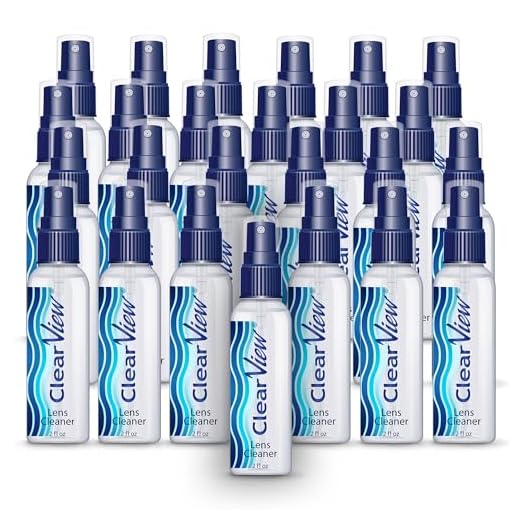

1. Clean your iPhone camera lens: One of the most common reasons for a blurry selfie camera is a dirty lens. Make sure to clean the front camera lens of your iPhone with a soft cloth to remove any dust or smudges that may be causing the blurriness.
2. Check your camera settings: Sometimes, the blur in your selfie camera may be due to incorrect camera settings. Check if your camera is set to the highest resolution and ensure that the focus is set correctly. Adjusting these settings can help improve the clarity of your selfies.
Ultimate Guide to Unblur Your Selfie Camera on iPhone
Are you tired of taking blurry selfies on your iPhone? Follow these simple steps to unblur your selfie camera and capture crisp, clear photos every time.
- Clean the camera lens: Use a soft, clean cloth to wipe away any dirt or smudges on the camera lens. A dirty lens can cause blurriness in your photos.
- Adjust the focus: Tap on the screen to adjust the focus of the camera. Make sure the subject is in focus before taking a selfie.
- Check the lighting: Good lighting is essential for clear photos. Avoid taking selfies in dimly lit areas and make sure the light is not too harsh.
- Steady your hand: Hold your iPhone steady while taking a selfie to avoid any motion blur. Use a tripod or prop your phone against a stable surface for better stability.
- Use the timer: If you have trouble holding your phone steady, use the timer feature to give yourself a few seconds to pose before the photo is taken.
By following these tips, you can unblur your selfie camera on iPhone and capture stunning selfies every time. Remember to practice and experiment with different settings to find what works best for you.
Understanding the Blur Issue
Blurry selfies can be a common issue faced by iPhone users when using the front-facing camera. This blurriness can be caused by a variety of factors, including poor lighting, camera settings, or even a smudged lens.
One common reason for a blurry selfie is the camera struggling to focus properly. This can happen if you or the subject are too close to the camera, or if there is not enough contrast in the scene for the camera to lock onto a focal point.
Additionally, low light conditions can also lead to a blurry image, as the camera may increase the exposure time to compensate for the lack of light, resulting in motion blur if either the camera or the subject move during the exposure.
To avoid blurry selfies, make sure to have good lighting, hold the camera steady, and clean the lens regularly. Adjusting the focus and exposure settings on your iPhone can also help improve the clarity of your selfies.
Checking Your iPhone Camera Settings
If your selfie camera is blurry on your iPhone, the first step is to check your camera settings. Here’s how:
- Open the Camera app: Launch the Camera app on your iPhone to access the camera settings.
- Tap on the Settings icon: Look for the settings icon, usually located in the top or side menu of the Camera app.
- Adjust the focus: Make sure the focus is set correctly by tapping on the screen where you want the camera to focus.
- Check for lens smudges: Sometimes a blurry camera can be caused by smudges or dirt on the lens. Wipe the lens clean with a soft, lint-free cloth.
If your camera is still blurry after checking the settings, you may need to further troubleshoot or seek professional help.
Cleaning the Camera Lens
One common reason for a blurry selfie camera on an iPhone is a dirty lens. To improve the clarity of your selfies, make sure to regularly clean the camera lens. Here are some steps you can follow to clean the lens:
- Use a soft, lint-free cloth to gently wipe the lens in a circular motion.
- Avoid using harsh chemicals or abrasive materials that can scratch the lens.
- If there are stubborn smudges or dirt, you can use a lens cleaning solution specifically designed for camera lenses.
- Take care not to press too hard on the lens to prevent damage.
- After cleaning the lens, check if the blurriness issue is resolved by taking a test selfie.
Regularly cleaning the camera lens can help maintain the quality of your selfies and ensure clear images. Remember to handle the lens with care to avoid causing any damage.
Updating Your iPhone Software
One way to potentially fix issues with a blurry selfie camera on your iPhone is to update the device’s software. Apple regularly releases updates for iOS, which can include bug fixes and improvements to the camera functionality. Here’s how you can update your iPhone software:
- Connect your iPhone to a Wi-Fi network.
- Go to Settings on your iPhone.
- Scroll down and tap on General.
- Tap on Software Update.
- If an update is available, tap Download and Install.
- Follow the on-screen instructions to complete the update process.
After updating your iPhone’s software, check if the issue with the blurry selfie camera has been resolved. If not, you may need to explore other troubleshooting steps or contact Apple Support for further assistance.
Using Third-Party Camera Apps
If you are still unsatisfied with the quality of your selfie camera on iPhone after trying the built-in settings and tips, you can explore third-party camera apps available on the App Store. These apps often offer more advanced features and customization options to enhance your selfie-taking experience.
Some popular third-party camera apps for iPhone include VSCO, ProCamera, Camera+, and Halide. These apps may have settings to adjust the focus, exposure, and other camera parameters to help improve the clarity and sharpness of your selfies. Additionally, they may offer filters and editing tools to further enhance your photos.
Adjusting the Focus and Exposure
One way to improve the clarity of your selfie camera on iPhone is by adjusting the focus and exposure settings. Here’s how you can do it:
1. Tap on the screen to focus
When taking a selfie, tap on the area of the screen where you want the camera to focus. This will help ensure that the subject of your photo is in sharp focus.
2. Adjust the exposure
To adjust the exposure of your selfie camera, tap on the screen and then slide your finger up or down to increase or decrease the exposure. This can help brighten or darken your selfie depending on the lighting conditions.
Ensuring Proper Lighting
One of the key factors that can help unblur your selfie camera on iPhone is proper lighting. Good lighting is essential for clear and sharp photos. Here are some tips to ensure proper lighting for your selfies:
- Avoid harsh overhead lighting as it can create shadows on your face. Opt for natural light from a window or soft, diffused artificial light.
- Position yourself facing the light source to avoid backlighting that can cause blurriness.
- Use additional light sources like a ring light or LED light to brighten up your face and reduce blurriness.
By following these lighting tips, you can improve the clarity of your selfies and reduce blurriness on your iPhone camera.
Restarting Your iPhone
If you are experiencing issues with your selfie camera being blurry on your iPhone, a simple solution you can try is restarting your device. This can help reset any software glitches that may be causing the camera to malfunction.
How to Restart Your iPhone:
| 1. | Press and hold the power button on your iPhone. |
| 2. | Slide the power off slider that appears on the screen. |
| 3. | Wait a few seconds, then press and hold the power button again until the Apple logo appears. |
| 4. | Your iPhone will restart and hopefully the issue with the blurry selfie camera will be resolved. |
Contacting Apple Support
If you are still experiencing issues with your iPhone camera being blurred and the steps mentioned above did not resolve the problem, it might be time to reach out to Apple Support for assistance. You can contact Apple Support through various channels, including phone, chat, or scheduling an appointment at an Apple Store. Make sure to have your device information and serial number ready when reaching out to ensure a smooth troubleshooting process.
Additional Tips and Tricks
Aside from the main methods mentioned above, there are a few additional tips and tricks you can try to unblur your selfie camera on iPhone:
1. Clean Your Camera Lens
One common reason for blurry photos is a dirty or smudged camera lens. Make sure to clean the lens with a soft cloth to remove any dirt or fingerprints that may be causing the blurriness.
2. Adjust the Focus Manually
If your iPhone camera has a manual focus option, try adjusting the focus manually to see if it helps improve the clarity of your selfies. Experiment with different focus settings to find the best one for your situation.
| Tip: Avoid using digital zoom as it can reduce the quality of your photos and make them appear more blurry. |


I’m not convinced that cleaning the lens is always the solution. I’ve cleaned mine multiple times and my selfies still come out blurry. I wonder if it’s a hardware issue?
What if I’m not sure how to adjust the focus on my iPhone camera? Is it complicated?
Adjusting the focus is simple! Just tap on the screen where you want to focus, and the camera will adjust automatically. Give it a try on your next selfie!
Always make sure to wipe the lens with a microfiber cloth; it helps a lot!
I used to struggle with blurry selfies until I started using a ring light. The difference in clarity is amazing! Lighting really does make a huge difference.