
 Carmen J. Moore

Are you looking to take your iPhone 7 Plus photography to the next level? The camera on the iPhone 7 Plus is already impressive, but with a few simple tips and tricks, you can enhance its performance and capture stunning photos.
From adjusting settings to utilizing third-party apps, there are many ways to optimize your iPhone 7 Plus camera for better results. In this article, we’ll explore some of the best practices to help you get the most out of your device’s camera capabilities.

Improve Your iPhone Camera Quality
If you want to enhance the quality of your iPhone camera, there are several tips and tricks you can try. Here are some suggestions to help you take better photos with your iPhone:
| 1. Clean Your Lens: | Make sure to regularly clean the lens of your iPhone camera to remove any dirt or smudges that may affect the clarity of your photos. |
| 2. Adjust Exposure: | Use the exposure adjustment feature on your iPhone to control the brightness of your photos. This can help you achieve better lighting and colors in your images. |
| 3. Use HDR Mode: | Turn on the HDR (High Dynamic Range) mode on your iPhone to capture more details in both bright and dark areas of your photos. |
| 4. Experiment with Different Modes: | Explore the different camera modes on your iPhone, such as Portrait mode or Panorama, to create unique and stunning photos. |
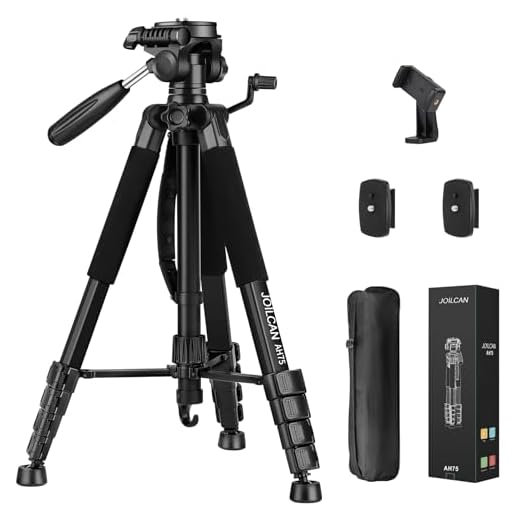
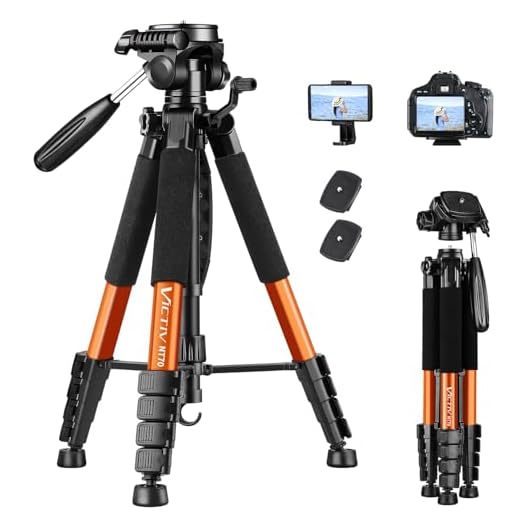
| 5. Keep Your Hands Steady: | To avoid blurry photos, try to keep your hands steady while taking pictures with your iPhone. You can also use a tripod for more stability. |
Adjust Camera Settings
One way to improve the quality of your iPhone 7 Plus camera is to adjust the camera settings. Here are some tips:
1. Use HDR Mode
High Dynamic Range (HDR) mode helps balance the exposure in your photos, especially in high-contrast scenes. Turn on HDR mode by tapping on the HDR icon in the camera app.
2. Adjust Exposure
You can manually adjust the exposure by tapping on the screen where you want to focus and then sliding your finger up or down to adjust the exposure level. This can help you get better lighting in your photos.
Clean Camera Lens Regularly
One of the simplest ways to improve the performance of your iPhone 7 Plus camera is to regularly clean the camera lens. Over time, dirt, dust, and fingerprints can accumulate on the lens, affecting the quality of your photos. To clean the lens, use a soft, lint-free cloth or a lens cleaning solution specifically designed for camera lenses. Gently wipe the lens in a circular motion to remove any dirt or smudges. Avoid using harsh chemicals or abrasive materials that could scratch the lens.
Use Natural Lighting for Better Photos
One of the most important factors in getting great photos with your iPhone 7 Plus camera is lighting. Natural light can make a huge difference in the quality of your photos. Here are some tips for using natural lighting to improve your photography:
- Shoot during the golden hour: The golden hour, which occurs shortly after sunrise or before sunset, provides soft, warm light that can make your photos look stunning.
- Avoid harsh midday sun: Direct sunlight can create harsh shadows and overexposure. Try to shoot in shaded areas or during cloudy days to diffuse the light.
- Use reflective surfaces: Reflective surfaces like water, glass, or white walls can help bounce light onto your subject and create more even lighting.
- Position your subject strategically: Consider the direction of light and how it falls on your subject. Experiment with different angles to find the most flattering lighting.
Try Different Camera Apps
If you’re looking to enhance your iPhone 7 Plus camera experience, consider exploring different camera apps available on the App Store. While the native camera app is great, third-party apps can offer additional features and tools to help you capture stunning photos.
Manual Controls
Some camera apps provide manual controls that allow you to adjust settings like ISO, shutter speed, and focus to get the perfect shot. This level of control can be especially useful in challenging lighting conditions or when you want to experiment with creative photography techniques.
Filters and Effects
Other apps offer a wide range of filters and effects that can add a unique touch to your photos. Whether you’re looking for vintage vibes, artistic effects, or simply want to enhance colors, these apps can help you achieve the desired look.
Use Gridlines for Composition
One helpful tool to improve your iPhone 7 Plus camera skills is to use gridlines for composition. Gridlines are a set of horizontal and vertical lines that divide your camera screen into nine equal sections, creating a tic-tac-toe grid. This grid can help you apply the rule of thirds, a popular composition technique in photography.
How to Enable Gridlines:
To enable gridlines on your iPhone 7 Plus camera, follow these steps:
| 1. | Open the “Settings” app on your iPhone. |
| 2. | Scroll down and tap on “Camera.” |
| 3. | Toggle the switch next to “Grid” to turn on the gridlines. |
Once you have gridlines enabled, use them to place your subject along the lines or at the intersection points to create a more visually appealing composition. Experiment with different placements and angles to see how gridlines can enhance your iPhone 7 Plus photos.
Avoid Digital Zoom
When taking photos with your iPhone 7 Plus, it’s best to avoid using digital zoom as much as possible. Digital zoom simply enlarges the pixels in the image, which can result in a loss of quality and detail. Instead, try to get closer to your subject physically or use the optical zoom feature on your iPhone 7 Plus for better results.
Hold Your iPhone Steadily
One of the key factors in capturing great photos with your iPhone 7 Plus camera is to hold your device steadily. Shaky hands can result in blurry and unfocused images. To ensure a steady grip, hold your iPhone with both hands, keeping your elbows close to your body for extra stability. You can also lean against a solid surface or use a tripod for even better support.
Experiment with Different Angles
One way to improve your iPhone 7 Plus camera shots is to experiment with different angles. Don’t just take photos at eye level; try shooting from above or below your subject to create more dynamic and interesting compositions.
Experimenting with angles can help you find unique perspectives that make your photos stand out. For example, try getting down low to the ground to capture a different view of a flower or shoot from a high vantage point to capture a sweeping landscape.
By trying different angles, you can add depth and visual interest to your photos, making them more engaging for viewers. So don’t be afraid to get creative and explore new perspectives with your iPhone 7 Plus camera!
Edit Photos for Enhancement
Editing your photos can greatly enhance the quality of your iPhone 7 Plus camera shots. Here are some tips on how to edit your photos:
| 1. Crop and Straighten: | Use the cropping tool to remove any unnecessary elements from your photo and straighten any crooked lines. |
| 2. Adjust Brightness and Contrast: | Play around with the brightness and contrast settings to make your photo more vibrant and dynamic. |
| 3. Enhance Colors: | Boost the saturation of colors to make your photo pop, but be careful not to overdo it. |
| 4. Sharpen Image: | Use the sharpening tool to enhance the details in your photo and make it look crisper. |
| 5. Add Filters: | Experiment with different filters to give your photo a unique look and feel. |


I don't agree that using digital zoom should be avoided completely. Sometimes, it's necessary, and with good lighting, it can look fine. I think it depends on the situation.
What do you think is the best camera app for the iPhone 7 Plus? I've heard there are some great options out there.
I've tried a few, and I really like ProCamera. It gives you manual controls which are super helpful.
I started using HDR mode after reading articles like this, and it really made a difference in my photos! I live in a sunny area, and the shadows can really ruin a shot. With HDR, my images look way more balanced. It's a must-try for anyone struggling with lighting.
Glad to hear it's working for you! HDR can definitely help in high-contrast situations. Just remember to experiment with it in different lighting conditions for the best results.
Can anyone elaborate on how to adjust exposure on the iPhone? I know you mentioned tapping on the screen, but it doesn't always seem to work for me. Any tips?