
 Carmen J. Moore
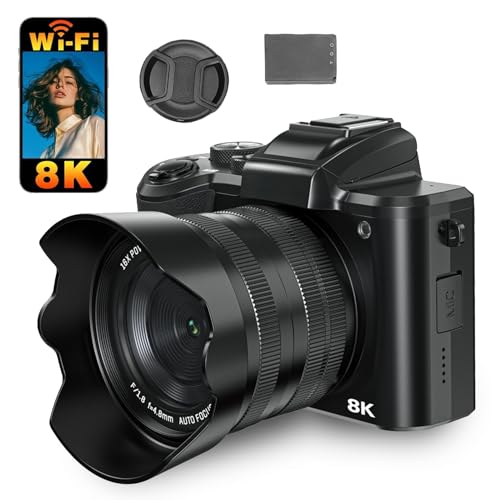
Are you tired of the low-quality video and audio from your laptop’s built-in webcam? Do you want a more professional look for your video calls or live streams? If you have a digital camera lying around, you can easily transform it into a high-quality webcam with just a few simple steps.
Using your digital camera as a webcam can significantly improve the video quality of your calls and streams, making you stand out from the crowd. In this guide, we’ll show you how to set up your digital camera as a webcam, whether you’re using a DSLR, mirrorless, or point-and-shoot camera.
By following our step-by-step instructions, you’ll be able to take advantage of your camera’s superior image quality, autofocus capabilities, and more. Say goodbye to grainy, blurry video and hello to crystal-clear, professional-looking video calls and streams.
Get started with your digital camera
Before you can use your digital camera as a webcam, you will need to check if your camera supports this feature. Not all cameras have the capability to function as webcams, so make sure to consult the user manual or the manufacturer’s website to confirm compatibility.
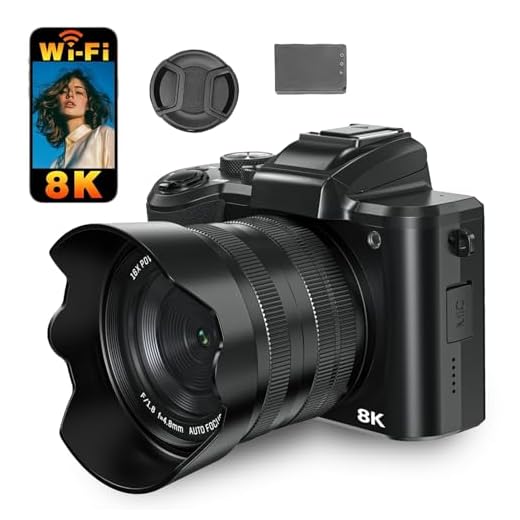



If your camera is compatible, you will need to connect it to your computer using a USB cable. Ensure that your camera is fully charged or connected to a power source to prevent any interruptions during use.
Setting up the camera software
Once your camera is connected, you may need to install additional software provided by the manufacturer to enable webcam functionality. Follow the instructions provided in the software installation guide to set up your camera correctly.
Adjusting camera settings
Before using your camera as a webcam, adjust the settings such as resolution, frame rate, and focus to ensure optimal video quality. You can access these settings through the camera software or the camera’s menu.
Step-by-step guide
Using your digital camera as a webcam is a great way to improve the quality of your video calls and online meetings. Follow these simple steps to set it up:
Step 1: Check compatibility
Make sure your digital camera is compatible with being used as a webcam. Some cameras may require specific software or drivers to enable this feature.

Step 2: Connect your camera
Connect your digital camera to your computer using a USB cable. Ensure the camera is turned on and set to the correct mode for webcam use.
If your camera does not have a USB output, you may need to use an HDMI capture card to connect it to your computer.
Step 3: Configure settings
Open your video conferencing software or streaming platform and select your digital camera as the input device. Adjust the settings for resolution, frame rate, and focus as needed.
Check compatibility and requirements
Before using your digital camera as a webcam, it is important to check if your camera is compatible with this function. Not all digital cameras have the capability to be used as a webcam, so you will need to consult the user manual or manufacturer’s website to verify if your specific model supports this feature.
In addition to compatibility, you will also need to ensure that your camera meets the necessary requirements for using it as a webcam. Some common requirements include:
| 1. USB connectivity: | Your camera should have a USB port for connecting it to your computer. This will allow the camera to transfer video data to your computer for use as a webcam. |
| 2. Software compatibility: | You may need to install specific software on your computer to enable the camera to function as a webcam. Check if the camera manufacturer provides any software or drivers for this purpose. |
| 3. Power source: | Using your camera as a webcam may drain its battery quickly, so it is recommended to have an alternative power source, such as an AC adapter, to keep the camera powered during extended use. |
| 4. Camera settings: | Make sure to adjust the settings on your camera to optimize its performance as a webcam. This may include setting the video resolution, frame rate, and focus to ensure clear and smooth video output. |
Ensure your camera is supported
Before attempting to use your digital camera as a webcam, it’s essential to check if your camera is supported for this purpose. Not all digital cameras can be used as webcams, so it’s important to ensure that your specific model is compatible.
Check the manufacturer’s website or user manual to see if there are any instructions or software available for using your camera as a webcam. Some camera brands offer dedicated software or firmware updates that enable webcam functionality.
Things to consider:
- Compatibility with your operating system
- Connection options (USB, HDMI, etc.)
- Supported video resolutions
Install necessary software
Before using your digital camera as a webcam, you will need to install the necessary software on your computer. Many digital cameras come with software that allows you to connect your camera to your computer and use it as a webcam. If your camera did not come with this software, you can usually download it from the manufacturer’s website.
Once you have installed the software, follow the instructions to connect your camera to your computer and set it up as a webcam. Make sure to adjust the settings in the software to ensure that your camera is functioning properly as a webcam.
Download and configure the app
To use your digital camera as a webcam, you will need to download and install a specific app that allows you to connect your camera to your computer. There are several apps available online, such as SparkoCam, ManyCam, and EOS Webcam Utility. You can visit the official website of the app and follow the instructions to download and install it on your computer.

Once the app is installed, you will need to configure it to recognize your digital camera as a webcam. Open the app and go to the settings or preferences section to select your camera model from the list of available devices. Follow the on-screen instructions to complete the configuration process and set up your camera as a webcam.
Connect your camera to your computer
To use your digital camera as a webcam, you first need to connect it to your computer. Here’s how to do it:
1. Locate the USB cable that came with your camera. This is the cable you will use to connect your camera to your computer.
2. Turn off your camera and your computer before connecting them.
3. Find the USB port on your camera. It is usually located on the side or the bottom of the camera.

4. Plug one end of the USB cable into the port on your camera.
5. Find an available USB port on your computer and plug the other end of the USB cable into it.
6. Turn on your camera and then turn on your computer.
7. Your computer should recognize your camera as a webcam. You may need to install drivers or software provided by the camera manufacturer to ensure it works properly.
8. Once the connection is established, you can start using your digital camera as a webcam for video calls, live streaming, or other purposes.
Use the appropriate cable
Once you have downloaded the necessary software and configured your camera settings, the next step is to connect your digital camera to your computer. To do this, you will need the appropriate cable that came with your camera. Most digital cameras come with a USB cable that can be used to connect the camera to your computer.
Make sure to check the user manual of your camera to identify the correct cable and port to use. Once you have connected the camera to your computer, you may need to select the “PC” or “webcam” mode on your camera to enable it to function as a webcam.
FAQ
Can I use my digital camera as a webcam?
Yes, you can use your digital camera as a webcam by connecting it to your computer using a USB cable. However, not all digital cameras support this function, so it’s important to check if your camera has the capability to be used as a webcam.
What are the advantages of using a digital camera as a webcam?
Using a digital camera as a webcam can provide better video quality compared to built-in webcams on laptops or desktop computers. It allows you to take advantage of your camera’s higher resolution and better optics, resulting in clearer and more professional-looking video during video calls or live streaming.
How can I set up my digital camera as a webcam?
To set up your digital camera as a webcam, you will need to install the necessary software on your computer that allows your camera to function as a webcam. You will also need to connect your camera to your computer using a USB cable. Once the software is installed and the camera is connected, you can select your camera as the video input source in your video conferencing or streaming application.



Does anyone know if I can use my Nikon D3500 as a webcam? I read that some models have limitations. Can someone confirm?
Yes, the D3500 can be used as a webcam but you might need to use a software like SparkoCam or a capture card. Just make sure to check for any updates from Nikon.
I don’t think using a digital camera is worth it for casual video calls. The built-in webcam is good enough for most people!
Can someone clarify if all cameras need special software for this setup? I have an old point-and-shoot and I'm not sure it’s compatible. Thanks!
Not all cameras require special software, but many do for optimal functionality. It's best to check the manufacturer's site for your specific model.
I recently set up my Canon EOS M50 as a webcam, and the difference in video quality is incredible! I followed the steps in the article and downloaded the EOS Webcam Utility software. It was straightforward. Just make sure your camera is charged or plugged in, as it drains battery fast when in use. Highly recommend this for anyone doing a lot of video calls!