
 Carmen J. Moore

Do you want to improve the video quality of your online meetings or video calls? Using a digital camera as a webcam can be a great solution. With the increasing popularity of virtual meetings and live streaming, many people are looking for ways to enhance their video setup. In this guide, we will show you how to easily use your digital camera as a webcam to achieve higher video quality.
Most digital cameras have superior image quality compared to built-in webcams on laptops or desktop computers. By using your digital camera as a webcam, you can enjoy sharper images, better colors, and improved overall video quality. Additionally, using a digital camera allows you to take advantage of features such as manual focus, depth of field, and customizable settings to enhance your video appearance.

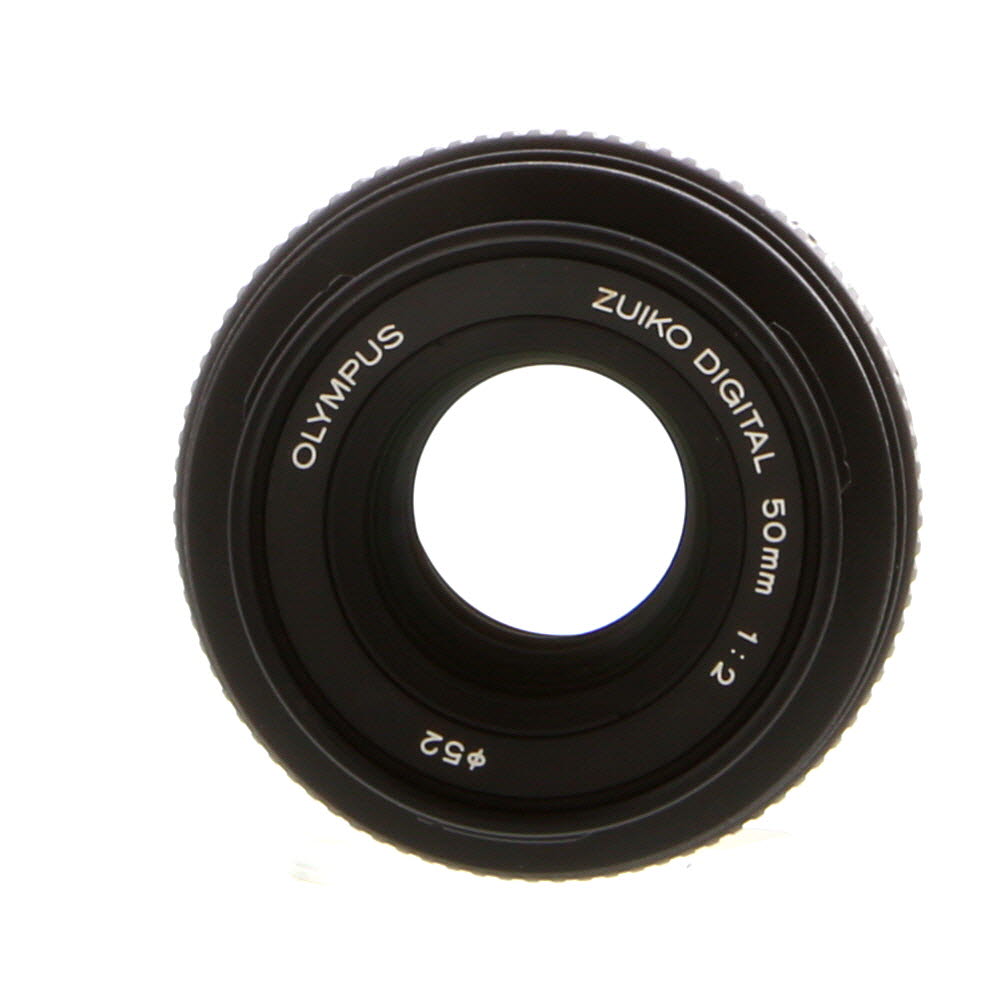


Before you start, make sure your digital camera supports video output via USB connection or HDMI. You will also need a USB cable or HDMI cable to connect your camera to your computer. Once you have the necessary equipment, follow the steps below to set up your digital camera as a webcam and elevate your video conferencing experience.
How to Set Up Your Digital Camera as a Webcam
Using your digital camera as a webcam can enhance the quality of your video calls and livestreams. Here’s how you can set it up:
- Check if your digital camera supports webcam functionality. Some cameras have this feature built-in, while others may require additional software.
- Connect your digital camera to your computer using a USB cable. Make sure the camera is in “PC” or “Webcam” mode.
- Install any necessary drivers or software for your camera to be recognized as a webcam by your computer. You may need to download specific drivers from the manufacturer’s website.
- Set up your video conferencing or streaming software to use your digital camera as the video input. Select your camera from the list of available devices in the settings.
- Adjust the camera settings such as resolution, frame rate, and exposure to optimize the video quality for your needs.
- Position the camera at the desired angle and distance for the best framing of your video feed.
- Test the setup by making a video call or starting a livestream to ensure everything is working correctly.
By following these steps, you can easily turn your digital camera into a high-quality webcam for your online communications and content creation.
Choosing the Right Camera
When selecting a digital camera to use as a webcam, there are a few key factors to consider:
- Resolution: Look for a camera with high resolution to ensure clear and sharp video quality.
- Connectivity: Make sure the camera you choose can be connected to your computer easily, either through USB or Wi-Fi.
- Compatibility: Check if the camera is compatible with the software you plan to use for video conferencing or streaming.
- Adjustability: Opt for a camera that can be easily adjusted and positioned to get the best angle for your video.
- Low-light performance: Consider a camera with good low-light performance for clear video even in dimly lit environments.
By taking these factors into account, you can choose the right digital camera to enhance your webcam experience.

Installing the Necessary Software
Before you can use your digital camera as a webcam, you will need to install the necessary software on your computer. Most digital cameras come with their own software that you can use to connect the camera to your computer and use it as a webcam. If your camera did not come with software or if you prefer to use a different program, you can download webcam software online.
Make sure to check the compatibility of the software with your camera model and your computer’s operating system before downloading and installing it. Once you have the software installed, follow the instructions to connect your camera to your computer and set it up as a webcam.
Connecting Your Camera to Your Computer
Before you can use your digital camera as a webcam, you need to connect it to your computer. Here’s how to do it:
1. Check your camera’s compatibility:
Make sure that your camera is compatible with being used as a webcam. Check the manufacturer’s website or user manual for information on whether your camera supports this feature.
2. Connect your camera to your computer:
Use the USB cable that came with your camera to connect it to your computer. Once connected, turn on your camera and set it to the appropriate mode for use as a webcam.
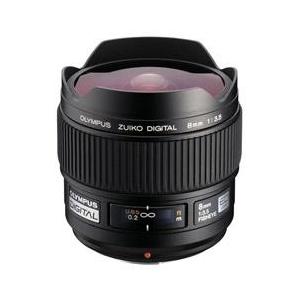
Note: Some cameras may require you to install specific drivers or software on your computer to use them as webcams. Check the manufacturer’s website for any necessary downloads.
Adjusting Camera Settings
Before using your digital camera as a webcam, it’s important to adjust the camera settings to ensure optimal performance. Here are some key settings to consider:
| Resolution: | Set the camera resolution to match the video conferencing platform requirements. Higher resolutions may require more bandwidth. |
| Frame Rate: | Adjust the frame rate to ensure smooth video streaming. A higher frame rate provides smoother video but may require more processing power. |
| Exposure: | Adjust the exposure settings to ensure proper lighting for your video. Experiment with different exposure levels to find the best setting. |
| White Balance: | Set the white balance to match the lighting conditions in your environment. This helps to ensure accurate colors in your video. |
| Focusing: | Check the focusing settings to ensure that your video is sharp and clear. Adjust the focus manually if needed. |
By adjusting these camera settings, you can enhance the quality of your video and ensure a better experience when using your digital camera as a webcam.
Positioning Your Camera for Best Results
When using a digital camera as a webcam, positioning is key to achieving the best results. Here are some tips to help you get the most out of your setup:
1. Stable Surface
Place your camera on a stable surface to prevent any shaking or movement during your video calls. A tripod or a flat surface like a desk can help keep your camera steady.

2. Eye Level
Position the camera at eye level to ensure a flattering angle and better engagement with your audience. Adjust the height and angle of the camera to achieve the most natural and appealing look.
| Tip: | Experiment with different angles and lighting to find the best setup for your video calls. |
Testing Your Camera Setup
Once you have connected your digital camera to your computer and configured the necessary settings, it’s time to test your camera setup to ensure everything is working correctly. Follow these steps to test your digital camera as a webcam:
| 1. | Open the video conferencing software or the application you plan to use your camera with. |
| 2. | Go to the settings or preferences section of the software and select your digital camera as the video input device. |
| 3. | Check the video preview to see if your camera feed is displaying properly. Ensure that the image is clear and that the camera is positioned correctly. |
| 4. | Test the audio input as well to ensure that your camera’s microphone is working correctly. |
| 5. | Adjust the camera settings such as focus, exposure, and white balance if needed to improve the video quality. |
| 6. | Once everything is set up and working properly, you are ready to use your digital camera as a webcam for your video calls or live streams. |
Using Your Digital Camera as a Webcam
Do you want to enhance your video calls and online meetings with better video quality? You can now use your digital camera as a webcam to improve the overall experience. Follow these steps to set it up:
| Step 1: | Check if your camera supports being used as a webcam. Many modern digital cameras have this functionality. |
| Step 2: | Connect your camera to your computer using a USB cable or HDMI cable, depending on the camera and computer compatibility. |
| Step 3: | Install any necessary drivers or software that may be required to use your camera as a webcam. Check the manufacturer’s website for specific instructions. |
| Step 4: | Set up your camera in the desired position for your video calls, ensuring good lighting and framing. |
| Step 5: | Open your preferred video conferencing software and select your digital camera as the video input device. |
| Step 6: | Adjust the camera settings, such as resolution and frame rate, to optimize the video quality for your calls. |
| Step 7: | Start your video call and enjoy the improved video quality from using your digital camera as a webcam. |
Troubleshooting Common Issues
If you are experiencing issues when using your digital camera as a webcam, here are some common troubleshooting steps to help resolve them:
- Check the camera connection: Make sure your camera is properly connected to your computer via USB or HDMI cable. Ensure that the connection is secure and that the camera is recognized by your computer.
- Update camera drivers: Check if there are any updates available for your camera drivers. Updating the drivers can often resolve compatibility issues and improve performance.
- Check camera settings: Make sure that your camera settings are configured correctly for use as a webcam. Check the resolution, frame rate, and other settings to ensure they are compatible with your video conferencing software.
- Restart your computer: Sometimes a simple restart can fix minor issues with the camera or the software. Restart your computer and try using the camera as a webcam again.
- Try a different USB port: If you are using a USB connection, try plugging the camera into a different USB port on your computer. Sometimes, the port you are using may be faulty.
- Check for software conflicts: Make sure that there are no other applications using the camera at the same time. Close any other programs that may be accessing the camera and try again.
- Test with a different computer: If possible, try using the camera as a webcam on a different computer to see if the issue is with your computer or the camera itself.
FAQ
How can I use my digital camera as a webcam?
To use your digital camera as a webcam, you will need to connect it to your computer using a USB cable. Once connected, you can install software that allows your computer to recognize the camera as a webcam. This software will usually come with your camera or can be downloaded from the manufacturer’s website. After installing the software, you can select your camera as the input device in video conferencing or streaming applications.

Is it possible to use a digital camera as a webcam for live streaming?
Yes, you can use a digital camera as a webcam for live streaming. By connecting your camera to your computer and installing the necessary software, you can use your camera to broadcast live video on platforms like YouTube, Twitch, or Facebook Live. This can provide higher video quality compared to built-in webcams on laptops or desktop computers.
What are the advantages of using a digital camera as a webcam?
Using a digital camera as a webcam offers several advantages. Firstly, digital cameras usually have better image quality compared to traditional webcams, providing clearer and more detailed video. Additionally, using a digital camera allows for more control over settings such as exposure, focus, and white balance, resulting in a more professional-looking video feed. Lastly, digital cameras often have better low-light performance, making them a great choice for streaming or video conferencing in dimly lit environments.

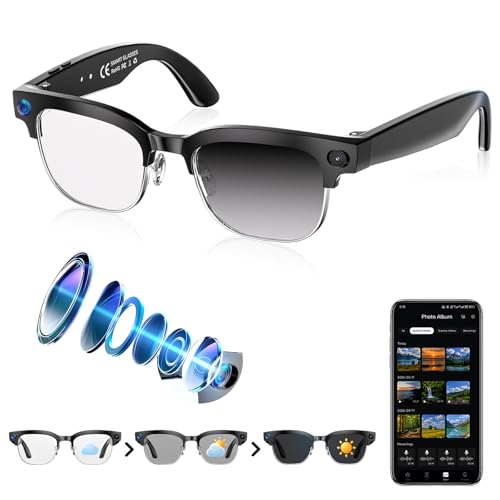



What kind of cable do I need to connect my camera? Is USB the only option, or can I use HDMI too?
You can use either a USB or HDMI cable, depending on your camera's output options. Some cameras also support wireless connections, so check your model for the best method.
I tried using my Canon DSLR as a webcam, and it made such a difference in video quality for my Zoom calls! I had to download some software from the Canon website, but after that, it was pretty straightforward. Just make sure to set it up correctly and adjust the settings for exposure and focus. It was worth it!
Does anyone know if all digital cameras can be used as webcams? I have an older model and I'm not sure if it has that functionality. Would love some guidance!