
 Carmen J. Moore

Transferring pictures from your digital camera to your phone can be a convenient way to share and store your photos on the go. Whether you want to post your pictures on social media or simply have them handy on your phone for easy viewing, there are several methods you can use to transfer your images.
One common way to transfer pictures from a digital camera to a phone is through a direct connection using a USB cable. This method allows you to transfer your photos quickly and easily without the need for additional software or apps.
Another option is to use a memory card reader to transfer your pictures from your camera’s memory card to your phone. This method can be useful if your camera and phone have different types of memory cards or if you prefer not to connect your devices directly.
Step-by-Step Guide to Transfer Pictures from Digital Camera to Phone
Transferring pictures from your digital camera to your phone is a convenient way to share and access your photos on the go. Follow these simple steps to transfer your pictures:


Step 1: Connect your digital camera to your computer using a USB cable.
Step 2: Open the folder where your pictures are stored on your camera.
Step 3: Select the pictures you want to transfer to your phone.
Step 4: Copy the selected pictures and paste them into a folder on your computer.
Step 5: Connect your phone to your computer using a USB cable.
Step 6: Open the folder where you want to transfer the pictures on your phone.
Step 7: Copy the pictures from your computer and paste them into the folder on your phone.
Step 8: Safely eject your camera and phone from your computer.
Your pictures are now transferred from your digital camera to your phone, ready to be viewed and shared whenever you want!
Check Compatibility and Connectivity Options
Before attempting to transfer pictures from your digital camera to your phone, it’s important to ensure both devices are compatible and have the necessary connectivity options. Here are some steps to follow:

1. Check Compatibility:
Make sure your digital camera and phone are compatible with each other. Check the user manuals or manufacturer’s websites to verify compatibility.
2. Connectivity Options:
Identify the connectivity options available on both devices. Common options include USB, Wi-Fi, Bluetooth, or SD card transfer. Choose the most suitable option based on the devices you have.
| Device | Connectivity Options |
| Digital Camera | USB, Wi-Fi, SD card |
| Phone | USB, Wi-Fi, Bluetooth, SD card |
Install the Necessary Apps on Your Phone and Camera
Before you can transfer pictures from your digital camera to your phone, you’ll need to install the necessary apps on both devices. Here’s how:
On Your Phone:
1. Open the app store on your phone (App Store for iOS or Google Play Store for Android).
2. Search for and download a file transfer app such as “PhotoSync” or “SnapBridge”.

3. Follow the on-screen instructions to install the app on your phone.
On Your Camera:
1. Check the user manual of your digital camera to see if it supports wireless file transfer.
2. If wireless transfer is supported, download the corresponding app provided by the camera manufacturer from the app store on your phone.
3. Follow the app’s instructions to set up the connection between your camera and phone.
Connect Your Camera to Your Computer
Step 1: Turn off your camera and locate the USB port on it.

Step 2: Use the USB cable that came with your camera to connect it to your computer.
Step 3: Turn on your camera. Your computer should recognize the device and prompt you to open it.
Step 4: Open the folder on your computer that contains the camera’s files.
Step 5: Select the pictures you want to transfer and copy them to a folder on your computer.
Step 6: Once the transfer is complete, safely disconnect your camera from the computer.

Transfer Photos from Camera to Computer
Transferring photos from your digital camera to your computer is a simple process that allows you to easily organize and edit your pictures. Follow these steps to transfer your photos:
1. Connect your camera to your computer:
Use the USB cable that came with your camera to connect it to your computer. Make sure your camera is turned on.
2. Access your camera’s storage:
Once connected, your camera will appear as a removable storage device on your computer. Open the folder to access your photos.

3. Copy photos to your computer:
Select the photos you want to transfer and copy them to a folder on your computer. You can create a new folder to organize your photos.
4. Safely eject your camera:
After transferring your photos, safely eject your camera from your computer to avoid any data loss or corruption.
5. Organize and edit your photos:

Once your photos are on your computer, you can organize them into folders, edit them using photo editing software, or share them with friends and family.
Connect Your Phone to Your Computer
To transfer pictures from your digital camera to your phone, you will first need to connect your phone to your computer using a USB cable. Make sure your phone is unlocked and the screen is active. Once connected, your computer should recognize your phone as a removable storage device.
Transfer Photos from Computer to Phone
If you have photos saved on your computer that you want to transfer to your phone, there are several methods you can use. One common way is to connect your phone to your computer using a USB cable. Once connected, you can access your phone’s storage on your computer and simply drag and drop the photos you want to transfer.
Another option is to use cloud storage services like Google Drive or Dropbox. Upload the photos from your computer to the cloud storage service and then download them on your phone using the corresponding app.
You can also email the photos to yourself and download them on your phone, or use messaging apps like WhatsApp or Messenger to send the photos to your phone.

Whichever method you choose, make sure to check the compatibility of the file formats and sizes to ensure smooth transfer of photos from your computer to your phone.
Use Cloud Storage Services for Easy Transfer
If you want a convenient and hassle-free way to transfer pictures from your digital camera to your phone, using cloud storage services is a great option. Cloud storage allows you to upload your photos to a secure online server and access them from any device with an internet connection.
Popular cloud storage services like Google Drive, Dropbox, and iCloud offer apps for both cameras and smartphones, making it easy to sync your photos across devices. Simply upload your pictures from your camera to the cloud storage service and then download them onto your phone using the corresponding app.
Transfer Photos via Bluetooth or Wi-Fi Direct
If your digital camera and phone both support Bluetooth or Wi-Fi Direct, you can easily transfer photos wirelessly between the devices. Here’s how:
1. Turn on Bluetooth or Wi-Fi Direct on both your camera and phone.
2. Pair the devices by following the on-screen instructions on both devices.
3. Once paired, select the photos you want to transfer on your camera.
4. Choose the option to send or share the selected photos via Bluetooth or Wi-Fi Direct.
5. On your phone, accept the incoming transfer request and wait for the photos to be transferred.
6. Once the transfer is complete, you can find the photos in your phone’s gallery or camera roll.

Using Bluetooth or Wi-Fi Direct is a convenient way to transfer photos without the need for cables or additional software. Just make sure both devices are within range and have the necessary features enabled.
Utilize a USB OTG Adapter for Direct Transfer
If your digital camera supports USB connectivity, you can use a USB On-The-Go (OTG) adapter to directly connect your camera to your phone. An OTG adapter allows you to connect USB devices like cameras to your phone, enabling you to transfer pictures without the need for a computer or internet connection.
To transfer pictures using a USB OTG adapter, simply plug one end of the adapter into your phone’s charging port and connect the other end to your camera’s USB cable. Your phone should recognize the camera as a storage device, allowing you to access and transfer pictures easily.
Safely Eject Devices and Verify Photo Transfer
After transferring photos from your digital camera to your phone, it’s important to safely eject both devices to avoid any data corruption. Make sure to properly disconnect the USB cable or remove the memory card from the camera.
Verify Transfer
Once you have safely disconnected the devices, check your phone’s gallery or photo app to ensure that the photos have been successfully transferred. Open each photo to confirm that they are complete and intact.
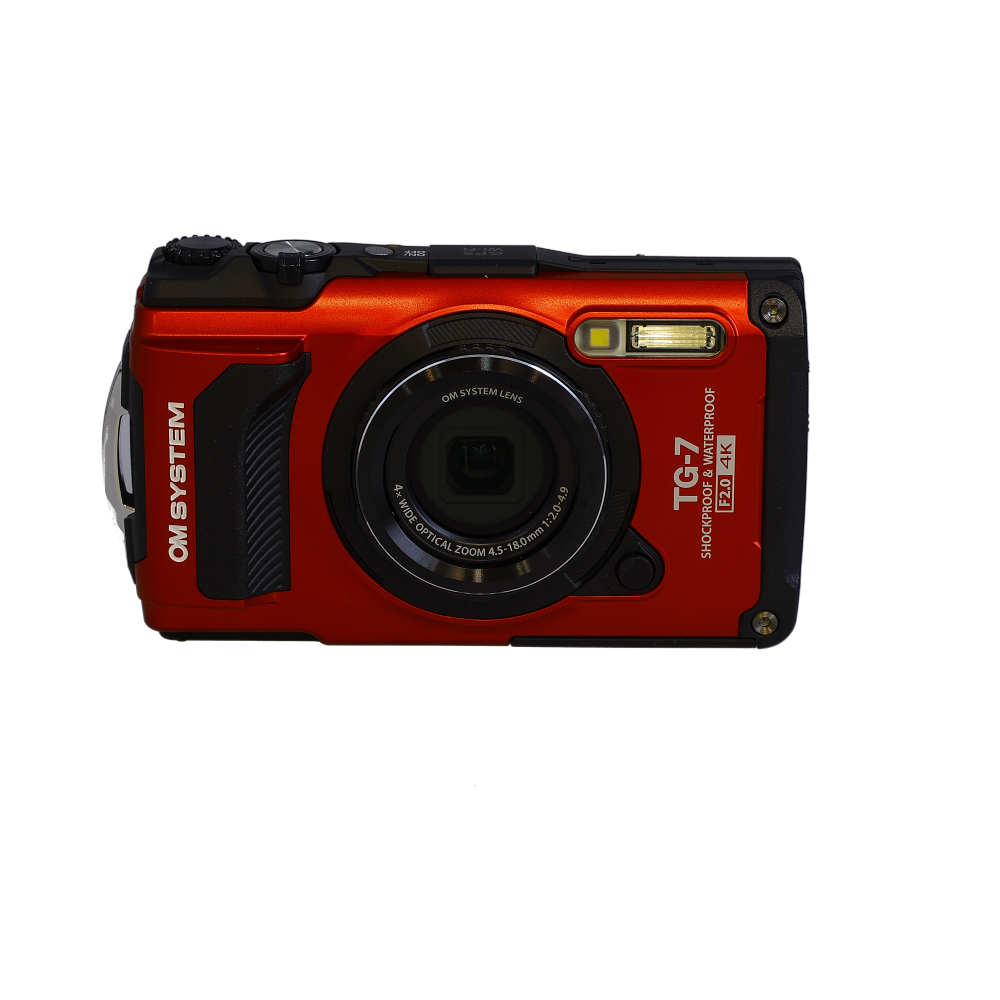
By following these steps, you can safely transfer photos from your digital camera to your phone without any data loss or corruption.
FAQ
Can I transfer pictures from my digital camera to my phone without using a computer?
Yes, you can transfer pictures from your digital camera to your phone without using a computer by using a USB OTG (On-The-Go) cable or an SD card reader that connects directly to your phone. Make sure your phone supports OTG functionality or has an SD card slot for this method.
What is the easiest way to transfer photos from a digital camera to a phone?
The easiest way to transfer photos from a digital camera to a phone is by using a Wi-Fi enabled camera and a compatible app on your phone. Many modern cameras offer Wi-Fi connectivity, allowing you to transfer photos wirelessly to your phone’s gallery or a cloud storage service.
Can I transfer pictures from a digital camera to an iPhone?
Yes, you can transfer pictures from a digital camera to an iPhone using an SD card reader that connects to your iPhone’s Lightning port or by using a Wi-Fi enabled camera and a compatible app on your iPhone. You can also use Apple’s Lightning to USB Camera Adapter to connect your camera directly to your iPhone.
Is it possible to edit photos on my phone after transferring them from a digital camera?
Yes, you can edit photos on your phone after transferring them from a digital camera. There are numerous photo editing apps available on both Android and iOS platforms that allow you to enhance, crop, apply filters, and make other adjustments to your photos directly on your phone.




I've tried transferring photos from my camera to my phone, but it never seems to work. Do I need to install a specific app on my phone for this?
Yes, installing a file transfer app like PhotoSync or SnapBridge can facilitate the transfer process. Make sure to check your camera's manual for any specific app recommendations as well.
I don't think using cloud storage is the best option for everyone. It can take a long time to upload large photo files, especially if you have a slow internet connection. Direct transfers seem much faster to me.
Does the memory card reader method work with any type of memory card?
Don't forget to keep your devices charged while transferring pictures! It can take longer than expected if the battery runs low.