
 Carmen J. Moore
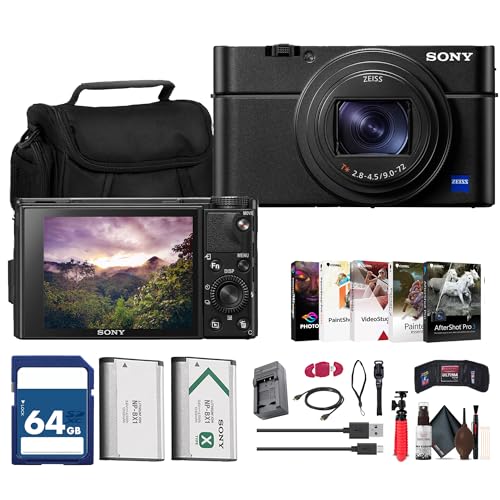
Have you encountered issues with your Sony Cyber-shot digital camera and need to reset it to its factory settings? Whether your camera is frozen, experiencing memory card errors, or simply not functioning properly, a reset may be the solution to get it back on track. Resetting your camera can help resolve various software glitches and return it to its original state.
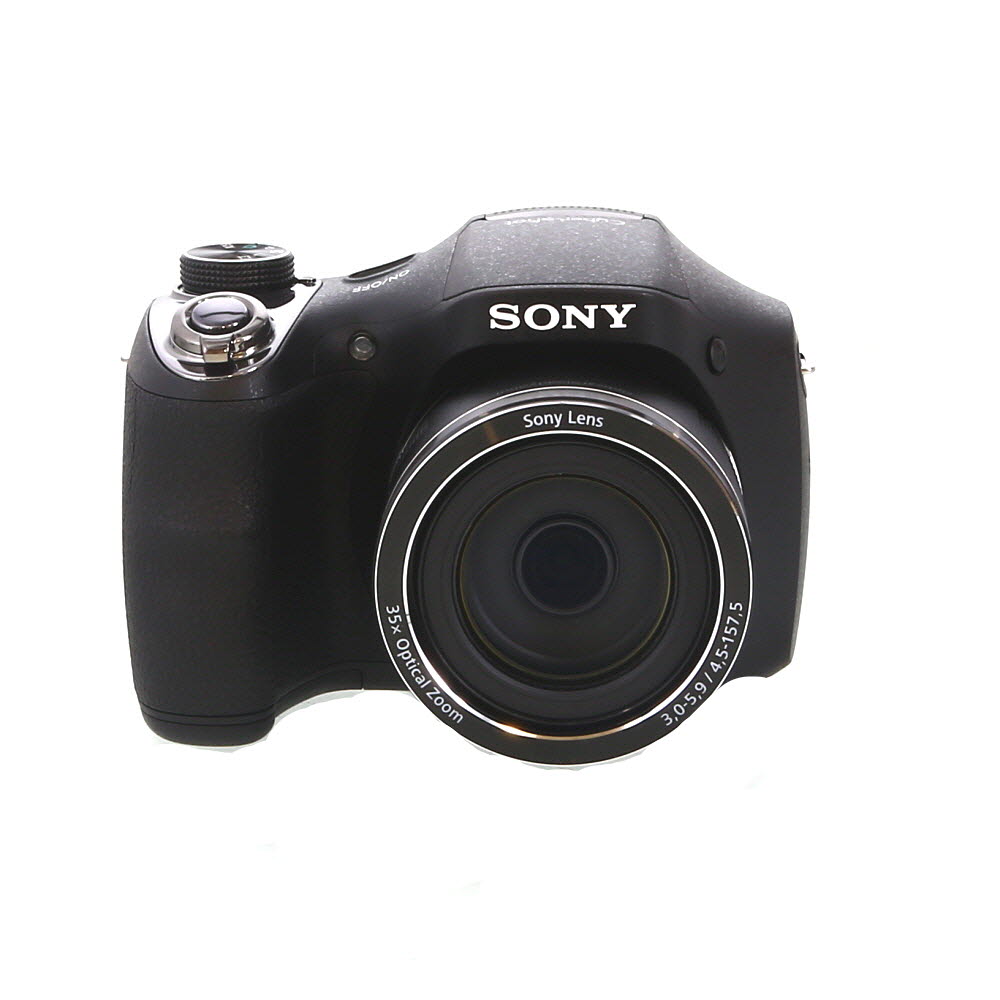

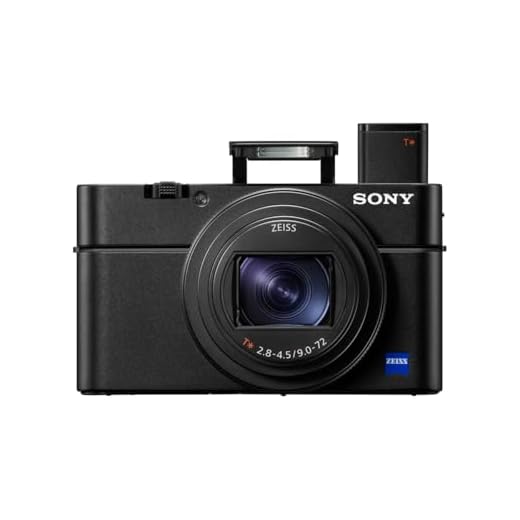
In this guide, we will walk you through the steps to reset your Sony Cyber-shot digital camera, ensuring that you can continue capturing memories with ease.
Step-by-Step Guide to Resetting Sony Cyber Shot Digital Camera
If you need to reset your Sony Cyber Shot digital camera to its factory settings, follow these simple steps:
| Step 1: | Turn off the camera and remove the battery. |
| Step 2: | Locate the RESET button on the camera (usually near the battery compartment). |
| Step 3: | Press and hold the RESET button for about 10 seconds. |
| Step 4: | Reinsert the battery and turn on the camera. |
| Step 5: | Your camera should now be reset to its original factory settings. |
Remember that resetting your camera will erase all settings and customizations, so make sure to back up any important data before proceeding with the reset.
Locate the Reset Button on Your Sony Cyber Shot Camera
Resetting your Sony Cyber Shot digital camera can help resolve issues such as freezing or unresponsive controls. Here’s how to locate the reset button on your camera:
- Turn off your Sony Cyber Shot camera.
- Look for a small hole or recessed button on the camera body.
- Using a paperclip or a small pointed object, gently press and hold the reset button for a few seconds.
- Release the button and turn on your camera to see if the reset has been successful.
If you can’t locate the reset button or if the issue persists after resetting, you may need to consult the camera’s manual or contact Sony customer support for further assistance.

Power Off Your Camera Before Resetting
Before you proceed with resetting your Sony Cyber-shot digital camera, it is important to power off the device. Make sure the camera is turned off completely before attempting to reset it. This will prevent any potential issues that may arise during the reset process.
Press and Hold the Reset Button for a Few Seconds
If you want to reset your Sony Cyber-shot digital camera, locate the reset button on the camera. This button is usually small and can be found near the battery compartment or memory card slot. Once you have found the reset button, use a small pointed object such as a paperclip or a pen to press and hold the button for a few seconds.
Important: Make sure your camera is turned off before you press the reset button. Holding the reset button for a few seconds will restore your camera to its default settings, erasing any custom settings or configurations you might have set previously.
Release the Reset Button After the Time Period
After holding down the reset button for the specified time period (usually around 10 seconds), release the button. Make sure you follow the manufacturer’s instructions carefully to ensure the reset process is completed correctly.
Turn On Your Sony Cyber Shot Camera to Confirm Reset
Once you have completed the reset process on your Sony Cyber Shot camera, you will need to turn the camera on to confirm that the reset was successful. Follow these simple steps to turn on your camera:
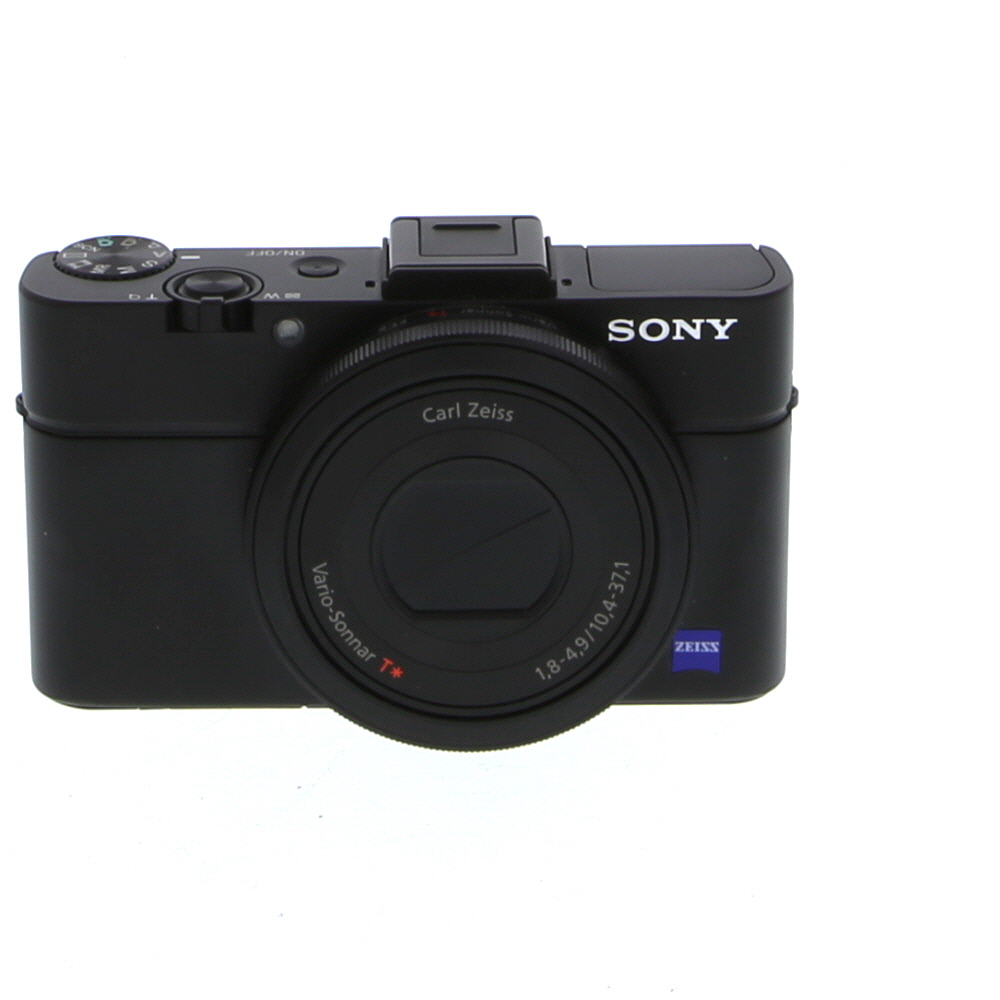
- Press the power button on your camera. It is usually located on the top or side of the camera.
- Wait for a few seconds for the camera to power up.
- If the camera turns on and you see the display screen, the reset was successful.
If the camera does not turn on or if you encounter any issues, you may need to repeat the reset process or seek assistance from Sony customer support.
Check if the Settings Have Been Restored to Default
After performing a reset on your Sony Cyber-shot digital camera, it’s essential to verify that the settings have been successfully restored to default. To do this, turn on your camera and navigate through the menu options to check if all the settings are back to their original configurations.
Check the shooting mode, image quality settings, date and time, autofocus settings, and any other custom settings you had previously adjusted. If everything looks as it did when you first got the camera, then the reset was successful, and your camera is now back to its factory settings.
Test the Camera Functions After Resetting
Once you have successfully reset your Sony Cyber-shot digital camera, it is important to test the camera functions to ensure everything is working properly.
1. Power On the Camera
Turn on the camera to check if it powers up correctly. If the camera turns on without any issues, proceed to the next step.

2. Check Basic Functions
Test basic functions such as zoom, focus, shutter, and flash to make sure they are functioning as expected. Take a few test shots to see if the camera captures images clearly.
Note: If you encounter any issues with the camera functions, refer to the user manual for troubleshooting tips or contact Sony customer support for assistance.
Troubleshoot Any Issues If the Reset Did Not Solve the Problem
If the reset did not solve the issue with your Sony Cyber-shot digital camera, there may be other underlying problems that need to be addressed. Here are some troubleshooting steps you can take:
- Check the power source: Make sure the camera is adequately charged or that the batteries are fresh and properly inserted.
- Inspect the memory card: Ensure the memory card is properly inserted and not damaged. Try using a different memory card to see if the issue persists.
- Clean the lens: Dust or dirt on the lens can affect the camera’s performance. Use a clean, soft cloth to gently wipe the lens and see if that improves the image quality.
- Update the firmware: Check if there are any firmware updates available for your camera model. Updating the firmware can sometimes resolve software-related issues.
If the problem still persists after trying these troubleshooting steps, it may be best to contact Sony customer support or take the camera to a professional technician for further assistance.
FAQ

What should I do if my Sony Cyber-shot camera is not responding?
If your Sony Cyber-shot camera is not responding, you can try resetting it by removing the battery for a few minutes and then reinserting it. If that doesn’t work, you can also try performing a manual reset by pressing and holding the power button for about 10 seconds. If the camera still doesn’t respond, you may need to contact Sony customer support for further assistance.
Can I reset my Sony Cyber-shot digital camera without losing my photos?
Unfortunately, resetting your Sony Cyber-shot digital camera to factory settings will erase all custom settings and data, including your photos. It is recommended to back up your photos to a computer or external storage device before performing a reset. If you want to reset the camera without losing your photos, you can try removing the memory card before resetting the camera.



I don't think resetting always fixes the problem. I had to send my camera in for repairs even after a reset. Sometimes there are deeper issues.
I had to reset my Sony Cyber-shot last month due to a freezing issue. It worked like a charm! I followed the steps in this article, and after holding the reset button, everything was back to normal. Just make sure you back up your photos first because it wipes out all settings.