
 Carmen J. Moore

Having a virus on your memory card can be a frustrating experience, especially when it affects the performance of your digital camera. Viruses can corrupt files, slow down your camera, or even cause it to malfunction. It’s important to take immediate action to remove the virus and protect your data.
In this article, we will discuss effective methods to remove viruses from the memory card of your digital camera. By following these steps, you can ensure that your camera functions smoothly and your data remains safe.
Whether you’re using a DSLR, mirrorless camera, or any other digital camera, these tips will help you eliminate viruses and keep your memory card in top condition. Let’s dive into the process of removing viruses from your camera’s memory card.
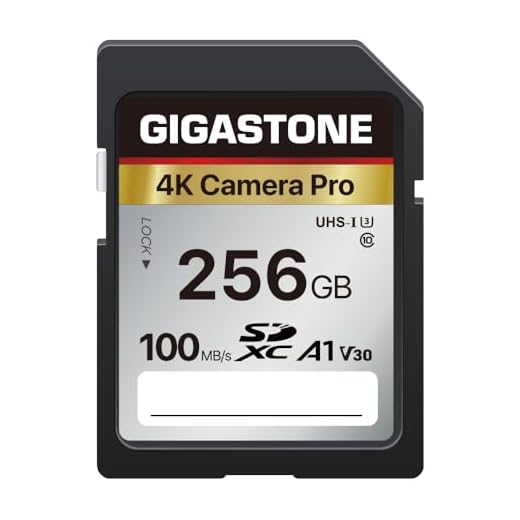
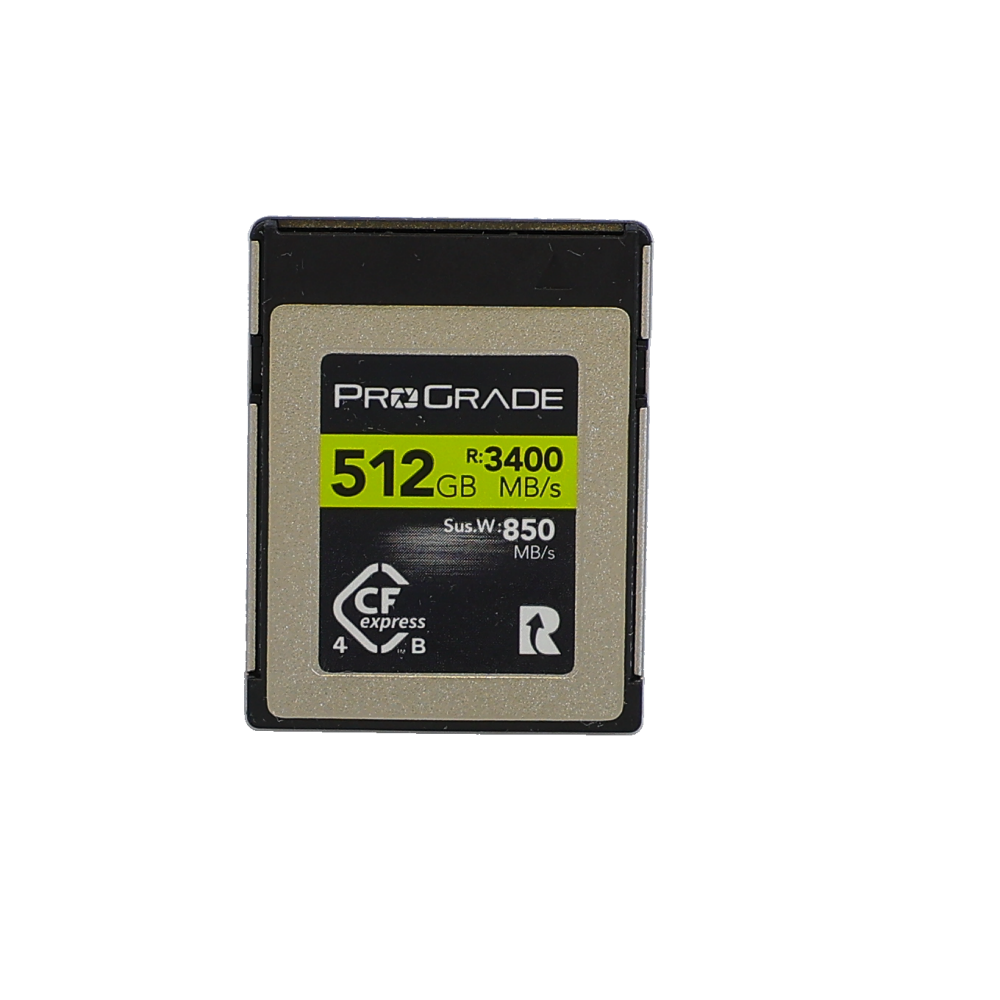


Step-by-step guide to remove virus from memory card of digital camera
1. Insert the infected memory card into a card reader and connect it to your computer.
2. Open your antivirus software and perform a full scan on the memory card to detect and remove any viruses.
3. If your antivirus software does not detect the virus, try using another reputable antivirus program to scan the memory card.
4. Once the virus is detected, follow the prompts to remove it from the memory card.
5. After the virus is removed, safely eject the memory card from the card reader and insert it back into your digital camera.

6. Format the memory card using the camera’s formatting option to ensure that all traces of the virus are gone.
7. Avoid using the memory card on any other devices until you are sure it is free from viruses.
Identify the symptoms of a virus
Before attempting to remove a virus from your memory card, it is important to first identify the symptoms that indicate your card may be infected. Here are some common signs of a virus on a memory card:
- Unexpected files or folders appearing on the memory card.
- Slow performance when accessing or transferring data from the memory card.
- Files becoming corrupted or inaccessible.
- Pop-up messages or notifications indicating a virus threat.
If you notice any of these symptoms, it is crucial to take action promptly to remove the virus and protect your data.
Disconnect the memory card
Before attempting to remove the virus from your memory card, it’s important to disconnect it from your digital camera. This will prevent any further damage to your camera or the virus spreading to other devices.
Most digital cameras have a small slot where the memory card is inserted. Carefully remove the memory card from the slot and make sure to handle it with care to avoid any physical damage.
Scan the memory card for viruses
To remove the virus from your memory card, you should scan it using reliable antivirus software. Connect the memory card to your computer and run a full scan to detect and remove any malicious files or programs. Make sure to use an updated antivirus program to ensure effective virus removal. Once the scan is complete, safely eject the memory card from your computer and reinsert it into your digital camera. This simple step can help protect your camera and prevent further infection.
Use antivirus software to remove the virus
If you suspect that your memory card has been infected with a virus, one of the most effective ways to remove it is by using antivirus software. There are many reputable antivirus programs available that can scan and remove viruses from your memory card.
Before connecting your memory card to your computer, make sure your antivirus software is up to date. Insert the memory card into a card reader and connect it to your computer. Run a full system scan on the memory card using your antivirus software. The software will detect and remove any viruses present on the memory card.
Format the memory card
Formatting the memory card is a surefire way to remove any viruses or malware that may be present on it. This process will erase all data on the card, so make sure to back up any important files before proceeding.

To format the memory card, insert it into your computer using a card reader. Open “My Computer” or “This PC” and right-click on the memory card drive. Select “Format” from the dropdown menu.
Choose the file system (FAT32 is recommended for memory cards) and click “Start” to begin the formatting process. Once formatting is complete, safely eject the memory card and insert it back into your digital camera.
Restore the photos and videos
Once you have successfully removed the virus from your memory card, you can now proceed to restore the photos and videos that were affected. Here is a step-by-step guide to help you recover your precious memories:
1. Use data recovery software
There are many data recovery software options available that can help you retrieve your lost photos and videos. Some popular choices include EaseUS Data Recovery Wizard, Disk Drill, and Recuva. Simply download and install the software on your computer, connect your memory card, and follow the instructions to scan and recover your files.
2. Check for backups
If you had previously backed up your photos and videos, you can easily restore them from your backup storage. Check your computer, external hard drive, cloud storage, or any other backup source you may have used to see if your files are available there.

By following these steps, you can successfully recover your photos and videos after removing the virus from your memory card.
Prevent future virus infections
To avoid future virus infections on your memory card, follow these tips:
- Regularly scan your memory card using a reliable antivirus program.
- Avoid connecting your memory card to infected devices.
- Be cautious when downloading files from untrusted sources.
- Keep your camera’s firmware up to date to patch any security vulnerabilities.
- Avoid using public computers or unsecured networks for transferring files to your memory card.
Safely reinsert the memory card into the digital camera
After scanning and removing the virus from your memory card, it’s important to safely reinsert it back into your digital camera to ensure smooth operation and prevent any further issues. Follow these steps to safely reinsert the memory card:
- Turn off your digital camera to avoid any potential damage.
- Open the memory card slot cover on your camera.
- Gently insert the memory card into the slot with the label side facing the front of the camera.
- Push the memory card in until it clicks into place.
- Close the memory card slot cover securely.
- Turn on your digital camera and check if the memory card is recognized and functioning properly.
By following these steps, you can safely reinsert your memory card into the digital camera and resume capturing memories without any virus-related interruptions.
FAQ
How can I tell if my memory card in my digital camera has a virus?
If your digital camera is behaving strangely, such as freezing or showing error messages when accessing the memory card, it could be a sign of a virus. Additionally, if you notice unknown files or folders on the memory card or if your antivirus software detects a virus when you scan the card, it may be infected.
What is the best way to remove a virus from a memory card in a digital camera?
The best way to remove a virus from a memory card in a digital camera is to use antivirus software specifically designed for removing viruses from removable storage devices. Connect the memory card to a computer with antivirus software installed, scan the card thoroughly, and follow the software’s instructions to remove any detected viruses.
Can I format the memory card to remove a virus from my digital camera?
Formatting the memory card can be an effective way to remove a virus, as it erases all data, including the virus. However, keep in mind that formatting will also delete all your photos and videos on the card, so make sure to back up any important data before proceeding with this method.
Is it possible to transfer a virus from a memory card in a digital camera to a computer?
Yes, it is possible to transfer a virus from a memory card in a digital camera to a computer if you connect the infected memory card to the computer. To prevent this, it’s important to scan the memory card with antivirus software before connecting it to any other device and to ensure that the card is virus-free before transferring any data.



I don’t think formatting the memory card is a good first step. It's better to try recovering files first before losing everything. There are recovery tools that work even after a virus infection.
I had a similar issue last month with my DSLR's memory card. After noticing slow performance and strange folder appearances, I followed the steps in this article and used antivirus software. It worked great! I was really relieved to recover my photos after the virus was removed. Just make sure to back up your data before formatting!
Can I use any antivirus software, or do I need something specific for memory cards?
You can use any reputable antivirus software, but make sure it's updated for best results.
What are some signs that my memory card might be infected with a virus? I’m concerned about losing my photos.
Common signs of a virus include unexpected files appearing, slow performance, and error messages when accessing files. If you notice these, it's best to take action.