
 Carmen J. Moore

Canon EOS digital cameras are popular among photographers for their high-quality images and advanced features. If you own a Canon EOS camera and want to transfer your photos to your computer, you’ll need to connect the camera to your computer. This process is simple and can be done with just a few steps.

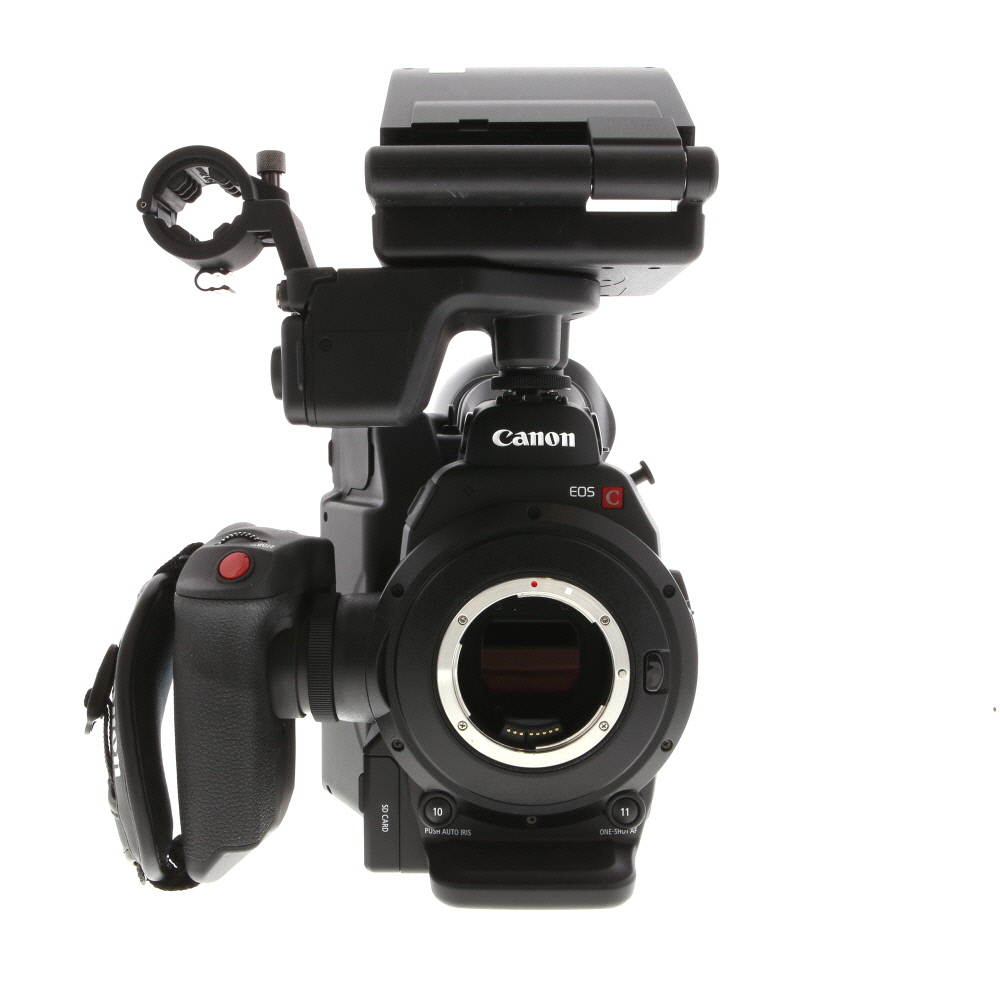


In this article, we will guide you through the process of connecting your Canon EOS digital camera to your computer so you can easily transfer your photos and videos.
Whether you’re a professional photographer or just an enthusiast, knowing how to hook up your Canon EOS camera to your computer is essential for managing and editing your photography.
Step-by-Step Guide: Connecting Canon EOS Digital Camera to Computer
To connect your Canon EOS digital camera to your computer, follow these simple steps:
Step 1: Gather Your Equipment
Make sure you have the necessary equipment on hand: your Canon EOS digital camera, a USB cable (usually provided with the camera), and your computer.
Step 2: Connect the USB Cable
Locate the USB port on your Canon EOS camera. Connect one end of the USB cable to the camera and the other end to a USB port on your computer.

Note: Ensure that both the camera and the computer are powered on.
Once the cable is securely connected, your camera should be recognized by your computer as a removable storage device.
Now you can access the photos and videos on your Canon EOS digital camera from your computer and transfer them as needed.
Check Compatibility and Requirements
Before connecting your Canon EOS digital camera to your computer, it is important to check compatibility and ensure that your computer meets the necessary requirements.
Compatibility: Make sure that your Canon EOS camera is compatible with your computer. Check the camera’s user manual or the Canon website for information on compatibility with different operating systems.
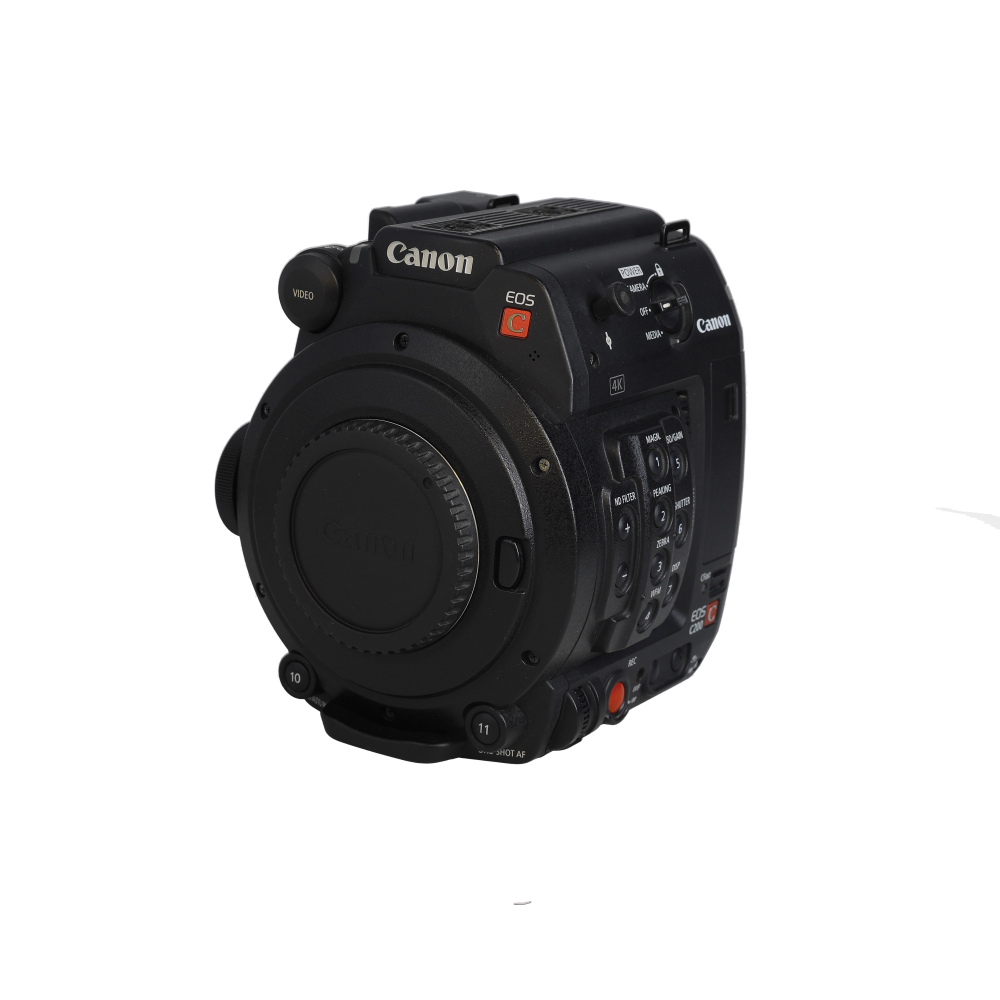
Requirements: Ensure that your computer meets the minimum requirements for connecting your Canon EOS camera. This may include having the necessary USB ports, memory card reader, or software installed on your computer.
Install Necessary Software
Before you can connect your Canon EOS digital camera to your computer, you will need to install the necessary software. Canon provides a software CD that typically comes with your camera purchase. Insert the CD into your computer’s CD drive and follow the on-screen instructions to install the software.
If you do not have the software CD or if you prefer to download the software online, you can visit the Canon website and search for the specific software needed for your camera model. Download the software and follow the installation instructions provided on the Canon website.
Prepare Your Camera
Before connecting your Canon EOS digital camera to your computer, make sure your camera is fully charged to avoid any interruptions during the process. Also, check if your camera is compatible with your computer’s operating system. Ensure that you have installed the necessary software and drivers provided by Canon for your specific camera model. Finally, make sure you have a USB cable that is compatible with your camera to establish a connection with your computer.
Connect Camera to Computer
To connect your Canon EOS digital camera to your computer, follow these steps:

1. Turn off your camera and computer.
2. Locate the USB cable that came with your camera. It should have a USB Type-A connector on one end and a mini-USB or micro-USB connector on the other end.
3. Connect the USB cable to the camera’s USB port. The port is usually located on the side or bottom of the camera.
4. Connect the other end of the USB cable to a USB port on your computer.
5. Turn on your camera and computer.

6. Your computer should detect the camera as a removable storage device. You can now access and transfer your photos and videos from the camera to your computer.
If your computer does not detect the camera, make sure the USB cable is securely connected and try a different USB port on your computer. You may also need to install the necessary drivers for your camera on your computer.
Transfer Photos and Videos
To transfer photos and videos from your Canon EOS digital camera to your computer, you can use a USB cable or a memory card reader. Follow these steps to easily transfer your media files:
Using a USB Cable:
- Connect your Canon EOS digital camera to your computer using a USB cable.
- Turn on your camera and set it to the appropriate mode for transferring files.
- Your computer should recognize the camera as a removable storage device.
- Open the folder on your computer where you want to transfer the photos and videos.
- Locate the folder on the camera that contains your media files.
- Select the photos and videos you want to transfer and copy them to the destination folder on your computer.
- Once the transfer is complete, safely disconnect your camera from the computer.
Using a memory card reader:
- Remove the memory card from your Canon EOS digital camera.
- Insert the memory card into a memory card reader connected to your computer.
- Your computer should recognize the memory card as a removable storage device.
- Open the folder on your computer where you want to transfer the photos and videos.
- Locate the folder on the memory card that contains your media files.
- Select the photos and videos you want to transfer and copy them to the destination folder on your computer.
- Once the transfer is complete, safely remove the memory card from the reader.
Troubleshooting Connection Issues
If you are experiencing issues connecting your Canon EOS digital camera to your computer, try the following troubleshooting steps:
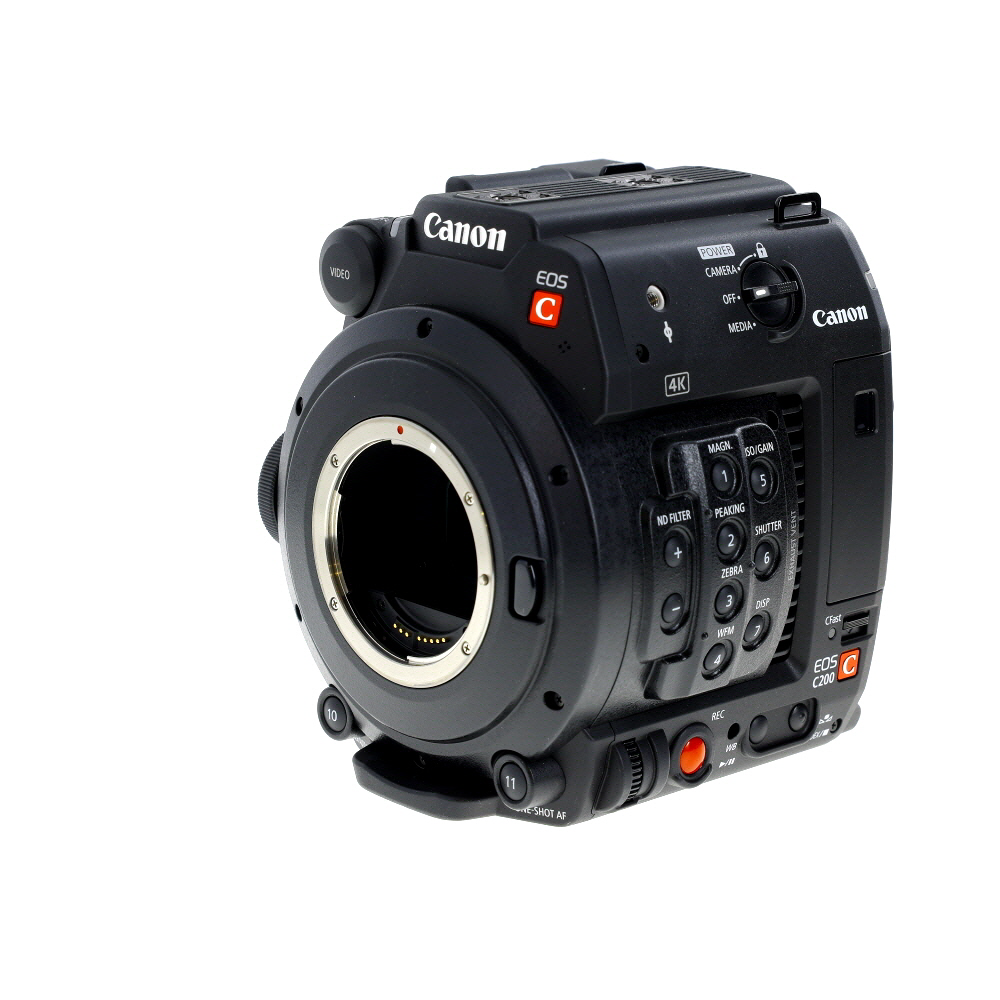
1. Check the USB Cable
Make sure the USB cable you are using is properly connected to both the camera and the computer. Try using a different USB cable to rule out any issues with the cable itself.
2. Restart Devices
Restart both your camera and computer to refresh the connection. Sometimes a simple restart can resolve connectivity issues.
| Issue | Solution |
| Camera not recognized by computer | Try connecting the camera to a different USB port on your computer. |
| Camera drivers not installed | Install the necessary drivers for your Canon EOS digital camera on your computer. |
| Camera screen frozen | Remove the battery from the camera, wait a few seconds, and reinsert it to reset the camera. |
Safely Eject Your Camera
After you have finished transferring your photos, it is important to safely eject your camera to avoid any data corruption or damage to your files.
Step 1: Close any open files
Before ejecting your camera, make sure that all files and folders from your camera are closed on your computer.
Step 2: Safely remove hardware
On your computer, locate the “Safely Remove Hardware” icon in the system tray. Click on it and select the option to safely eject your camera. Wait for the confirmation message before physically disconnecting your camera from the computer.

| Tip: | It is always a good idea to power off your camera before disconnecting it from the computer to prevent any potential issues. |
Additional Tips and Resources
1. Make sure your Canon EOS camera is fully charged before connecting it to your computer to avoid any interruptions during data transfer.
2. Install the necessary Canon EOS software on your computer to manage and transfer your photos effectively.
3. Check for any firmware updates for your Canon EOS camera to ensure compatibility with your computer.
FAQ
How do I connect my Canon EOS digital camera to a computer?
To connect your Canon EOS digital camera to a computer, you will need a USB cable that is compatible with your camera model. First, locate the USB port on your camera and connect one end of the USB cable to it. Then, connect the other end of the USB cable to a USB port on your computer. Once the camera is connected, turn it on and your computer should recognize it as a removable storage device. You can then access the photos and videos on your camera through your computer.
Can I transfer photos from my Canon EOS digital camera to my computer wirelessly?
Yes, you can transfer photos from your Canon EOS digital camera to your computer wirelessly if your camera supports Wi-Fi connectivity. To do this, you will need to set up a Wi-Fi connection between your camera and your computer. Refer to your camera’s user manual for instructions on how to enable Wi-Fi on your camera and establish a connection. Once the connection is established, you can transfer photos wirelessly from your camera to your computer without the need for a USB cable.



Don't forget to back up your photos once they're on your computer!
Do I need to install any special software to transfer files, or is it just plug and play?
What if my computer doesn't recognize my Canon EOS camera after connecting it? I've tried different USB ports but still no luck.
How does transferring photos using a USB cable compare to using a memory card reader? Is one method better than the other?
I'm having trouble connecting my Canon EOS camera to my computer. The camera isn't being recognized. Any tips?
I just hooked up my Canon EOS camera to my computer for the first time. Followed the steps, but it took a bit of time to figure out the software installation. I used the CD that came with the camera, but I had to download some updates from the Canon website afterward. Once everything was set, transferring photos was easy! Just make sure your camera is fully charged.
I think using the USB connection is more straightforward than removing the memory card. Less hassle overall!