
 Carmen J. Moore

Sony Cyber-shot digital cameras are known for their high-quality images and user-friendly features. If you own a Sony Cyber-shot camera and want to transfer your photos to your computer, this guide will help you through the process.
Downloading pictures from your Sony Cyber-shot camera is a simple task that can be done in a few easy steps. Whether you have a USB cable or a memory card reader, you can easily transfer your photos to your computer and organize them for easy access.

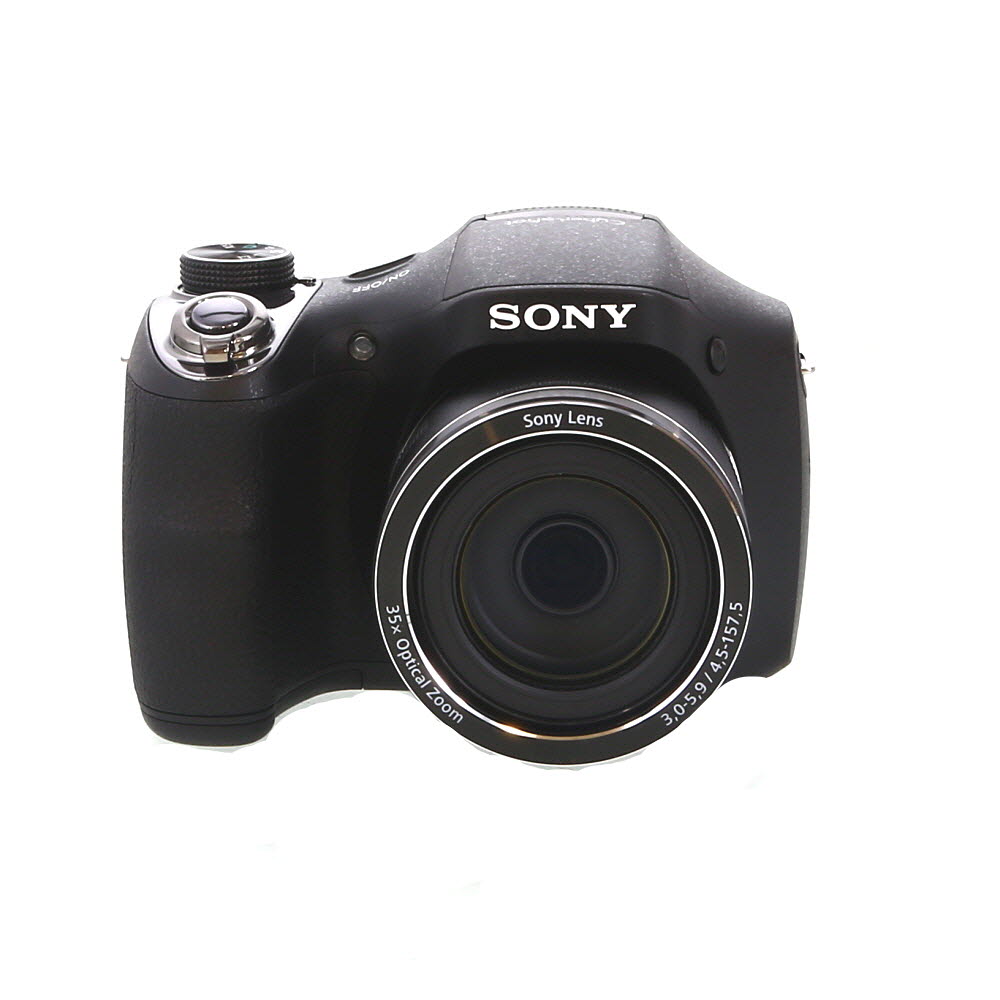


In this article, we will walk you through the steps to download pictures from your Sony Cyber-shot digital camera using both methods. By the end of this guide, you will be able to effortlessly transfer your photos and enjoy your memories on your computer screen.
Step-by-step guide to download pictures from Sony Cyber Shot digital camera
If you want to download pictures from your Sony Cyber Shot digital camera to your computer, follow these simple steps:
- Connect your Sony Cyber Shot digital camera to your computer using the USB cable that came with the camera.
- Turn on the camera and set it to the playback mode.
- Your computer should recognize the camera as a removable storage device. If prompted, install any necessary drivers.
- Open the file explorer on your computer and navigate to the camera’s storage.
- Locate the folder containing the pictures you want to download.
- Copy the pictures from the camera’s storage to a folder on your computer by dragging and dropping or using the copy-paste method.
- Once the transfer is complete, safely disconnect the camera from your computer.
- You now have the pictures from your Sony Cyber Shot digital camera saved on your computer for viewing, editing, or sharing.
Connect your Sony Cyber Shot camera to your computer
To download pictures from your Sony Cyber Shot digital camera to your computer, you will need to connect the camera to your computer using a USB cable. Follow these steps to establish a connection:
Step 1: Locate the USB cable that came with your Sony Cyber Shot camera. It usually has a standard USB connector on one end and a micro-USB connector on the other end.
Step 2: Turn off your camera and locate the USB port on the camera. It is usually located under a rubber cover on the side or back of the camera.
Step 3: Plug the micro-USB end of the USB cable into the USB port on the camera.
Step 4: Turn on your camera.
Step 5: Connect the standard USB end of the cable to a USB port on your computer.
Step 6: Your computer should recognize the camera as a removable storage device. You can then access the pictures on your camera and transfer them to your computer.
Following these steps will allow you to easily transfer your pictures from your Sony Cyber Shot camera to your computer for editing, sharing, or storage.
Access the camera’s memory card
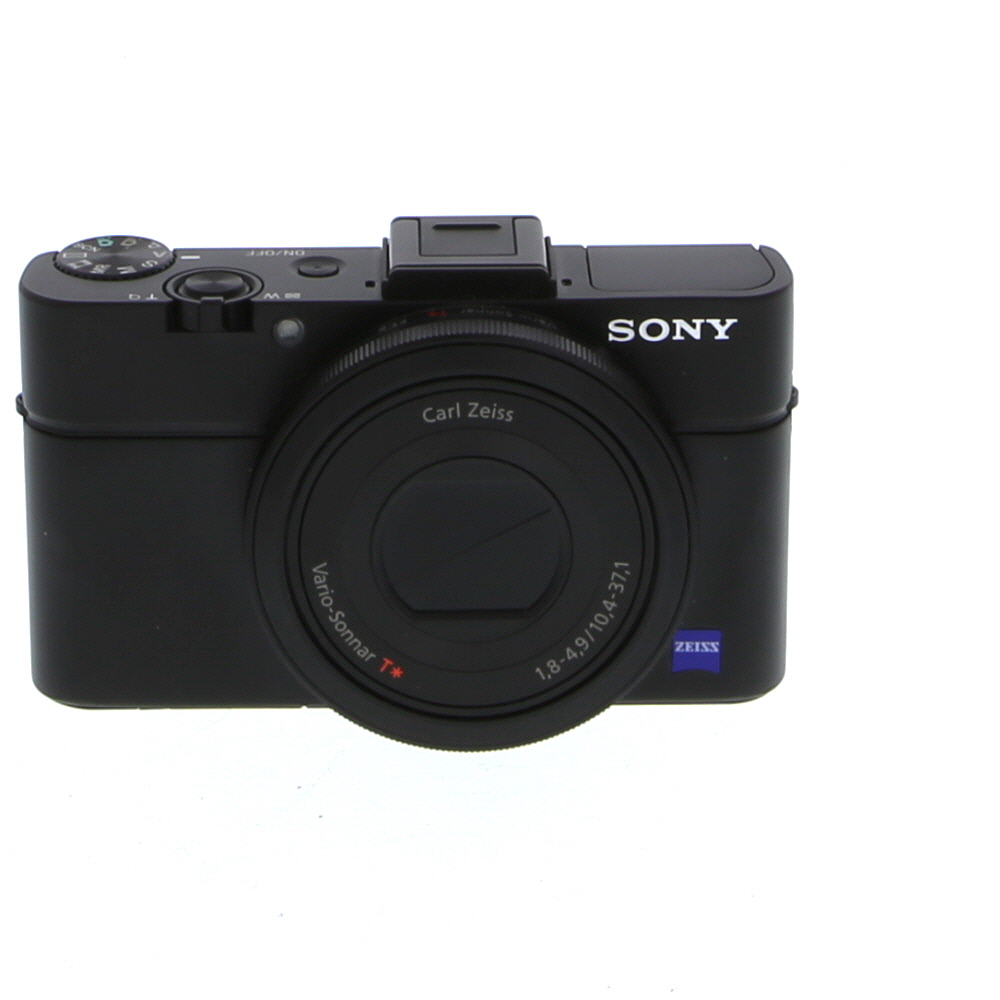
To download pictures from your Sony Cyber-shot digital camera, you first need to access the camera’s memory card. To do this, locate the memory card slot on your camera. This is usually located on the side or bottom of the camera, depending on the model. Open the memory card slot cover and carefully remove the memory card from the camera.
Locate the pictures you want to download
Before you can download pictures from your Sony Cyber-shot digital camera, you need to locate the specific images you want to transfer to your computer. Here are the steps to help you find the pictures:
Step 1: Turn on your camera
Make sure your Sony Cyber-shot digital camera is turned on and connected to your computer using the appropriate USB cable.
Step 2: Navigate to the picture gallery
Once your camera is connected, navigate to the picture gallery on your camera’s screen. You may need to use the camera’s menu settings to access the gallery.
| Tip: | If you have many pictures on your camera, you can use the navigation buttons on the camera to scroll through the images and locate the ones you want to download. |
Select the pictures you wish to transfer
Once you have connected your Sony Cyber-shot digital camera to your computer, navigate to the folder where the pictures are stored on the camera. You can usually find the pictures in a folder named “DCIM” or “Pictures”.

Open the folder and browse through the images to select the ones you want to transfer. You can do this by clicking on the images or using the CTRL key to select multiple images at once.
Make sure to choose the pictures you want to download carefully, as transferring a large number of images can take up a lot of space on your computer.
Copy the selected pictures to your computer
Once you have selected the pictures you want to download from your Sony Cyber-shot digital camera, you can easily copy them to your computer using a USB cable. Follow these steps:
| 1. | Connect your Sony Cyber-shot camera to your computer using the USB cable provided with the camera. |
| 2. | Turn on your camera and set it to the playback mode to access your pictures. |
| 3. | On your computer, a window may pop up asking you what you want to do with the device. Select “Open folder to view files” or a similar option. |
| 4. | Locate the folder on your camera that contains the pictures you want to copy. This folder is usually named “DCIM.” |
| 5. | Copy the selected pictures by dragging and dropping them from the camera folder to a folder on your computer. |
| 6. | Once the copying process is complete, safely disconnect your camera from the computer. |
You now have successfully copied the selected pictures from your Sony Cyber-shot digital camera to your computer for safekeeping or further editing.
Choose a destination folder for the downloaded pictures
Once you have connected your Sony Cyber-shot digital camera to your computer and accessed the files, you will need to select a destination folder to save the downloaded pictures. It is important to choose a location on your computer where you can easily locate the images later.

When selecting a destination folder, consider creating a new folder specifically for the pictures you are downloading from your camera. This will help keep your files organized and prevent them from getting lost among other files on your computer.
After choosing the destination folder, you can then proceed to transfer the pictures from your Sony Cyber-shot camera to your computer by copying or moving them into the selected folder.
Wait for the transfer process to complete
Once you have selected the pictures you want to transfer and chosen the destination folder on your computer, click on the “Transfer” or “Download” button. The pictures will start transferring from your Sony Cyber-shot digital camera to your computer.
Depending on the number and size of the pictures, the transfer process may take some time. It’s important to be patient and avoid disconnecting the camera or computer during the transfer to prevent any data loss or corruption.
Safely eject the camera from your computer
After you have finished transferring the pictures from your Sony Cyber-shot digital camera to your computer, it is important to safely eject the camera to avoid any data corruption or damage. Follow these steps to safely remove your camera:
Step 1: Close any open files or folders related to the camera
Make sure all files and folders related to your camera are closed before ejecting it. This will ensure that there are no active connections that could be disrupted during the ejection process.
Step 2: Eject the camera using the proper method
On your computer, find the icon for your camera in the device list. Right-click on the icon and select the option to safely eject or safely remove the device. Wait for the confirmation message that it is safe to disconnect your camera before physically unplugging it from your computer.
View and enjoy your downloaded pictures on your computer
Once you have successfully downloaded your pictures from your Sony Cyber-shot digital camera to your computer, you can easily view and enjoy them. Here are a few simple steps to help you access and enjoy your photos:
- Locate the folder where you saved your downloaded pictures on your computer.
- Double-click on the folder to open it.
- You will see thumbnails of your pictures displayed. You can click on each thumbnail to view the full-size image.
- If you want to organize your photos, you can create subfolders within the main folder to categorize them.
- You can also use image viewing software like Windows Photo Viewer or Adobe Photoshop to enhance and edit your pictures.
- Share your favorite photos with friends and family by emailing them or uploading them to social media platforms.
- Don’t forget to back up your pictures regularly to prevent any loss of precious memories.
FAQ
How can I download pictures from my Sony Cyber-shot digital camera to my computer?
To download pictures from your Sony Cyber-shot digital camera to your computer, you will need to connect your camera to your computer using a USB cable. Once connected, your computer should recognize the camera as a storage device, allowing you to access and transfer the photos to your computer’s storage. You can then open the folder where the photos are stored and copy them to your desired location on your computer.
What software do I need to download pictures from my Sony Cyber-shot digital camera?
To download pictures from your Sony Cyber-shot digital camera, you generally do not need any special software. Your computer’s operating system should recognize the camera as a storage device when connected via USB cable. However, if you prefer to use software for managing your photos, you can use programs like Sony’s PlayMemories Home, which offers additional features for organizing and editing your photos.



I'm having trouble connecting my Sony Cyber-shot to my computer. It doesn’t seem to recognize the camera. Any tips?
Make sure your USB cable is properly connected and that your camera is powered on. Sometimes switching USB ports on your computer can help. If drivers are needed, check the manufacturer's website.
I just downloaded my pictures from my Sony Cyber-shot, and it was so much easier than I thought! I used the USB cable, and the images transferred quickly. I recommend creating a dedicated folder on your computer beforehand to keep everything organized.