
 Carmen J. Moore
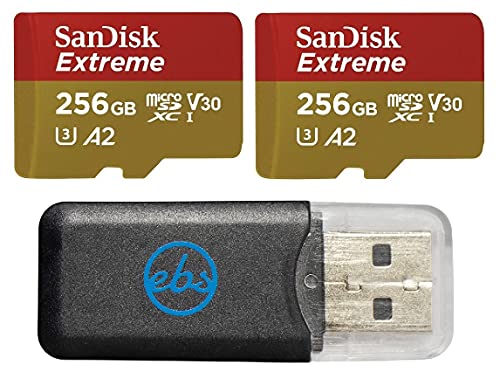
Downloading pictures from your digital camera or memory card is a simple and essential task for anyone who enjoys photography. Whether you want to share your photos online, backup your precious memories, or edit them on your computer, knowing how to transfer images is a valuable skill. In this guide, we will walk you through the steps to download pictures from your digital camera or memory card to your computer.

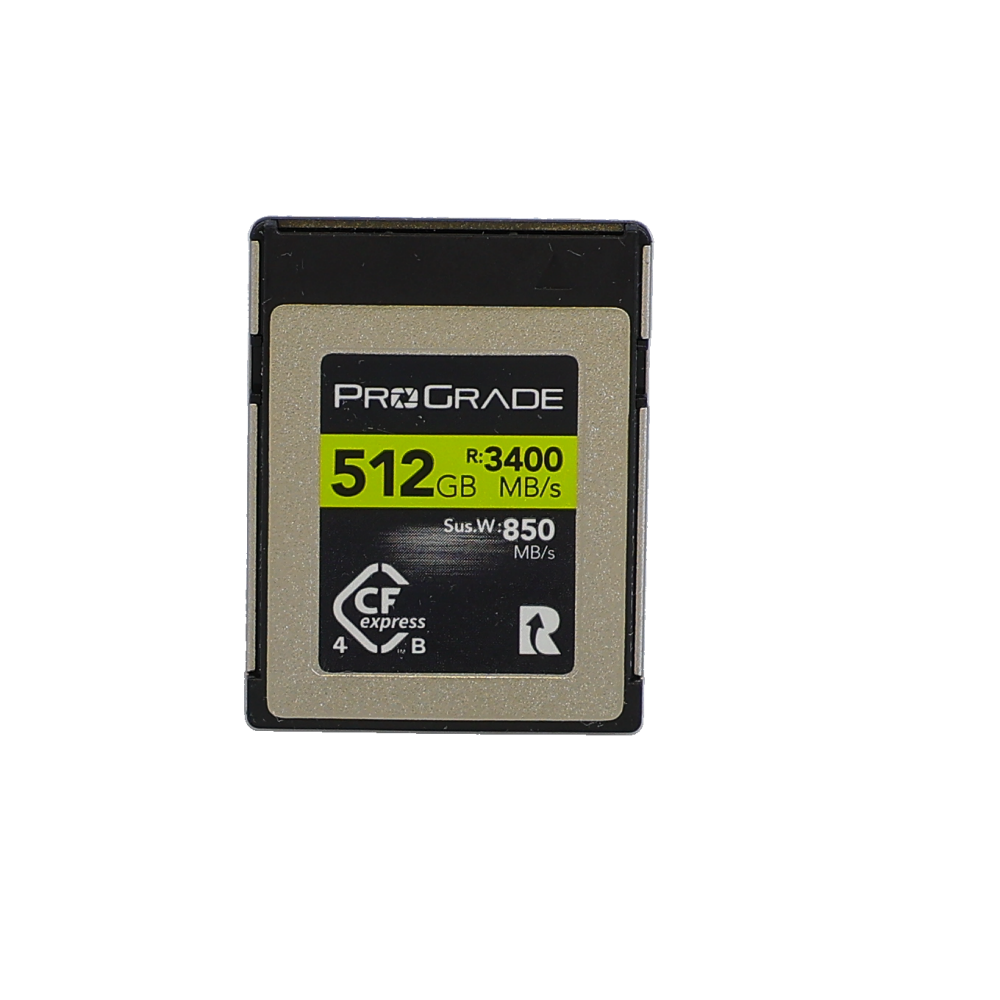


Firstly, you will need to connect your digital camera or memory card to your computer using a USB cable or a card reader. Make sure your camera is turned on and set to the correct mode for transferring images. Your computer should automatically detect the device and prompt you to open the folder to view files.
Once you have access to the files on your camera or memory card, you can select the pictures you want to download. You can either drag and drop the files to a folder on your computer or use the import function in your photo management software. Remember to create a backup of your images to prevent any accidental loss.
Step-by-Step Guide to Download Pictures from Digital Camera or Memory Card
1. Connect your digital camera or memory card to your computer using a USB cable or card reader.
2. Open the file explorer on your computer and navigate to the folder where your camera or memory card is located.
3. Select the pictures you want to download by clicking on them or using the Ctrl key to select multiple images.

4. Copy the selected pictures by right-clicking and choosing the “Copy” option or pressing Ctrl + C on your keyboard.
5. Navigate to the folder on your computer where you want to save the pictures.
6. Paste the copied pictures by right-clicking and choosing the “Paste” option or pressing Ctrl + V on your keyboard.
7. Wait for the pictures to finish copying to your computer. The time may vary depending on the number and size of the pictures.
8. Once the copying is complete, safely eject your digital camera or memory card from your computer.
9. You now have successfully downloaded pictures from your digital camera or memory card to your computer.
Prepare Your Digital Camera or Memory Card
Before you start the process of downloading pictures from your digital camera or memory card, it is important to prepare your device properly. Follow these steps to ensure a smooth and successful transfer:
1. Check the Battery Level
Make sure your digital camera has enough battery power to complete the transfer process without any interruptions. If the battery level is low, consider charging it before proceeding.
2. Insert the Memory Card
If you are using a memory card, insert it into the appropriate slot on your computer or use a card reader to connect it. Ensure that the memory card is properly inserted and recognized by your device.
Connect Your Device to a Computer
Before you can download pictures from your digital camera or memory card, you’ll need to connect your device to a computer. Here’s how:

- Locate the USB cable that came with your camera or card reader.
- Plug one end of the USB cable into your camera or card reader and the other end into a USB port on your computer.
- Turn on your camera or insert the memory card into the card reader.
- Your computer should recognize the device and may prompt you to open it to view the files.
- If no prompt appears, you can open the device manually by navigating to “My Computer” (Windows) or “Finder” (Mac) and selecting the device.
Once your device is connected and recognized by your computer, you can proceed to download pictures from your camera or memory card.
Locate the Pictures on Your Device
Once you have connected your digital camera or memory card to your computer, you need to locate the pictures on your device. This process may vary depending on the device and operating system you are using.
If you are using a digital camera, you may need to turn it on and set it to “transfer” or “PC” mode. Then, navigate to the folder or menu on your camera where the pictures are stored.
If you are using a memory card, you can usually access the pictures by opening the file explorer on your computer and locating the drive associated with your memory card. The pictures are typically stored in a folder named “DCIM” or “Pictures”.
Once you have located the pictures on your device, you can select and copy them to a folder on your computer for easy access and organization.
Select the Pictures You Want to Download
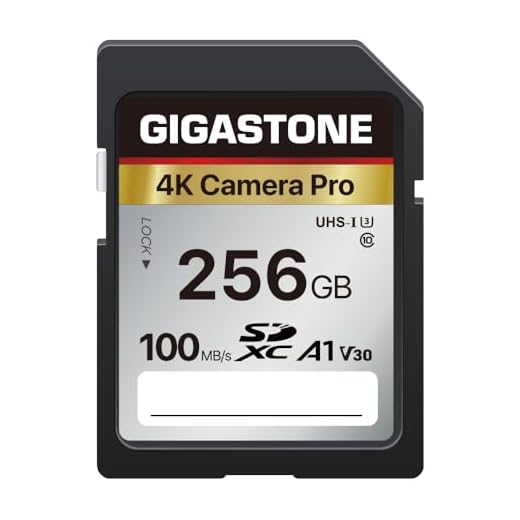
Before downloading pictures from your digital camera or memory card, it’s important to select the specific images you want to transfer to your computer. This can help you save time and storage space by only downloading the photos you need.
Here are some tips on how to select the pictures you want to download:
1. Review the Images
Take some time to review the pictures on your camera or memory card. This will help you identify the images you want to download and ensure you don’t miss any important photos.
2. Use the Camera’s Display
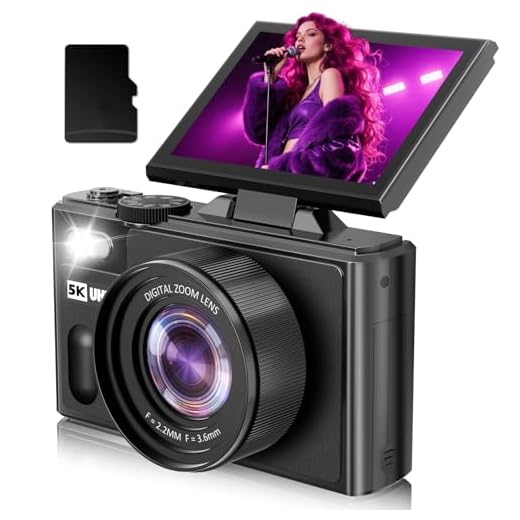
Many digital cameras allow you to preview the images on the camera’s display. Use this feature to scroll through the pictures and select the ones you want to download.
Tip: You can usually use the camera’s navigation buttons to select or mark images for download.
By carefully selecting the pictures you want to download, you can streamline the process and avoid transferring unnecessary files to your computer.
Choose the Destination Folder on Your Computer
After connecting your digital camera or memory card to your computer, you will need to select a destination folder to save the pictures. This is where the images will be transferred and stored on your computer.
When prompted by the software or operating system, navigate to the location on your computer where you want to save the pictures. You can create a new folder specifically for these images or choose an existing folder where you want to store them.
It’s a good idea to organize your pictures into folders by date, event, or any other method that makes it easy for you to find and access them later. This will help you keep your pictures organized and prevent them from getting lost among other files on your computer.
Start the Download Process
Step 1: Connect your digital camera or memory card to your computer using the appropriate USB cable or card reader.

Step 2: Turn on your digital camera or insert the memory card into the card reader.
Step 3: Open the file explorer on your computer and locate the connected device or memory card.
Step 4: Navigate to the folder or location where your pictures are stored on the camera or memory card.
Step 5: Select the pictures you want to download by clicking on them or using the select all option.
Step 6: Copy the selected pictures by right-clicking and choosing the “Copy” option or by using the keyboard shortcut Ctrl + C.
Step 7: Paste the copied pictures into the desired folder on your computer by right-clicking and choosing the “Paste” option or using the keyboard shortcut Ctrl + V.
Step 8: Wait for the pictures to finish transferring to your computer. Once the process is complete, you can safely disconnect your digital camera or memory card.
Monitor the Progress of the Download
When you initiate the download process, it’s important to monitor the progress to ensure that all photos are transferred successfully. Most photo transfer software will display a progress bar or percentage indicator to show you how much of the download is complete.
Check for Errors
If you encounter any errors during the download process, such as a failed transfer or missing photos, it’s crucial to address these issues promptly. Check the error message displayed by the software and take appropriate steps to troubleshoot the problem.
Tip: It’s a good practice to keep an eye on the download progress and address any errors immediately to prevent data loss.
Safely Eject Your Device from the Computer
Once you have transferred all the pictures you need from your camera or memory card to your computer, it is important to safely eject the device to avoid data corruption or damage.
To safely eject your device:
- Make sure all file transfers are complete and any programs accessing the device are closed.
- Locate the device icon on your computer’s desktop or in the file explorer.
- Right-click on the device icon and select “Eject” or “Safely Remove Hardware.”
- Wait for the computer to confirm that it is safe to remove the device before physically disconnecting it.
By following these steps, you can ensure that your data remains intact and your device is safely disconnected from the computer.
Organize Your Downloaded Pictures
Once you have downloaded your pictures from your digital camera or memory card to your computer, it’s important to organize them properly to make it easier to find and view them later. Here are some tips on how to organize your downloaded pictures:
1. Create Folders
Create separate folders for different categories of pictures, such as vacations, family events, landscapes, etc. This will help you keep your pictures organized and make it easier to locate specific photos when you need them.

2. Rename Files
Consider renaming your picture files with descriptive names that will help you remember what the photo is about. This can be especially helpful if you have a large number of pictures and need to quickly find a specific one.
Tip: Use a consistent naming convention to keep your files organized, such as including the date or event in the file name.
Enjoy Your Pictures on Your Computer
Now that you have transferred your pictures from your digital camera or memory card to your computer, it’s time to enjoy them! Here are a few tips on how to make the most of your digital photo collection:
Organize Your Photos: Create folders or albums on your computer to keep your pictures organized. You can sort them by date, event, location, or any other criteria that make sense to you.
Edit Your Photos: Use photo editing software to enhance your pictures. You can adjust the brightness, contrast, color balance, and more to make your photos look their best.

Share Your Photos: Share your favorite pictures with friends and family by emailing them, posting them on social media, or creating online photo albums.
Print Your Photos: If you want to display your pictures in physical form, you can print them at home or use a professional printing service to create high-quality prints.
Backup Your Photos: Don’t forget to back up your digital photo collection regularly to ensure that you don’t lose any precious memories.
FAQ
Can I download pictures from my digital camera to my computer without using any special software?
Yes, you can easily download pictures from your digital camera to your computer without using any special software. Simply connect your camera to your computer using a USB cable and then access the camera’s storage like you would any other external device. You can then copy and paste the image files to your computer’s hard drive.
What is the best way to transfer images from a memory card to a computer?
The best way to transfer images from a memory card to a computer is by using a card reader. Card readers are small devices that you can insert your memory card into and then connect to your computer via USB. This method is faster and more reliable than connecting your camera directly to the computer.
Is it possible to download pictures wirelessly from a digital camera?
Yes, it is possible to download pictures wirelessly from a digital camera if your camera supports Wi-Fi connectivity. You can usually transfer images to your computer or smartphone using Wi-Fi and the manufacturer’s proprietary app or software. This method provides convenience and eliminates the need for cables.
Can I download pictures from a memory card on a Mac computer?
Yes, you can download pictures from a memory card on a Mac computer. Simply insert the memory card into the appropriate slot on your Mac or use a card reader, then open the Photos app or Image Capture program to import the pictures. You can also drag and drop the image files from the memory card to a folder on your desktop.


Always make sure your camera battery is charged before starting the transfer. It can save you from unexpected interruptions!
I recently downloaded pictures from my camera and had a little trouble finding the right folder. I didn’t realize photos were stored in the DCIM folder. It would be helpful if the article emphasized checking that folder specifically for memory cards.