
 Carmen J. Moore

Disposable cameras were once a popular choice for capturing memories on the go, but with the rise of digital photography, many of us have old disposable camera photos lying around. If you want to preserve those memories and bring them into the digital age, digitizing your disposable camera photos is the way to go.
Digitizing disposable camera photos may seem like a daunting task, but with the right tools and techniques, it can be a straightforward process. In this article, we’ll guide you through the steps to digitize your disposable camera photos so you can enjoy them for years to come.




From scanning to using specialized services, there are several methods available to digitize your disposable camera photos. Whether you’re looking to share them online, create prints, or simply save them for posterity, digitizing your disposable camera photos is a great way to ensure they stand the test of time.
Steps to digitize disposable camera photos
If you have old disposable camera photos that you want to digitize, follow these steps to preserve your memories:
1. Gather your materials
Collect all the disposable camera photos you want to digitize, a scanner or smartphone with a high-quality camera, and a computer or external storage device to save the digital copies.
2. Scan or photograph the photos
Use a scanner or smartphone to capture high-resolution images of each disposable camera photo. Make sure the lighting is good and the photos are flat to avoid glare or distortion.
Note: If using a scanner, adjust the settings to scan at a high resolution (300 dpi or higher) for best results.
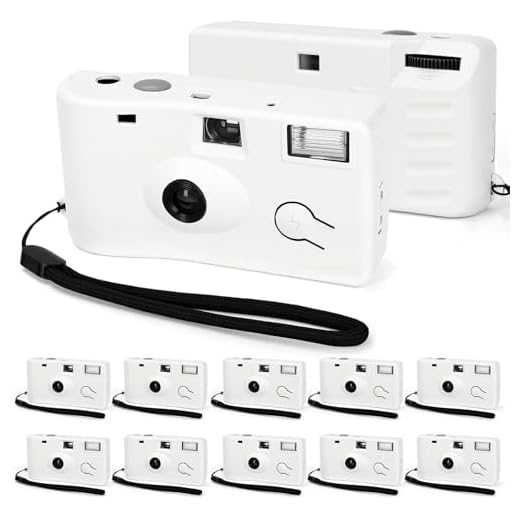
By following these steps, you can easily digitize your disposable camera photos and keep them safe for years to come.
Gather necessary equipment
Before you start digitizing your disposable camera photos, you will need to gather some essential equipment. Make sure you have the following items ready:
| Disposable camera | Make sure you have the disposable camera with the photos you want to digitize. |
| Scanner | You will need a scanner to convert the physical photos into digital files. |
| Computer | You will need a computer to transfer and edit the digitized photos. |
| Photo editing software | Choose a photo editing software to enhance and edit your digitized photos. |
Preparing the film
Before you can digitize your disposable camera photos, you need to prepare the film for scanning. Here are the steps to follow:
1. Remove the film from the camera
Start by opening the back of the disposable camera to remove the film. Be careful not to expose the film to light as this can ruin the photos.
2. Handle the film carefully
Handle the film with clean hands and avoid touching the actual images on the film strip. Any smudges or fingerprints can affect the quality of the scanned photos.
Scanning the negatives
Once you have your disposable camera negatives, you can start the process of digitizing them by scanning them.
Here are the steps to scan your disposable camera negatives:
| 1. | Choose a high-quality scanner: Use a flatbed scanner with a high resolution for best results. |
| 2. | Clean the scanner bed: Make sure the scanner bed is clean and free of dust to avoid any interference with the scanning process. |
| 3. | Place the negatives: Carefully place the negatives on the scanner bed, making sure they are aligned properly. |
| 4. | Scan the negatives: Use the scanner software to scan the negatives at a high resolution. Save the scanned images in a high-quality format like TIFF or RAW. |
| 5. | Adjust the settings: Adjust the brightness, contrast, and color balance of the scanned images if needed using image editing software. |
| 6. | Save the digitized photos: Once you are satisfied with the scanned images, save them to your computer or external storage device for safekeeping and further editing. |
Editing and enhancing images
Once you have digitized your disposable camera photos, you may want to edit and enhance them to improve their quality and appearance. Here are some tips on how to enhance your images:
1. Crop and straighten
Use a photo editing software to crop out any unnecessary parts of the image and straighten the horizon line if needed. This will help focus the viewer’s attention on the main subject of the photo.
2. Adjust brightness and contrast
Play around with the brightness and contrast settings to make your images pop. Adjusting these settings can help bring out details in the shadows and highlights of your photos.

Remember, editing is a personal process, so feel free to experiment with different editing techniques to achieve the desired look for your disposable camera photos.
Saving and sharing digital copies
Once you have digitized your disposable camera photos, it’s important to save them properly to ensure they are preserved for the long term. You can save the digital copies on your computer or external storage devices like USB drives or external hard drives. Make sure to organize them in folders and label them accordingly for easy access.
If you want to share your digitized photos with others, you can do so through email, social media platforms, or cloud storage services like Google Drive or Dropbox. This way, you can easily share your memories with friends and family, no matter where they are located.
Remember to back up your digital copies regularly to prevent any loss of data. By saving and sharing your digitized disposable camera photos, you can ensure that your memories are preserved and enjoyed for years to come.
FAQ
How can I digitize photos from a disposable camera?
You can digitize photos from a disposable camera by either scanning the printed photos or using a digital camera to photograph the prints. You can also take the film to a photo lab for professional digitization.

What is the best way to digitize disposable camera photos?
The best way to digitize disposable camera photos is by using a high-quality scanner with a resolution of at least 300 dpi. This will ensure that the digital copies retain as much detail and color accuracy as possible.
Can I digitize disposable camera photos at home?
Yes, you can digitize disposable camera photos at home by using a scanner or a digital camera. Make sure to scan or photograph the photos in a well-lit area to capture the details accurately.
Is it better to scan or photograph disposable camera photos for digitization?
It depends on the equipment you have available and the quality you want to achieve. Scanning photos usually provides higher quality results, but photographing them with a digital camera can be more convenient and faster.
What should I look for when choosing a method to digitize disposable camera photos?
When choosing a method to digitize disposable camera photos, consider factors like the resolution, color accuracy, convenience, and speed of the process. Choose the method that best suits your needs and equipment.



I just digitized some disposable camera photos, and I found that using my smartphone actually gave decent results. I made sure to use natural light and avoid shadows. However, I still think scanning would offer better quality overall. Has anyone else tried both methods?
I recently digitized my old disposable photos using a flatbed scanner, and it was a game changer! I set it to 600 dpi, and the results were amazing. Just make sure the scanner bed is clean to avoid dust spots. I'm so glad I did this because I can now share those memories easily with family.
I disagree that a scanner is always better than a smartphone for digitizing photos. I think newer smartphones can capture images at a very high quality, and sometimes it's more convenient to just take a picture rather than set up a scanner. What do you think?
You make a valid point! While scanners generally provide better quality, modern smartphones can indeed produce impressive results, especially if used carefully. It really depends on the user's needs and equipment.
Do I need special software to edit the digitized photos, or can I just use basic tools?
You can use basic photo editing tools for simple adjustments like cropping and brightness. However, specialized software will offer more advanced features for detailed editing.
I disagree that scanning is always better. I’ve had great results just using my smartphone in good lighting. It’s faster and I don’t have to set up a scanner every time.
That’s true, convenience is key! I’ve had my share of good results shooting with my phone too, especially when I just want to quickly digitize some prints.
How do I know if my scanner has a high enough resolution? What should I check for?
I recently digitized my old disposable camera photos using a flatbed scanner, and I was pleasantly surprised by the quality. I followed the article's steps closely. Just a tip: I found that cleaning the scanner bed thoroughly really helped eliminate dust spots. After scanning, I used some editing software to adjust the colors a bit. It really made a difference in bringing those memories back to life!
Good article! I'm wondering if you can digitize disposable camera photos without a scanner. Can a smartphone camera work just as well?