
 Carmen J. Moore

Are you looking to enhance your video conference or live streaming experience? Using a digital camera as a webcam can significantly improve the quality of your video feed, offering better resolution, autofocus capabilities, and overall image quality. In this article, we will guide you through the steps on how to connect your digital camera to your computer and use it as a webcam for various applications.
Most modern digital cameras are equipped with high-quality sensors and lenses that outperform standard webcams, making them a great choice for those seeking professional-looking video footage. By following these simple instructions, you can unlock the full potential of your digital camera and elevate your online communication and content creation.



Step-by-step guide on connecting digital camera to use as webcam
Using your digital camera as a webcam can enhance your video conferencing and online streaming experience. Follow these steps to connect your digital camera to your computer:
- Check if your digital camera supports being used as a webcam. Some cameras have this feature built-in.
- Connect your camera to your computer using a USB cable. Make sure the camera is set to the appropriate mode for webcam use.
- Install any necessary software or drivers that allow your computer to recognize the camera as a webcam.
- Open your video conferencing or streaming application and select your digital camera as the video input source.
- Adjust the camera settings, such as resolution and frame rate, to optimize the video quality.
- Position your camera in a way that provides a clear and well-lit view for your video calls or streams.
- Test the setup to ensure that your camera is working properly as a webcam.
By following these steps, you can easily use your digital camera as a high-quality webcam for various online activities.
Check camera compatibility
Before attempting to connect your digital camera as a webcam, it is important to check if your camera is compatible with this functionality. Not all digital cameras have the capability to be used as webcams, so it’s essential to verify if your specific model supports this feature.
You can usually find information about using your camera as a webcam in the user manual or on the manufacturer’s website. Look for any specific instructions or software requirements that may be necessary to enable this functionality.
Install necessary software
Before connecting your digital camera to use it as a webcam, you will need to install the necessary software on your computer. Follow these steps to install the software:

- Check the manufacturer’s website for any specific software required for your digital camera to function as a webcam.
- Download and install the software on your computer according to the manufacturer’s instructions.
- Make sure the software is compatible with your camera model and operating system.
- Restart your computer after installing the software to ensure proper functioning.
Once the necessary software is installed on your computer, you can proceed to connect your digital camera and set it up as a webcam for video conferencing or live streaming.
Connect camera to computer
To connect your digital camera to your computer and use it as a webcam, follow these steps:
1. Check if your camera supports being used as a webcam. Not all digital cameras have this feature.
2. Use a USB cable to connect your camera to your computer. Make sure the cable is properly connected to both devices.
3. Turn on your camera and set it to the correct mode for webcam use, if necessary.
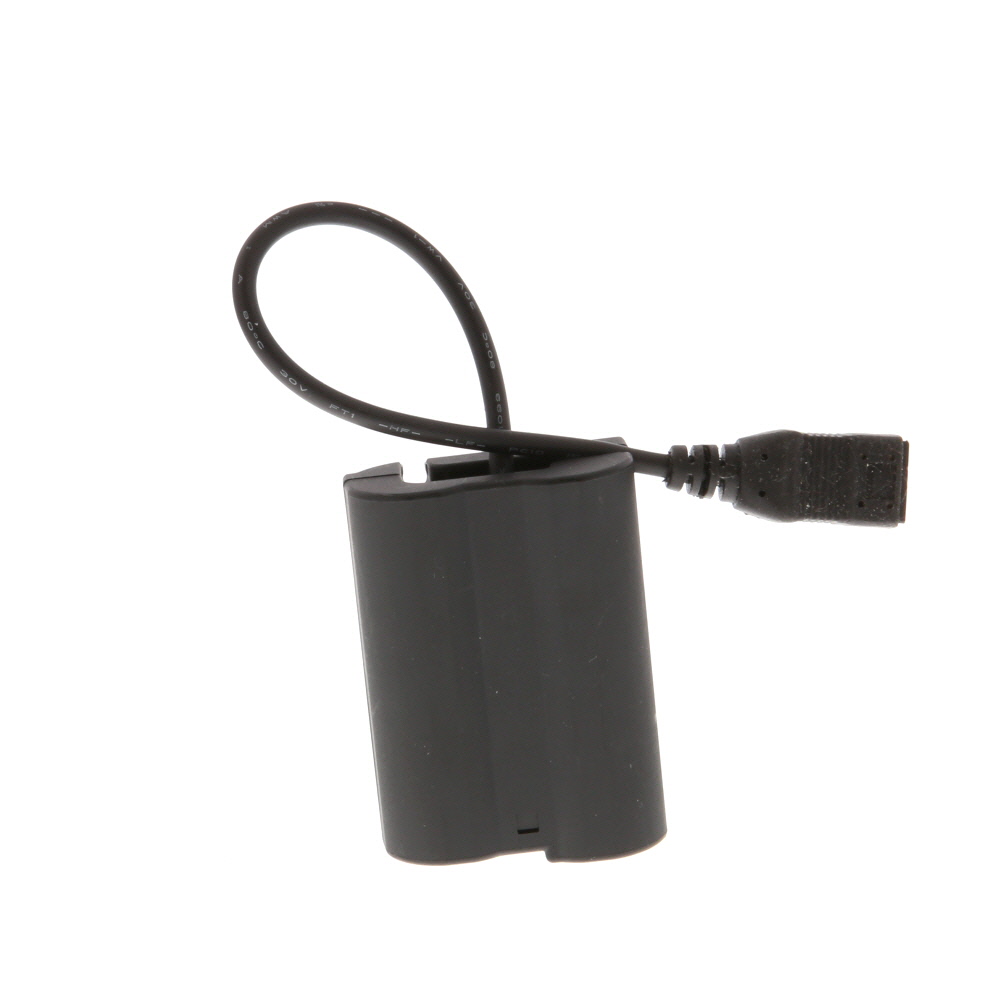
4. Install any required drivers or software for your camera on your computer. This may include webcam software provided by the camera manufacturer.
5. Open the webcam software on your computer and select your camera as the video source.
6. Adjust the settings and preferences for the camera in the webcam software to ensure optimal performance.
7. Test the camera connection by launching a video call or recording a video to see if the camera is functioning correctly.
Set up camera settings
Before using your digital camera as a webcam, it is important to adjust the settings to ensure the best possible video quality. Here are some key settings to consider:

1. Change the camera mode to video mode if it has one. This will allow the camera to capture video instead of just still images.
2. Adjust the resolution and frame rate settings on the camera to match the requirements of the video conferencing software you are using. Higher resolution and frame rates can improve video quality but may require more processing power.
3. Make sure the camera is properly focused and positioned to capture the best angle for your video calls. Use a tripod or other stabilizing device if needed.
4. Check the lighting conditions in the room where you will be using the camera as a webcam. Good lighting can greatly improve video quality, so adjust the camera settings or add additional lighting if necessary.
By following these steps to set up your camera settings, you can ensure a smooth and professional video conferencing experience using your digital camera as a webcam.
Adjust camera placement
Proper camera placement is essential to ensure a clear and stable video feed. Place your digital camera on a stable surface or mount it securely on a tripod. Position the camera at eye level or slightly above for the best angle. Make sure the camera is facing you directly and that there are no obstructions in the frame.
Adjust the camera settings, such as focus and exposure, to optimize the image quality. Test the camera’s positioning and settings before starting your video call to ensure everything looks and works as intended.
Test camera connection
After connecting your digital camera to your computer and setting it up as a webcam, it’s important to test the connection to ensure everything is working properly. Here’s how you can test the camera connection:
1. Check camera settings
Make sure your camera is set to the correct mode for webcam use. Some cameras have a specific webcam mode, while others may require you to select a certain setting or mode.
2. Open a video conferencing app
Open a video conferencing application on your computer, such as Zoom, Skype, or Google Meet. Check the video settings within the app to ensure your camera is selected as the video input device.
Once you’ve completed these steps, you should be able to see yourself on the screen through your digital camera, confirming that the connection is successful.
Troubleshoot common issues
If you are experiencing difficulties connecting your digital camera to use it as a webcam, here are some common issues and possible solutions:
No video feed: Ensure that the camera is properly connected to your computer via USB and that it is powered on. Check the camera settings to make sure it is set to video mode.
Driver issues: Make sure you have installed the necessary drivers for your camera. Check the manufacturer’s website for the latest drivers and install them if needed.
Compatibility problems: Check if your camera is compatible with the software you are using to turn it into a webcam. Some cameras may require specific software or drivers to work properly.

USB connection problems: Try using a different USB cable or port to rule out any issues with the connection. Restart your computer and camera to see if that resolves the problem.
Camera settings: Double-check the camera settings to ensure that it is set up correctly for use as a webcam. Make sure the resolution and frame rate are appropriate for video conferencing.
Software conflicts: If you are using third-party software to connect your camera as a webcam, make sure there are no conflicts with other programs running on your computer. Close unnecessary applications and try again.
Enjoy using digital camera as webcam
Using your digital camera as a webcam can enhance the quality of your video calls and live streaming experiences. Here’s how you can easily set it up:
Step 1: Check compatibility
Make sure your digital camera is compatible with being used as a webcam. Check the manufacturer’s website or manual for information on this.
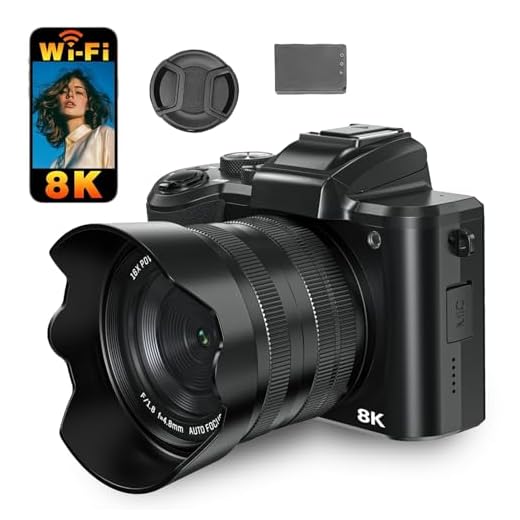
Step 2: Connect your camera
Connect your digital camera to your computer using a USB cable. Ensure that your camera is set to the correct mode for webcam functionality.
| Operating System: | Windows |
| Software: | Download and install any necessary software or drivers for your camera to work as a webcam. |
| Settings: | Adjust the camera settings for optimal video quality and performance. |
By following these simple steps, you can enjoy using your digital camera as a high-quality webcam for all your video communication needs.
FAQ
Can I use my digital camera as a webcam?
Yes, you can use your digital camera as a webcam by connecting it to your computer using a USB cable and installing the necessary software.
What are the advantages of using a digital camera as a webcam?
Using a digital camera as a webcam can provide higher video quality, better audio, and more customization options compared to traditional webcams.
Do I need any special equipment to connect my digital camera to make it a webcam?
You will need a digital camera with a video output feature, a USB cable, and compatible software to connect your camera to your computer and use it as a webcam.
Can I use any digital camera to make it a webcam?
Not all digital cameras can be used as webcams. You will need to check if your camera has a video output feature and if it is compatible with webcam software.
What software do I need to install to use my digital camera as a webcam?
You will need to install webcam software such as OBS Studio, ManyCam, or other compatible software to use your digital camera as a webcam.



Don’t forget to practice camera placement! Positioning makes a big difference in how you look on camera. A tripod is a great investment for this.
I recently connected my mirrorless camera as a webcam, and the improvement in video quality is amazing! I used a USB connection and followed the steps mentioned in the article. Just make sure to adjust your camera settings for the best results. I found that good lighting made a huge difference too!
I'm considering using my DSLR as a webcam. How can I check if it supports this feature? Is there a specific setting I should look for?
To check if your DSLR supports webcam functionality, refer to the user manual or the manufacturer's website for compatibility information. Look for options like 'webcam mode' or specific software requirements.
I disagree that using a digital camera is always better than a webcam. While the quality can be better, setup can be a hassle and not everyone has the same level of tech knowledge to get it working smoothly.
What kind of software do I need to install? Can I use any video conferencing app with this setup?