
 Carmen J. Moore

Canon digital cameras are known for their high-quality images and user-friendly features. However, like any electronic device, they can sometimes encounter technical issues that require a restart. If you find that your Canon digital camera is acting up or freezing, restarting it may help resolve the problem.
There are several methods you can use to restart a Canon digital camera, depending on the model you have. In this article, we will walk you through the different ways to restart your Canon camera and get it back up and running smoothly.
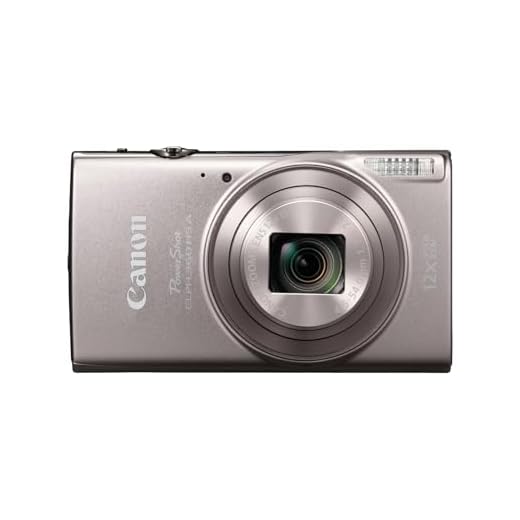



Whether you’re a professional photographer or a casual shooter, knowing how to restart your Canon digital camera can save you time and frustration when dealing with technical glitches. Follow the steps below to learn how to restart your Canon camera effectively.
How to restart a Canon digital camera
If your Canon digital camera is frozen or not responding properly, you may need to restart it to resolve the issue. Here are the steps to restart your Canon digital camera:
- Turn off your camera by pressing the power button until the screen goes black.
- Remove the battery from the camera.
- Wait for about 30 seconds before reinserting the battery.
- Turn on the camera by pressing the power button again.
After following these steps, your Canon digital camera should restart and hopefully work properly again. If the issue persists, you may need to consult the camera’s manual or contact Canon customer support for further assistance.
Power off the camera
To restart your Canon digital camera, first, make sure the camera is powered off. To power off the camera, press and hold the power button until the camera turns off completely. This may take a few seconds, so be patient. Once the camera is powered off, you can proceed with restarting it following the necessary steps.
Remove the Battery
Before restarting your Canon digital camera, it is important to remove the battery to ensure a complete power cycle. Follow these steps to remove the battery:

- Turn off the camera: Make sure the camera is powered off before removing the battery to avoid any potential damage.
- Locate the battery compartment: The battery compartment is usually located on the bottom or side of the camera.
- Open the battery compartment: Use the designated latch or button to open the compartment and access the battery.
- Remove the battery: Carefully take out the battery from the compartment by sliding or lifting it out.
Once the battery is removed, wait a few seconds before reinserting it and powering on the camera again. This simple step can help resolve minor issues and reset the camera’s settings.
Wait for a few minutes
After removing the batteries and memory card, wait for a few minutes before reinserting them back into the camera. This short break can sometimes help reset the camera’s internal system and resolve minor issues that may be causing the camera to malfunction. Once you have waited for a few minutes, carefully insert the batteries and memory card back into their respective slots and try turning on the camera again.
Reinsert the battery
If your Canon digital camera is not responding to any of the previous steps, try removing the battery and reinserting it. Sometimes a simple reset like this can solve the issue. Make sure the camera is turned off before removing the battery. Wait a few seconds before putting it back in and turning the camera back on. Check if the camera now functions properly after this reset.
Power on the camera
1. Locate the power button on your Canon digital camera. Depending on the model, it may be labeled as “Power”, “On/Off”, or have a power symbol.
2. Press and hold the power button for a few seconds until the camera screen lights up or the power indicator turns on.
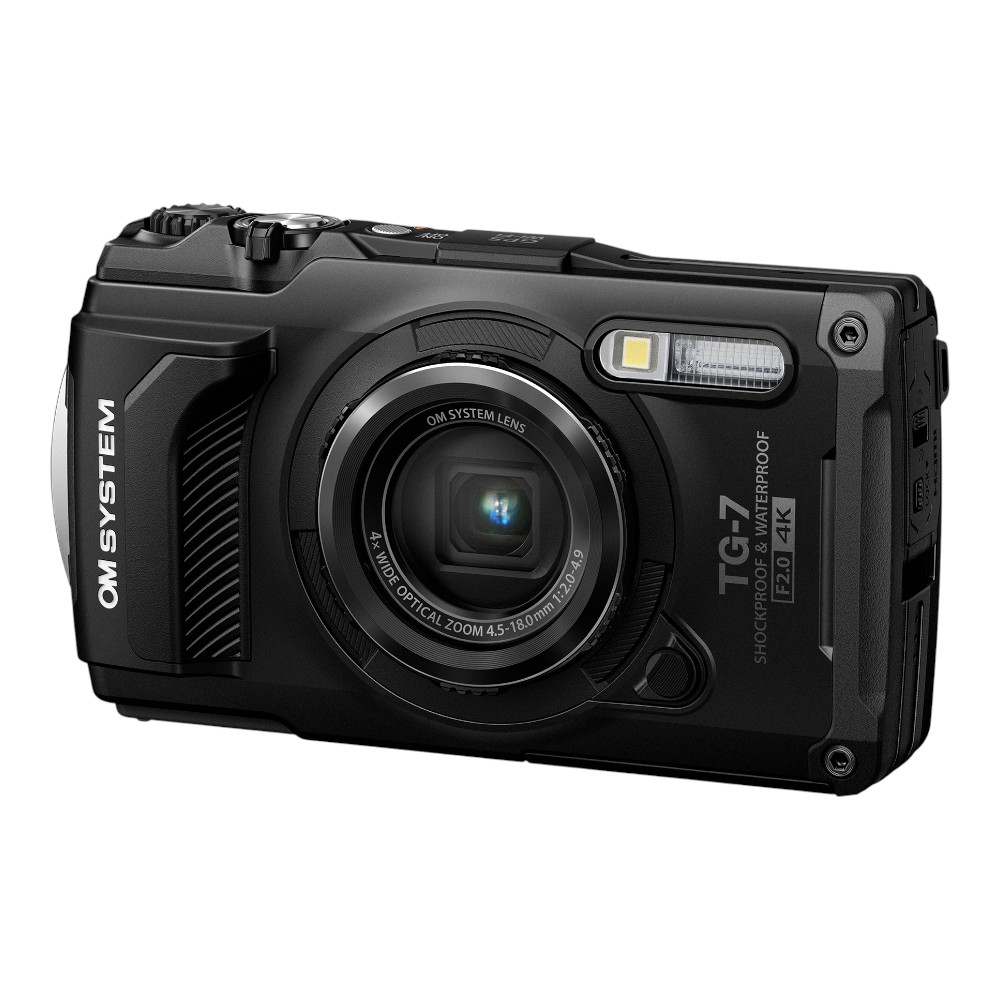
3. Release the power button once the camera is powered on.
4. Wait for the camera to initialize and display the main screen or viewfinder.
5. Your Canon digital camera is now powered on and ready to use.
Perform a soft reset
If your Canon digital camera is not responding or experiencing malfunctions, you can try performing a soft reset to resolve the issue. Here’s how you can do it:
- Turn off your camera.
- Remove the battery from the camera.
- Wait for about 30 seconds.
- Reinsert the battery back into the camera.
- Turn on the camera and check if the issue has been resolved.
Performing a soft reset can often help in resolving minor technical glitches or issues with the camera’s software. If the problem persists, you may need to contact Canon customer support for further assistance.

Check if the issue is resolved
After performing the restart on your Canon digital camera, check to see if the issue has been resolved. Turn on the camera and test its functionality to ensure that it is working properly.
If the problem persists, you may need to try other troubleshooting steps or contact Canon customer support for further assistance.
FAQ
How do I restart my Canon digital camera if it freezes?
If your Canon digital camera freezes, you can try restarting it by removing the battery and memory card, waiting for a few minutes, and then reinserting them. You can also try pressing and holding the power button for about 10 seconds to force a restart. If the issue persists, you may need to contact Canon customer support for further assistance.
What should I do if my Canon camera is not responding to any buttons?
If your Canon camera is not responding to any buttons, you can try restarting it by removing the battery and memory card, waiting for a few minutes, and then reinserting them. If that doesn’t work, you can also try connecting the camera to a computer or charger to see if it responds. If the issue persists, it may be a hardware problem, and you should contact Canon customer support for help.
Is it safe to restart my Canon digital camera frequently?
Restarting your Canon digital camera occasionally is generally safe and can help resolve minor issues like freezes or unresponsiveness. However, frequent restarts may not be necessary unless you are experiencing persistent problems with the camera. If you find yourself needing to restart your camera often, it may be a sign of a larger issue that requires professional attention.

Can restarting my Canon digital camera erase my photos?
Restarting your Canon digital camera should not erase your photos, as they are typically stored on the memory card or internal memory of the camera. However, it is always a good practice to regularly back up your photos to a computer or cloud storage to prevent accidental loss. If you are concerned about losing photos, you can remove the memory card before restarting the camera as an extra precaution.


Does removing the memory card while restarting really help? I’ve never tried that before.
What should I do if my Canon digital camera keeps freezing even after following the restart steps mentioned? Are there any other troubleshooting tips?